
howtosimply.com/guides/how-to-add-a-nothing-widget-to-the-home-screen/ · Checked October 2026 · 4a) Pro (A069P, EEA), Nothing OS 4.1, Android 16 (build FroggerPro-B4.1-260424-1447-EEA · Nothing Phone
In this guide
Touch and hold an empty part of the Home screen, tap Widgets, swipe to the Nothing widgets, tap one (we used Clock), then Add widget and choose a face. Hold the widget to resize, change settings or remove it.
5 of 5 steps with real screenshots · 2 official sources below
- Device
- Android
- Shown on
- Nothing Phone (4a) Pro (A069P, EEA), Nothing OS 4.1, Android 16 (build FroggerPro-B4.1-260424-1447-EEA)
- App
- Phone
- Real screenshots
- 5 of 5 steps
- Checked
- October 2026
- Sources
- 2 official, linked below
Step by step
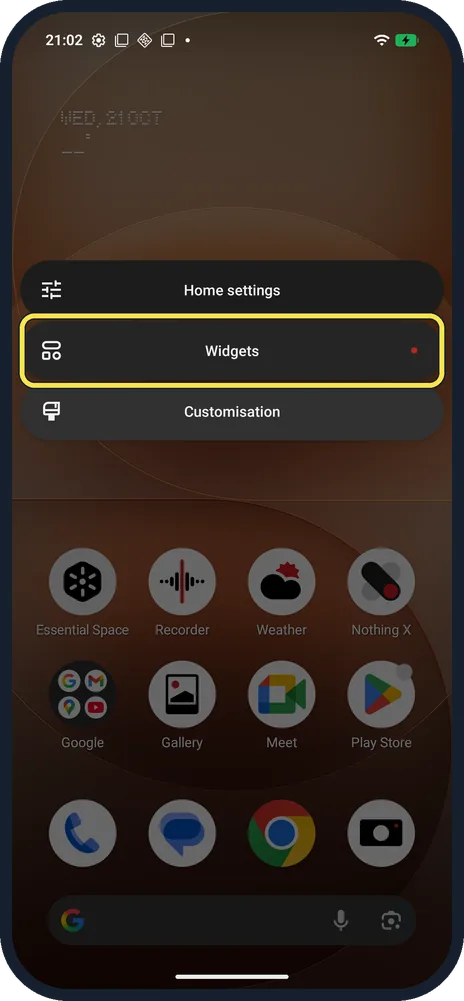
Tap Widgets
Touch and hold an empty part of the Home screen.
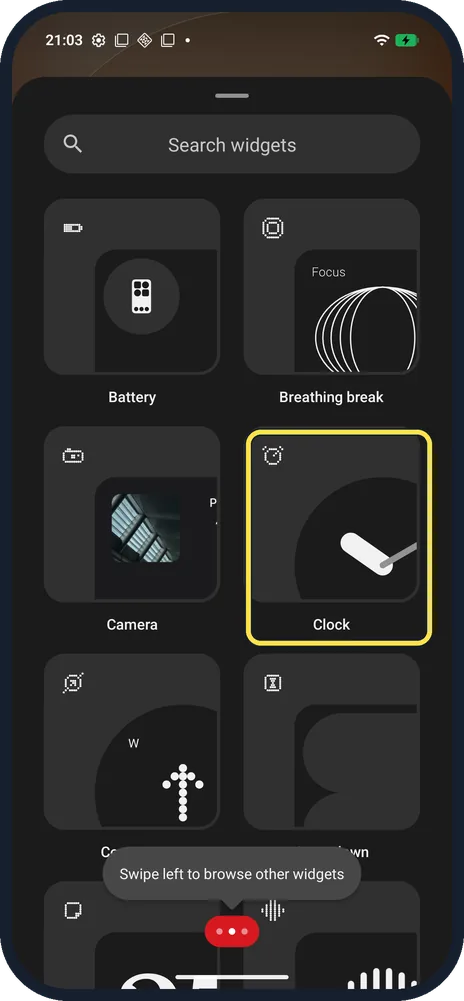
Tap Clock
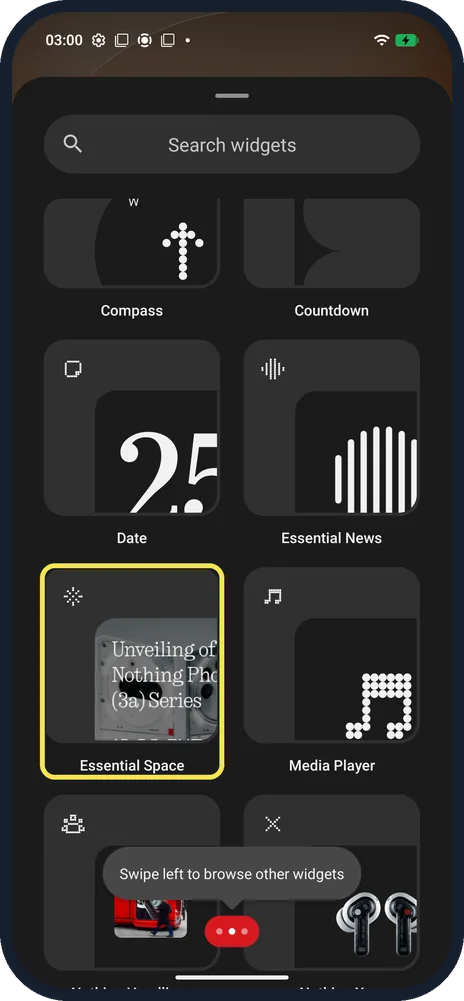
Swipe left to browse other widgets.
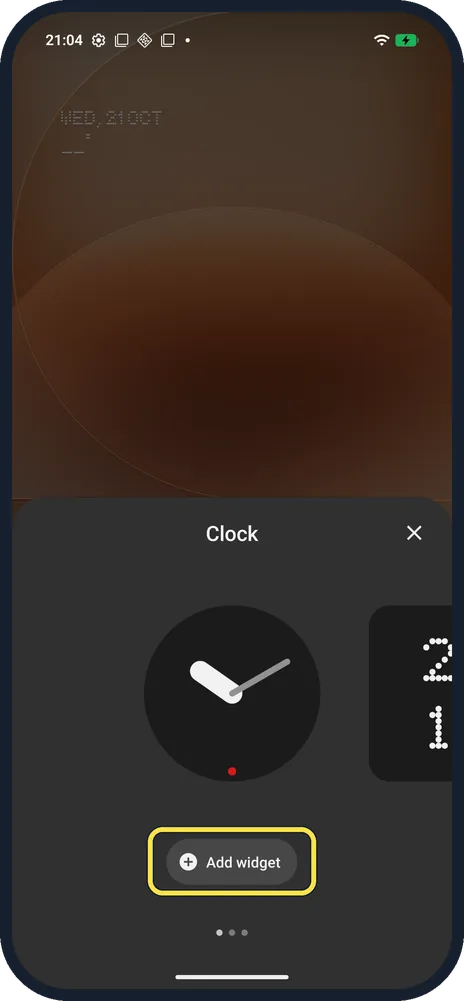
Tap Add widget
It sits at the bottom of the widget preview.
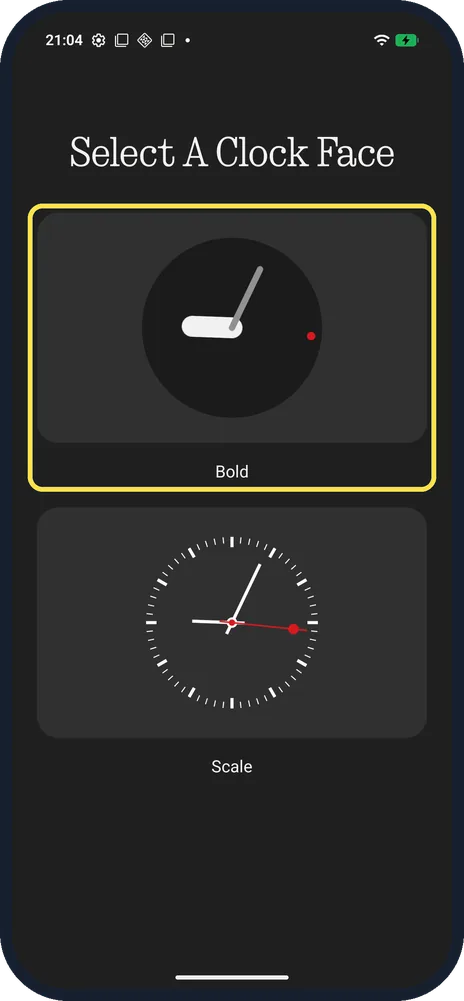
Choose a clock face
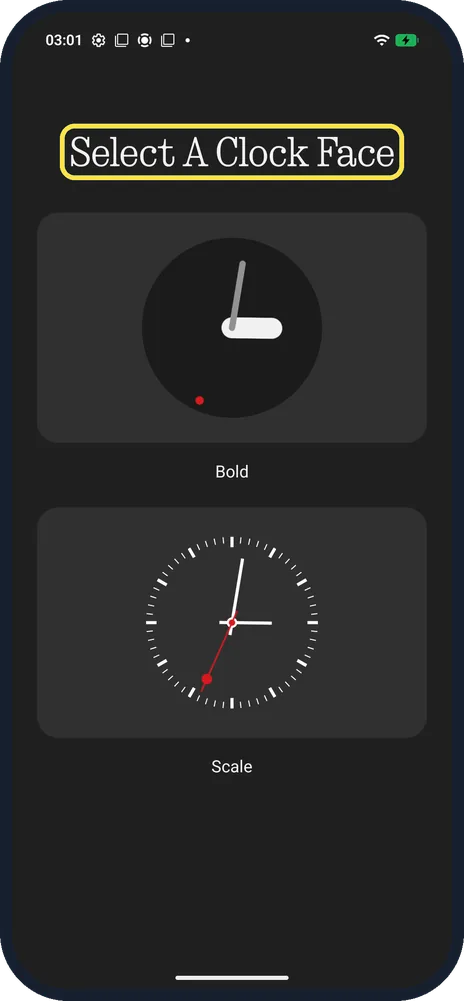
Select A Clock Face: Bold or Scale. We chose Bold.
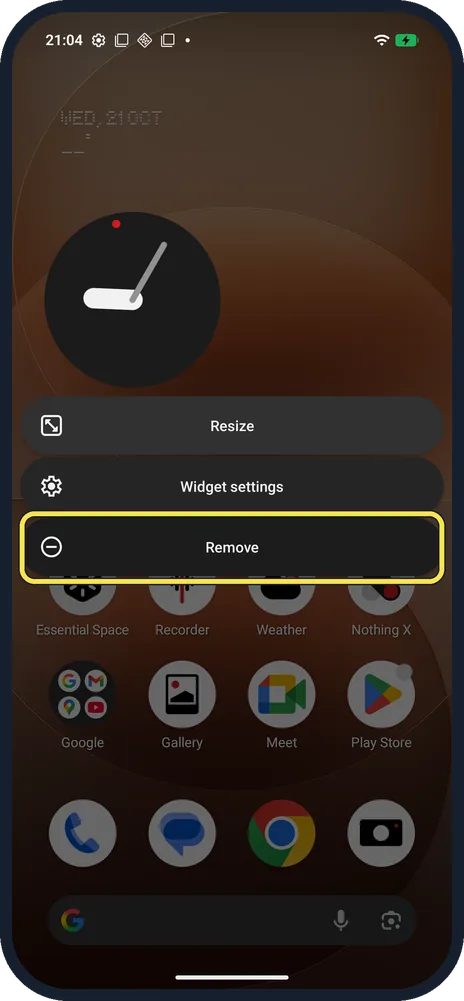
Resize or remove it
Hold to resize or change widget settings. Hold it for Resize, Widget settings or Remove.
If you do not see this option
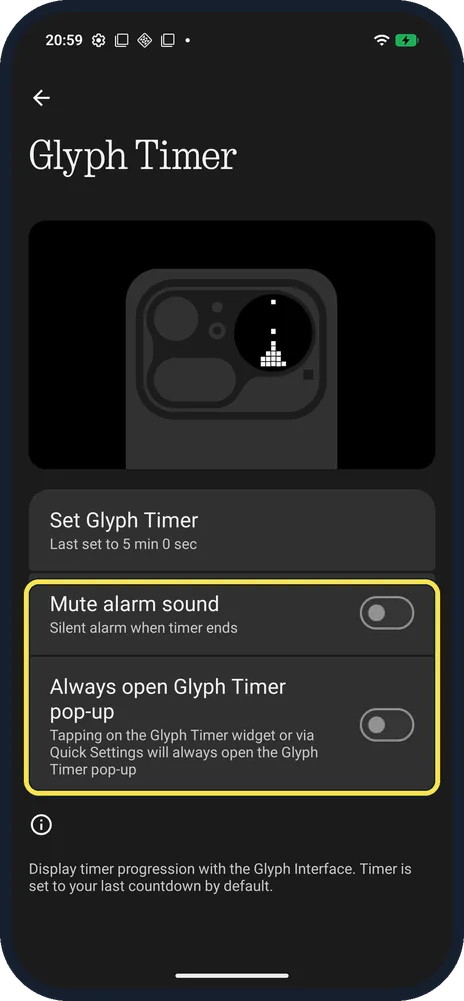
- Glyph Timer widget? The Glyph Timer page has Always open Glyph Timer pop-up: with it on, the widget and Quick Settings tile always open the pop-up. See Glyph Timer.
- Widget settings for the clock? On ours, Widget settings reopened Select A Clock Face with Bold and Scale.
- More Nothing widgets? Scroll down the Nothing widget list: further down, ours had Compass, Countdown, Date, Essential News, Essential Space and Media Player. A hint says swipe left to browse other widgets.
If this does not work
- Widget won't fit? Move icons or use a smaller size. Source: Add apps, shortcuts and widgets to your Home screens
- Widget keeps moving or vanishing? Nothing suggests turning on Freeze home screen layout in Home settings to lock icons and widgets in place. Source: An app icon has disappeared from the home screen. What can I do?
About this guide
Nothing OS 4.1 has its own widget library: Battery, Breathing break, Camera, Clock, Compass, Countdown, Date, Essential News, Essential Space, Media Player, Nothing Headlines, Nothing X, Pedometer, Photos, Quick Look, Quick Settings, Recorder, Screen Time and Weather on our (4a) Pro.
The screenshots are from our Nothing Phone (4a) Pro, the European model A069P, with Nothing OS 4.1 and Android 16 (build FroggerPro-B4.1-260424-1447-EEA), in Dark theme. We added a Clock widget and removed it again.
Good to know
To match the icons, see icon pack.
To sort your apps, see Smart App Drawer.
In short: Hold the Home screen, Widgets, pick a Nothing widget, Add widget.
- Google Android Help: Add apps, shortcuts and widgets to your Home screens
- Nothing Support: An app icon has disappeared from the home screen. What can I do?
Links checked in October 2026. Menus and features can change after software updates. These steps match the version named at the top.
Did this guide work for you?
Sorry about that. What happened?