
howtosimply.com/guides/green-dot-on-a-samsung-galaxy-what-it-means/ · Checked October 2026 · Samsung Galaxy A57 (One UI 9, Android 17 (build A576BXXU6BZIE)) and Samsung Galaxy A57 5G (One UI 8.5, Android 16)
In this guide
The green dot at the top right means an app is using the camera or microphone right now. Swipe down to see which app. To check the last 24 hours, open Settings, Security and privacy, and look at Permissions used in last 24 hours.
5 of 5 steps with real screenshots · 2 official sources below
- Device
- Android
- Shown on
- Samsung Galaxy A57 (SM-A576B), One UI 9, Android 17 (build A576BXXU6BZIE), Samsung Galaxy A57 5G (SM-A576B), One UI 8.5, Android 16
- Starts in
- Quick Settings
- Real screenshots
- 5 of 5 steps
- What we did
- Observed: looked at each screen, changed nothing
- Our phone
- Shown on Galaxy A57, One UI 8.5
- Checked
- October 2026
- Sources
- 2 official, linked below
Step by step
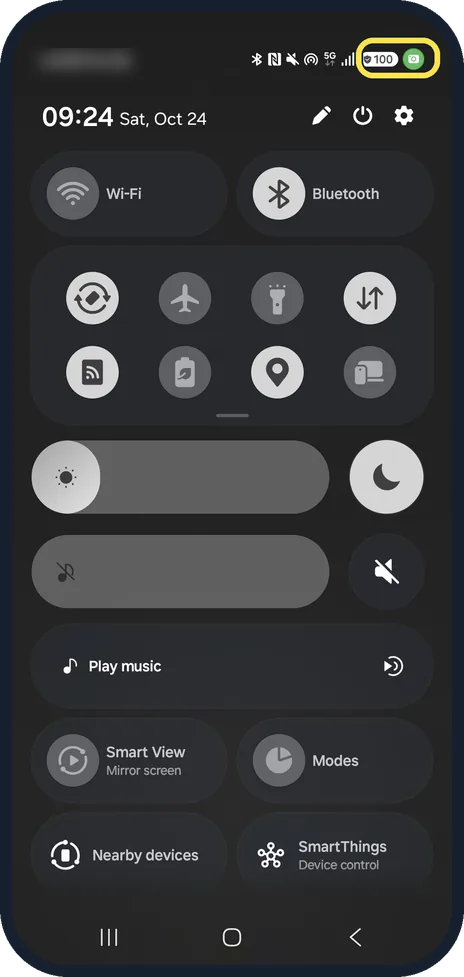
See which app is using it
Swipe down from the top while the dot shows. With the Camera app open, our quick panel showed a green camera icon at the top right. Tap it.
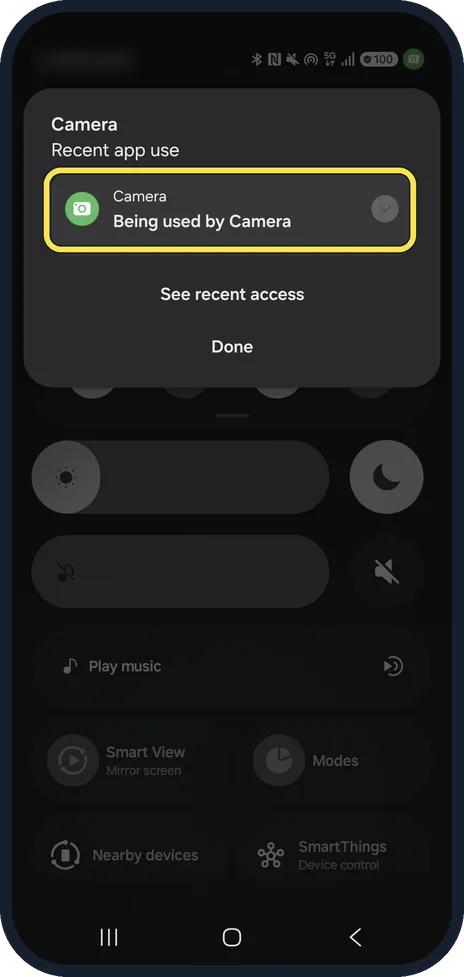
Read the app name
A card opens with the app name. Ours read Camera, Recent app use, Camera, Being used by Camera, with See recent access and Done below.
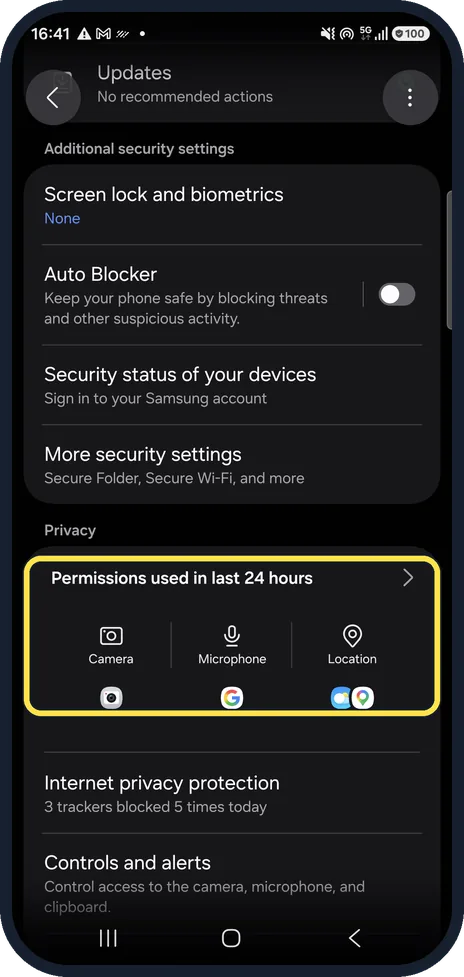
Open Security and privacy
Settings, Security and privacy, then scroll down to the Privacy section. Under Privacy, Permissions used in last 24 hours shows Camera, Microphone and Location. On ours, each of the three showed the icon of an app that had used it.
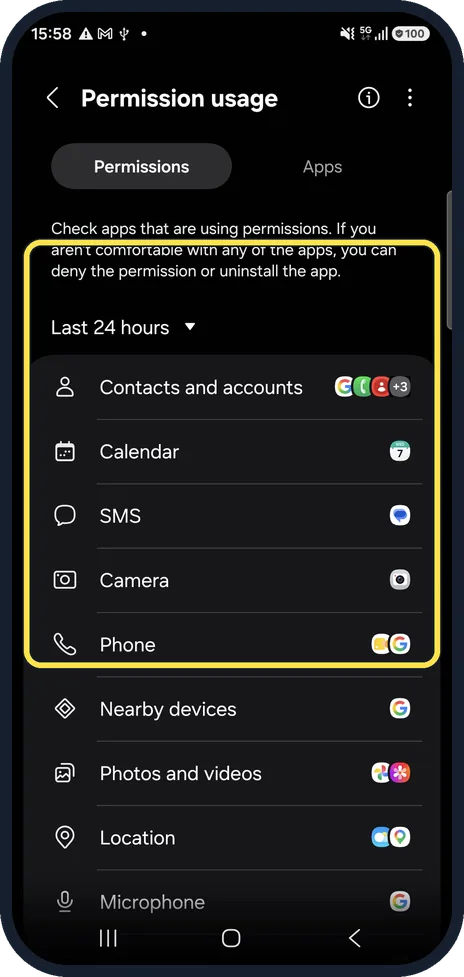
See every app and permission
Tap the row to open Permission usage. Pick Last 24 hours and tap a permission to see which apps used it and when.
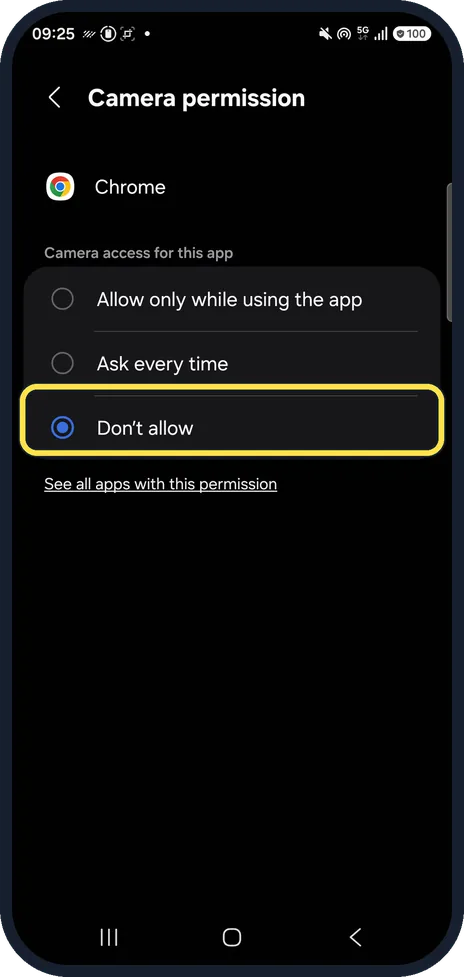
Take a permission away
Tap the app you do not trust, open its Camera or Microphone permission and choose Don't allow, or uninstall the app. The picture shows Chrome's Camera permission set to Don't allow, with Allow only while using the app and Ask every time above it.
If you do not see this option
- Your phone has an older One UI Samsung says the camera and microphone indicator is only on Galaxy phones with Android 12 or later. On older software there is no dot to look for. Source: Green camera & microphone icon appearing on my Galaxy phone
- There is no Permissions used in last 24 hours Samsung also lists the apps allowed to use the camera or microphone under Settings, Apps, More options, Permission manager. Older software puts it under Settings, Privacy, Permission manager. Sources: Green camera & microphone icon appearing on my Galaxy phone, What does the green dot at the top of my Galaxy phone mean?
If this does not work
- The dot stays on and you do not know why Samsung says that after a few seconds the icon shrinks to just a green dot. Swipe down with two fingers and tap the dot or the pop-up message to see the app, then choose its Camera or Microphone permission. Sources: Green camera & microphone icon appearing on my Galaxy phone, What does the green dot at the top of my Galaxy phone mean?
- You want to block every app for a while Samsung says the quick panel has controls that temporarily block all apps from using the camera or microphone. Settings, Privacy, Camera access and Microphone access do the same on older software. Sources: Green camera & microphone icon appearing on my Galaxy phone, What does the green dot at the top of my Galaxy phone mean?
- An app you do not know keeps using the microphone Open that app's Microphone permission and choose Don't allow, as in step 5, or uninstall the app. Samsung lists the apps allowed to use the microphone under Settings, Apps, More options, Permission manager. Source: Green camera & microphone icon appearing on my Galaxy phone
About this guide
The dot is a privacy indicator from Android, not a fault. It is normal while you use the camera, a voice assistant, a call or voice typing.
Steps 1, 2 and 5 are from the same phone after its One UI 9 update (Android 17).
Good to know
App permissions in general: Settings, Apps, the app, Permissions.
In short: Green dot = camera or mic in use; swipe down to see the app; Settings, Security and privacy, Permissions used in last 24 hours.
- Samsung AE: What does the green dot at the top of my Galaxy phone mean?
- Samsung AU: Green camera & microphone icon appearing on my Galaxy phone
Links checked in October 2026. Menus and features can change after software updates. These steps match the version named at the top.
📷 See real photos from the Galaxy A57 in our Camera Lab, next to 10 other phones.
Did this guide work for you?
Sorry about that. What happened?