
howtosimply.com/guides/how-to-add-a-keyboard-language-on-android/ · Checked October 2026 · build CP3A.261005.005 · Google Pixel 10a, Android 17
In this guide
Open Gboard settings (Settings, System, Keyboard, Keyboard apps, Gboard), tap Languages, then Add keyboard. Pick the language, choose a layout and tap Done. The space bar then shows both languages, for example EN • DE; tap the language key to switch.
7 of 7 steps with real screenshots · 1 official source below
- Device
- Android
- Shown on
- Google Pixel 10a, Android 17 (build CP3A.261005.005)
- App
- Settings
- Path
- Settings › System › Keyboard › Keyboard apps › Gboard › Languages › Add keyboard
- Real screenshots
- 7 of 7 steps
- Checked
- October 2026
- Sources
- 1 official, linked below
Step by step
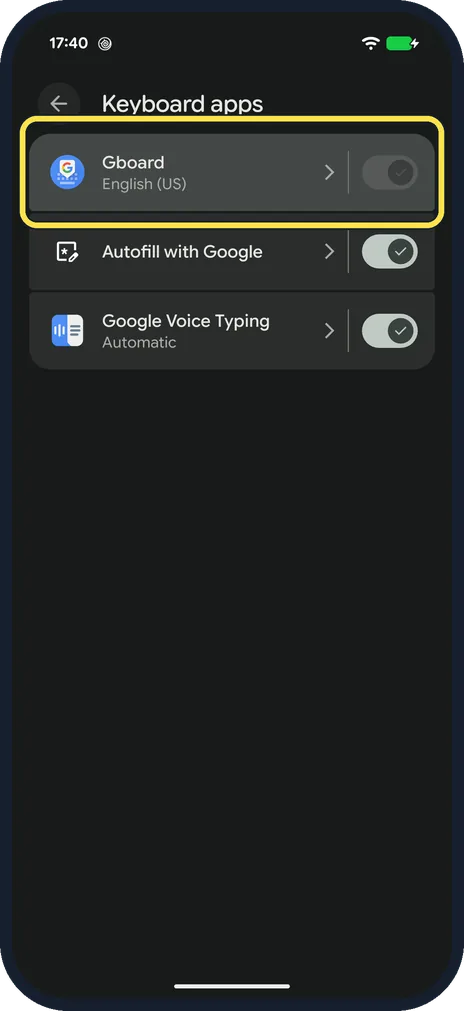
Open Gboard settings
On a Pixel: Settings, System, Keyboard, Keyboard apps, then Gboard. Or search Settings for "Gboard". On the Redmi: Settings, Additional settings, Languages and input, Manage keyboards, Gboard.
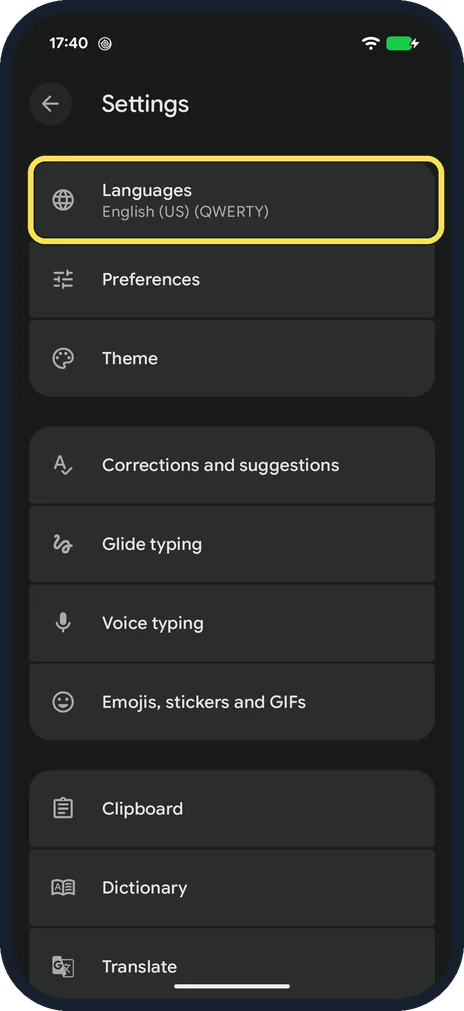
Tap Languages
It shows your current language and layout; ours was English (US) (QWERTY).
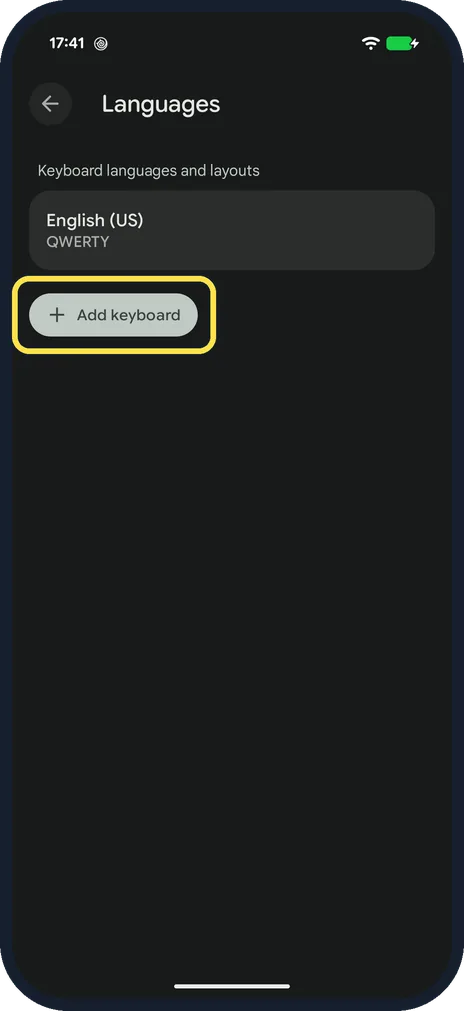
Tap Add keyboard
It is under your current languages.
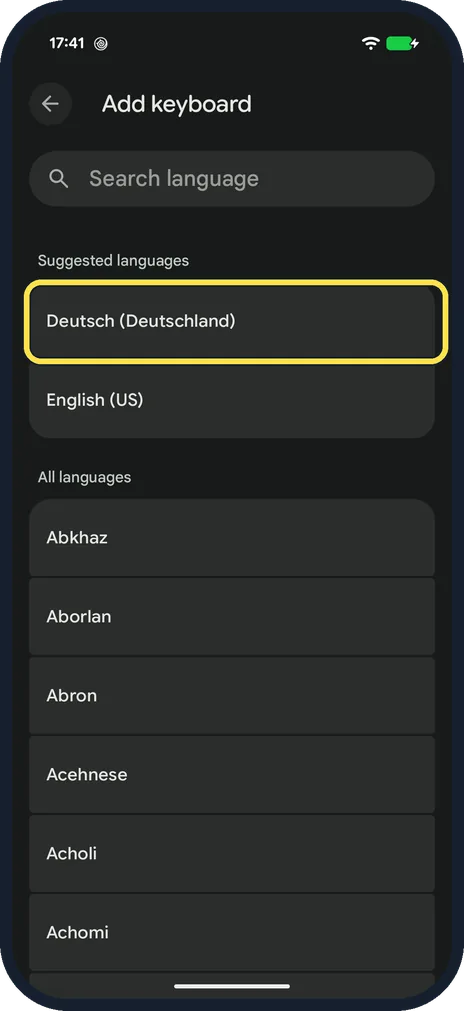
Pick the language
Use Search language or the list. Suggested languages come first; ours suggested Deutsch (Deutschland).
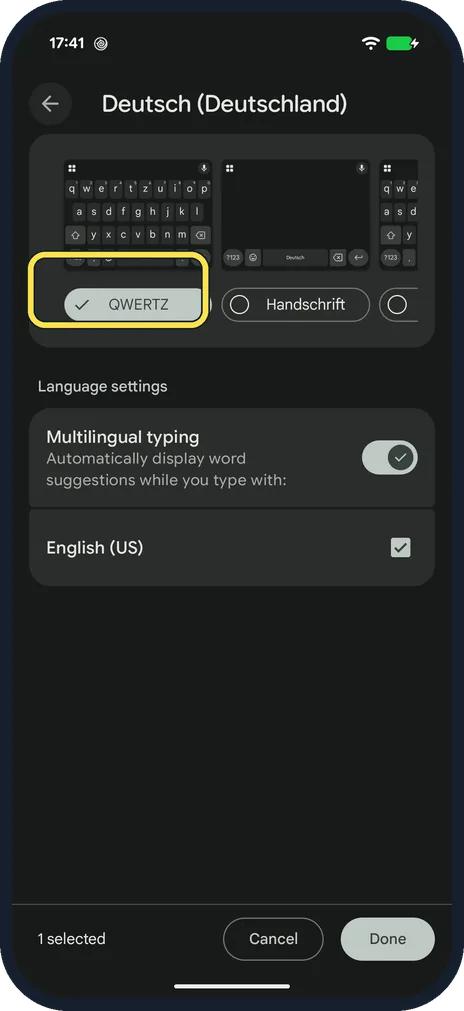
Choose a layout
Swipe through the layouts. German offered QWERTZ and Handschrift (handwriting); QWERTZ was picked. Multilingual typing was On, so Gboard suggests words in both languages.
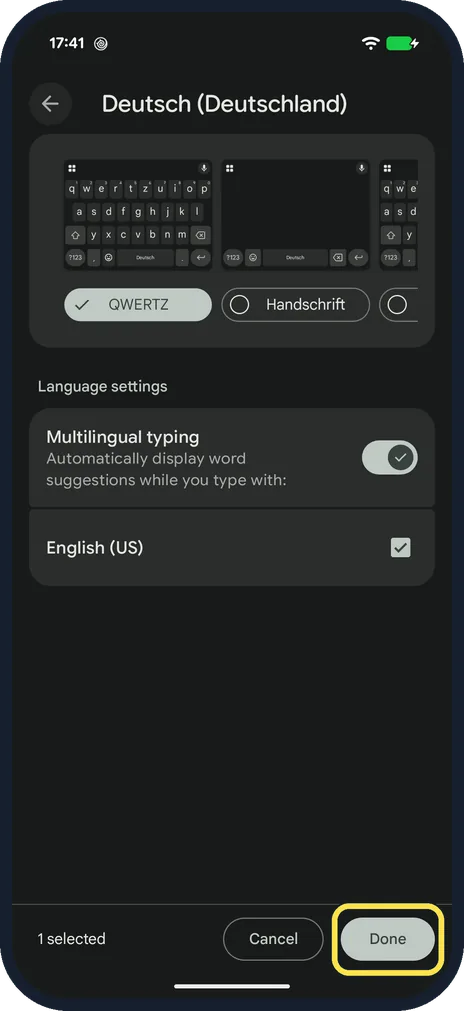
Tap Done
The language appears in your Languages list.
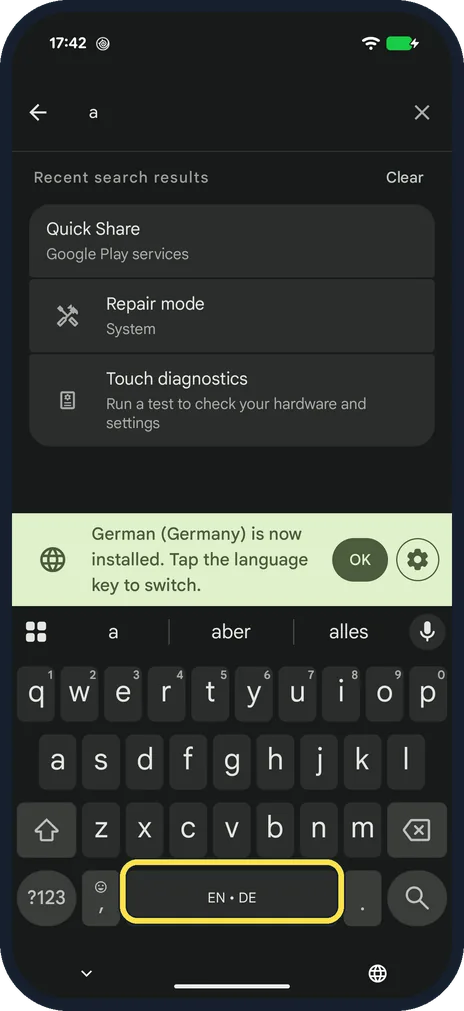
Switch language on the keyboard
Open the keyboard. Ours said "German (Germany) is now installed. Tap the language key to switch" and the space bar read EN • DE. The Redmi showed EN • DE too, and had a globe key as well.
If you do not see this option
- No Gboard in Keyboard apps? Your phone uses another keyboard. Samsung phones use Samsung Keyboard; install Gboard from the Play Store if you want these steps. Source: Type in a different language
- Language not suggested? Type its name in Search language at the top of Add keyboard. Source: Type in a different language
If this does not work
- Remove a language again? In Languages, tap EDIT, tick the language and tap REMOVE. Ours went back to English (US) only. Source: Type in a different language
- Suggestions in the wrong language? Switch Multilingual typing off on that language's page (step 5) to type one language at a time. Source: Type in a different language
About this guide
Gboard can hold several languages at once and switch between them on the space bar. Pixels use Gboard, and so does our Redmi Note 15 Pro 5G (HyperOS 3.0.308.0, Android 16).
The screenshots are from our Google Pixel 10a with Android 17 (build CP3A.261005.005), in Dark mode, taken on 18 October 2026. We added German (Deutsch) and removed it again.
Good to know
More Gboard settings: change Gboard settings on a Google Pixel or on a Xiaomi phone.
In short: Gboard settings, Languages, Add keyboard, pick a language and layout, Done. Tap the language key or the space bar to switch.
Links checked in October 2026. Menus and features can change after software updates. These steps match the version named at the top.
Did this guide work for you?
Sorry about that. What happened?