
howtosimply.com/guides/how-to-change-font-size-on-an-honor-phone/ · Checked October 2026 · BRP-NX1M, EEA), MagicOS 10.0, Android 16 (build 10.0.0.169(C430E7R2P1) · HONOR Magic7 Lite
In this guide
Open Settings, Display & brightness, scroll to Fonts and drag the TEXT SIZE slider. For bigger buttons and icons too, tap Display size and drag that slider.
3 of 3 steps with real screenshots · 2 official sources below
- Device
- Android
- Shown on
- HONOR Magic7 Lite (BRP-NX1M, EEA), MagicOS 10.0, Android 16 (build 10.0.0.169(C430E7R2P1))
- App
- Settings
- Path
- Settings › Display & brightness
- Real screenshots
- 3 of 3 steps
- Checked
- October 2026
- Sources
- 2 official, linked below
Step by step
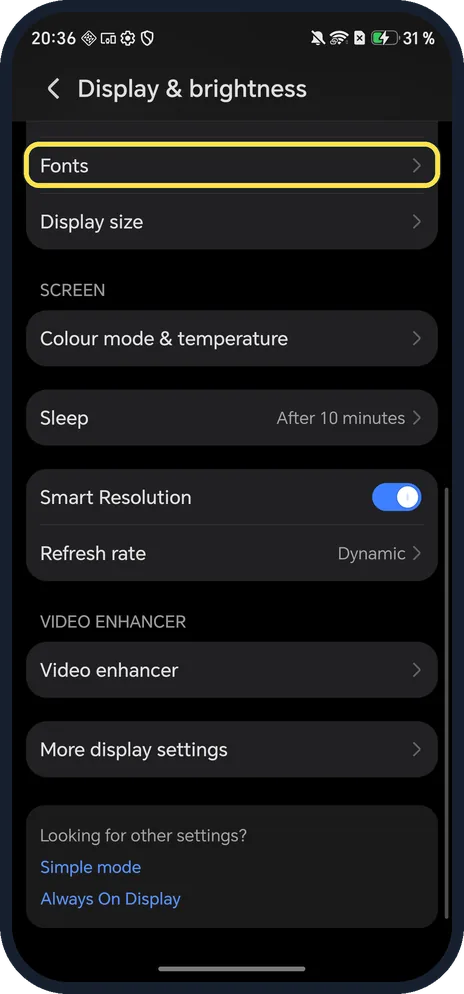
Tap Fonts
Open Settings, Display & brightness and scroll to TEXT & DISPLAY SIZE. Tap Fonts.
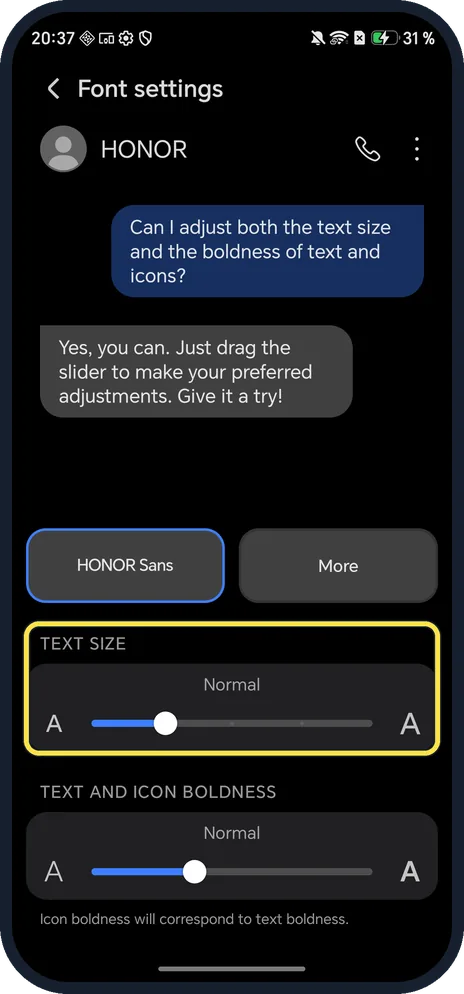
Drag TEXT SIZE
The chat preview at the top grows as you drag right. The slider below sets text and icon boldness.
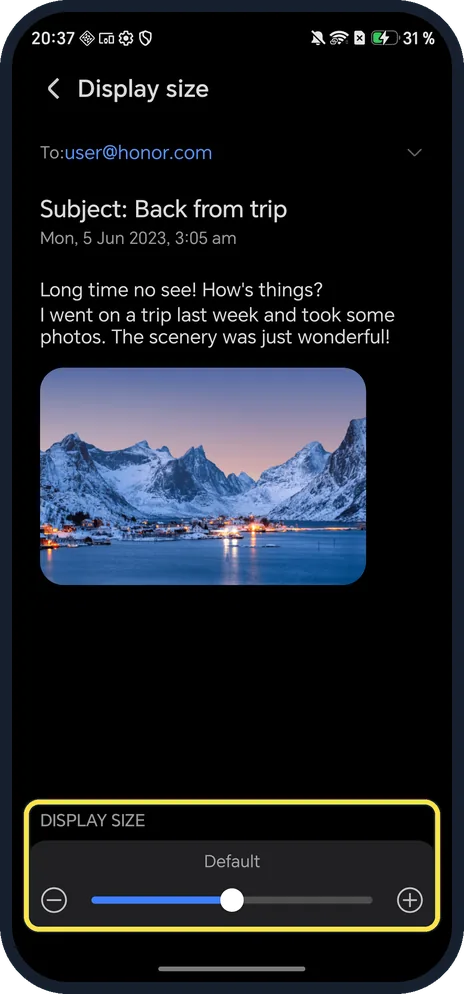
Change Display size for everything
Back on Display & brightness, tap Display size and drag the slider. The email preview shows the result.
If you do not see this option
- No Fonts row? HONOR's guide also gives Settings, Display & brightness, Text size & boldness for the sliders, and older phones use Text & Display Size. Source: Adjust Font · Source: How to change the Text Size
- Want a different typeface? Font settings shows HONOR Sans and More. HONOR says fonts download over the internet and some must be bought; we did not download one. Source: Adjust Font
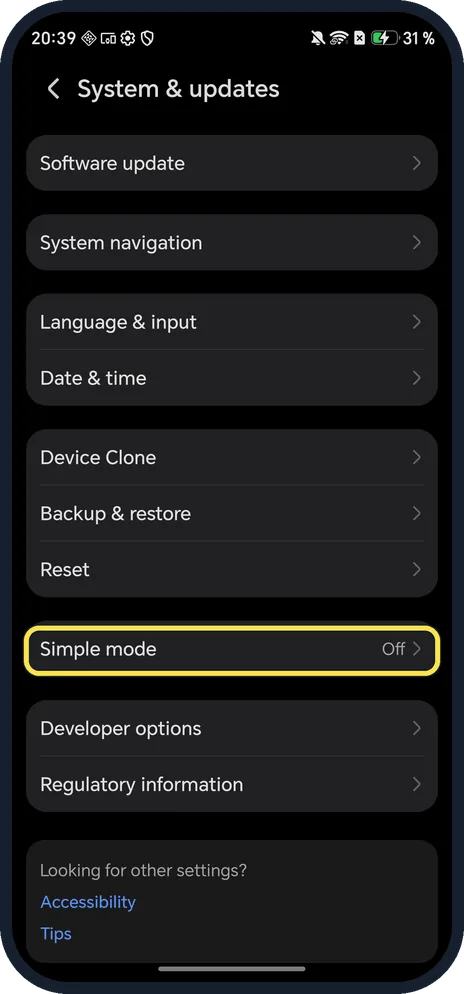
- Prefer everything bigger and simpler? Simple mode, in Settings, System & updates, gives larger icons and text. It was off on ours and we did not switch it on.
If this does not work
- Text still small at the largest size? HONOR says a downloaded font may be designed small and won't grow further; switch back to the default font. Source: How to change the Text Size
- Buttons and icons too small? HONOR says Display size changes pictures and other elements, not just text. Source: Adjust Font
About this guide
The screenshots are from our HONOR Magic7 Lite, the European model BRP-NX1M, with MagicOS 10.0 and Android 16 (build 10.0.0.169(C430E7R2P1)), in Dark mode. Both sliders were at their defaults (Normal and Default).
Good to know
To make the screen easier on your eyes at night, turn on Dark mode.
To change how you go back and home, switch between gestures and three keys.
In short: Settings, Display & brightness, Fonts (text) or Display size (everything).
Links checked in October 2026. Menus and features can change after software updates. These steps match the version named at the top.
Did this guide work for you?
Sorry about that. What happened?