ONEPLUS
How to change screen colour and refresh rate on a OnePlus (OxygenOS 16)

In short
Go to Settings, Display & brightness, Screen colour mode and choose Vivid, Natural or Pro modes. For smoothness, go to Settings, Display & brightness, Screen refresh rate: Auto-select, Standard (up to 60 Hz) or High (up to 144 Hz on the Nord 5).
5 of 5 steps show a real screenshot from our Nord 5. Each step was checked against the maker's own instructions, linked at the end.
Steps
- 1
Open Screen colour mode
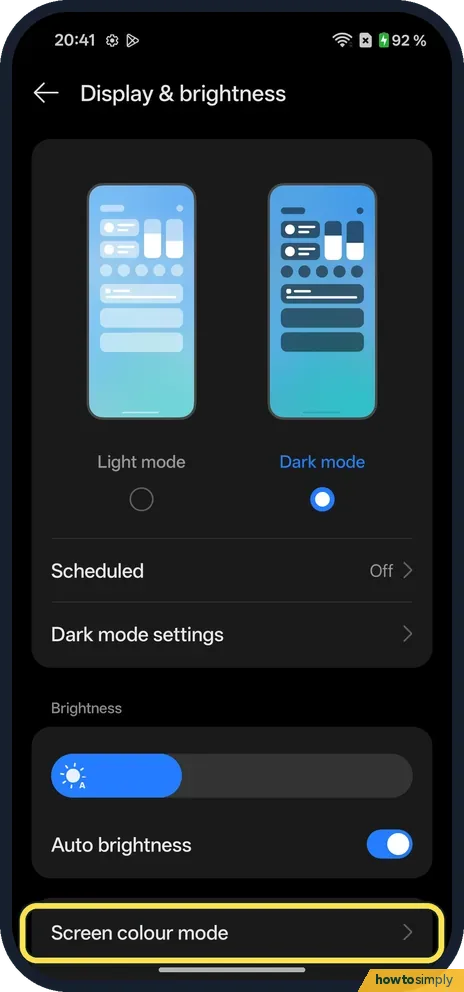
Go to Settings, Display & brightness. Scroll down and tap Screen colour mode.
- 2
Choose a colour mode
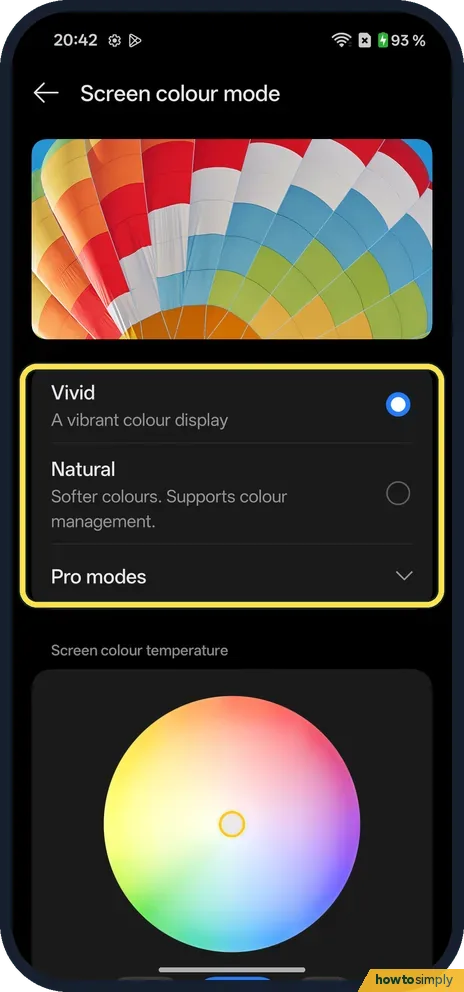
Vivid is a vibrant colour display and was selected on ours. Natural gives softer colours and supports colour management. Pro modes has more options.
- 3
Adjust the colour temperature
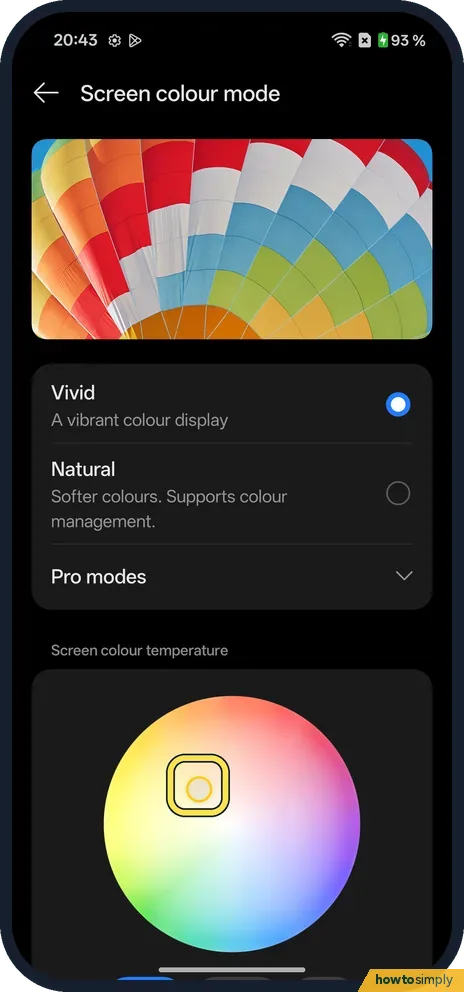
Under Screen colour temperature, drag the small circle on the wheel to make the screen warmer or cooler.
- 4
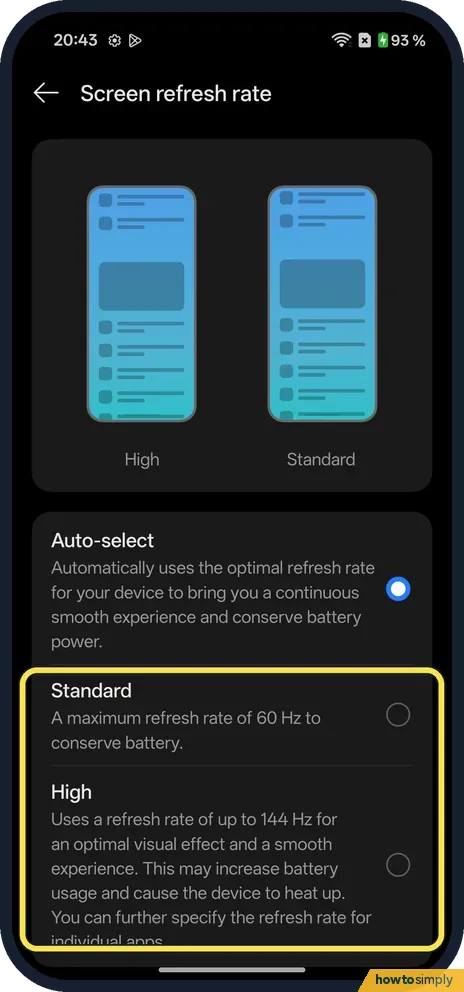
Choose a refresh rate
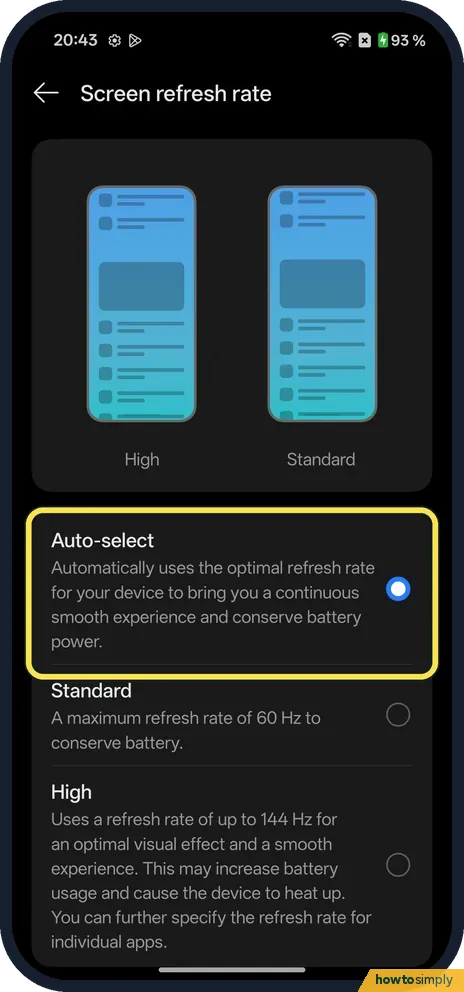
Back on Display & brightness, tap Screen refresh rate. Auto-select was selected on ours. It automatically uses the optimal refresh rate to keep things smooth and save battery.
- 5
Or fix it at 60 or 144 Hz
Standard is a maximum of 60 Hz to save battery. High uses up to 144 Hz; the page warns it may increase battery use and cause the device to heat up.
If you do not see this option
- Refresh rate for one app? The High option says you can further specify the refresh rate for individual apps. OnePlus's OxygenOS 14 manual calls this App-specific refresh rate, with 60, 90 or 120 Hz on the phones it covers. Source: OxygenOS 14.0 User Manual
- Pro modes? Tap Pro modes on Screen colour mode to open more options. It was collapsed on ours.
- 144 Hz on other OnePlus phones? OnePlus lists 144 Hz for the Nord 5. Other models may top out lower. Source: OnePlus Nord 5
If this does not work
- Colours look too strong? Choose Natural.
- Battery drains fast? Choose Auto-select or Standard. See also power saving mode on a OnePlus.
- Screen too dark at night? See Dark mode and its styles.
- Colours look different in photos you share? Vivid boosts colours on your own screen only. The person you send a photo to sees it on their screen, which may look less saturated.
- Screen looks yellow or blue? Check the colour temperature wheel on Screen colour mode, and also Eye Comfort, which warms the screen to reduce blue light: see Eye Comfort on a OnePlus.
Good to know
Save battery: power saving mode on a OnePlus.
The OxygenOS 14 manual explains the trade-off plainly: a higher refresh rate gives a smoother image and better control, which helps in games, but drains the battery faster, while a standard refresh rate is more than capable for everyday use with better battery life.
To undo, return to Screen colour mode and choose Vivid, the mode selected on ours, and set Screen refresh rate back to Auto-select. The OxygenOS 14 manual also describes a Screen resolution setting on some models, where a lower resolution saves power at the cost of sharpness. If battery life is your main concern, refresh rate is usually the bigger lever, alongside screen brightness.
About this guide
- Device
- Android
- Shown on
- OnePlus Nord 5 (CPH2709), OxygenOS 16.0.5.1201, Android 16
- App
- Settings
- Path
- Settings › Display & brightness
- Real screenshots
- 5 of 5 steps
- Checked
- October 2026
- Sources
- 2 official, linked below
Sources
Links checked October 2026. Menus and features can change with updates.Spotted a mistake? Menus change with updates, and we want every step to match your screen. Email us about this page or use the contact form. We read every report, and fixes are listed on What changed.
Liked this guide?
Follow us for new guides and short how-to videos.
Did this guide work for you?
Sorry about that. What happened?