
howtosimply.com/guides/how-to-add-a-second-user-or-a-guest-on-android/ · Checked October 2026 · Google Pixel 10a (Android 17 (build CP3A.260905.009)) and Samsung Galaxy A57 5G (One UI 8.5, Android 16)
In this guide
Open Settings, tap System, then Users. Tap Add user to give someone their own space, or Add guest and then Switch to Guest to lend the phone briefly. Switch users from the user icon in Quick Settings.
If you do not see this option
- Multiple users is not listed On our Pixel 10a the menu is called Users and sits under System management on the System page.
- Allow multiple users is not listed On our Pixel 10a the switch at the top of the Users page is called Allow user switch.
- No user icon in Quick Settings Swipe down a second time to open the full panel. On our Pixel 10a the user icon sits at the bottom right, beside the settings cog and the power button.
- No Users on a Samsung Galaxy Our Galaxy A57 offers neither a second user nor a guest (step 8). This is what we saw on our A57, not a rule for every Galaxy.
8 of 8 steps with real screenshots · 1 official source below
- Device
- Android
- Shown on
- Google Pixel 10a, Android 17 (build CP3A.260905.009), Samsung Galaxy A57 5G (SM-A576B), One UI 8.5, Android 16
- App
- Settings
- Path
- Settings › System › Users
- Real screenshots
- 8 of 8 steps
- Checked
- October 2026
- Sources
- 1 official, linked below
Step by step
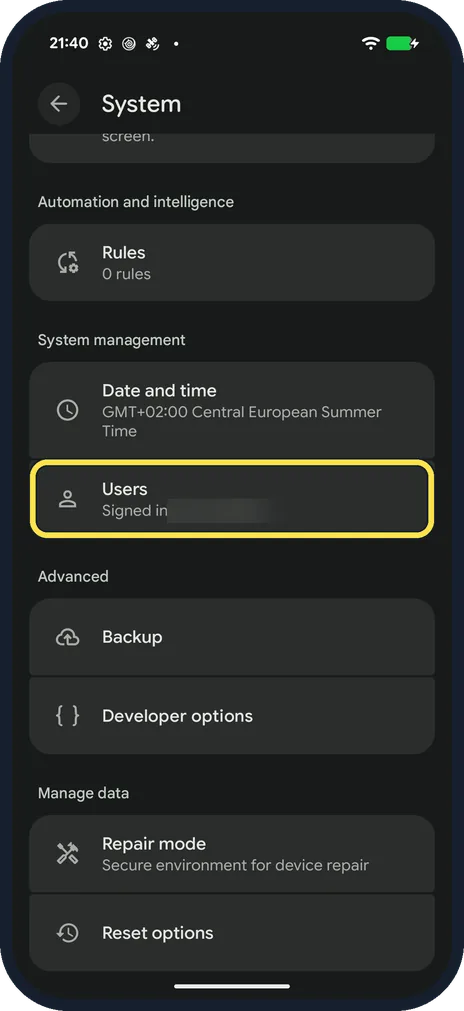
Open Settings, System, Users
Open Settings and tap System, then scroll down and tap Users.
On our Pixel 10a, Users sits under System management, below Date and time.
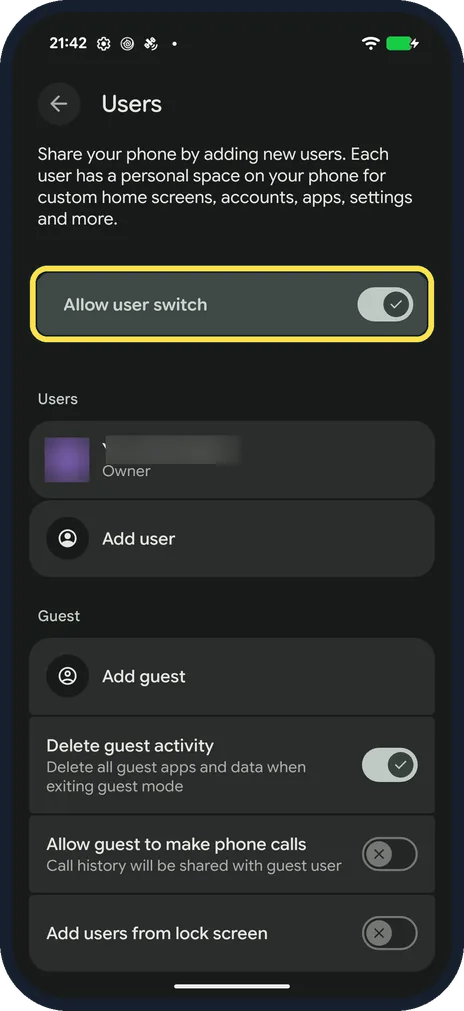
Switch on Allow user switch
The switch is at the top of the Users page.
On our Pixel 10a, Add user and Add guest were shown even with the switch off.
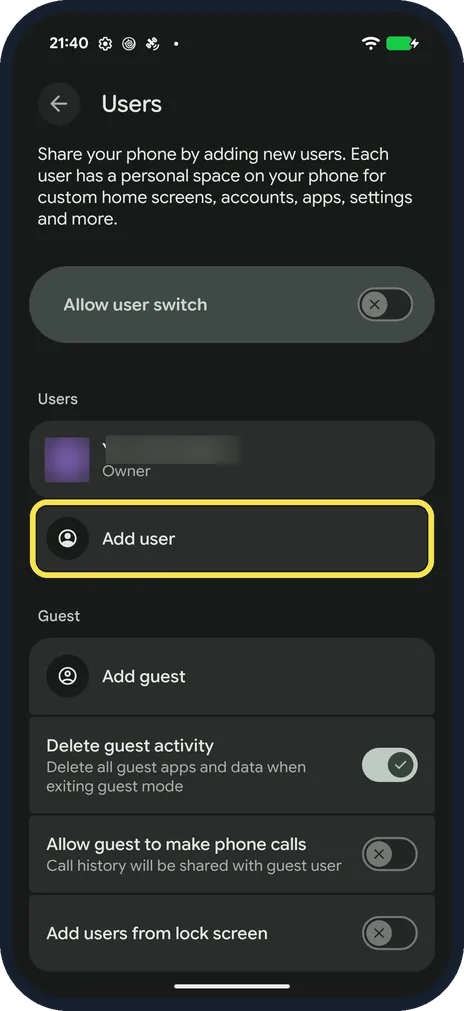
Tap Add user
Add user is below the owner in the Users list.
Google's Pixel Help says the new person then sets up their space with a Google Account of their own, like a new phone.
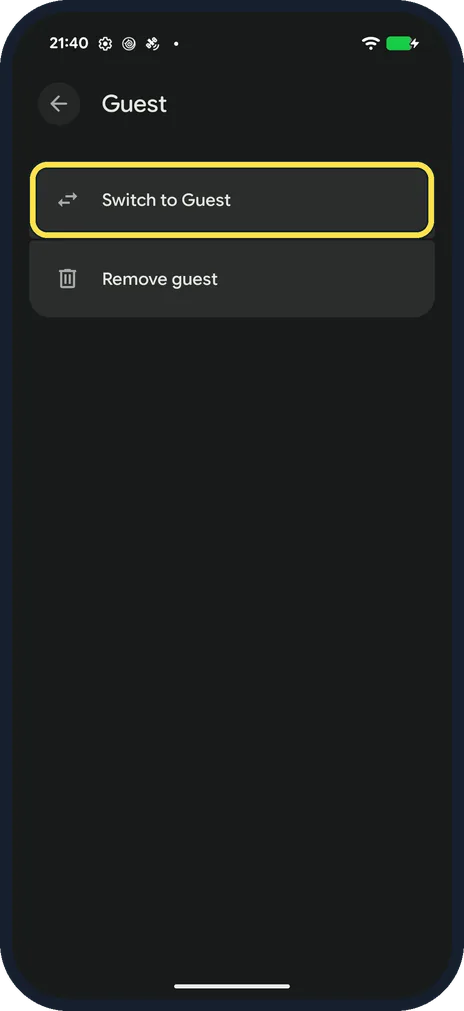
Add a guest and switch to it
To lend the phone briefly, tap Add guest on the Users page.
On the Guest page, tap Switch to Guest. A Switching to Guest… screen appears while the phone changes over.
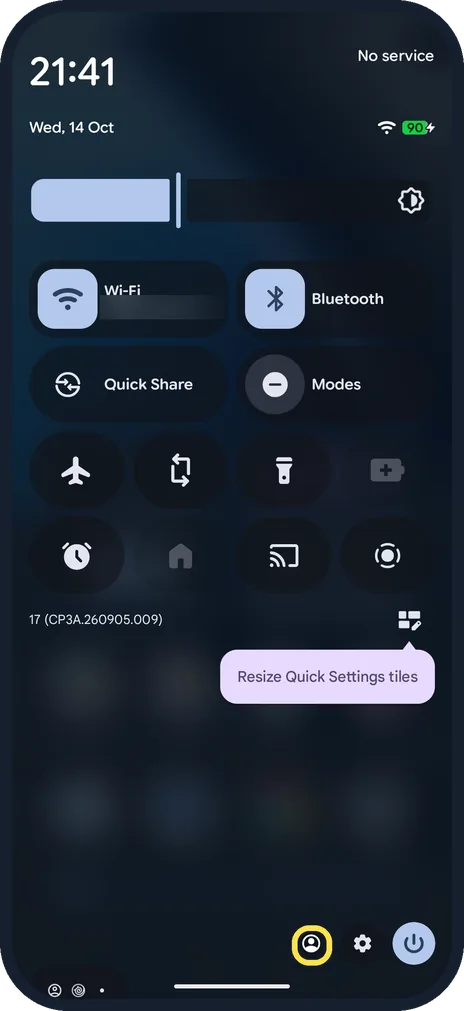
Open the user icon
Swipe down twice from the top of the screen.
Tap the user icon at the bottom right, next to the settings cog.
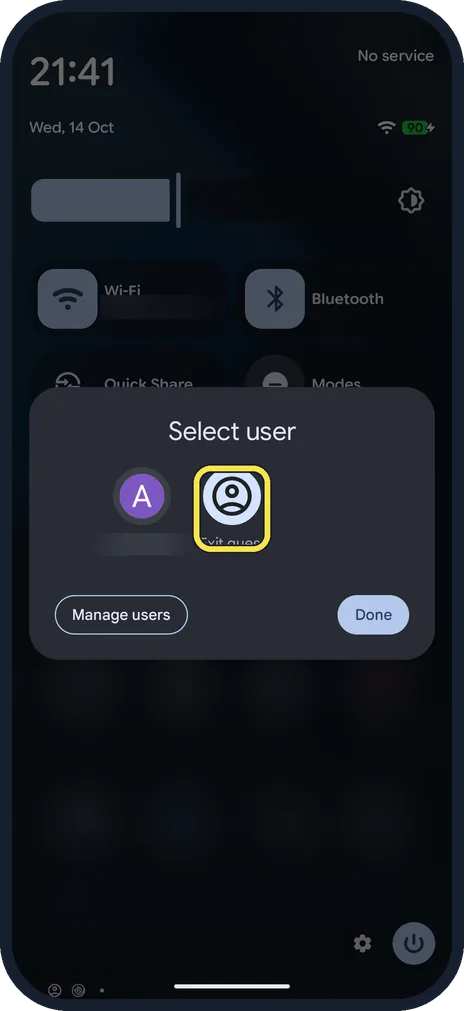
Tap Exit guest
The Select user sheet opens. Tap Exit guest to go back, or tap another user to switch to them.
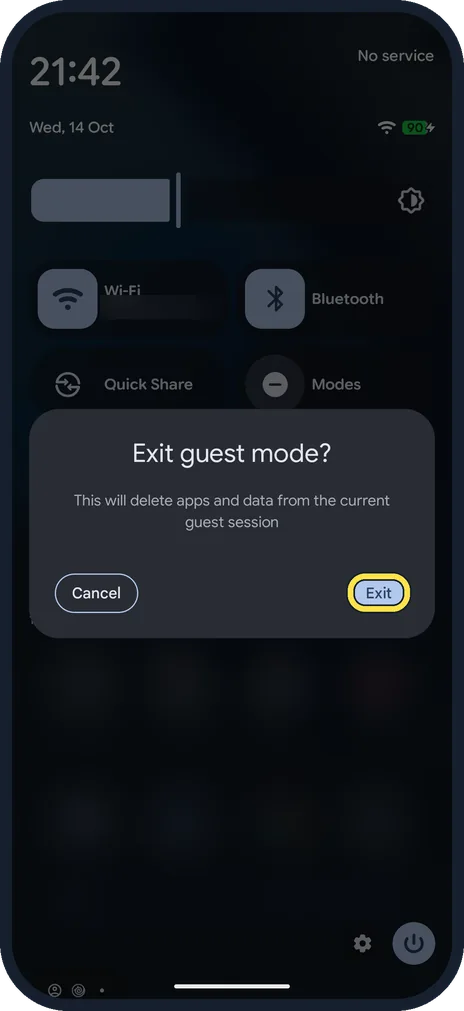
Tap Exit
Exit guest mode? warns that this will delete apps and data from the current guest session. Tap Exit to return to your own space.
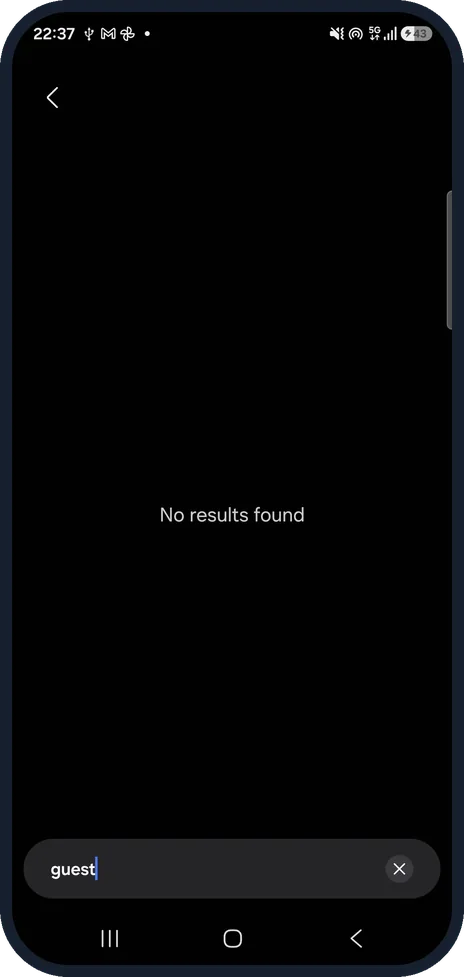
Samsung Galaxy: search Settings for guest
Our Samsung Galaxy A57 has no Users page. Searching Settings for guest found nothing. Other Galaxy models may differ. For lending this phone, use app pinning (see Good to know).
If this does not work
- Allow user switch turned on by itself On our Pixel 10a, adding a guest switched Allow user switch on. Turn it off again on the Users page if you do not want it.
- The guest's apps and data have gone Delete guest activity is on by default, which deletes all guest apps and data when exiting guest mode. Switch it off on the Users page to keep them.
- The guest cannot make calls Allow guest to make phone calls is off by default. Switch it on in Users; call history will then be shared with the guest.
About this guide
If you share a phone or tablet with a child or partner, a second user keeps their apps and accounts apart from yours. A guest is for lending the phone briefly: the guest sees none of your messages, photos or files.
Good to know
Files and messages are not shared between users. Some settings, such as Wi-Fi and Bluetooth, apply to everyone.
On our Pixel 10a, Allow guest to make phone calls was off by default. The Users page notes that call history will be shared with the guest if you switch it on.
To remove a guest: Settings, System, Users, open the Guest page and tap Remove guest.
To hand over the phone for one app only, app pinning is quicker: how to let someone use one app only on Android with app pinning.
In short: Settings, System, Users, then Add user or Add guest. Switch or exit through the user icon in Quick Settings.
Links checked in October 2026. Menus and features can change after software updates. These steps match the version named at the top.
Did this guide work for you?
Sorry about that. What happened?