XIAOMI REDMI
How to change the refresh rate on a Xiaomi phone (HyperOS 3)

In short
Go to Settings, Display & brightness, Refresh rate. Default (recommended) was ticked on our Redmi and changes the rate by itself, up to 120 Hz. Custom (Prefer selected refresh rate) lets you choose a rate yourself. A higher rate looks smoother but uses more power.
7 of 7 steps show a real screenshot from our Redmi Note 15 Pro 5G. Each step was checked against the maker's own instructions, linked at the end.
Steps
- 1
Open Refresh rate
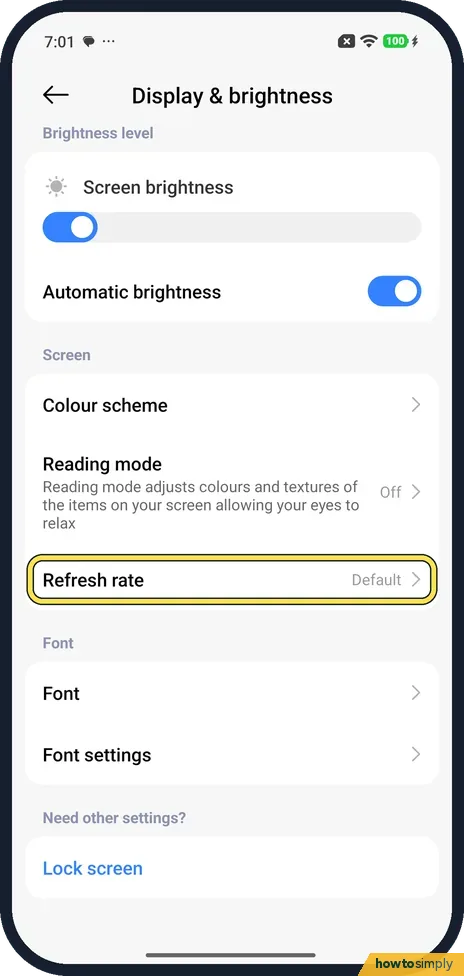
Open Settings, tap Display & brightness and scroll to Screen. Refresh rate showed Default on ours. Tap it.
- 2
Keep Default for up to 120 Hz
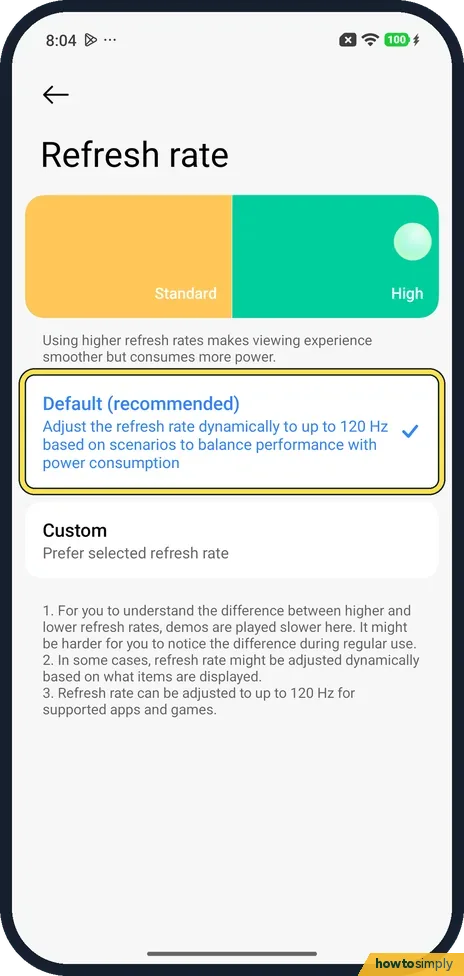
Default (recommended) was ticked. Its note says it adjusts the refresh rate dynamically to up to 120 Hz, to balance performance with power use. So you already get 120 Hz where the phone thinks it helps.
- 3
Or tap Custom
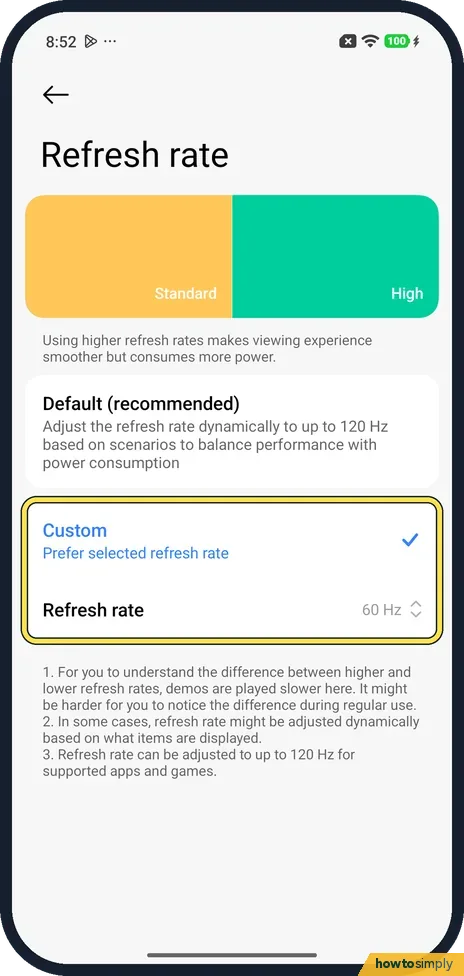
Custom says Prefer selected refresh rate. Tapping it ticked it and added a Refresh rate row, set to 60 Hz on ours.
- 4
Pick the rate
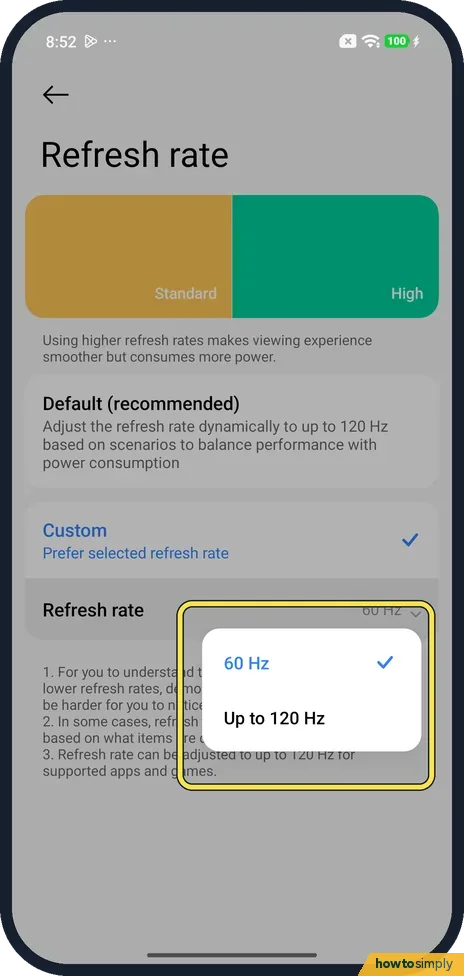
Tap Refresh rate. The choices were 60 Hz and Up to 120 Hz, with 60 Hz ticked.
- 5
Check the result
We picked Up to 120 Hz. The row then read Up to 120 Hz, and a new row appeared: Apps using high refresh rate. Afterwards we set it back to Default (recommended).
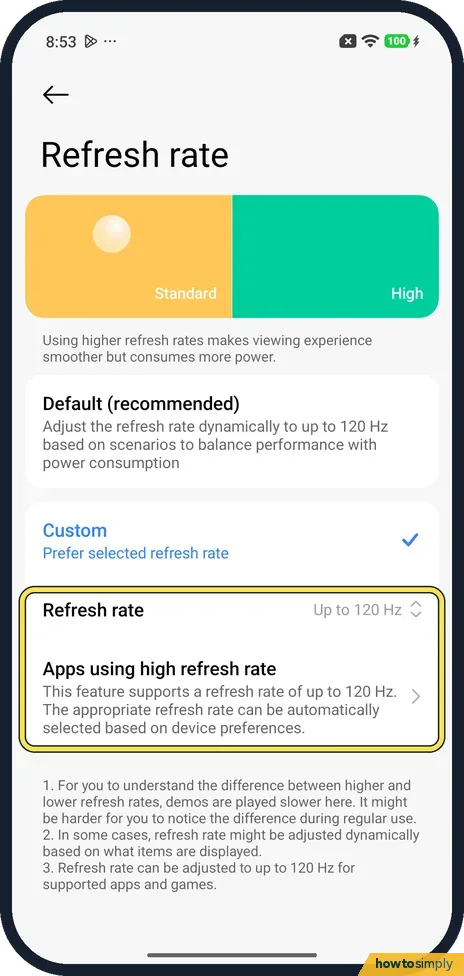
- 6
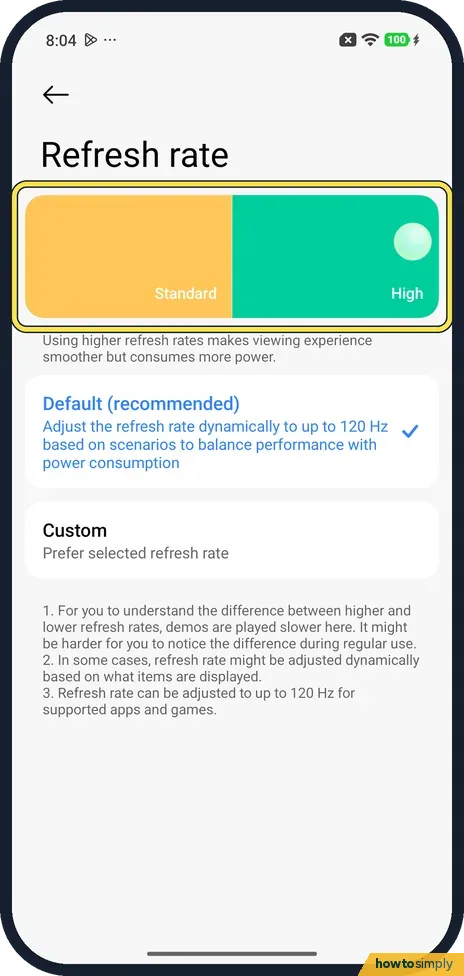
Compare Standard and High
The coloured card at the top is a demo of Standard and High. Below it: Using higher refresh rates makes viewing experience smoother but consumes more power.
- 7
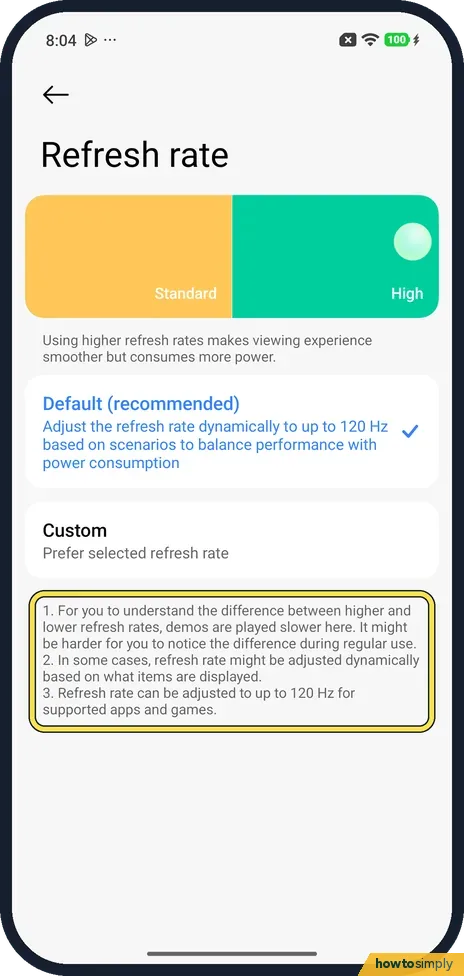
Read the notes
The notes say the demos are played slower so you can see the difference, the rate may change with what is on screen, and up to 120 Hz works in supported apps and games.
If you do not see this option
- No 120 Hz? Not every model goes that high. Xiaomi says the REDMI 13C 5G has a maximum of 90 Hz, and its Custom choice offers 60 Hz or 90 Hz. Our Redmi Note 15 Pro 5G says up to 120 Hz. Source: How to adjust the refresh rate on the REDMI 13C 5G?
- No Display & brightness? On older software the menu is called Display. Xiaomi's page for the REDMI Note 11 Pro+ 5G gives Settings, Display, Refresh rate. Source: How to adjust the refresh rate on the REDMI Note 11 Pro+ 5G?
If this does not work
- Scrolling still feels choppy? Xiaomi's tip for the REDMI Note 14 Pro+ 5G: open Refresh rate, tap Custom, then Refresh rate, and choose 120Hz. It also suggests closing apps you are not using.
- An app does not look smoother? The notes on our phone say up to 120 Hz is for supported apps and games, and the rate may change with what is on screen.
- Battery runs down faster? The page says higher rates use more power. Go back to Default, or check battery mode and battery use.
- A game still looks capped? Games can have their own limit. Xiaomi's guide says Game Turbo, in Security, has GPU settings with modes such as Save power or High quality, and its Custom mode lets you set the Frame rate. Check the game's own graphics menu as well.
Good to know
Change the screen colours next: how to change the colour scheme.
Xiaomi says Default adjusts the rate based on what you are doing, to balance performance with power use. To undo a Custom choice, tick Default (recommended) again. If the whole phone feels sluggish, see Xiaomi phone slow or lagging.
Ultra battery saver lowers the rate by itself. On our Redmi with HyperOS 3.0.309.0, on 1 November 2026, the screen went from 120 Hz to 60 Hz while Ultra battery saver was on and back to 120 Hz when we left it. We could not check the ordinary Battery saver, whose switch was greyed out while the phone was charging.
About this guide
- Device
- Android
- Shown on
- Xiaomi Redmi Note 15 Pro 5G (25080RABDG), HyperOS 3.0.308.0, Android 16
- App
- Settings
- Path
- Settings › Display & brightness › Refresh rate
- Real screenshots
- 7 of 7 steps
- Checked
- October 2026
- Sources
- 4 official, linked below
Sources
Links checked October 2026. Menus and features can change with updates.Spotted a mistake? Menus change with updates, and we want every step to match your screen. Email us about this page or use the contact form. We read every report, and fixes are listed on What changed.
Liked this guide?
Follow us for new guides and short how-to videos.
Did this guide work for you?
Sorry about that. What happened?