
howtosimply.com/guides/how-to-change-the-home-screen-grid-on-an-oppo-phone/ · Checked October 2026 · CPH2689, EEA), ColorOS 16.0.5, Android 16 (build CPH2689_16.0.5.1001(EX01) · OPPO Reno13 5G
In this guide
Touch and hold an empty spot on the Home screen and tap Layout at the bottom. Pick 4×6, 5×6 or 5×7, then tap Apply at the top right. Turning on Hide icon names on the same panel changes the choices to 4×6, 4×7, 5×6 and 5×9 (5×7 goes away).
3 of 3 steps with real screenshots · 1 official source below
- Device
- Android
- Shown on
- OPPO Reno13 5G (CPH2689, EEA), ColorOS 16.0.5, Android 16 (build CPH2689_16.0.5.1001(EX01))
- Real screenshots
- 3 of 3 steps
- Checked
- October 2026
- Sources
- 1 official, linked below
Step by step
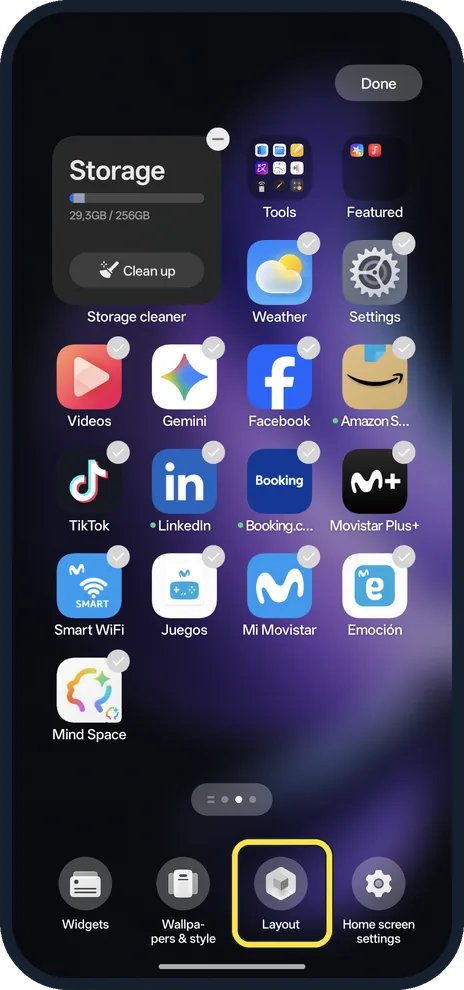
Touch and hold an empty spot, then tap Layout
The Home screen goes into edit mode with Widgets, Wallpapers & style, Layout and Home screen settings along the bottom, and Done at the top right.
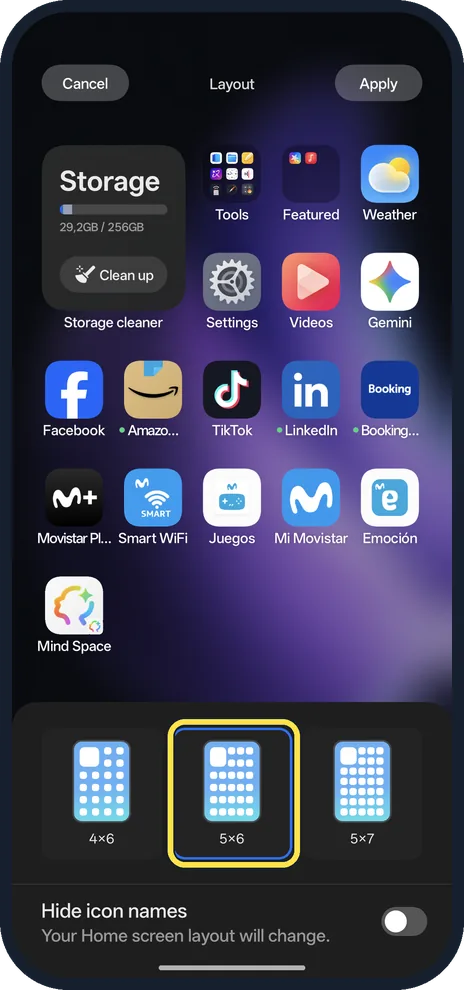
Pick a grid and tap Apply
The Layout panel shows 4×6, 5×6 and 5×7 with a live preview. Apply is at the top right; Cancel at the top left keeps the old grid.
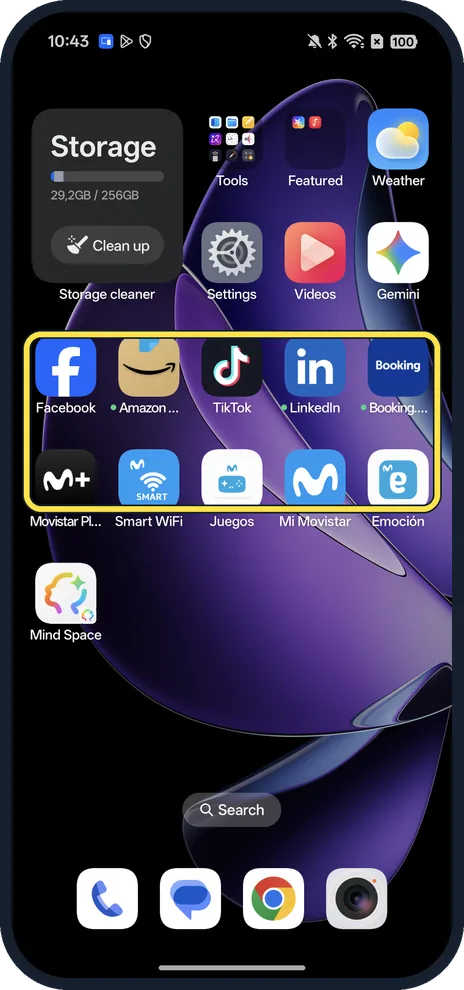
Check the Home screen
With 5×6, ours fitted five icons in a row. The Storage cleaner widget kept its size, Weather moved up next to Tools and Featured, and the dock kept four icons.
If you do not see this option
- Want more rows? Turn on Hide icon names below the grids. On ours the choices then changed to 4×6, 4×7, 5×6 and 5×9; the page says: Your Home screen layout will change.
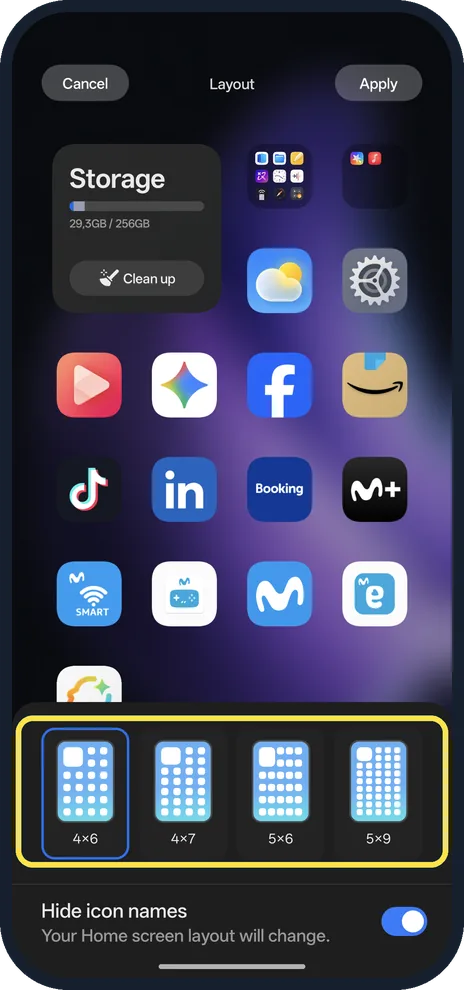
- What does Hide icon names look like? After Apply, ours showed the icons with no names underneath. We turned it off again.
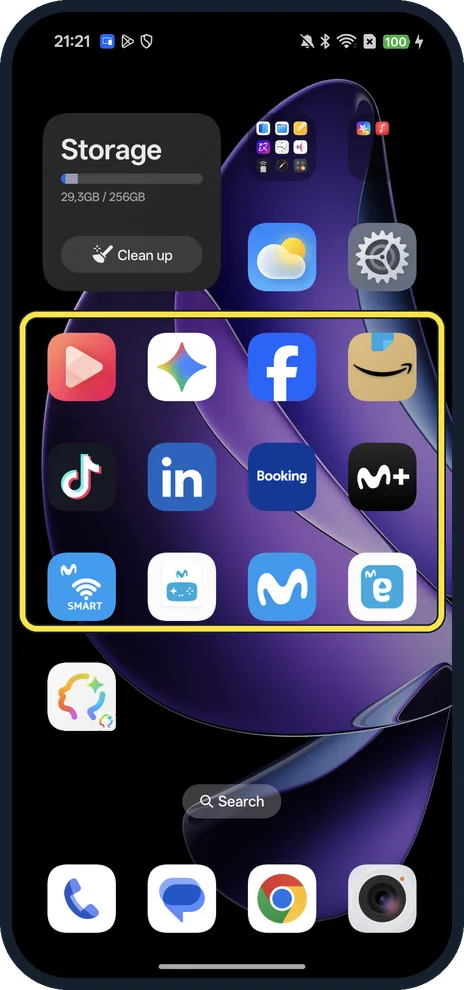
- Back to the old grid? Open Layout again, pick the old grid and tap Apply. Ours went back to four icons in a row.
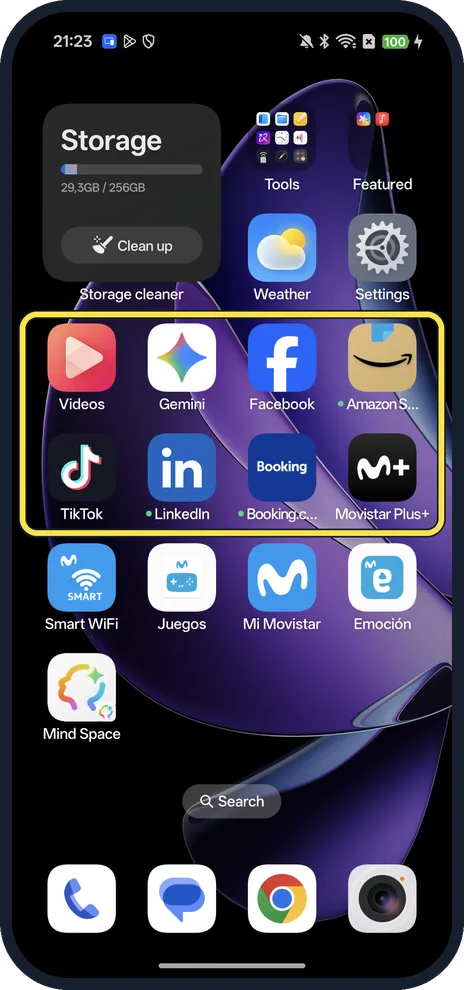
- Bigger icons? OPPO says ColorOS lets you adjust the size and shape of app icons. Source: Customize Your Way with ColorOS
If this does not work
- Icons too small? Go back to 4×6; 5×7 and 5×9 fit the most icons.
- Changed your mind before applying? Tap Cancel at the top left of the Layout panel; the grid stays as it was.
- Text too small as well? Change the font size; see change font size.
About this guide
The screenshots are from our OPPO Reno13 5G, the European model CPH2689, with ColorOS 16.0.5 and Android 16 (build CPH2689_16.0.5.1001(EX01)), in Dark mode. Ours used 4×6. We tried 5×6 and Hide icon names, then set both back.
Good to know
To add widgets, see add a widget.
In short: Hold the Home screen, Layout, pick a grid, Apply.
Links checked in October 2026. Menus and features can change after software updates. These steps match the version named at the top.
📷 See real photos from the OPPO Reno13 5G in our Camera Lab, next to 10 other phones.
Did this guide work for you?
Sorry about that. What happened?