
howtosimply.com/guides/how-to-force-stop-an-app-on-an-honor-phone/ · Checked October 2026 · BRP-NX1M, EEA), MagicOS 10.0, Android 16 (build 10.0.0.169(C430E7R2P1) · HONOR Magic7 Lite
In this guide
Open Settings, Apps, Manage apps, tap the app, then tap Force stop and confirm. HONOR warns that the app may stop working properly.
6 of 6 steps with real screenshots · 2 official sources below
- Device
- Android
- Shown on
- HONOR Magic7 Lite (BRP-NX1M, EEA), MagicOS 10.0, Android 16 (build 10.0.0.169(C430E7R2P1))
- App
- Settings
- Path
- Settings › Apps › Manage apps
- Real screenshots
- 6 of 6 steps
- Checked
- October 2026
- Sources
- 2 official, linked below
Step by step
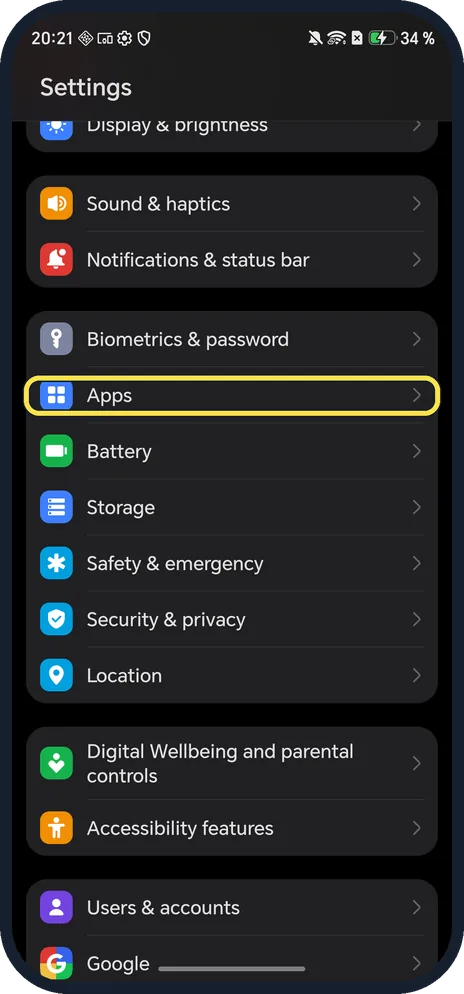
Open Apps
Open Settings and tap Apps; it is below Biometrics & password.
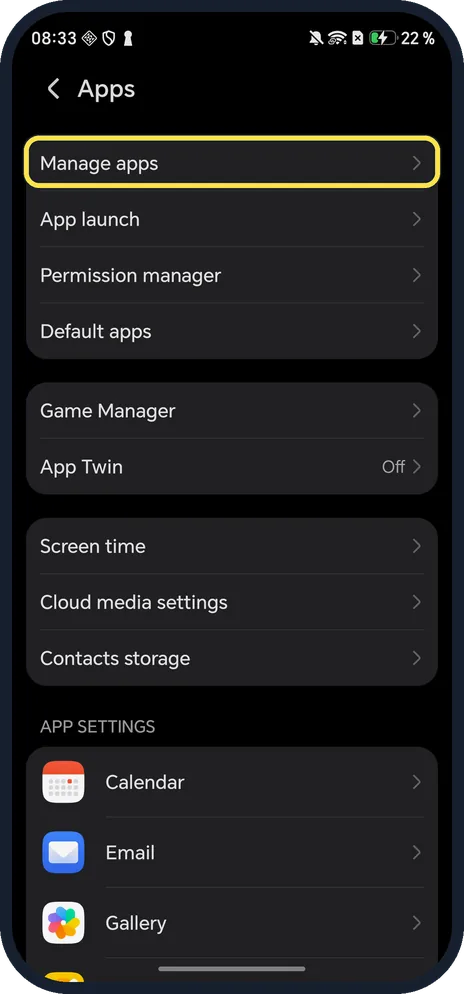
Tap Manage apps
The first row.
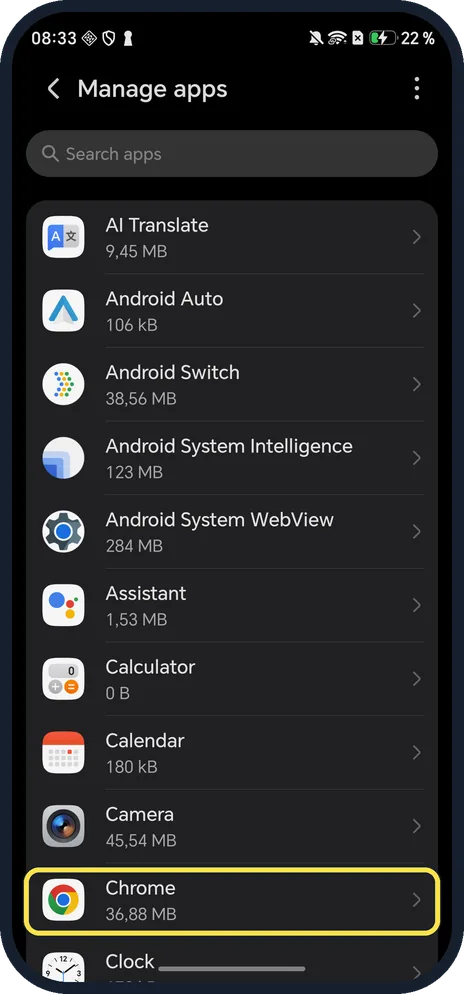
Tap the app
Apps are listed A to Z with their size. Ours: Chrome, 36,88 MB.
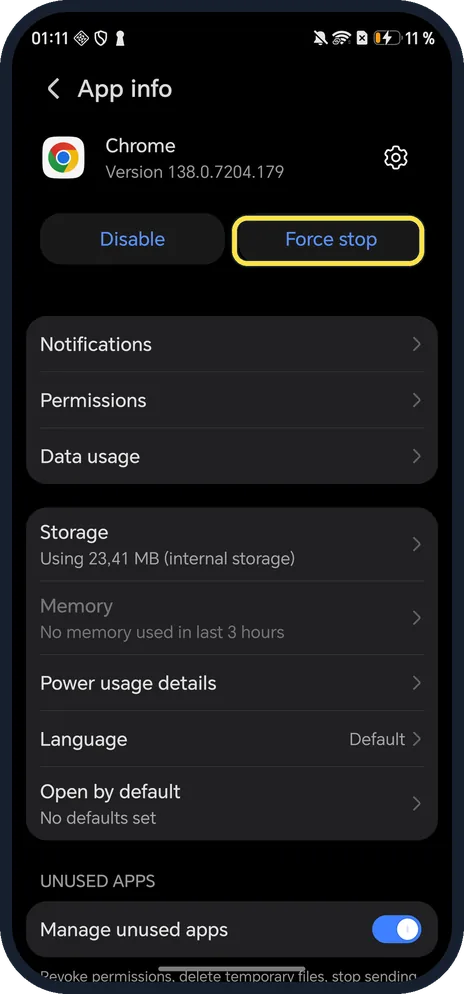
Tap Force stop
Top right of App info, next to Disable.
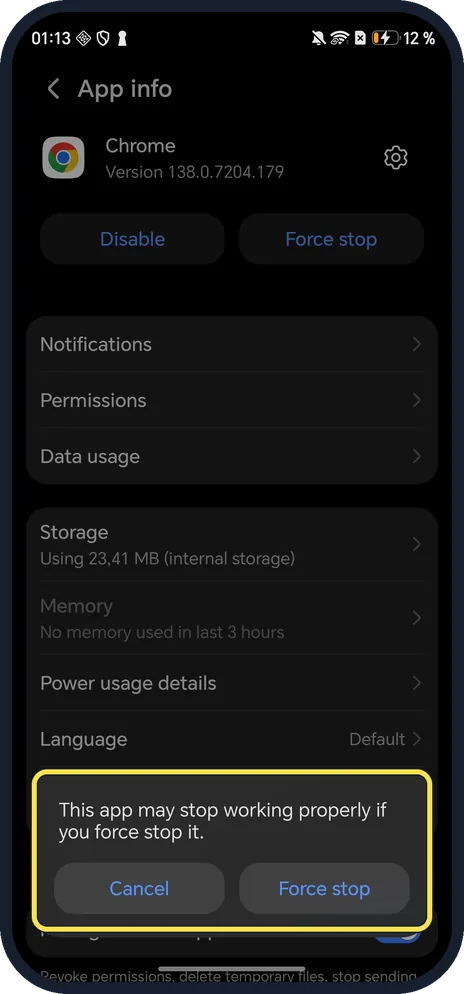
Tap Force stop again to confirm
The dialog says: this app may stop working properly if you force stop it.
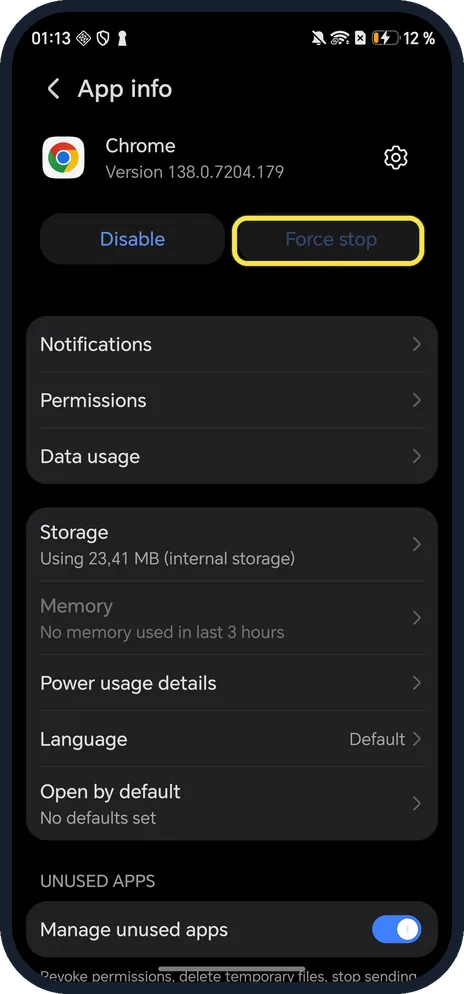
Check it stopped
Force stop greys out until the app runs again.
If you do not see this option
- Can't find Manage apps? HONOR tells readers to open Settings and search for Apps, then pick the app; this also works on older versions. Source: Some app icons are missing from the home screen
- Enable button instead of Disable? HONOR says that means the app is disabled; tap Enable first. Source: Some app icons are missing from the home screen
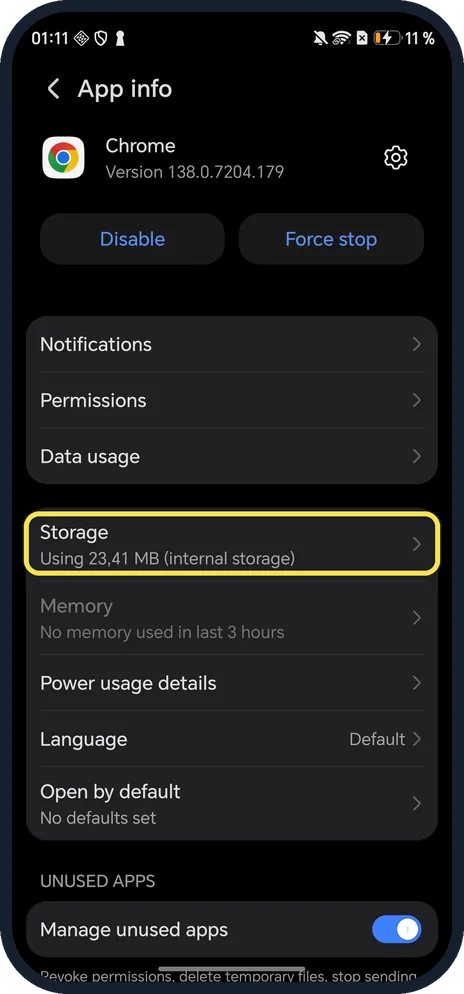
- App is misbehaving because of stored data? Tap Storage on App info to clear the cache. See the link below.
If this does not work
- Still misbehaving after a force stop? Google suggests clearing the app cache and data next, and contacting the developer if problems continue. Source: Fix an installed Android app that isn't working
- Force stop is grey? The app isn't running.
About this guide
The screenshots are from our HONOR Magic7 Lite, the European model BRP-NX1M, with MagicOS 10.0 and Android 16 (build 10.0.0.169(C430E7R2P1)), in Dark mode. We force stopped Chrome.
Good to know
To clear an app's temporary files, clear app cache.
To manage what an app can access, change app permissions.
In short: Settings, Apps, Manage apps, app, Force stop, Force stop.
- Google Play Help: Fix an installed Android app that isn't working
- HONOR Support: Some app icons are missing from the home screen
Links checked in October 2026. Menus and features can change after software updates. These steps match the version named at the top.
Did this guide work for you?
Sorry about that. What happened?