ONEPLUS
How to force stop an app on a OnePlus (OxygenOS 16)

In short
Go to Settings, Apps, App management and tap the app. On App info, tap Force stop, the middle button. A box warns: Exceptions may occur if an app is force stopped. Tap Force stop to confirm, or Cancel.
6 of 6 steps show a real screenshot from our Nord 5. Each step was checked against the maker's own instructions, linked at the end.
Steps
- 1
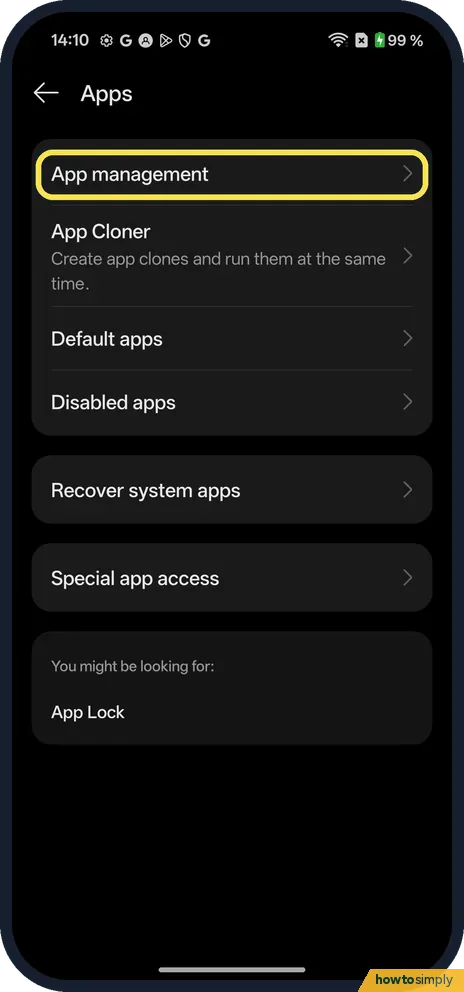
Open App management
Open Settings, tap Apps, then App management.
- 2
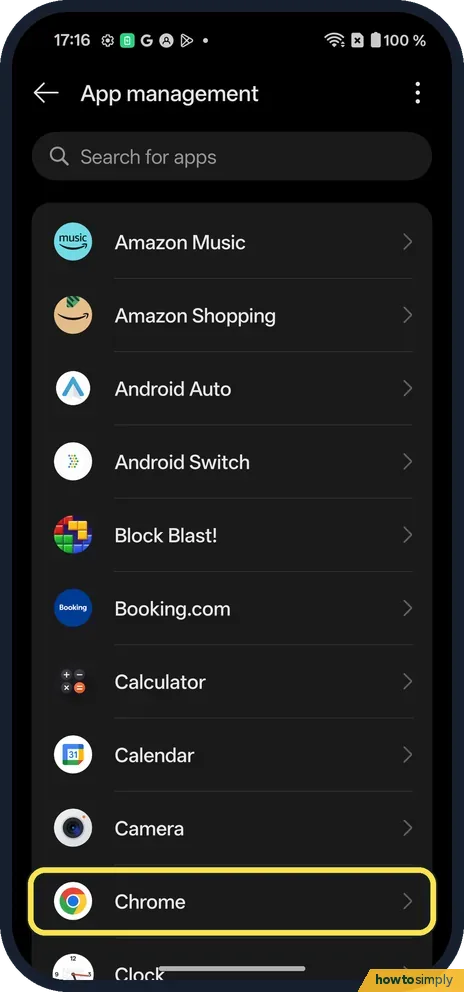
Tap the app
App management is an A to Z list with Search for apps at the top. On ours Chrome was between Camera and Clock.
- 3
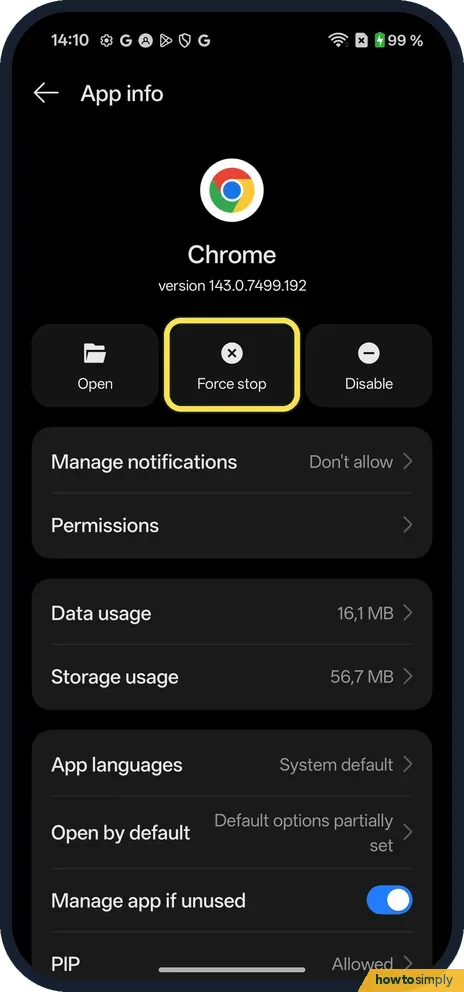
Tap Force stop
App info shows the app's name and version (143.0.7499.192 for Chrome on ours) and three buttons: Open, Force stop and Disable. Tap Force stop.
- 4
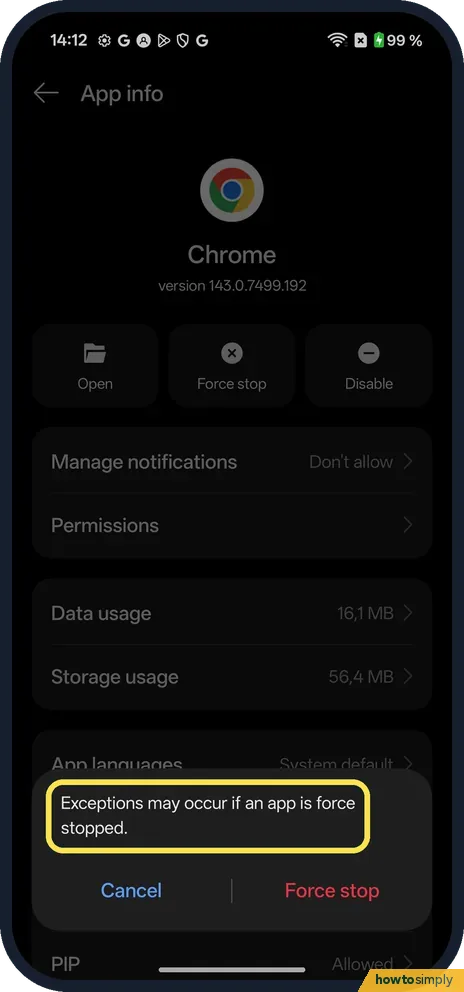
Read the warning
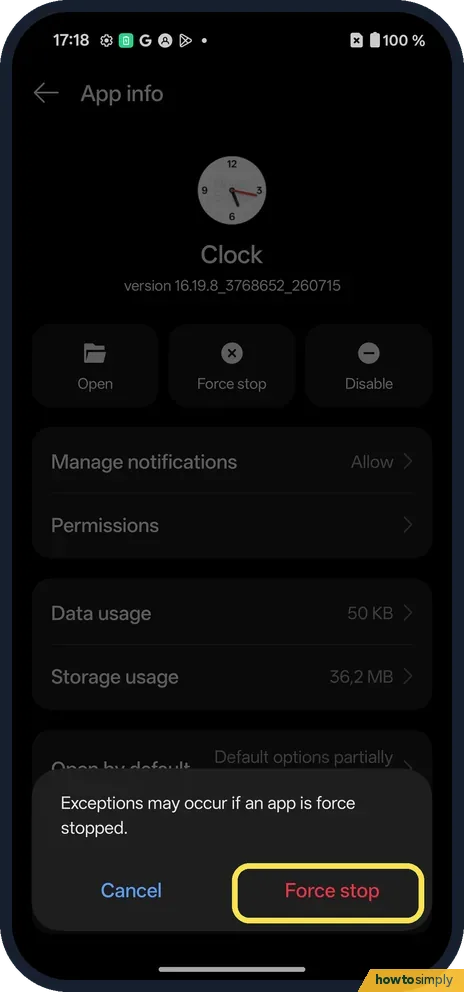
A box at the bottom says: Exceptions may occur if an app is force stopped.
- 5
Confirm or cancel
Tap Force stop to stop the app, or Cancel to leave it running. We cancelled for Chrome, then tried it on the Clock app and tapped Force stop.
- 6
Check that it stopped
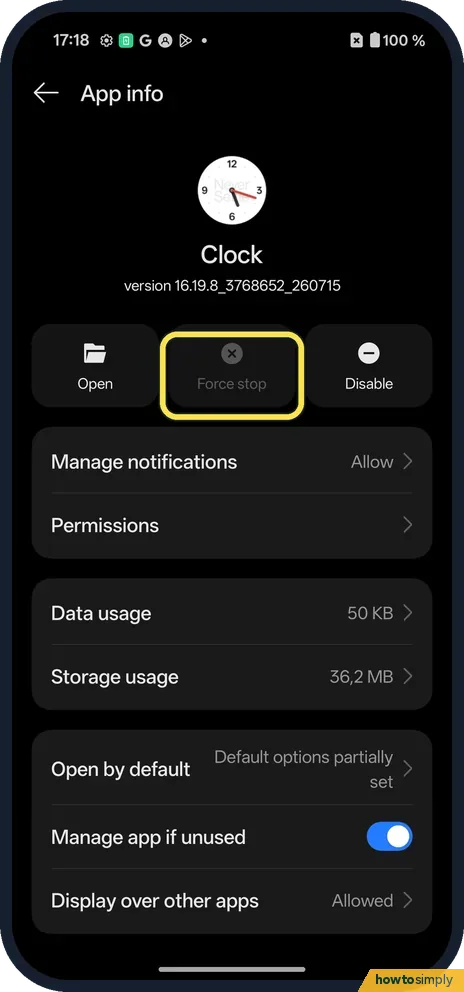
Back on App info, Force stop is greyed out and the app is no longer running. Open and Disable still work.
If you do not see this option
- Force stop greyed out? The app is not running, so there is nothing to stop. On ours Force stop turned grey right after we stopped Clock, while Open and Disable stayed available.
- Disable instead of Uninstall? For Chrome the third button was Disable. We did not tap it.
- Another way in? OnePlus's OxygenOS 14 manual says to touch and hold the app on the Home screen and tap App info, where you can stop or uninstall the app. Source: OxygenOS 14.0 User Manual
If this does not work
- Still not working? Google suggests clearing the app's cache and data next, restarting the phone after each step, and contacting the developer if problems continue. Cache first: clear an app's cache.
- No notifications from the app? App info has Manage notifications, with an Allow notifications switch for the app.
- App can't use the camera or location? Tap Permissions on App info. The page lists what the app may use under Allowed and Not allowed.
- Several apps crashing, not just one? That points to something wider than one app. Google suggests restarting the phone and checking for Android updates. If problems continue, Google describes restarting in safe mode to see whether a downloaded app is the cause; safe mode removes some Home screen widgets, so take a screenshot of them first.
Good to know
Free up space the app uses: clear an app's cache on a OnePlus.
On other phones: force stop an app on a Google Pixel or on a Xiaomi phone.
Force stop does not delete anything. Your files, account and settings in the app stay as they were, and the next time you open it, it starts fresh from its first screen. Anything not yet saved inside the app, such as a half-written message, may be lost, so finish or copy it first if you can.
Google's order of fixes is worth keeping in mind: restart the phone, check for Android updates, update the app, force stop, then clear cache and data. Uninstalling erases data saved in the app, Google notes, so leave it until last. If you want an app to keep running instead, see stop a OnePlus closing apps in the background.
About this guide
- Device
- Android
- Shown on
- OnePlus Nord 5 (CPH2709), OxygenOS 16.0.5.1201, Android 16
- App
- Settings
- Path
- Settings › Apps › App management
- Real screenshots
- 6 of 6 steps
- Checked
- October 2026
- Sources
- 2 official, linked below
Sources
Links checked October 2026. Menus and features can change with updates.Spotted a mistake? Menus change with updates, and we want every step to match your screen. Email us about this page or use the contact form. We read every report, and fixes are listed on What changed.
Liked this guide?
Follow us for new guides and short how-to videos.
Did this guide work for you?
Sorry about that. What happened?