ONEPLUS
How to change the font size and display size on a OnePlus (OxygenOS 16)

In short
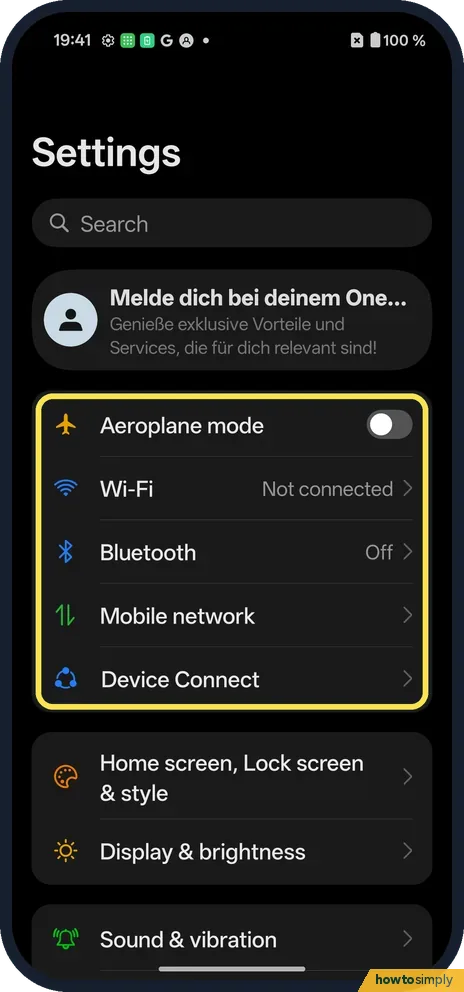
Go to Settings, Display & brightness, Font. Drag the Font size slider (Default is the second of four steps) and tap Apply. For bigger icons and text together, tap Display size on the same page and choose Large, Standard or Small.
6 of 6 steps show a real screenshot from our Nord 5. Each step was checked against the maker's own instructions, linked at the end.
Steps
- 1
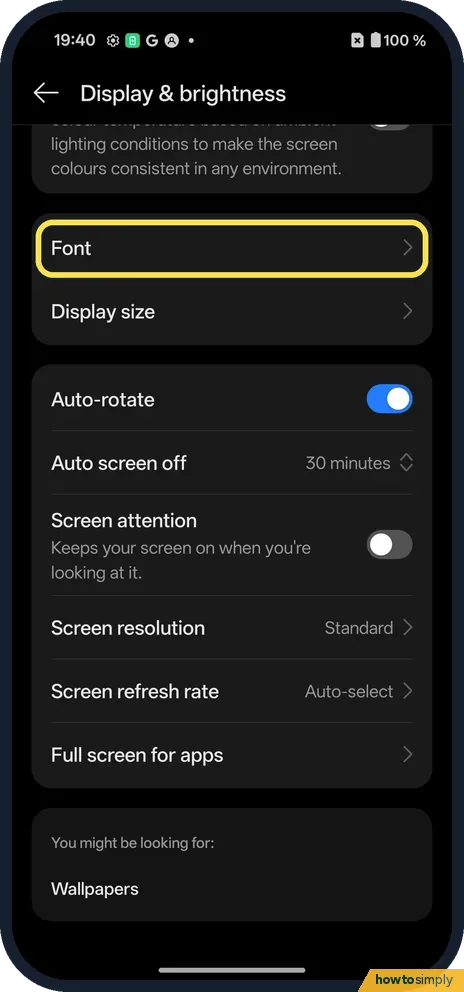
Open Font
Open Settings, tap Display & brightness and scroll to Font. Tap it.
- 2
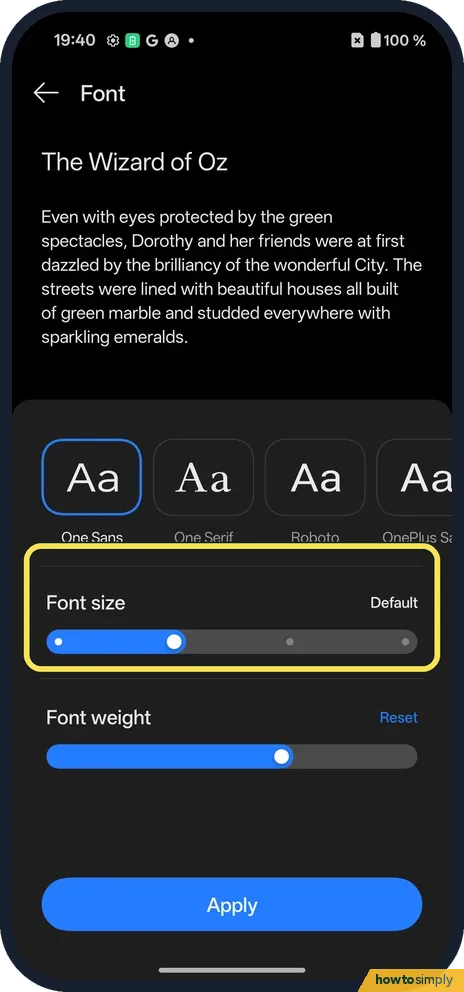
See the Font size slider
A sample text sits at the top. Below are the fonts (One Sans, One Serif, Roboto, OnePlus Sans), then Font size: Default on ours.
- 3
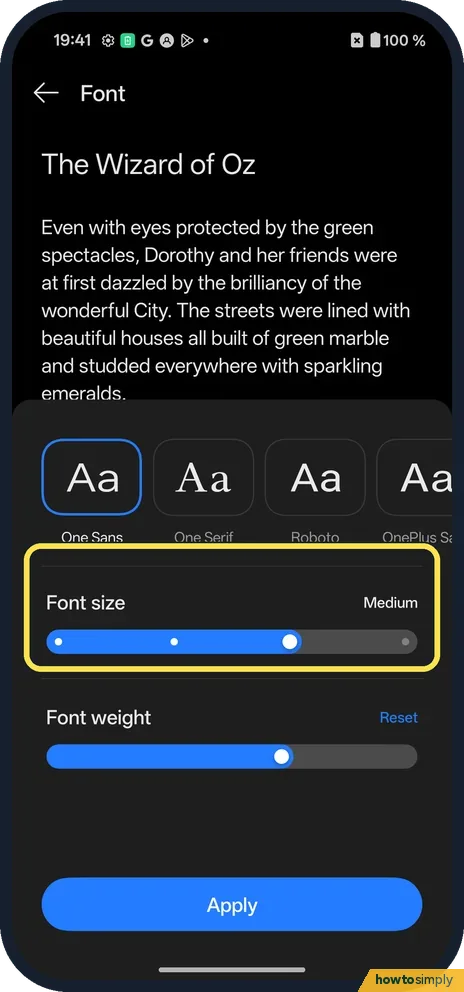
Drag the slider
We moved it one step right. The label changed to Medium and the sample text grew.
- 4
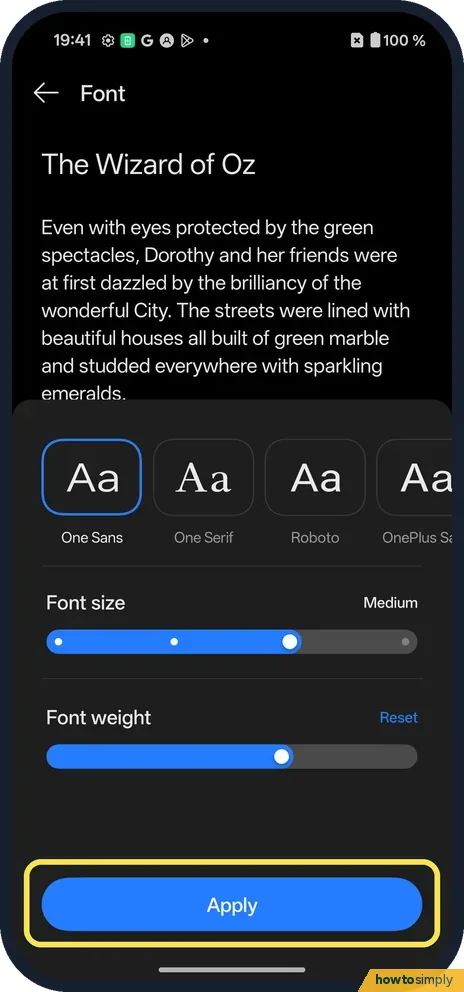
Tap Apply
The change only takes effect after Apply, at the bottom.
- 5
Check the new size
Settings now showed bigger text. We set Default back afterwards.
- 6
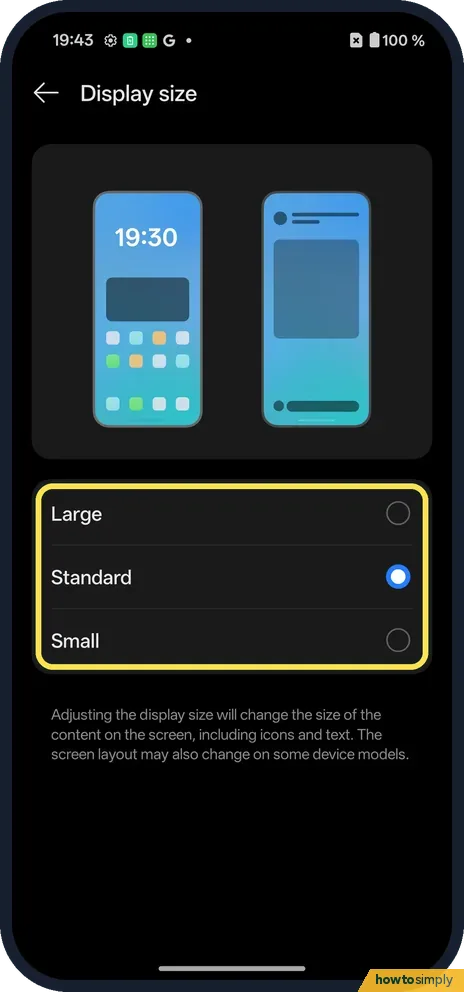
Or change Display size
Back on Display & brightness, tap Display size. Choose Large, Standard or Small. The page notes it changes content, icons and text.
If you do not see this option
- Bold text? Font weight is the slider under Font size, with a Reset link.
- Older OxygenOS? OnePlus's OxygenOS 14 manual puts Font size under Settings, Wallpapers & style, Font. On our OxygenOS 16 phone it is Display & brightness, Font. Source: OxygenOS 14.0 User Manual
- Still too small at the largest step? Magnification lets you zoom into any part of the screen when you need it, without changing every app's layout: turn on magnification on a OnePlus. Source: Use magnification on your screen
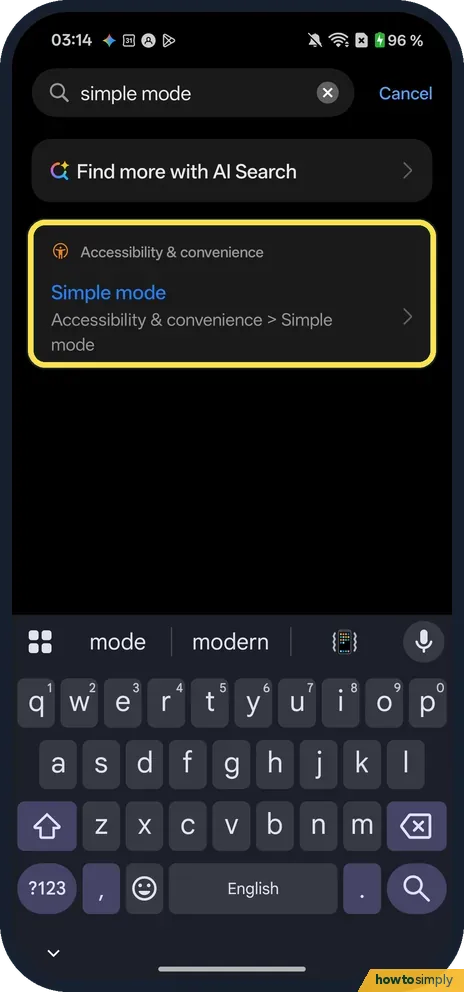
- Want everything bigger and simpler? OnePlus's OxygenOS 14 manual describes Simple mode, with a simpler home screen and larger icons and fonts, under Settings, Special features. On our OxygenOS 16 phone a search found it under Accessibility & convenience, Simple mode; its page says Easier to see, Enlarge text and app icons, with an Enter Simple mode button. To leave it, the manual says to open Settings and tap Exit Simple mode. Source: OxygenOS 14.0 User Manual
If this does not work
- Text did not change? Tap Apply. Moving the slider alone only changes the sample.
- Some apps too large now? Go back one step, or use Display size instead.
- One app ignores the new size? Google notes that the font size setting does not apply to some apps. Look for a text size or zoom option in that app's own settings; browsers usually have one.
- Text cut off or overlapping? Very large text can overflow buttons and labels in apps that were not designed for it. Step the slider back one notch, or keep the font smaller and raise Display size, which scales the layout as well as the text.
Good to know
Easier reading at night: Eye Comfort on a OnePlus.
On a Pixel: text and display size.
The new size applies across the system and most apps as soon as you tap Apply or choose a display size. Nothing is lost; to undo, set the slider back to Default or Display size back to Standard, which were the starting values on ours. Larger text means less fits on screen, so you will scroll a little more in messages and settings. If the issue is glare or contrast rather than size, a dark theme can make text easier to read: use Dark mode on a OnePlus.
About this guide
- Device
- Android
- Shown on
- OnePlus Nord 5 (CPH2709), OxygenOS 16.0.5.1201, Android 16
- App
- Settings
- Path
- Settings › Display & brightness › Font
- Real screenshots
- 6 of 6 steps
- Checked
- October 2026
- Sources
- 1 official, linked below
Sources
Links checked October 2026. Menus and features can change with updates.Spotted a mistake? Menus change with updates, and we want every step to match your screen. Email us about this page or use the contact form. We read every report, and fixes are listed on What changed.
Liked this guide?
Follow us for new guides and short how-to videos.
Did this guide work for you?
Sorry about that. What happened?