ONEPLUS
How to turn on magnification on a OnePlus (OxygenOS 16)

In short
Go to Settings, Accessibility & convenience, Accessibility, Vision, Magnification and switch on Shortcut. Pick how to start it: Accessibility button, Swipe up with 2 fingers, or press and hold both volume keys.
4 of 4 steps show a real screenshot from our Nord 5. Each step was checked against the maker's own instructions, linked at the end.
Steps
- 1
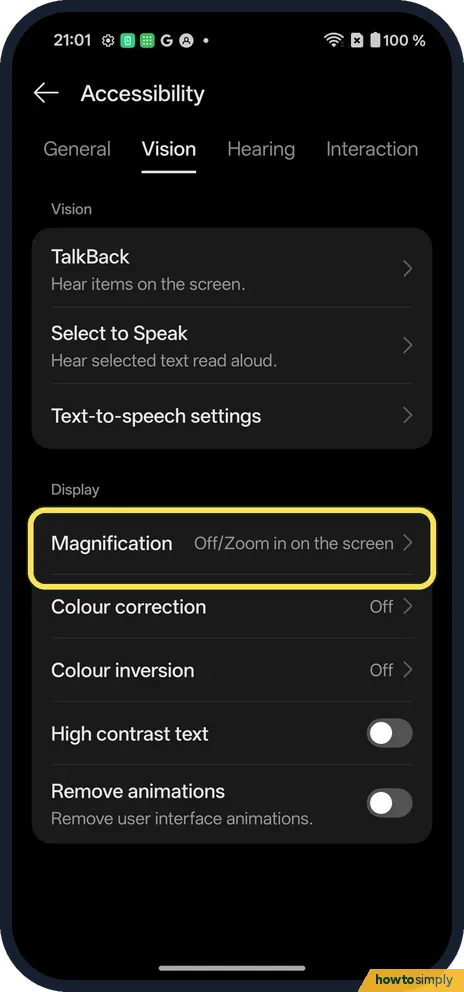
Open Magnification
In Accessibility, Vision tab, tap Magnification.
- 2
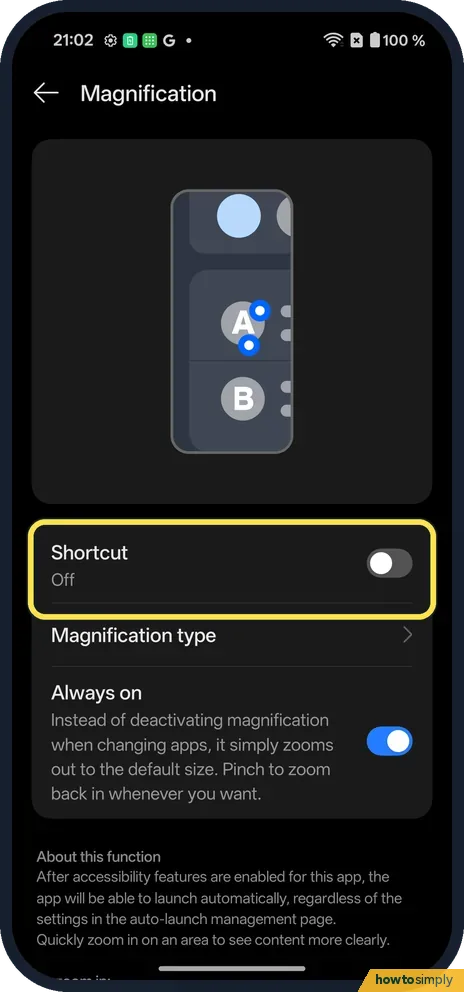
Switch on Shortcut
Shortcut was Off. Below are Magnification type and Always on.
- 3
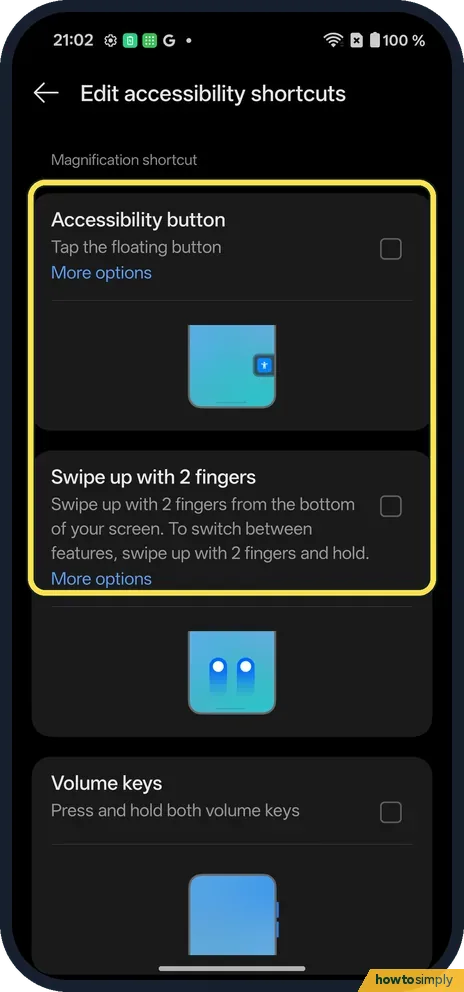
Pick a shortcut
Accessibility button (tap the floating button) or Swipe up with 2 fingers.
- 4
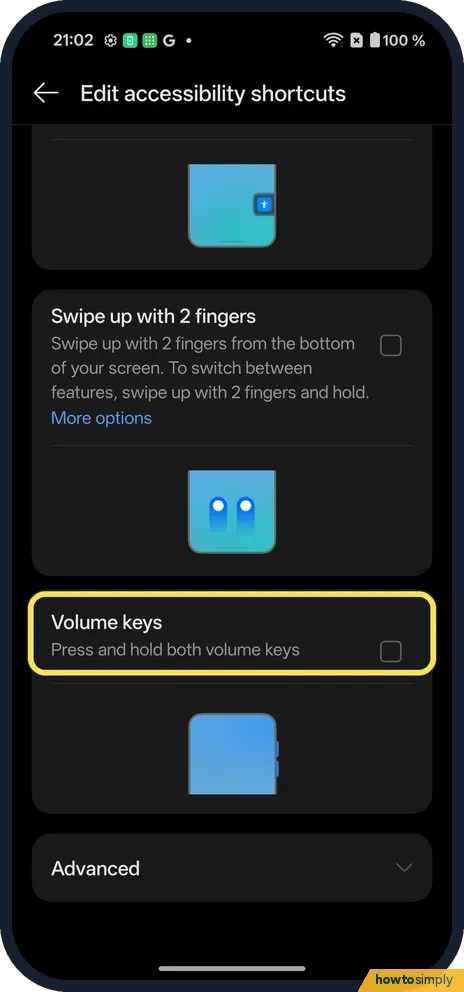
Or the volume keys
Further down: press and hold both volume keys.
If you do not see this option
- Triple-tap? OnePlus's OxygenOS 14 manual lists Triple-tap screen too. Ours showed the three choices above; Advanced, at the bottom, has more. Source: OxygenOS 14.0 User Manual
- Always on? It was on: when you change apps it zooms out instead of switching magnification off.
If this does not work
- How do I zoom? Use the shortcut, then pinch with two fingers to zoom and drag with two fingers to move.
- Volume keys do nothing? Hold both for about 3 seconds.
- Zoom keeps resetting when you switch apps? Google says opening or closing an app while zoomed in may reset the zoom, depending on your settings. That is what Always on controls. Use your shortcut again to zoom back in.
- Keyboard or navigation bar not zooming? The keyboard and navigation bar are not zoomed, so you can still type and go back while zoomed. Google describes an option to zoom in on the keyboard on Android 16 and later, for full-screen magnification.
- Phone feels slow to respond to taps? Google warns that the triple-tap shortcut can slow your device, because the phone waits to see whether a tap is the first of three. The volume keys or the Accessibility button avoid that delay.
Good to know
Change font size and display size on a OnePlus.
With Shortcut on, nothing is zoomed until you use the shortcut, so day-to-day use does not change and there is no real effect on battery. Google says magnification goes up to 8x. You can choose between full screen and a smaller magnifying window under Magnification type, and Google describes a temporary mode where you touch and hold the screen, drag to look around, and lift your finger to stop. To undo everything, switch Shortcut off. If you picked the Accessibility button and now share that button with other features, see the accessibility button and shortcuts on a OnePlus.
Magnification is best for occasional close looks at small print or photos. If you find yourself zooming on every screen, a larger font or display size usually works better, because the whole interface grows and stays readable without panning.
About this guide
- Device
- Android
- Shown on
- OnePlus Nord 5 (CPH2709), OxygenOS 16.0.5.1201, Android 16
- App
- Settings
- Path
- Settings › Accessibility & convenience › Accessibility › Vision › Magnification
- Real screenshots
- 4 of 4 steps
- Checked
- October 2026
- Sources
- 2 official, linked below
Sources
Links checked October 2026. Menus and features can change with updates.Spotted a mistake? Menus change with updates, and we want every step to match your screen. Email us about this page or use the contact form. We read every report, and fixes are listed on What changed.
Liked this guide?
Follow us for new guides and short how-to videos.
Did this guide work for you?
Sorry about that. What happened?