
howtosimply.com/guides/how-to-change-the-font-on-a-nothing-phone/ · Checked October 2026 · 4a) Pro (A069P, EEA), Nothing OS 4.1, Android 16 (build FroggerPro-B4.1-260424-1447-EEA · Nothing Phone
In this guide
Open Settings, Display, Font and display size and tap Default font. Pick Inter or Roboto and tap Apply. Nothing OS 4.1 offers only these two system fonts.
5 of 5 steps with real screenshots · 1 official source below
- Device
- Android
- Shown on
- Nothing Phone (4a) Pro (A069P, EEA), Nothing OS 4.1, Android 16 (build FroggerPro-B4.1-260424-1447-EEA), Nothing Phone (4a) Pro (A069P, EEA), Nothing OS 4.1, Android 16 (build FroggerPro-B4.1-260907-1153-EEA)
- App
- Settings
- Path
- Settings › Display › Font and display size › Default font › Inter or Roboto › Apply
- Real screenshots
- 5 of 5 steps
- Checked
- October 2026
- Sources
- 1 official, linked below
Step by step
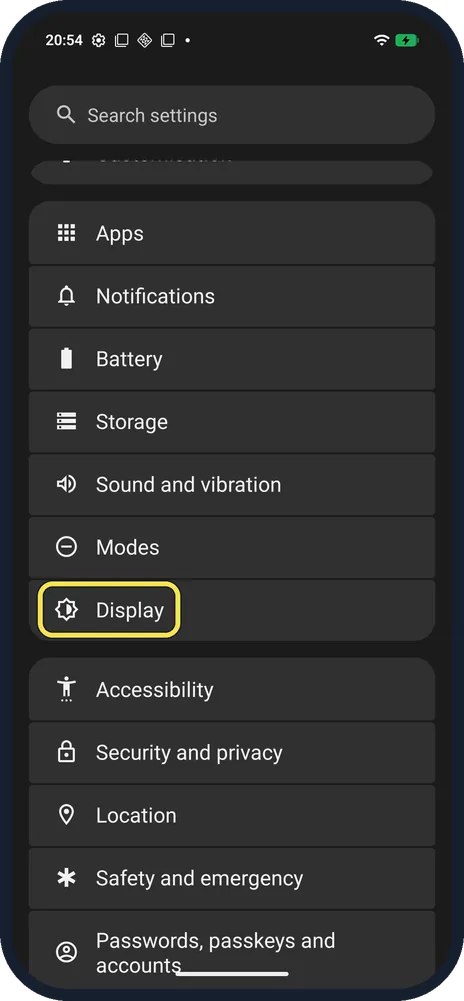
Open Display
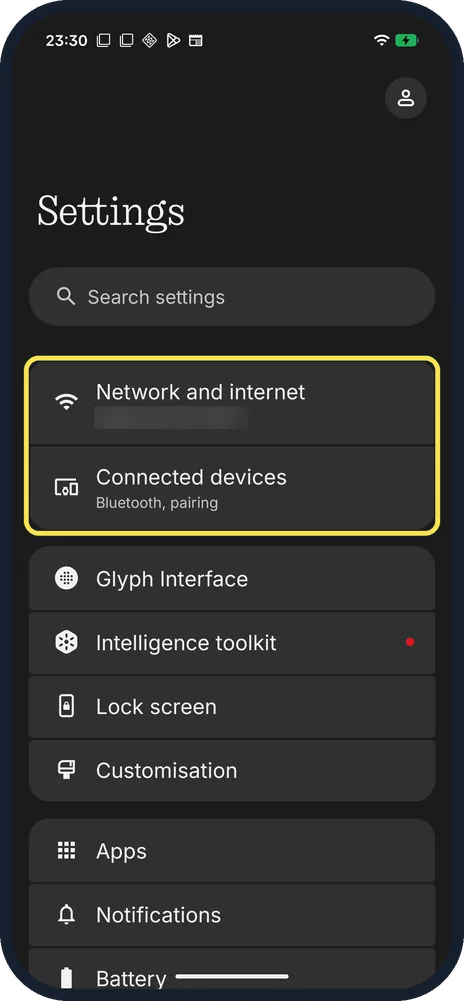
Open Settings and scroll down.
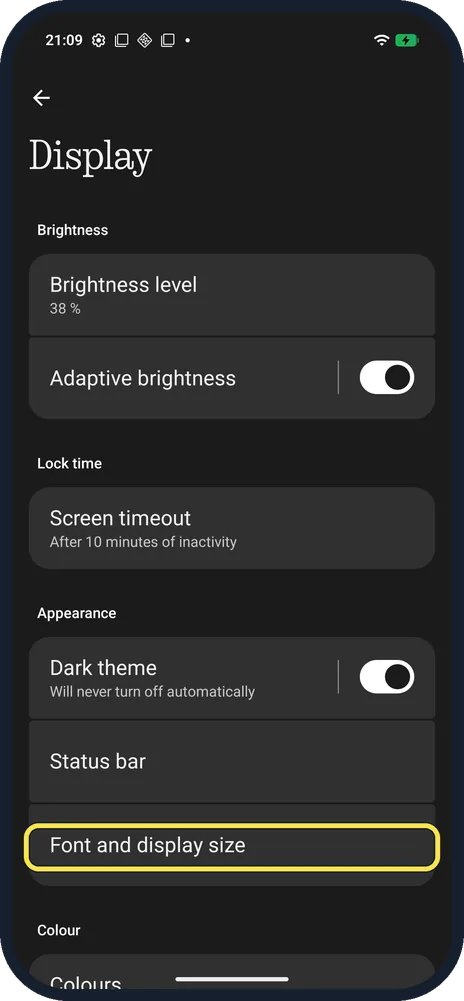
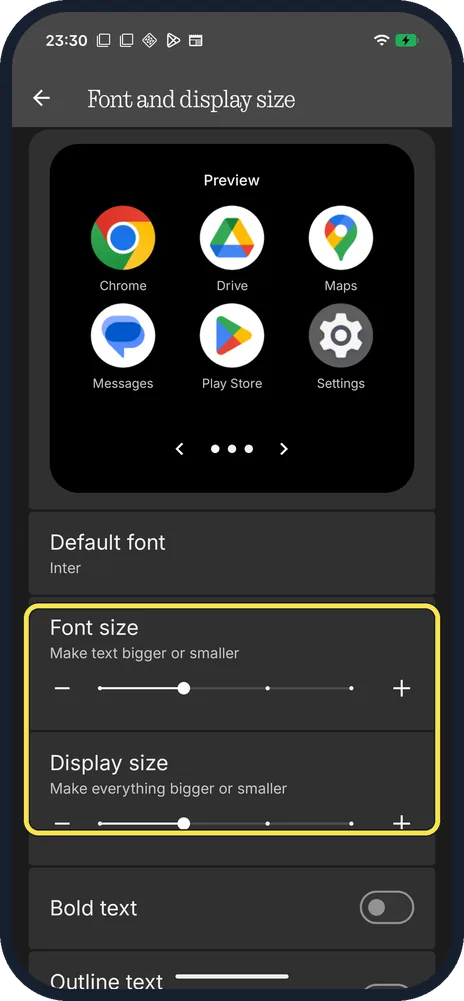
Tap Font and display size
Under Appearance, below Status bar.
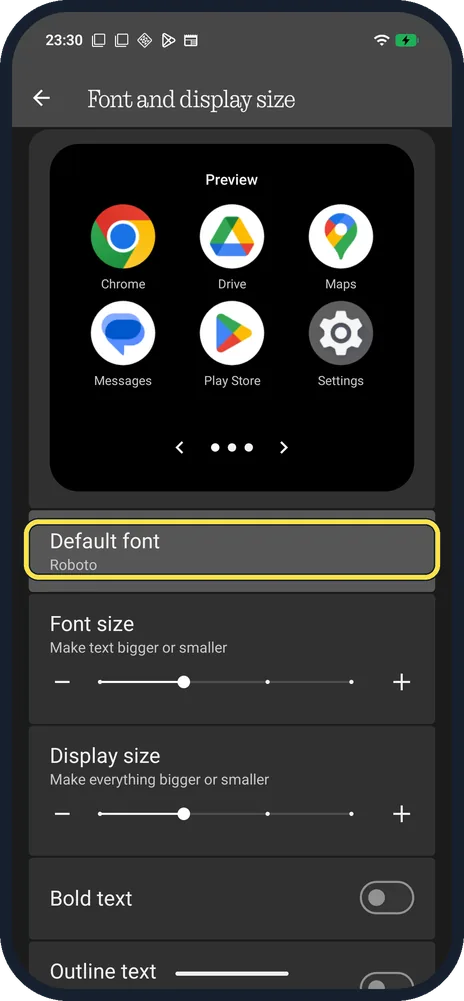
Tap Default font
Ours said Roboto.
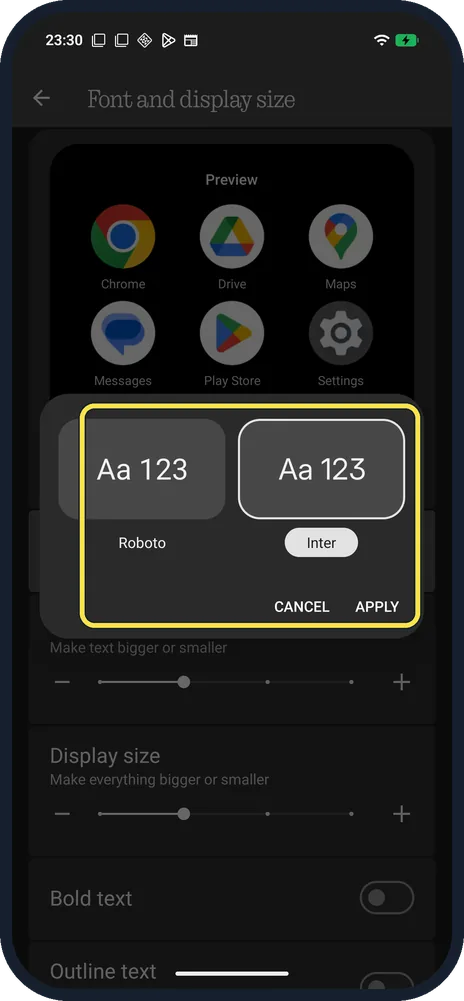
Pick Inter and tap Apply
The choice shows Aa 123 in each font.
Check the result
Default font now reads Inter, and Settings and its menus switch to it, as in this Settings list.
If you do not see this option
- Only two fonts? Nothing gives exactly these two: Roboto or Inter. Source: How do I change fonts on the Phone?
- Want bigger text instead? Font size and Display size sit just below Default font on the same page.
If this does not work
- Font didn't change? Picking Inter is not enough: tap Apply at the bottom, as in step 4. Default font then reads Inter.
- Want the old look back? Pick Roboto under Default font and tap Apply. Source: How do I change fonts on the Phone?
About this guide
The screenshots are from our Nothing Phone (4a) Pro, the European model A069P, with Nothing OS 4.1 and Android 16 (build FroggerPro-B4.1-260907-1153-EEA, security update 1 September 2026), in Dark theme. We switched to Inter for the screenshots and back to Roboto afterwards. The step 1 and 2 screenshots were taken earlier, on build FroggerPro-B4.1-260424-1447-EEA.
Good to know
To match the icons, change the icon pack.
For a new background, change the wallpaper.
In short: Settings, Display, Font and display size, Default font, Inter or Roboto, Apply.
Links checked in October 2026. Menus and features can change after software updates. These steps match the version named at the top.
Did this guide work for you?
Sorry about that. What happened?