GOOGLE PIXEL
How to change text and display size on a Google Pixel (Android 17)

In short
Open Settings, Display and touch, Display size and text. Move the Font size slider for bigger text and the Display size slider to make everything bigger. Bold text and Outline text are below. High contrast text is now called Outline text.
3 of 3 steps show a real screenshot from our Pixel 10a. Each step was checked against the maker's own instructions, linked at the end.
Steps
- 1
Open Display size and text
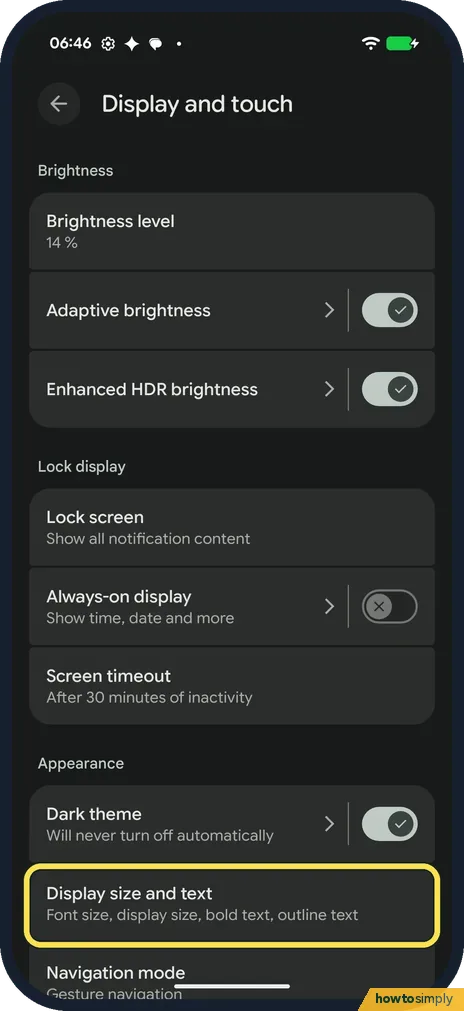
Open Settings and tap Display and touch. Under Appearance, tap Display size and text. The row lists Font size, display size, bold text, outline text.
- 2
Move the Font size or Display size slider
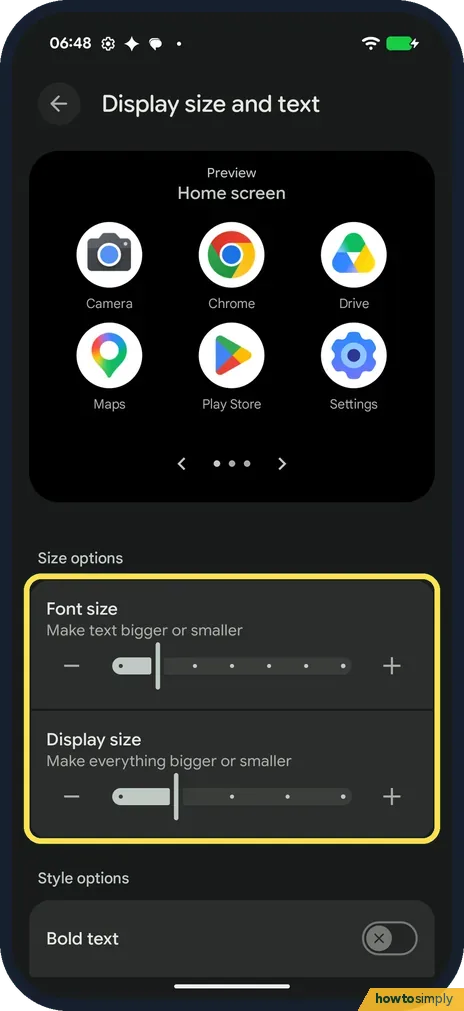
Under Size options, Font size makes only the text bigger or smaller; Display size makes everything bigger or smaller, not just the text. Tap + or - or drag a slider. The preview at the top shows the result.
- 3
Bold text and Outline text
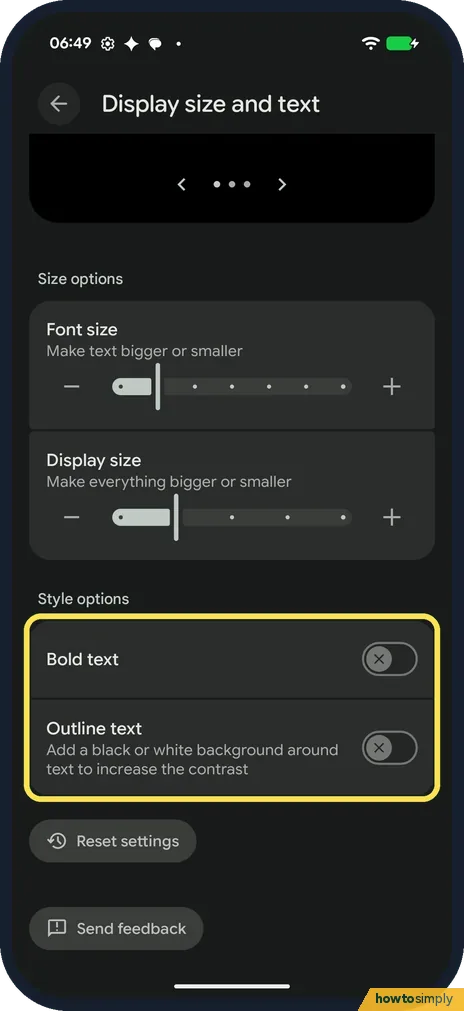
Under Style options are Bold text and Outline text. Outline text adds a black or white background around text to increase the contrast. Both were off on ours. Reset settings, below them, puts the sizes and styles back; we didn't tap it.
If you do not see this option
- Looking for High contrast text? On our Pixel 10a with Android 17 there is no row called that. The same idea is now Outline text, on the Display size and text page.
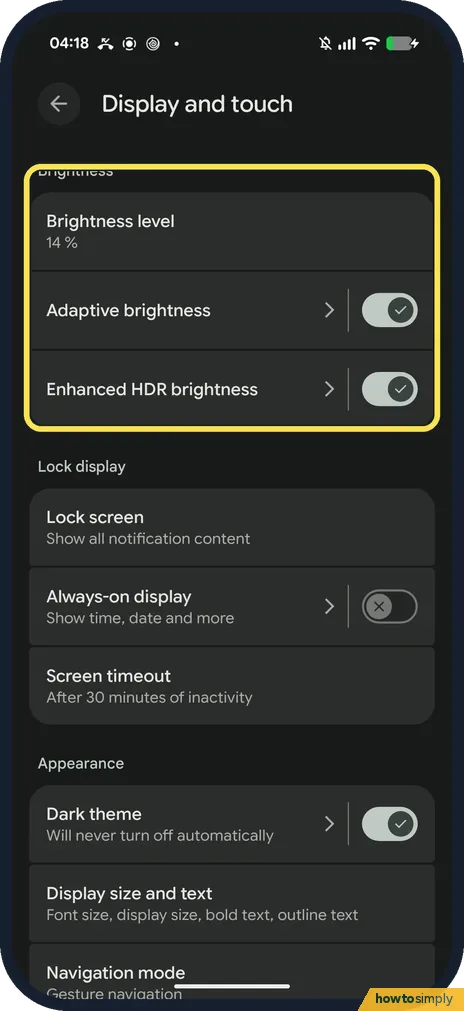
- Looking for Extra dim? We did not find it on our Pixel 10a on 1 November 2026: a Settings search for Extra dim showed only brightness help, Display and touch had Brightness level, Adaptive brightness and Enhanced HDR brightness, Accessibility, Colour and motion had no such row, and the brightness slider in Quick Settings had only a gear icon.
- No Outline text on another phone? Google says Outline text needs Android 16 or later. On Android 15 and earlier, use high-contrast text instead. Source: Change text and display settings
If this does not work
- Text cut off in an app after making it bigger? Go one step smaller on Font size, or use Display size instead. Reset settings puts everything back.
- Hard to read in the dark? Dark theme is on the same Display and touch page: how to use dark theme on a Google Pixel.
- Text in one app doesn't get bigger? Google says some apps ignore the Font size setting, and some won't use Bold text either. Try Display size instead, or look for a text size option inside that app.
- Want to change text size quickly? Google describes a Font Size tile in Quick Settings with Increase and Decrease buttons and a percentage slider. Google says it is added automatically once you change font size in Settings.
- Screen still too small to read? Magnification zooms in on part of the screen without changing the layout. See how to zoom in with magnification on a Google Pixel.
Good to know
For smoother scrolling, see how to turn on 120 Hz Smooth display.
These settings apply to the whole phone: Settings, the home screen and most apps. Bigger text means fewer lines fit on screen, so you scroll more. Nothing else changes, and there is no effect on battery or data. Each change can be undone by moving the slider back or switching the style off.
If colours make text hard to read, Google's accessibility help also describes Color correction and Color inversion under Accessibility, Color and motion. Color inversion reverses the colours on screen, including photos and videos.
For colour filters and a grey screen, see how to use colour correction and greyscale on a Google Pixel.
About this guide
- Device
- Android
- Shown on
- Google Pixel 10a, Android 17 (build CP3A.261005.005)
- App
- Settings
- Path
- Settings › Display and touch
- Real screenshots
- 3 of 3 steps
- What we did
- Observed: looked at each screen, changed nothing
- Checked
- October 2026
- Sources
- 1 official, linked below
Sources
Links checked October 2026. Menus and features can change with updates.Spotted a mistake? Menus change with updates, and we want every step to match your screen. Email us about this page or use the contact form. We read every report, and fixes are listed on What changed.
Liked this guide?
Follow us for new guides and short how-to videos.
Did this guide work for you?
Sorry about that. What happened?