
howtosimply.com/guides/how-to-change-default-apps-on-a-samsung-galaxy-phone/ · Checked October 2026 · Samsung Galaxy A57 5G (One UI 8.5, Android 16) and Samsung Galaxy A57 (One UI 9, Android 17 (build A576BXXU6BZIE))
In this guide
Open Settings, Apps, Choose default apps. Tap a category such as Browser app, Phone app or SMS app and pick the app you want to use from now on.
5 of 5 steps with real screenshots · 1 official source below
- Device
- Android
- Shown on
- Samsung Galaxy A57 5G (SM-A576B), One UI 8.5, Android 16, Samsung Galaxy A57 (SM-A576B), One UI 9, Android 17 (build A576BXXU6BZIE)
- App
- Settings
- Path
- Settings › Apps › Choose default apps
- Real screenshots
- 5 of 5 steps
- Our phone
- Shown on Galaxy A57, One UI 8.5
- Checked
- October 2026
- Sources
- 1 official, linked below
Step by step
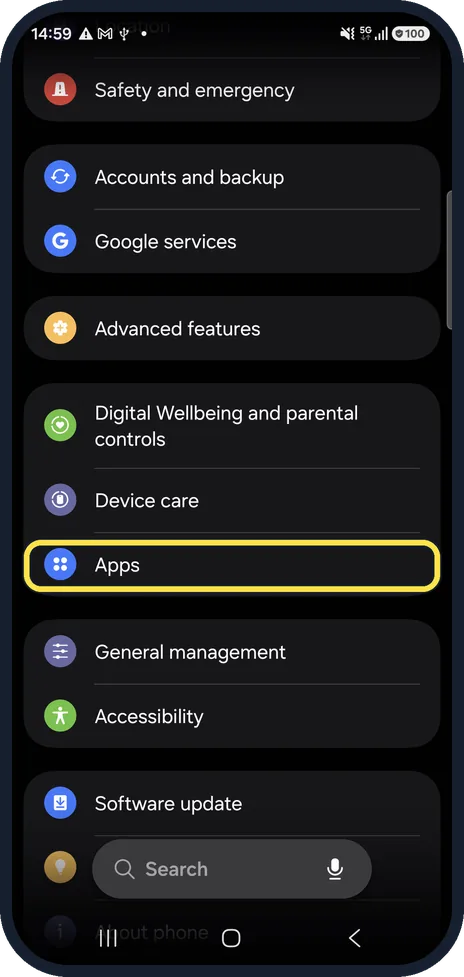
Open Apps
Open Settings and tap Apps.
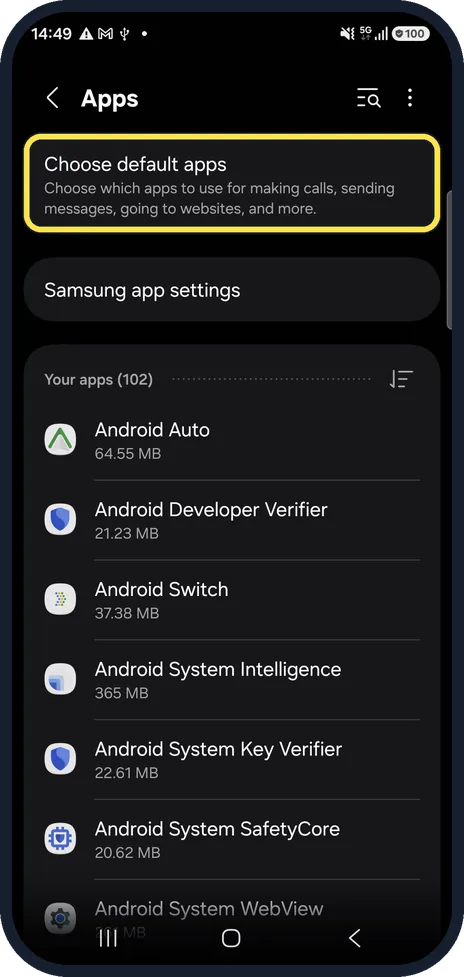
Tap Choose default apps
It is the first item on the Apps page.
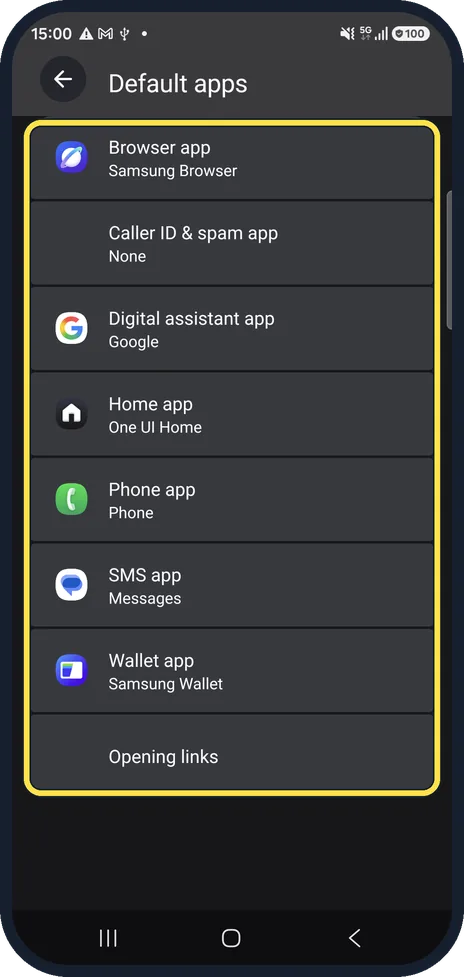
Pick a category
The list shows Browser app, Caller ID & spam app, Digital assistant app, Home app, Phone app, SMS app and Wallet app, each with the app currently used.
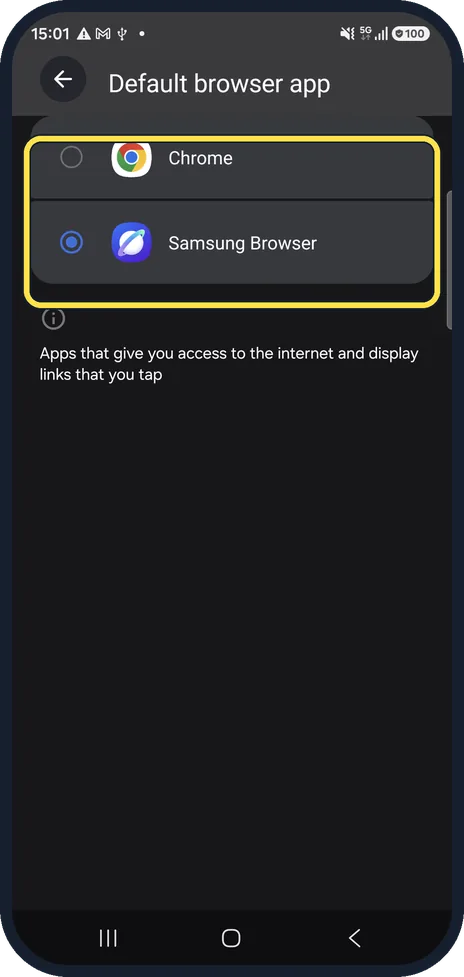
Choose the new app
Tap the category and select the app you want. Only installed apps that can do the job are listed. On our phone the browser list offered Chrome and Samsung Browser.
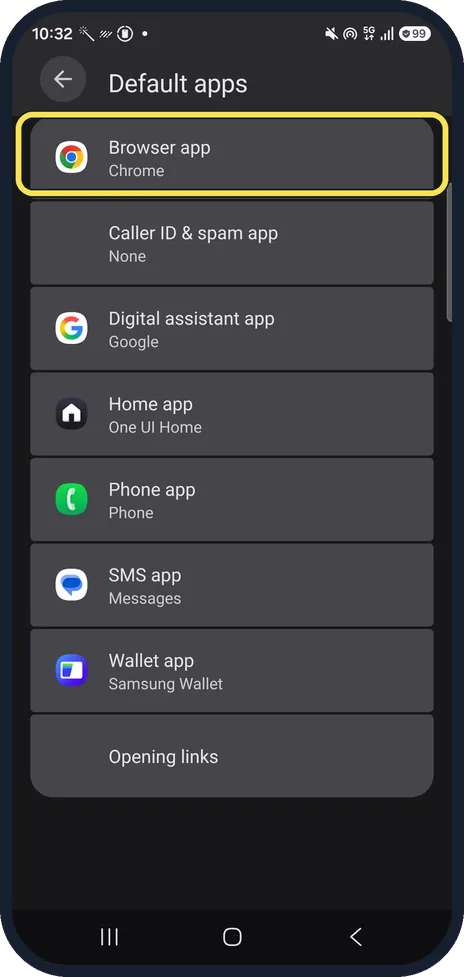
Check the change
Default apps then shows the new app under its category: ours read Browser app, Chrome. We switched it back to Samsung Browser afterwards.
If you do not see this option
- The app you want is not offered Only installed apps that can do that job appear in the list. Install it first, then come back to Choose default apps. Source: How to set Default Apps on my Galaxy Phone
About this guide
Default apps decide what opens when you tap a web link, a phone number or a text message. Change them when you install another browser or messaging app.
Step 5 is from the same phone after its One UI 9 update (Android 17).
Good to know
Opening links, at the bottom of the same list, decides which app opens links to its own website.
In short: Settings, Apps, Choose default apps, pick a category, choose the app.
Links checked in October 2026. Menus and features can change after software updates. These steps match the version named at the top.
📷 See real photos from the Galaxy A57 in our Camera Lab, next to 10 other phones.
Did this guide work for you?
Sorry about that. What happened?