
howtosimply.com/guides/how-to-archive-unused-apps-on-a-samsung-galaxy/ · Checked October 2026 · Samsung Galaxy A57 5G (SM-A576B), One UI 8.5, Android 16
In this guide
Open the Play Store, tap your profile picture, Settings, General, and switch on Automatically archive apps. When storage runs low, apps you rarely use are removed but their data stays, and the icon remains so you can restore the app with a tap.
If you do not see this option
- There is no Automatically archive apps switch Google says some archiving steps work only on Android 15 and later, and only on phones with supporting hardware. Check your Android version under Settings, About phone, Software information. Source: Archive unused apps on Android
- You want to archive one app now Google says to open Settings, Apps, pick the app and tap Archive. It does not wait for storage to run low. Source: Archive unused apps on Android
2 of 4 steps with real screenshots · 1 official source below
- Device
- Android
- Shown on
- Samsung Galaxy A57 5G (SM-A576B), One UI 8.5, Android 16
- App
- Settings
- Real screenshots
- 2 of 4 steps
- What we did
- Observed: looked at each screen, changed nothing
- Our phone
- Shown on Galaxy A57, One UI 8.5
- Checked
- October 2026
- Sources
- 1 official, linked below
Step by step
Open Play Store settings
Open the Play Store, tap your profile picture at the top right and tap Settings.
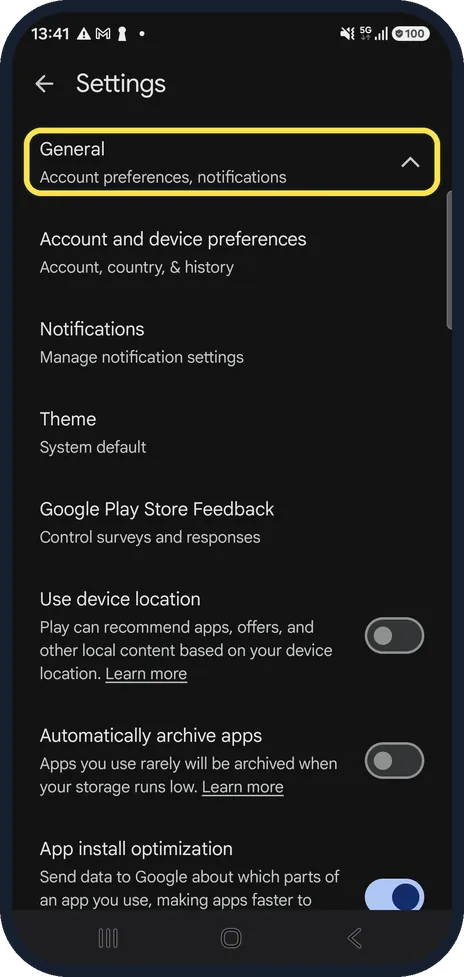
Open General
Tap General to expand it.
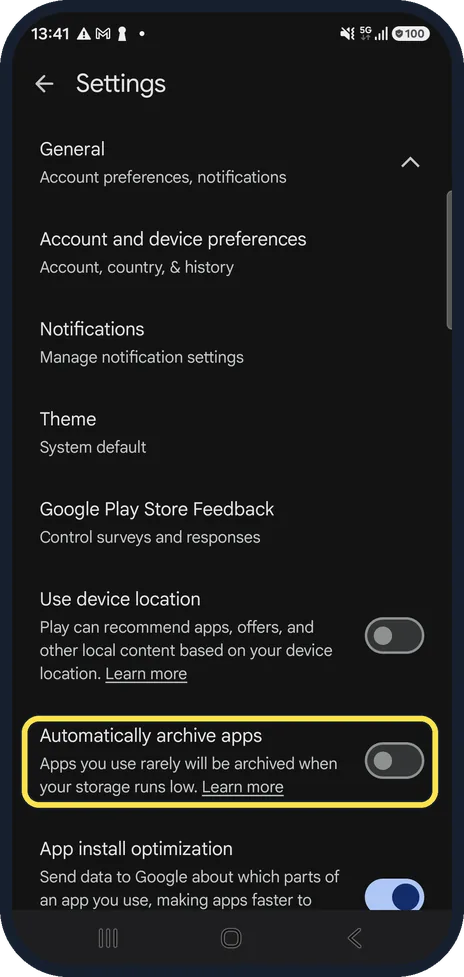
Switch on Automatically archive apps
Apps you rarely use will be archived when your storage runs low.
Restore an archived app
Google says an archived app keeps a faded icon with an archive mark. Tap it on the Home or Apps screen. The Play Store downloads it again with your data still in place, if the app is still available. You can also restore it from App info in Settings or from its page in the Play Store.
If this does not work
- The archived app will not come back Google says the app store must still be on the phone and the app must still be available to download there. If an app was removed from the store, it cannot be restored this way. Source: Archive unused apps on Android
- Restoring asks you to manage storage Google says you are asked to free up space when there is not enough storage to reinstall the app. Source: Archive unused apps on Android
- An app you need keeps getting archived Google says to open Settings, Apps, the app, and turn off Manage app if unused. That blocks it from automatic archiving. Source: Archive unused apps on Android
About this guide
Archiving is a Google Play feature, so it works the same on every Galaxy. It frees space without losing your sign-ins and settings in the archived app. It was off on our phone.
Good to know
Need space now? how to check and free up storage on a Samsung Galaxy phone.
In short: Play Store, profile, Settings, General, Automatically archive apps on.
Links checked in October 2026. Menus and features can change after software updates. These steps match the version named at the top.
📷 See real photos from the Galaxy A57 in our Camera Lab, next to 10 other phones.
Did this guide work for you?
Sorry about that. What happened?