
howtosimply.com/guides/android-gps-not-accurate-8-ways-to-fix-your-location/ · Checked October 2026 · build CP3A.261005.005 · Google Pixel 10a, Android 17
In this guide
Turn on Location Accuracy and Wi-Fi scanning under Settings, Location, Location Services, switch on Wi-Fi and turn off Battery Saver. In Google Maps, tap the blue dot: if a card says Location accuracy is low, it suggests connecting to Wi-Fi and turning on mobile data. Then go outside or near a window.
8 of 8 steps with real screenshots · 1 official source below
- Device
- Android
- Shown on
- Google Pixel 10a, Android 17 (build CP3A.261005.005)
- App
- Maps
- Real screenshots
- 8 of 8 steps
- Checked
- October 2026
- Sources
- 1 official, linked below
Step by step
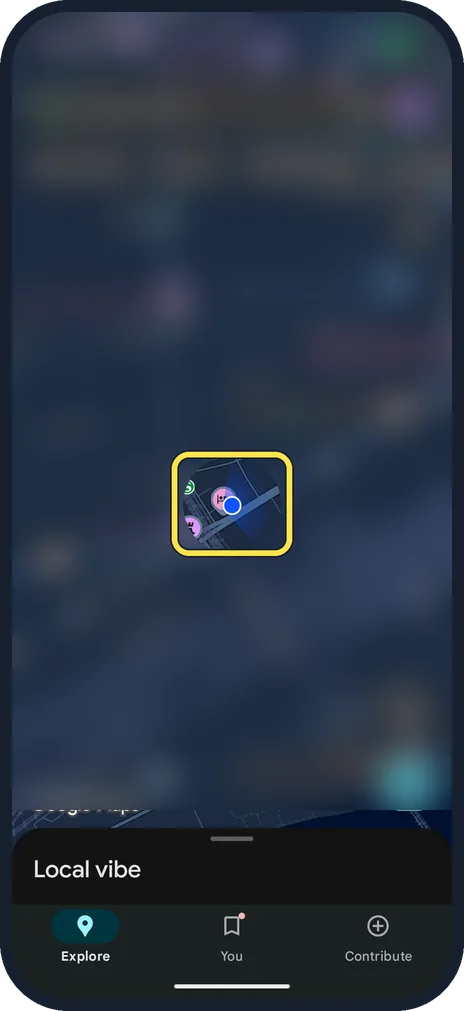
Read the blue dot
The blue dot is your position. The light blue circle around it shows how unsure Maps is: you could be anywhere inside it. The smaller the circle, the better.
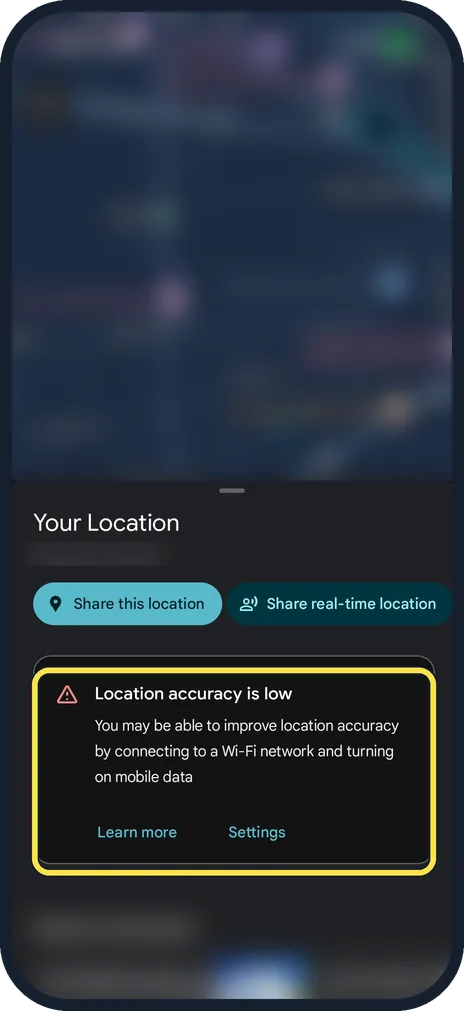
Tap the blue dot
Maps opens Your Location. On ours a card said Location accuracy is low: You may be able to improve location accuracy by connecting to a Wi-Fi network and turning on mobile data. Our Maps had no Calibrate button.
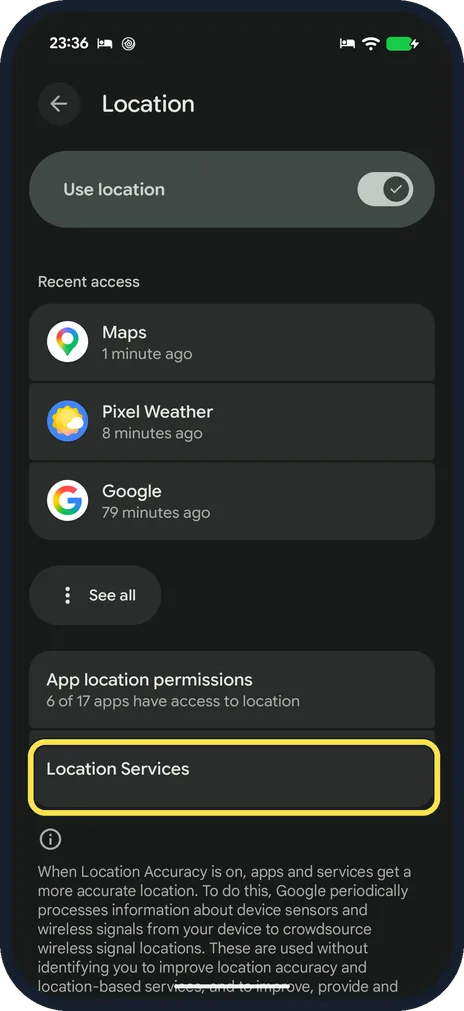
Open Location Services
Open Settings and tap Location. Check that Use location is on, then tap Location Services at the bottom.
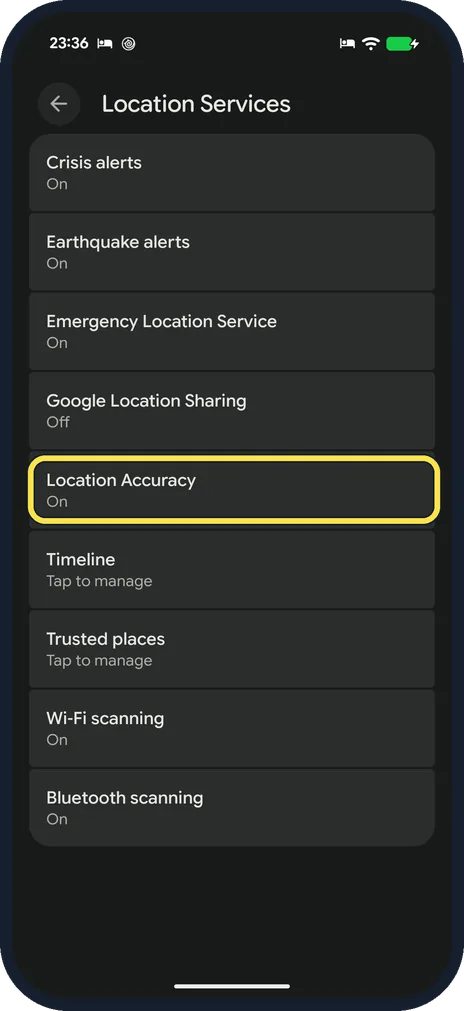
Turn on Location Accuracy
In Location Services, tap Location Accuracy and switch on Improve Location Accuracy. Ours already said On.
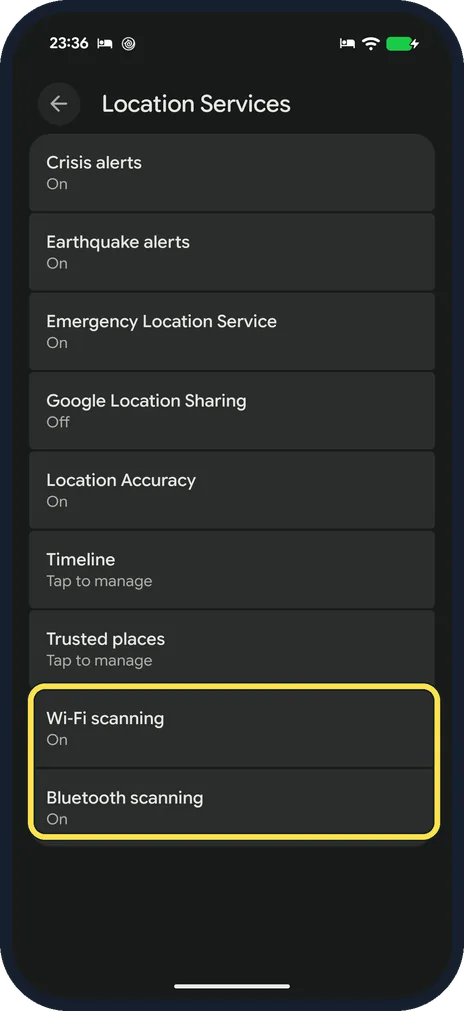
Turn on Wi-Fi scanning and Bluetooth scanning
Both are at the bottom of the same Location Services list; ours were On. Tap each one and switch it on. Wi-Fi scanning lets apps and services look for Wi-Fi networks even when Wi-Fi is off. Also switch on Wi-Fi itself.
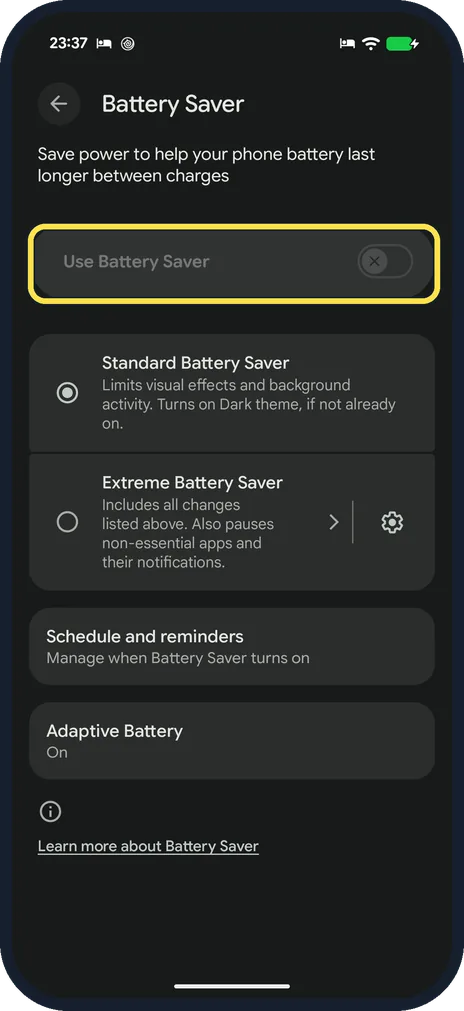
Turn off Battery Saver
Open Settings, Battery, Battery Saver. Its own description says Standard Battery Saver limits visual effects and background activity. Switch off Use Battery Saver while you navigate. Ours was off.
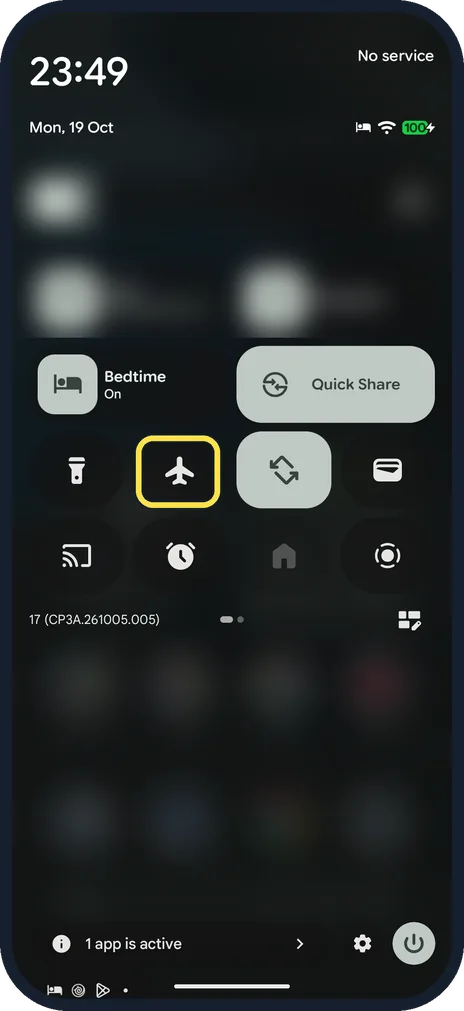
Check aeroplane mode and mobile data
Swipe down twice from the top. The aeroplane tile must be off (dark, as on ours). Mobile data helps Maps use the mobile masts around you, as the card in step 2 says. Ours showed No service at the top right: its SIM was not working.
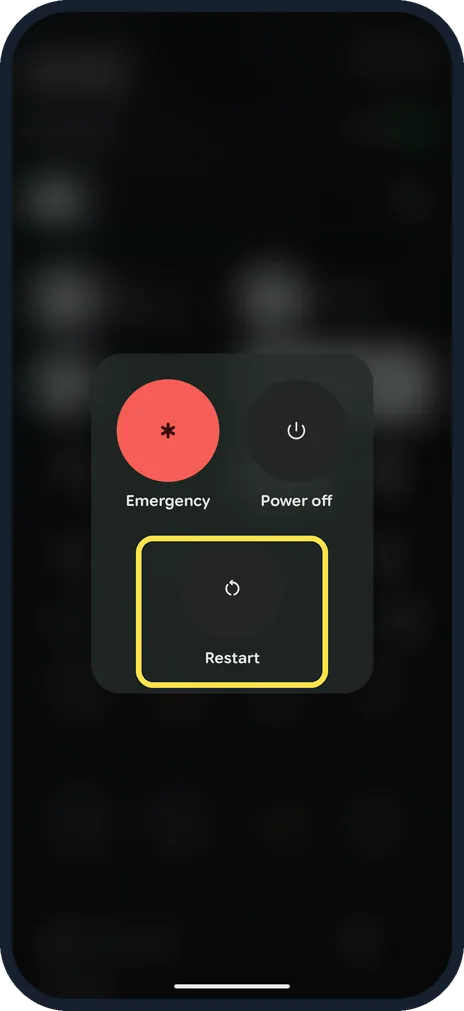
Move and restart
GPS is weak indoors, underground and between tall buildings. Go outside or near a window. If the dot is still wrong, restart the phone: on our Pixel, press the power and volume up buttons at the same time, then tap Restart. More in how to restart or force restart an Android phone.
If you do not see this option
- No Calibrate button when you tap the blue dot? There was none in Google Maps on our Pixel 10a. Tapping the dot opened Your Location with Share this location, Share real-time location and, on ours, the Location accuracy is low card (step 2).
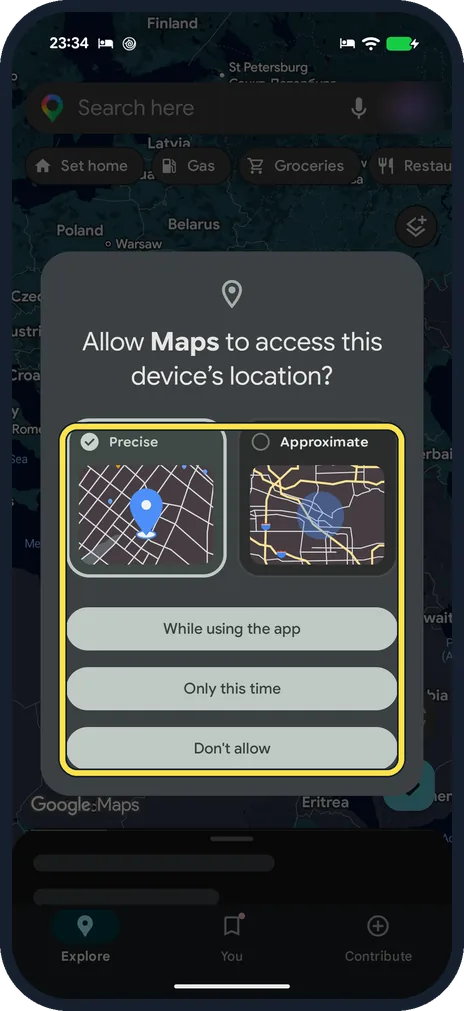
- Maps asks to use your location? Keep Precise selected rather than Approximate, then choose While using the app or Only this time.
If this does not work
- Location accuracy is low, with everything switched on? Ours showed the card indoors, connected to Wi-Fi, with Location Accuracy and Wi-Fi scanning on but no mobile service. Go outside or near a window and look again. Source: Find and improve your location's accuracy in Google Maps
- Dot grey or not moving? Restart the phone (step 8), open Maps outside and give it a minute to find satellites.
About this guide
Google Maps works out where you are from GPS satellites, nearby Wi-Fi networks and mobile masts. The more of them the phone may use, the better the blue dot.
The screenshots are from our Google Pixel 10a with Android 17 (build CP3A.261005.005), in dark mode. Google Maps was signed in. The map around the blue dot is blurred because it shows a real address. The phone had no working SIM card (No service), so nothing here was tried over mobile data.
Good to know
Check that Google Maps is allowed to use your precise location: how to see which apps can use your location, camera and microphone on Android.
For areas with no reception at all, save the map beforehand: how to download offline maps in Google Maps on Android.
In short: Read the blue dot, tap it, Location Accuracy on, Wi-Fi and Bluetooth scanning on, Battery Saver off, mobile data on, go outside, restart.
Links checked in October 2026. Menus and features can change after software updates. These steps match the version named at the top.
Did this guide work for you?
Sorry about that. What happened?