XIAOMI REDMI
How to add a widget to the home screen on a Xiaomi phone (HyperOS 3)

In short
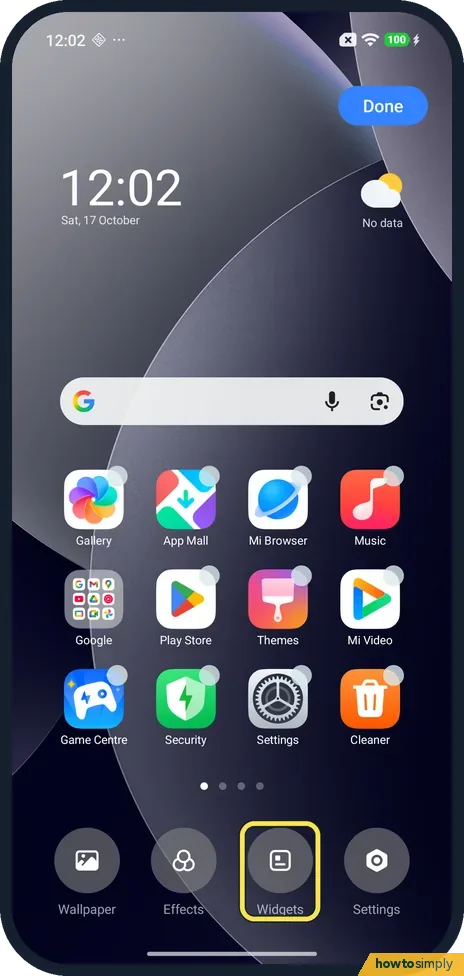
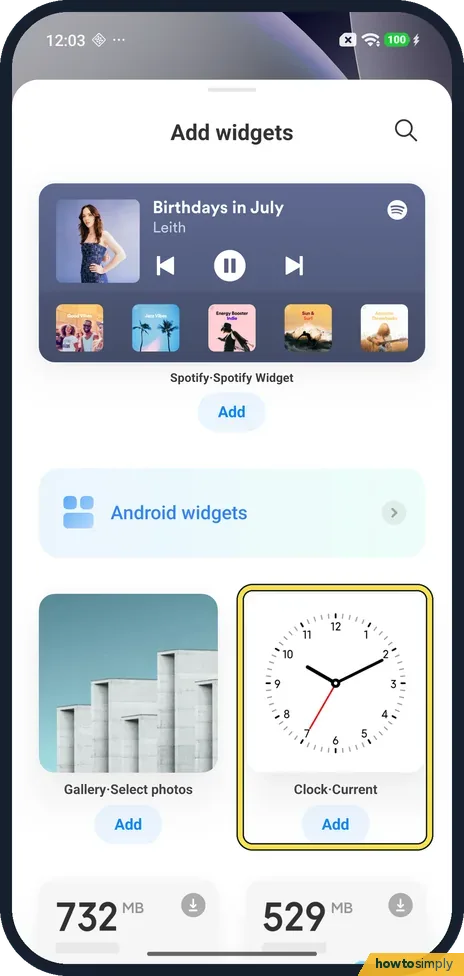
Press and hold an empty spot on the home screen and tap Widgets. In Add widgets, tap Add under the widget you want, such as Clock·Current, then tap Done. Ours went on a new page, not page 1. To take it off, press and hold it and tap Remove.
5 of 5 steps show a real screenshot from our Redmi Note 15 Pro 5G. Each step was checked against the maker's own instructions, linked at the end.
Steps
- 1
Tap Widgets
Press and hold an empty spot on the home screen. Edit mode opens with Done at the top and Wallpaper, Effects, Widgets and Settings at the bottom. Tap Widgets.
- 2
Tap Add under a widget
The Add widgets sheet opens. Ours started with a Spotify widget, then an Android widgets row, then widgets such as Gallery·Select photos and Clock·Current. Tap Add under the one you want; we used Clock·Current.
- 3
Tap Done
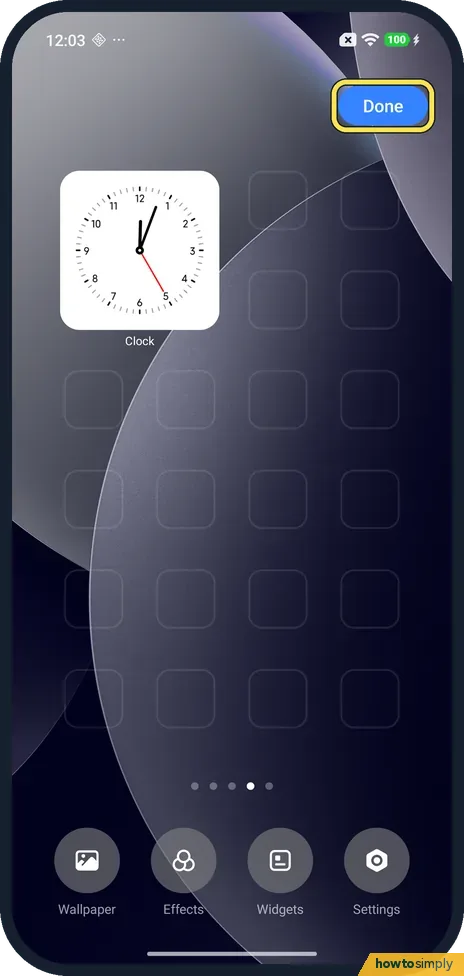
Ours was put on a new, empty page, not on the first page: the dots at the bottom showed an extra page. The widget is labelled Clock. Tap Done at the top right.
- 4
Find it on its page
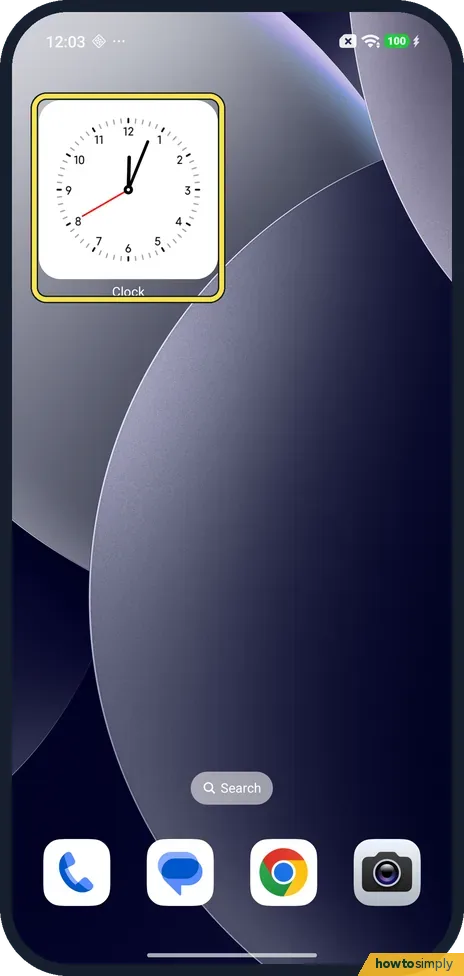
Swipe across the home screens to the new page; our Clock widget was alone there. Xiaomi says to move a widget, touch and hold it until the pop-up window shows, then move it.
- 5
Remove it
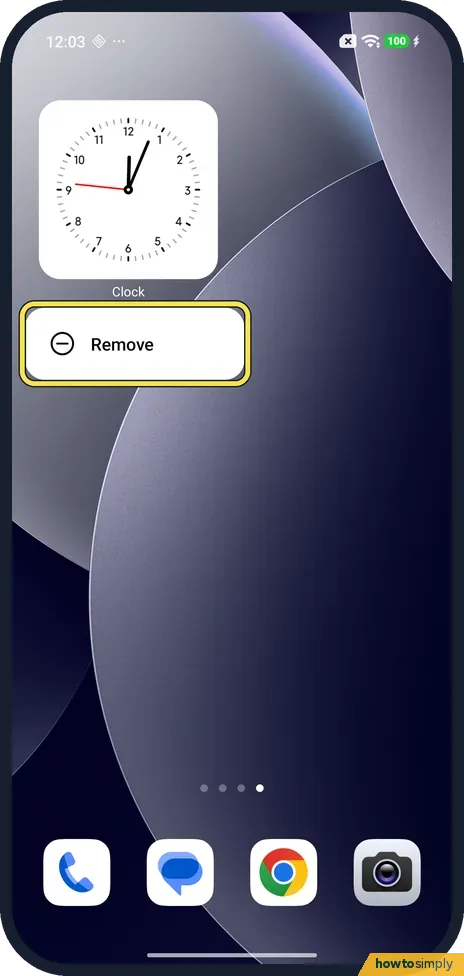
To take it off, press and hold the widget and tap Remove. On ours only Remove showed, and the widget went at once.
If you do not see this option
- Only Remove when you press and hold? You pressed a widget. On ours, holding the Clock widget we had added gave only Remove. Hold an empty spot instead to get Widgets.
- Widget not on page 1? Ours went on a new page after the last one. Xiaomi says that if there is not enough space, you can drag the widget to a different home screen page. Source: Generic User Guide for HyperOS 3.0
- Looking for more widgets? The Android widgets row near the top of Add widgets opens a separate list; we did not open it. Xiaomi's guide uses it for the Lock widget under Quick functions. Source: Generic User Guide for HyperOS 3.0
If this does not work
- No room on the page? Xiaomi says that if there is not enough space, you can drag the widget to a different home screen page. Ours went on a new page by itself.
- Widget not in the list? Scroll Add widgets, or open the Android widgets row near the top, which lists more widgets. We did not open it.
- Want room for more on each page? A denser grid fits more: change the home screen layout.
- Widget shows old information? Widgets refresh in the background, so battery limits on their app can delay updates. Check the app's Power setting: Xiaomi closing apps in the background.
Good to know
Xiaomi says you can also leave edit mode by zooming in on the page, as well as with Done.
Change the picture behind the icons: change the wallpaper. On a Pixel: add a widget on a Pixel.
Widgets that refresh often, such as weather, use a little data and battery to stay up to date. If apps cannot be dragged either, see lock the home screen layout, as the lock may be on.
About this guide
- Device
- Android
- Shown on
- Xiaomi Redmi Note 15 Pro 5G (25080RABDG), HyperOS 3.0.308.0, Android 16
- App
- Home screen
- Path
- Home screen › Widgets › Add widgets › Add
- Real screenshots
- 5 of 5 steps
- Checked
- October 2026
- Sources
- 1 official, linked below
Sources
Links checked October 2026. Menus and features can change with updates.Spotted a mistake? Menus change with updates, and we want every step to match your screen. Email us about this page or use the contact form. We read every report, and fixes are listed on What changed.
Liked this guide?
Follow us for new guides and short how-to videos.
Did this guide work for you?
Sorry about that. What happened?