
howtosimply.com/guides/how-to-add-and-resize-widgets-on-a-samsung-galaxy-home-screen/ · Checked October 2026 · Samsung Galaxy A57 5G (One UI 8.5, Android 16) and Samsung Galaxy A57 (One UI 9, Android 17 (build A576BXXU6BZIE))
In this guide
Touch and hold an empty spot on the home screen, tap Widgets, choose an app and a widget size, and tap Add. To resize, touch and hold the widget and drag the edges of the frame that appears.
If you do not see this option
- Widgets will not move or the Widgets button does nothing Samsung says Lock Home screen layout stops icons and widgets being moved or removed. Turn it off under Settings, Display, Home screen. Source: How to add apps and widgets on your Galaxy phone's Home screen
- There are no handles to resize Samsung says only resizable widgets show a blue line along their edges. A widget without it comes in fixed sizes; remove it and add another size instead. Source: How to add apps and widgets on your Galaxy phone's Home screen
5 of 5 steps with real screenshots · 2 official sources below
- Device
- Android
- Shown on
- Samsung Galaxy A57 5G (SM-A576B), One UI 8.5, Android 16, Samsung Galaxy A57 (SM-A576B), One UI 9, Android 17 (build A576BXXU6BZIE)
- Starts in
- Home screen
- Real screenshots
- 5 of 5 steps
- Our phone
- Shown on Galaxy A57, One UI 8.5
- Checked
- October 2026
- Sources
- 2 official, linked below
Step by step
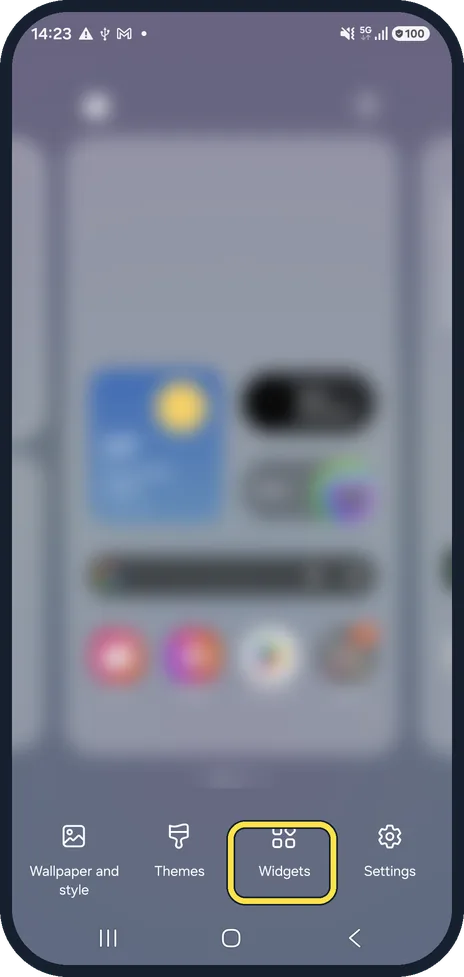
Open Widgets
Touch and hold an empty part of the home screen and tap Widgets at the bottom.
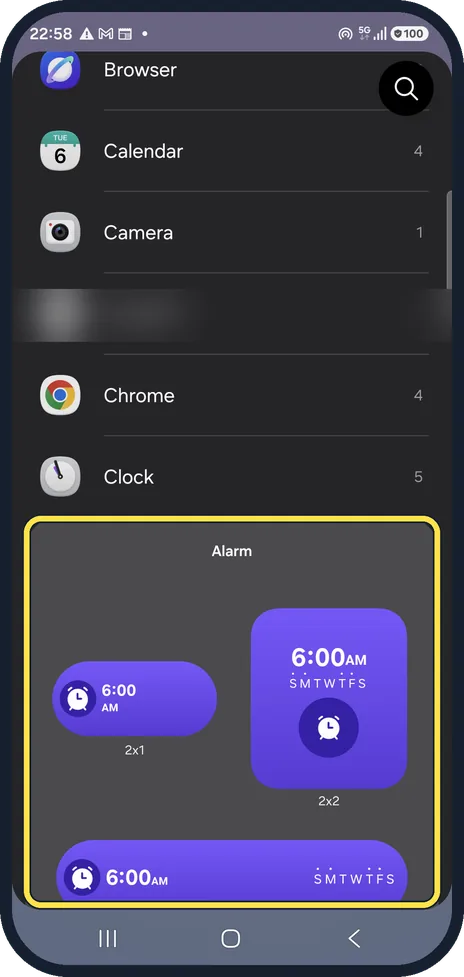
Choose a widget
Apps are listed with the number of widgets they offer. Tap one to see its sizes; ours shows the Clock alarm widget in 2x1, 2x2 and wider sizes. We blurred one app.
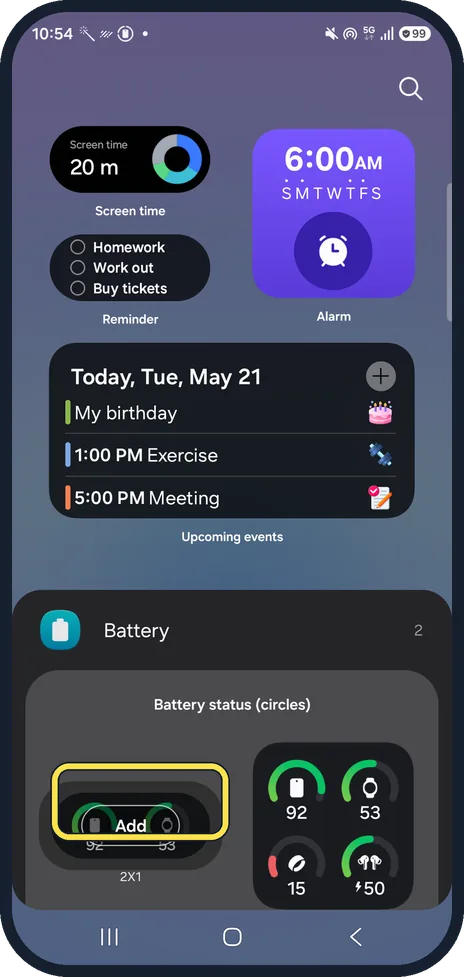
Add and place it
Tap Add, or drag the widget to the spot you want.
We picked Battery, Battery status (circles) in 2X1 and tapped Add.
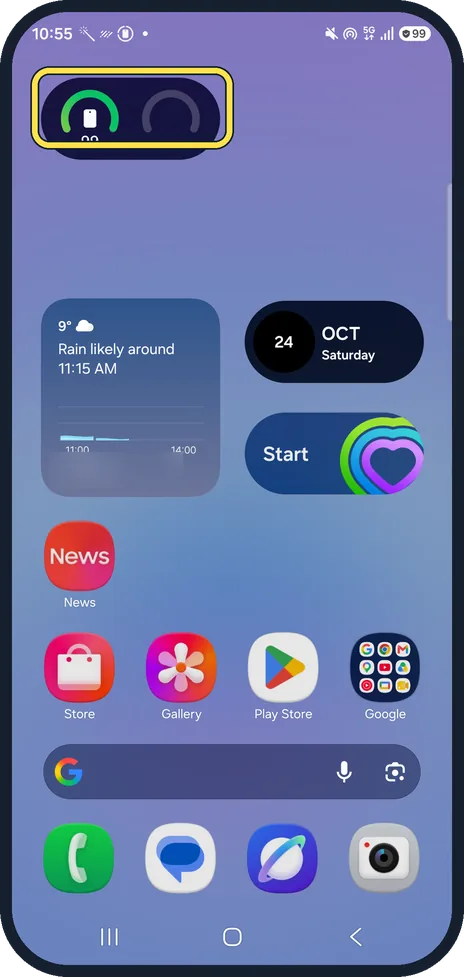
Find it on the home screen
The widget appears on the home screen; ours went to the top of the page. We removed it afterwards.
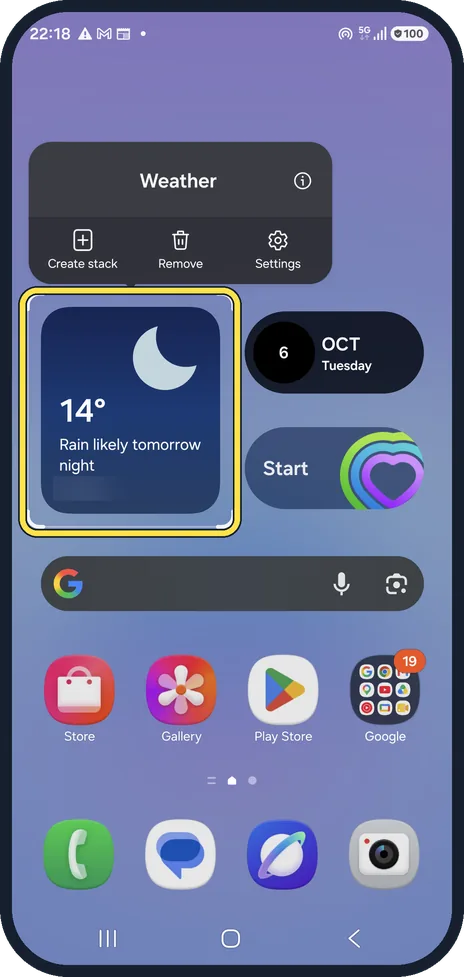
Resize it
Touch and hold the widget. A frame with handles appears; drag the edges to make it bigger or smaller. Settings in the same menu changes its colour and transparency.
Our picture shows this on a Weather widget we already had.
If this does not work
- The widget shows nothing useful yet Samsung says some widgets ask for extra settings when you add them. Touch and hold the widget and tap Settings to change it, including its colour and transparency. Source: How to add apps and widgets on your Galaxy phone's Home screen
- You removed a widget by mistake Samsung says removing a widget does not delete the app settings. Add it again from Widgets. Source: How to add apps and widgets on your Galaxy phone's Home screen
About this guide
Widgets show live information, such as the weather or your next alarm, without opening the app. We added one widget for the pictures and removed it afterwards.
Steps 3 and 4 are from the same phone after its One UI 9 update (Android 17).
Good to know
To stop widgets moving by accident, turn on Lock Home screen layout in Home screen settings.
In short: Touch and hold the home screen, Widgets, pick one, Add; touch and hold it and drag the frame to resize.
- Samsung Latin: How to add apps and widgets on your Galaxy phone's Home screen
- Samsung US: Add, customize, and use widgets on Galaxy phones
Links checked in October 2026. Menus and features can change after software updates. These steps match the version named at the top.
📷 See real photos from the Galaxy A57 in our Camera Lab, next to 10 other phones.
Did this guide work for you?
Sorry about that. What happened?