
howtosimply.com/guides/how-to-change-the-language-of-one-app-on-a-samsung-galaxy/ · Checked October 2026 · Samsung Galaxy A57 5G (One UI 8.5, Android 16) and Samsung Galaxy A57 (One UI 9, Android 17 (build A576BXXU6BZIE))
In this guide
Open Settings, General management, App languages, tap the app and choose a language. Only apps that support their own language choice are listed. The rest of the phone stays in its current language.
5 of 5 steps with real screenshots · 1 official source below
- Device
- Android
- Shown on
- Samsung Galaxy A57 5G (SM-A576B), One UI 8.5, Android 16, Samsung Galaxy A57 (SM-A576B), One UI 9, Android 17 (build A576BXXU6BZIE)
- App
- Settings
- Path
- Settings › General management › App languages
- Real screenshots
- 5 of 5 steps
- Our phone
- Shown on Galaxy A57, One UI 8.5
- Checked
- October 2026
- Sources
- 1 official, linked below
Step by step
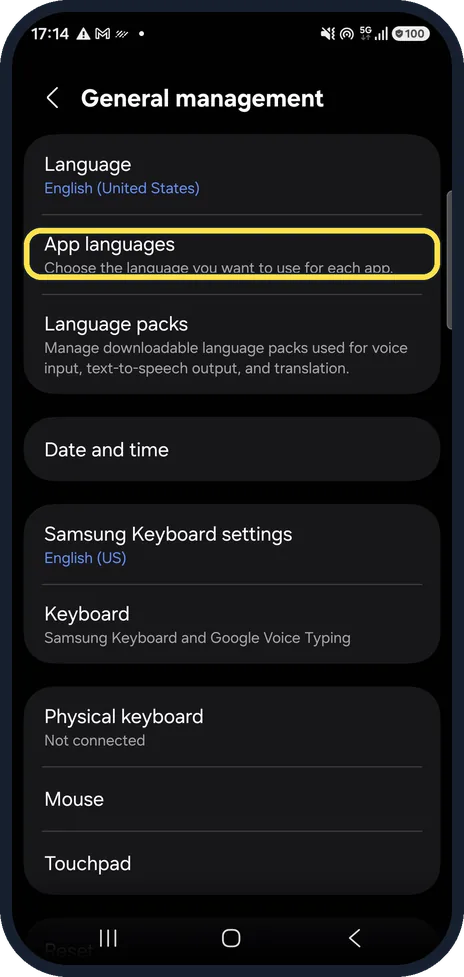
Open App languages
Open Settings, General management and tap App languages.
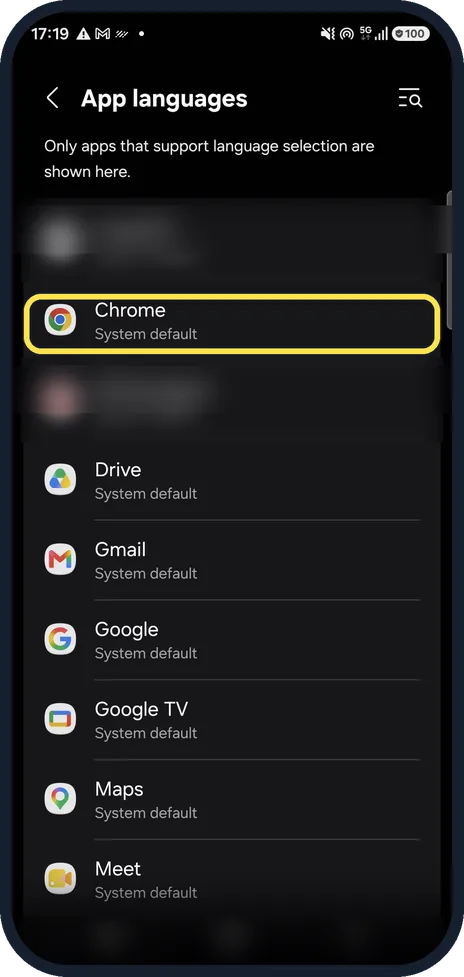
Choose the app
Only apps that support language selection are shown. We blurred two of our apps and tapped Chrome, which uses System default.
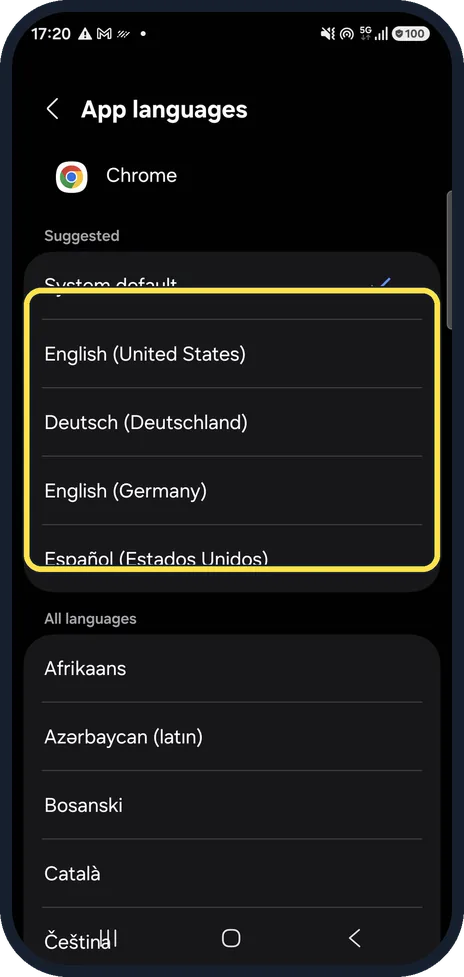
Pick a language
Suggested languages are at the top; our list offers Deutsch (Deutschland), English (Germany) and Español. System default follows the phone.
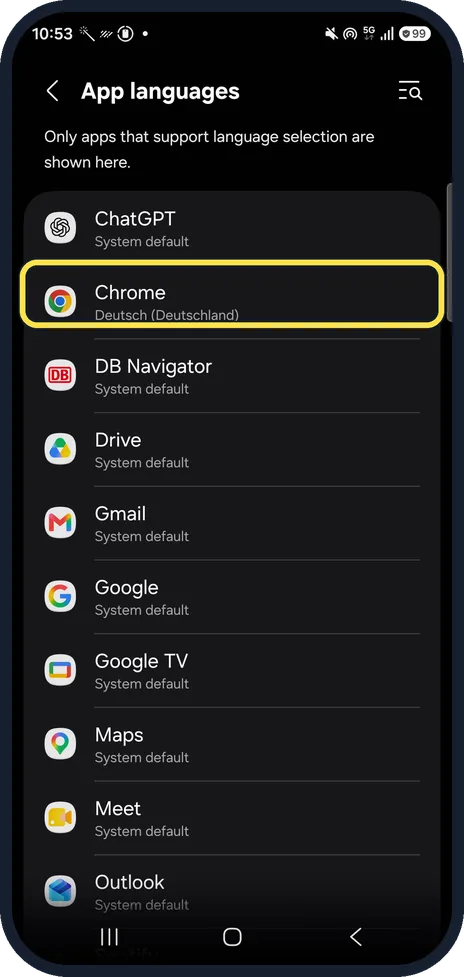
Check what changed
App languages then lists the app with its new language: ours showed Chrome, Deutsch (Deutschland). Chrome's own menus stayed in English on our phone, even after a restart: Chrome downloads the language from the Play Store, and our phone was signed out of Play.
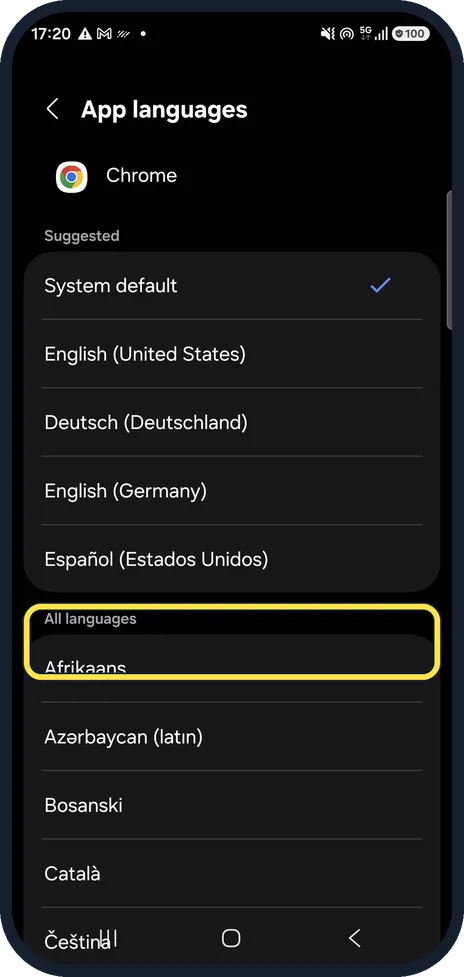
Or search all languages
Below Suggested, All languages lists every language the app supports.
If you do not see this option
- Your app is not in the list Google says only apps whose developers opt in to this feature are listed. Some apps let you change the language only inside the app or its account settings. Source: Change app language on your Android phone
- A language is missing from the app's list Google says All languages shows the languages that app supports. Update the app to get its latest list. Source: Change app language on your Android phone
If this does not work
- The app still shows the old language Google says to restart the app and make sure the phone is online; without a connection the language may not update. Source: Change app language on your Android phone
- It still will not switch Google suggests adding the language as a second language in the phone's own language settings, waiting a few minutes, then choosing it again for the app. Source: Change app language on your Android phone
- The app is stuck in another language Google says you may be able to reset it by clearing the app's data. Source: Change app language on your Android phone
About this guide
You can run one app in German and keep the rest of the phone in English, or the other way round. Handy for practising a language, or for an app that translates badly. We set Chrome to Deutsch for one picture and back to System default.
Step 4 is from the same phone after its One UI 9 update (Android 17).
Good to know
Some apps also have a language option in their own settings, which overrides this.
In short: Settings, General management, App languages, the app, a language.
Links checked in October 2026. Menus and features can change after software updates. These steps match the version named at the top.
📷 See real photos from the Galaxy A57 in our Camera Lab, next to 10 other phones.
Did this guide work for you?
Sorry about that. What happened?