GOOGLE PIXEL
How to add a widget to the home screen on a Google Pixel (Android 17)

In short
Press and hold an empty spot on the home screen, tap Widgets, then Browse. Tap the app, such as Clock, then tap a widget and + Add. Ours asked us to pick a clock face, then put it at the top left. To take it off, press and hold it and tap Remove.
8 of 8 steps show a real screenshot from our Pixel 10a. Each step was checked against the maker's own instructions, linked at the end.
Steps
- 1
Tap Widgets
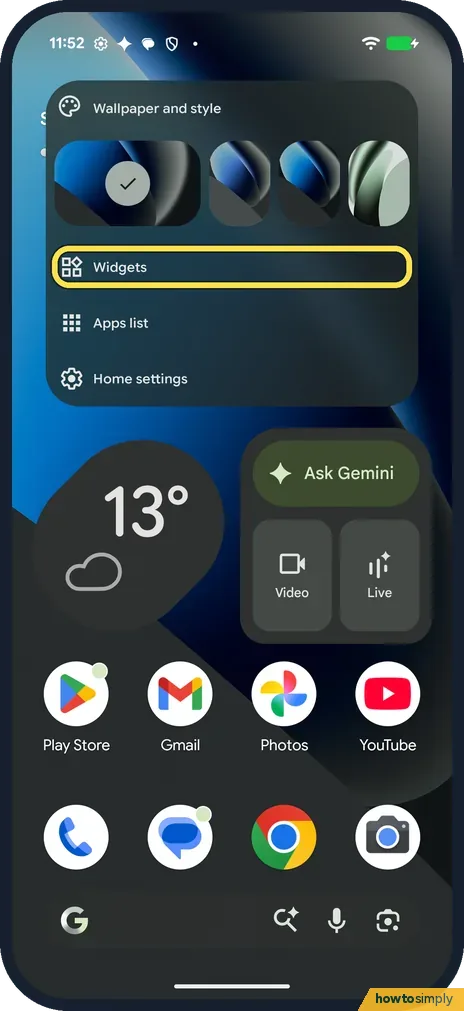
Press and hold an empty spot on the home screen. In the menu, tap Widgets.
- 2
Tap Browse
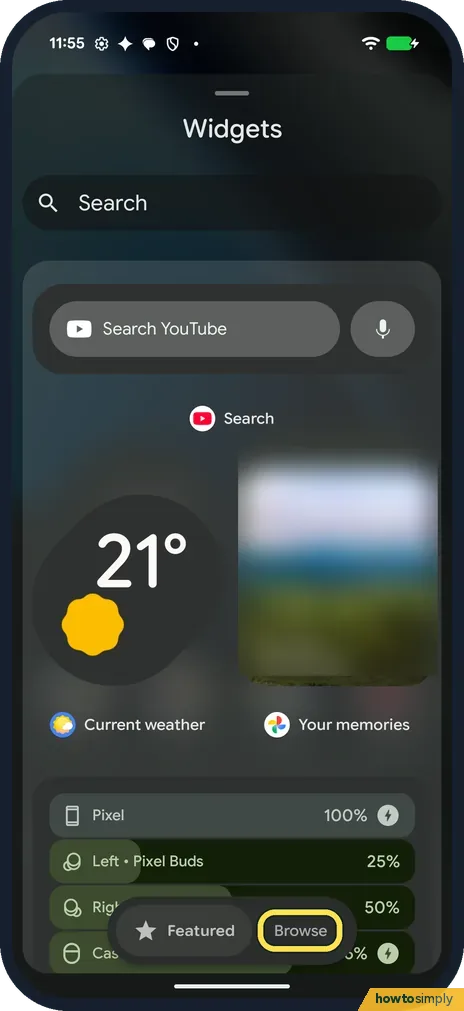
The Widgets sheet opens on Featured, with picks such as Search YouTube, Current weather and Your memories. Tap Browse at the bottom to see every app.
- 3
Tap the app
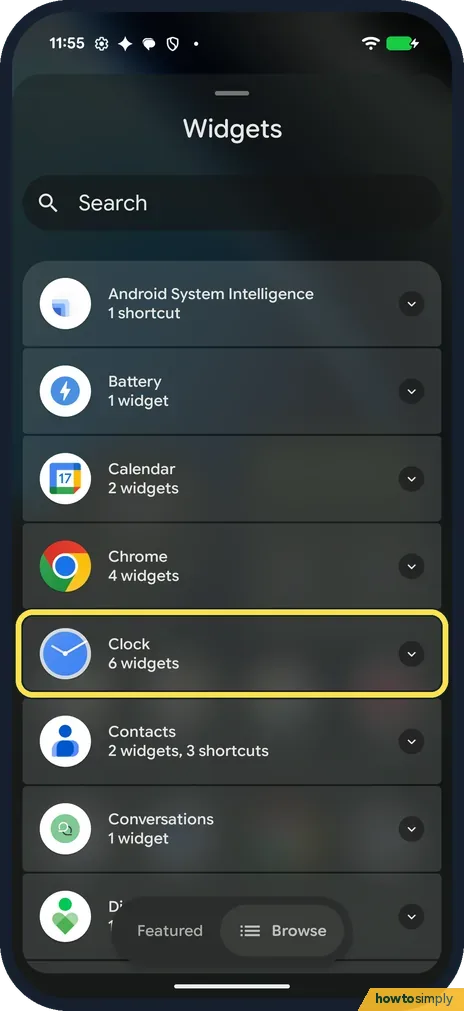
Browse lists apps from A to Z with how many widgets each has; Search at the top finds one by name. We tapped Clock: 6 widgets.
- 4
Tap a widget
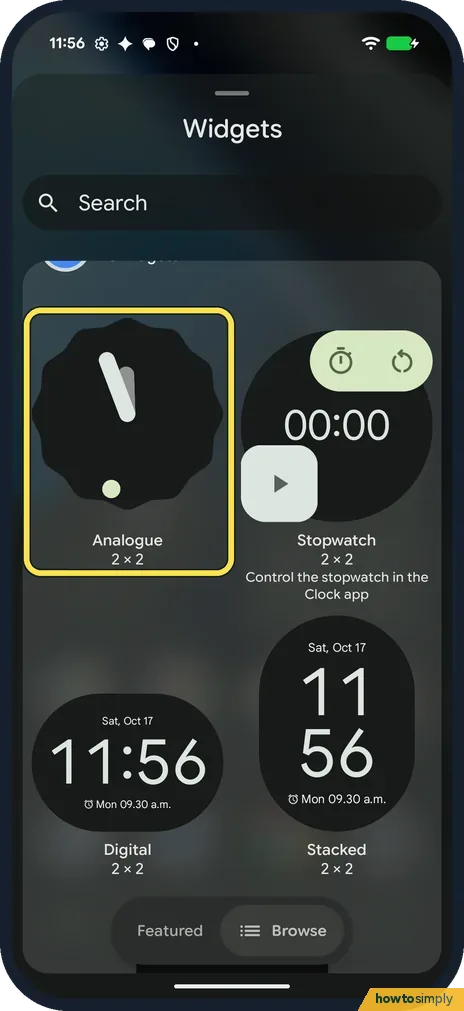
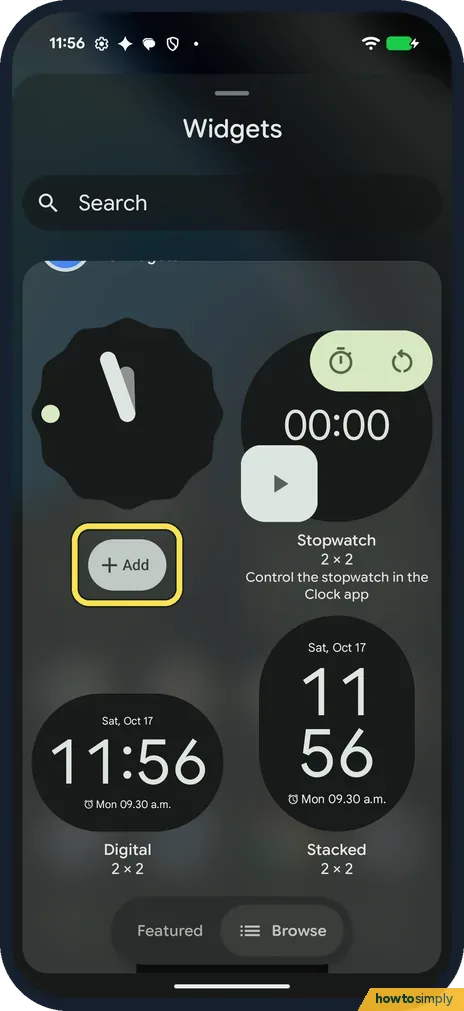
The app's widgets show with their size. Clock had Analogue, Stopwatch, Digital and Stacked, all 2 × 2. Tap the one you want; we tapped Analogue.
- 5
Tap Add
An Add button appears under it. Tap Add. Google's help says you can also touch and hold the widget and slide it to where you want it.
- 6
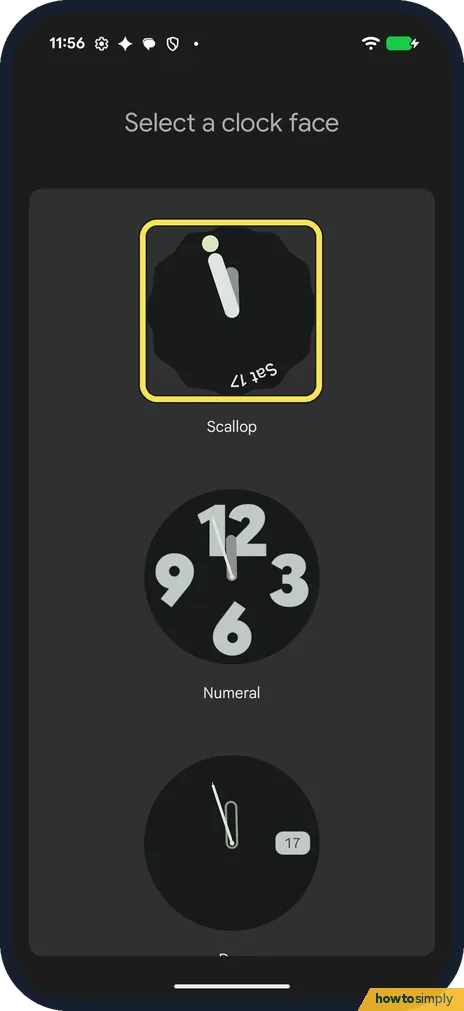
Pick a style if asked
The Analogue clock asked us to Select a clock face, with Scallop, Numeral and more below. We tapped Scallop.
- 7
Resize it or leave it
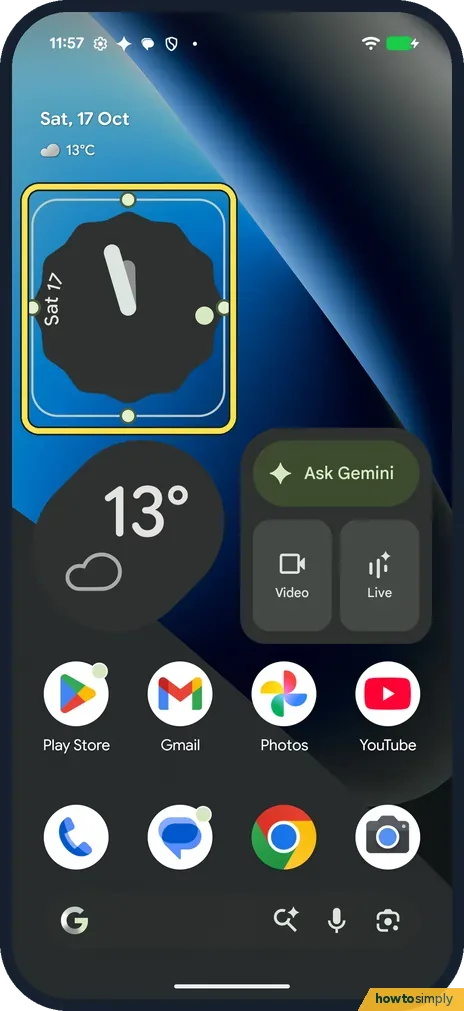
Ours went at the top left of our first home screen, showing Sat 17, with an outline and dots around it. Google says that if a widget can be resized, you drag the dots, then tap outside it.
- 8
Remove it
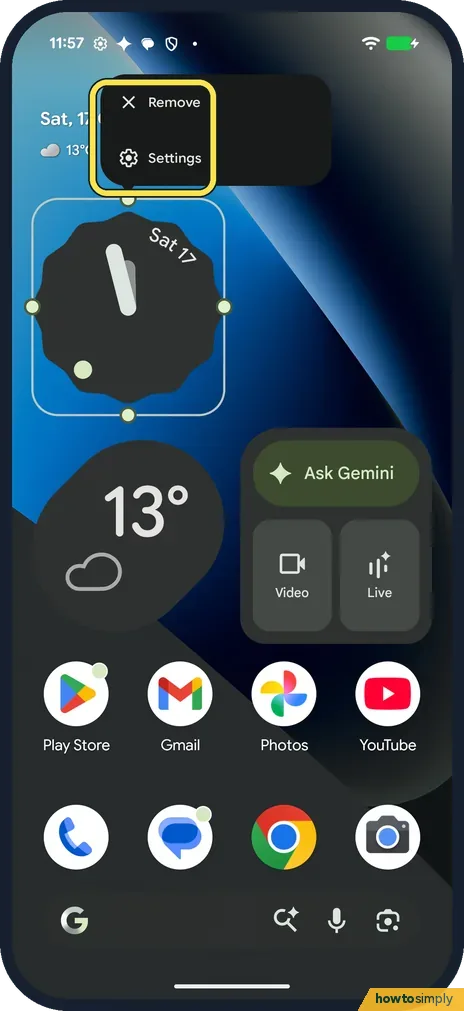
Press and hold the widget. A menu shows Remove and Settings. Tap Remove to take it off; ours went and our home screen was as before.
If you do not see this option
- No Widgets in the menu? Press and hold an empty part of the home screen, not an app. Ours showed Wallpaper and style, Widgets, Apps list and Home settings.
- No Add button? We saw it after tapping the widget once. Google's steps are to touch and hold the widget, slide it to where you want it and lift your finger. Source: Add apps, shortcuts & widgets to your Home screens
- Can't find the app? Each app in Browse shows how many widgets or shortcuts it has, such as Clock (6 widgets) or Android System Intelligence (1 shortcut). Search at the top of the sheet finds one by name.
If this does not work
- Widget in the wrong place? Google says to touch and hold it, then slide it to where you want it. Google's way to remove one is to drag it up to Remove; ours also had Remove in its menu.
- Widget too big or too small? Google says a widget that can be resized shows an outline with dots on its sides: drag the dots, then tap outside it. Ours showed the outline straight after it was placed.
- Worried Remove deletes the app? Google says Remove takes an item off your home screen only, while Uninstall takes it off your device.
Good to know
The Clock widgets in the list showed the date as Sat, Oct 17, while our home screen said Sat, 17 Oct.
Fit more on each screen: change the home screen grid. Other home screen options: home screen and search settings.
About this guide
- Device
- Android
- Shown on
- Google Pixel 10a, Android 17 (build CP3A.261005.005)
- App
- Home screen
- Path
- Home screen › Widgets › Browse › Add
- Real screenshots
- 8 of 8 steps
- Checked
- October 2026
- Sources
- 1 official, linked below
Sources
Links checked October 2026. Menus and features can change with updates.Spotted a mistake? Menus change with updates, and we want every step to match your screen. Email us about this page or use the contact form. We read every report, and fixes are listed on What changed.
Liked this guide?
Follow us for new guides and short how-to videos.
Did this guide work for you?
Sorry about that. What happened?