
howtosimply.com/guides/how-to-change-the-wallpaper-on-an-oppo-phone/ · Checked October 2026 · CPH2689, EEA), ColorOS 16.0.5, Android 16 (build CPH2689_16.0.5.1001(EX01) · OPPO Reno13 5G
In this guide
Open Settings, Home screen, Lock screen & style and tap the wallpaper card to open Wallpapers. Pick one from Classic or the other collections, or Choose from album for your own photo, tap Apply to, then choose Lock screen, Home screen, or both.
5 of 5 steps with real screenshots · 1 official source below
- Device
- Android
- Shown on
- OPPO Reno13 5G (CPH2689, EEA), ColorOS 16.0.5, Android 16 (build CPH2689_16.0.5.1001(EX01))
- App
- Settings
- Path
- Settings › Home screen › Lock screen & style › Wallpapers
- Real screenshots
- 5 of 5 steps
- Checked
- October 2026
- Sources
- 1 official, linked below
Step by step
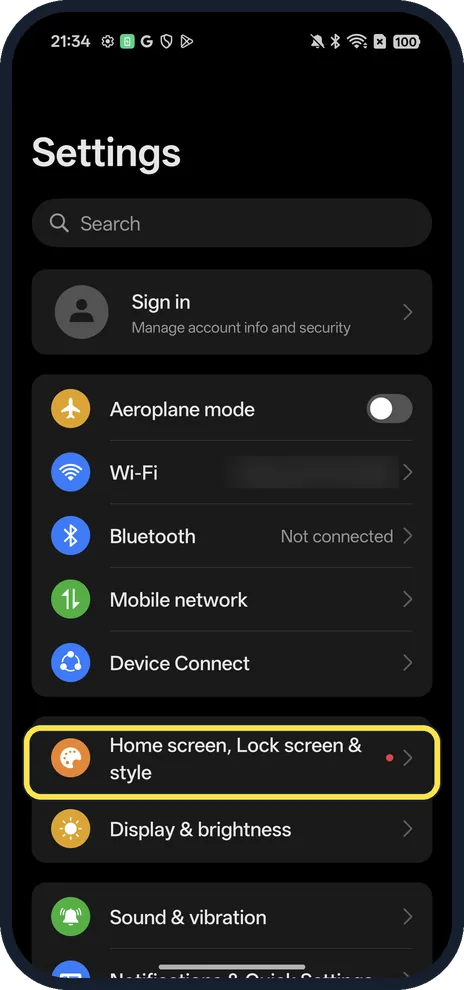
Open Home screen, Lock screen & style
Open Settings. It is the first row after Device Connect.
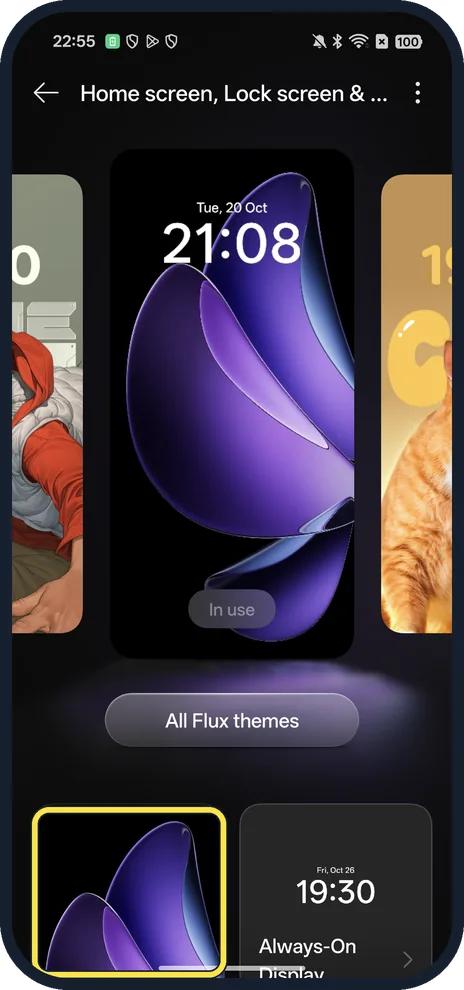
Tap the wallpaper card
Below the theme carousel and All Flux themes, the left card shows your current wallpaper.
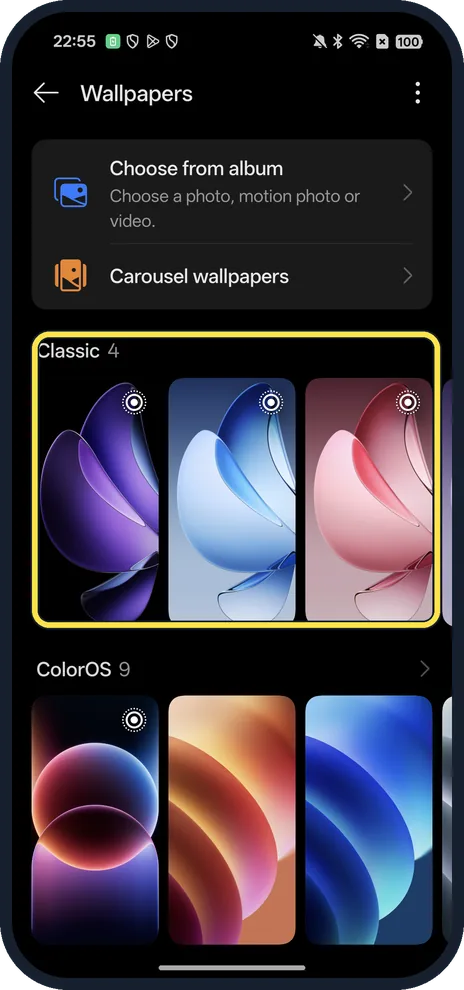
Pick a wallpaper
Collections include Classic and ColorOS 9; tap one to preview it.
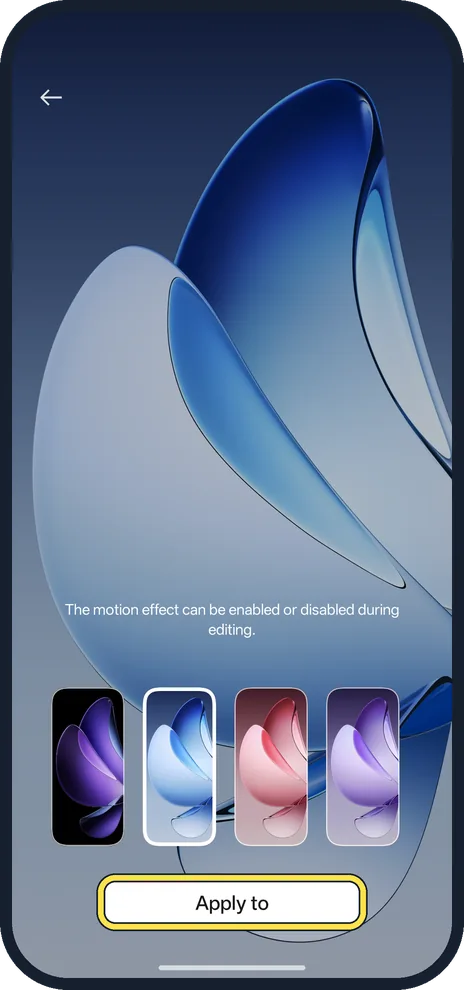
Tap Apply to
The thumbnails switch between colour versions. The motion effect can be turned on or off while editing.
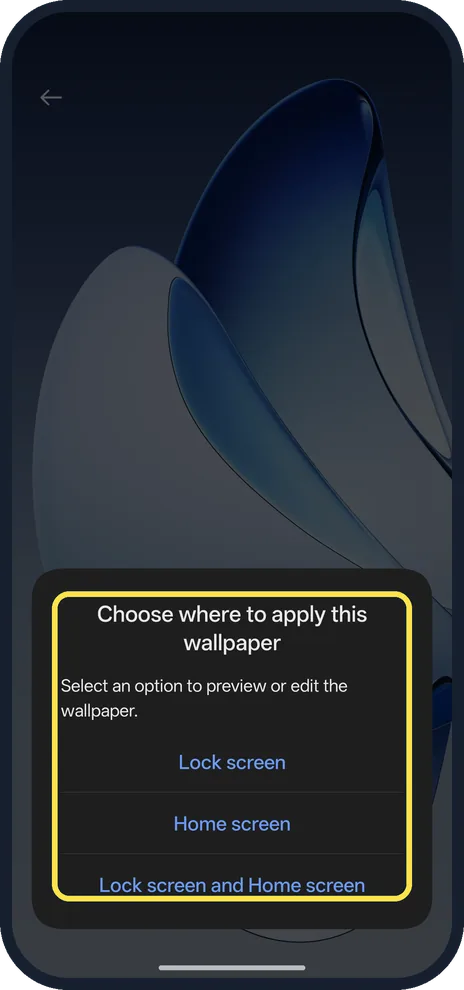
Choose where it goes
Lock screen, Home screen, or Lock screen and Home screen.
If you do not see this option
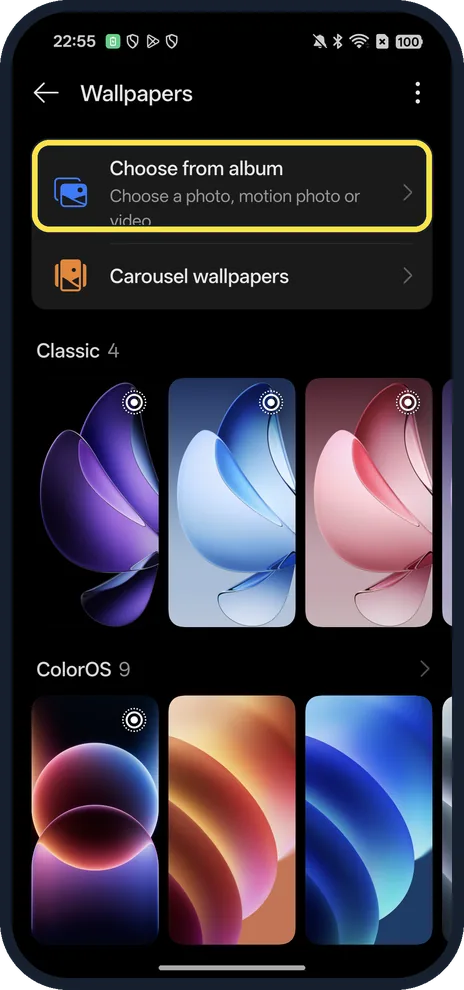
- Want your own photo? Choose from album takes a photo, motion photo or video.
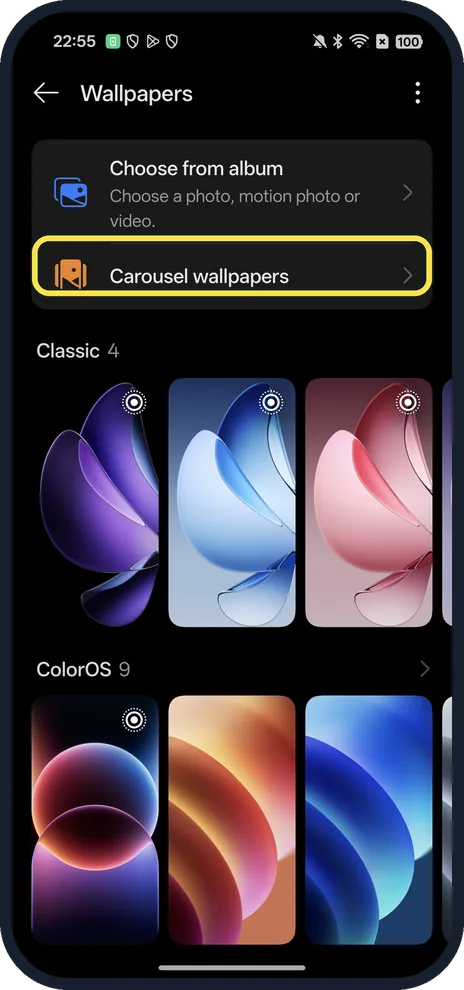
- Want it to change by itself? Carousel wallpapers is just below Choose from album.
- No Theme Store on your phone? OPPO says Theme Store availability varies by country and region; Wallpapers in Settings works without it. Source: Lock Screen Wallpaper Not Changing on OPPO Phone
If this does not work
- Lock screen wallpaper won't change? OPPO says a third-party lock screen app, or a theme with its own lock screen style, can block it. Also make sure you chose a lock screen option when applying. Source: Lock Screen Wallpaper Not Changing on OPPO Phone
- Still the old picture? OPPO suggests turning Lock Screen Magazine off and on, clearing Theme Store's cache, and restarting the phone. Source: Lock Screen Wallpaper Not Changing on OPPO Phone
About this guide
The screenshots are from our OPPO Reno13 5G, the European model CPH2689, with ColorOS 16.0.5 and Android 16 (build CPH2689_16.0.5.1001(EX01)), in Dark mode. We opened the preview and the Apply to options, then backed out; the wallpaper was not changed.
Good to know
To make the rest of the screen darker, turn on dark mode on an OPPO phone.
On a OnePlus, see change the wallpaper on a OnePlus.
In short: Settings, Home screen, Lock screen & style, Wallpapers, pick, Apply to.
Links checked in October 2026. Menus and features can change after software updates. These steps match the version named at the top.
Did this guide work for you?
Sorry about that. What happened?