
howtosimply.com/guides/how-to-add-a-website-to-the-home-screen-on-an-iphone/ · Checked October 2026 · iPhone 17e · iOS 27.0.1
In this guide
In Safari, tap the page menu button, Share, then Add to Home Screen in the list. Leave Open as Web App on and tap Add. The icon opens the site in its own window. To remove it, touch and hold the icon, tap Delete Bookmark, then Delete.
- Device
- iPhone
- Shown on
- iOS 27.0.1 (iPhone 17e)
- App
- Safari
- Path
- Safari › Page menu › Share › Add to Home Screen › Open as Web App
- Real screenshots
- 7 of 7 steps
- Checked
- October 2026
- Sources
- 1 official, linked below
Step by step
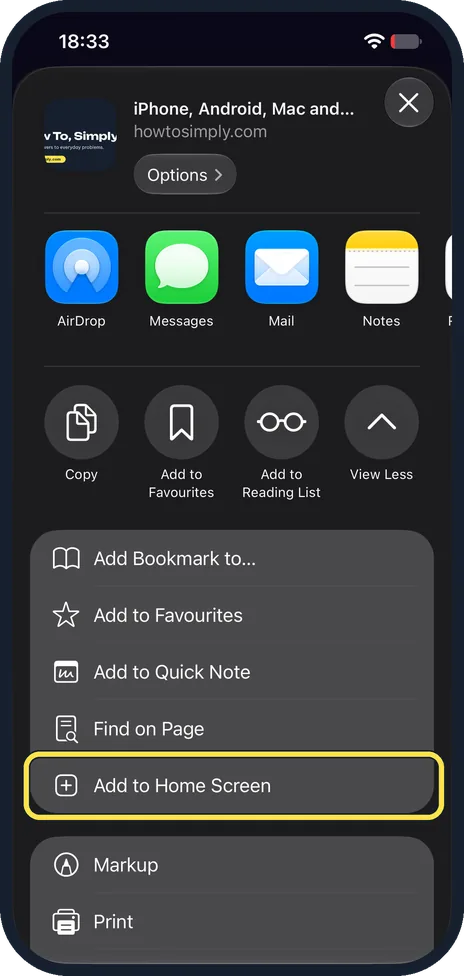
Tap Add to Home Screen
Open the site in Safari, tap the page menu button left of the address, then Share. Add to Home Screen is in the list below the row of buttons: tap View More if you do not see the list.
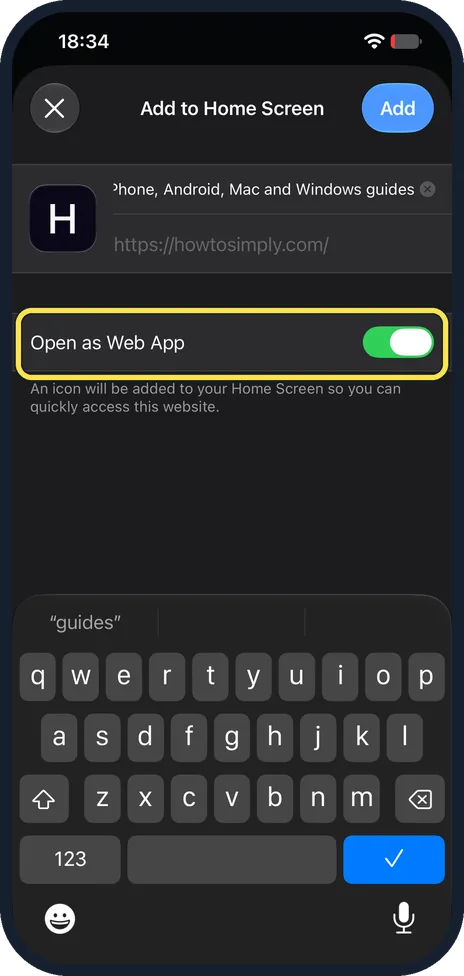
Keep Open as Web App on
It was on by default on ours. The note says an icon will be added to your Home Screen. You can change the name in the box at the top.
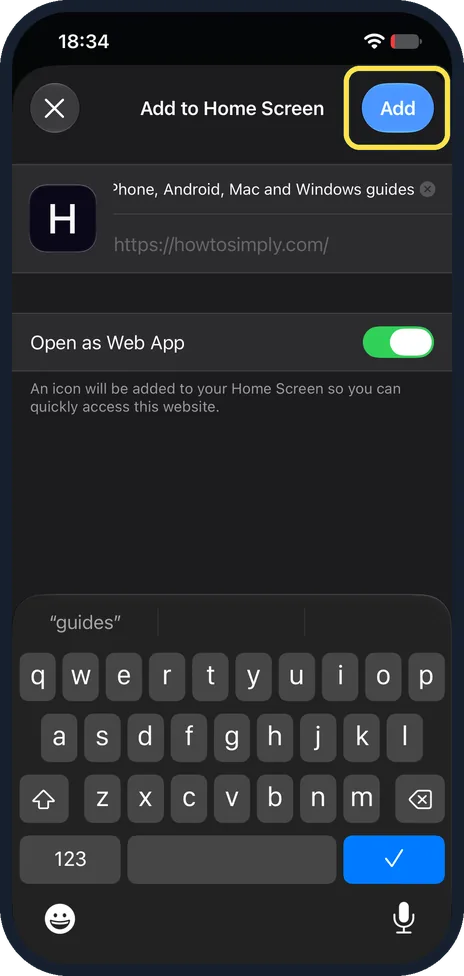
Tap Add
It is at the top right.
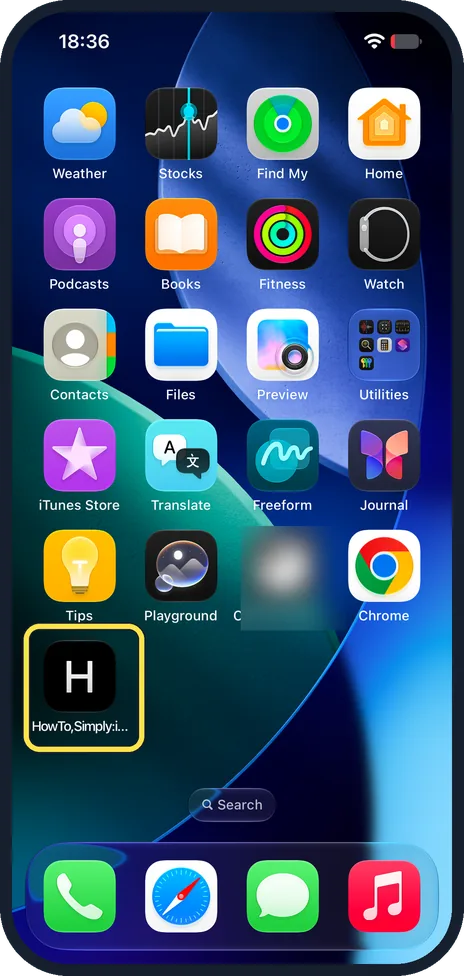
Tap the new icon
The icon is on the next free spot of your Home Screen. Ours used the site icon, an H.
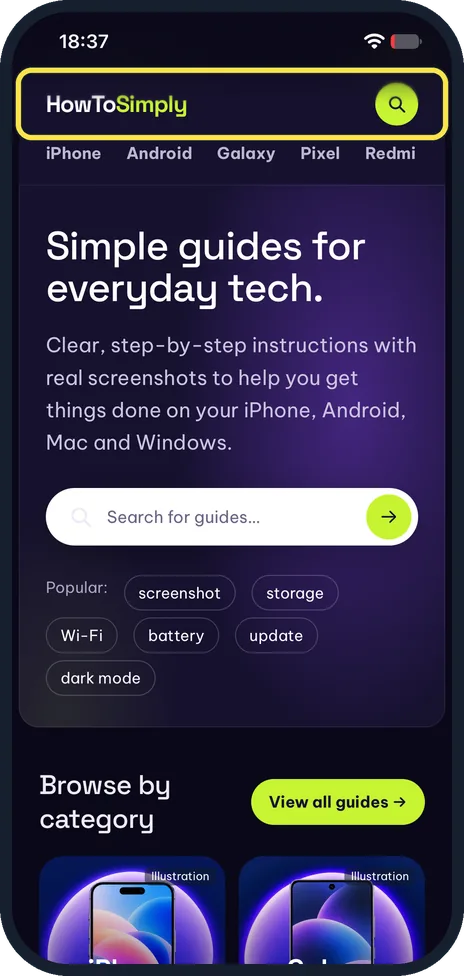
Use the site
Ours opened with no Safari address bar or Safari buttons in view.
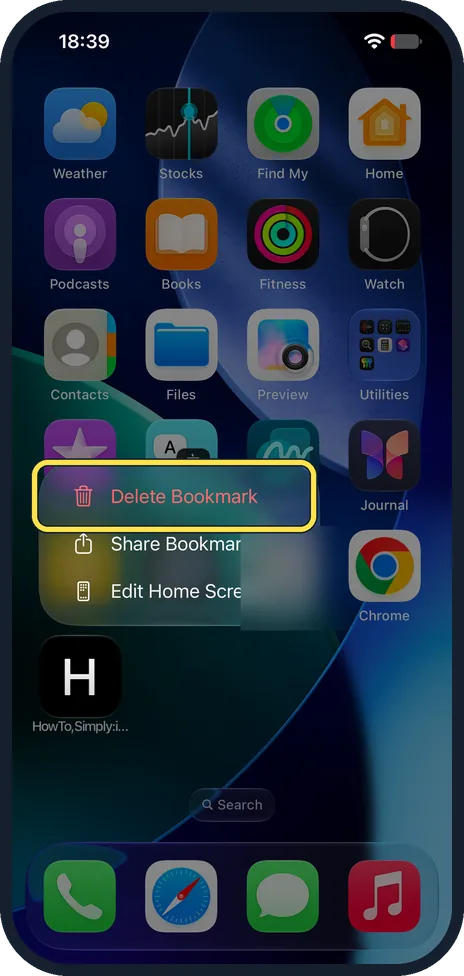
To remove it, tap Delete Bookmark
Touch and hold the icon. Tap Delete Bookmark at the top of the menu.
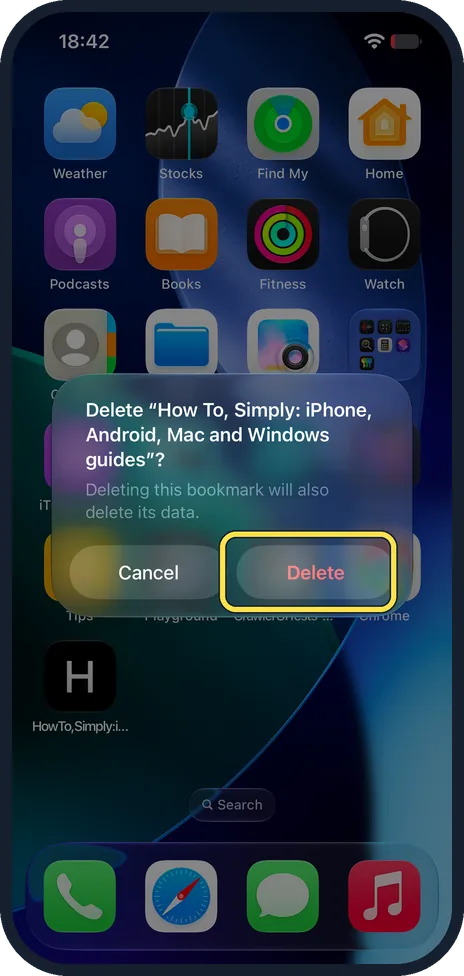
Tap Delete
Ours said: Deleting this bookmark will also delete its data. Tap Delete.
If you do not see this option
- No Add to Home Screen? Apple says to tap Edit Actions at the bottom of the list and add it. Source: Turn a website into an app in Safari on iPhone
- Want it to open in Safari? Turn off Open as Web App before you tap Add. The icon then opens the site in Safari. Source: Turn a website into an app in Safari on iPhone
If this does not work
- Lost what you saved in the web app? Deleting the icon deletes its data, as the Delete box says. Add it again and sign in again.
- The icon landed on another page? New icons take the next free spot. To keep new apps off the Home Screen, see how to keep new apps off the iPhone Home Screen.
About this guide
A Home Screen icon opens a site you use often in one tap. With Open as Web App on, it opens like an app.
The screenshots are from our iPhone 17e with iOS 27.0.1, in Dark mode. We added howtosimply.com and removed it again.
Good to know
For sites you read in Safari, see how to hide distracting items in Safari on an iPhone.
In short: Page menu, Share, Add to Home Screen, Open as Web App on, Add. Hold the icon, Delete Bookmark to remove it.
Links checked in October 2026. Menus and features can change after software updates. These steps match the version named at the top.
Did this guide work for you?
Sorry about that. What happened?