
howtosimply.com/guides/windows-11-update-failed-or-stuck-10-fixes-to-try/ · Checked October 2026 · Windows 11 Enterprise 25H2 (build 26200.9457), Microsoft Cloud PC
In this guide
- Run the Windows Update troubleshooter
- Check the internet connection
- Unplug external hardware
- Free up disk space
- Set the time automatically
- Use an administrator account
- Restart and check again
- Find the error code
- Reinstall Windows with Windows Update
- Update drivers
- If you do not see this option
- If this does not work
- Good to know
- Sources
Run the Windows Update troubleshooter (Settings, System, Troubleshoot, Other troubleshooters). Check the connection, free space and clock, restart and click Check for updates. If it still fails, click Reinstall now under Settings, System, Recovery.
10 of 10 steps with real screenshots · 2 official sources below
- Device
- Windows
- Shown on
- Windows 11 Enterprise 25H2 (build 26200.9457), Microsoft Cloud PC
- App
- Settings
- Real screenshots
- 10 of 10 steps
- Checked
- October 2026
- Sources
- 2 official, linked below
Step by step
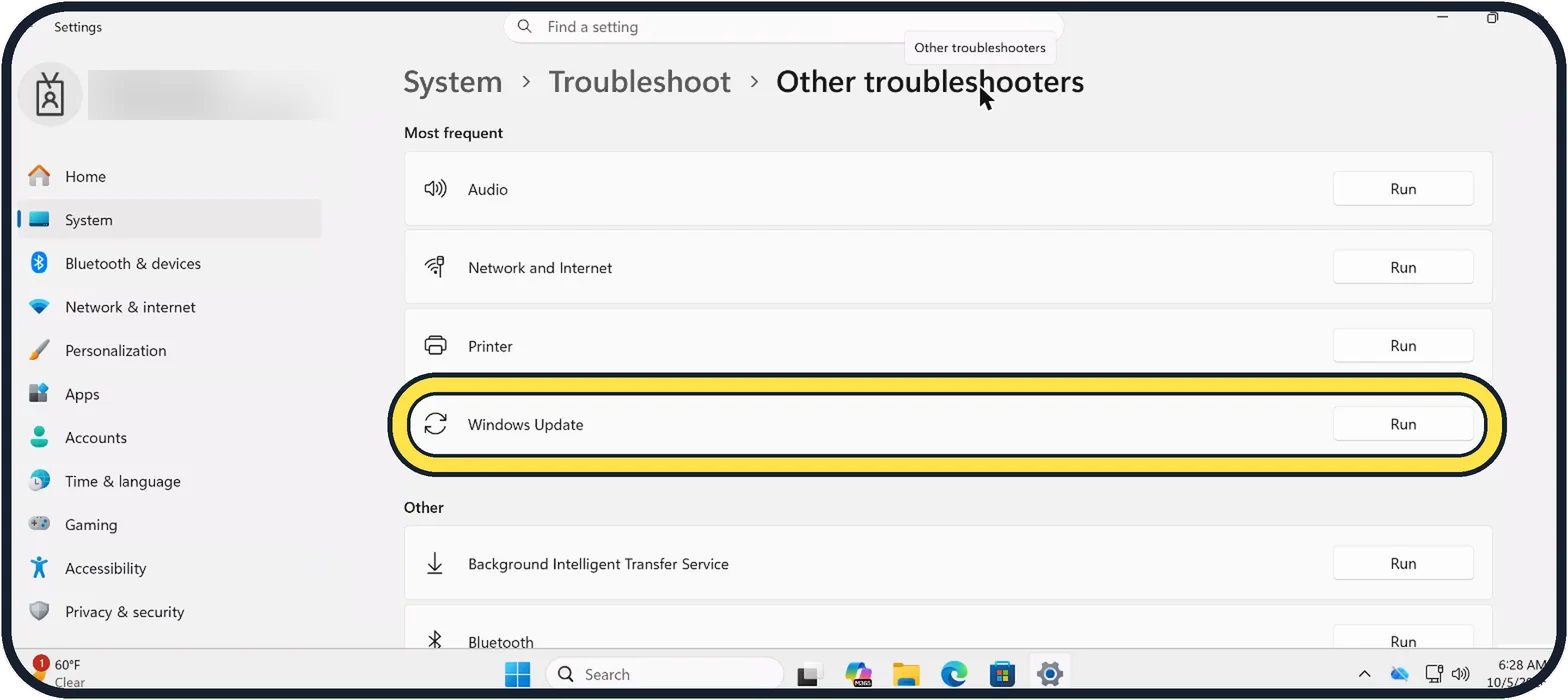
Tap the picture to see it full size Run the Windows Update troubleshooter
Open Settings with Windows + I. Click System, then Troubleshoot, then Other troubleshooters.
Click Run next to Windows Update and follow the instructions.
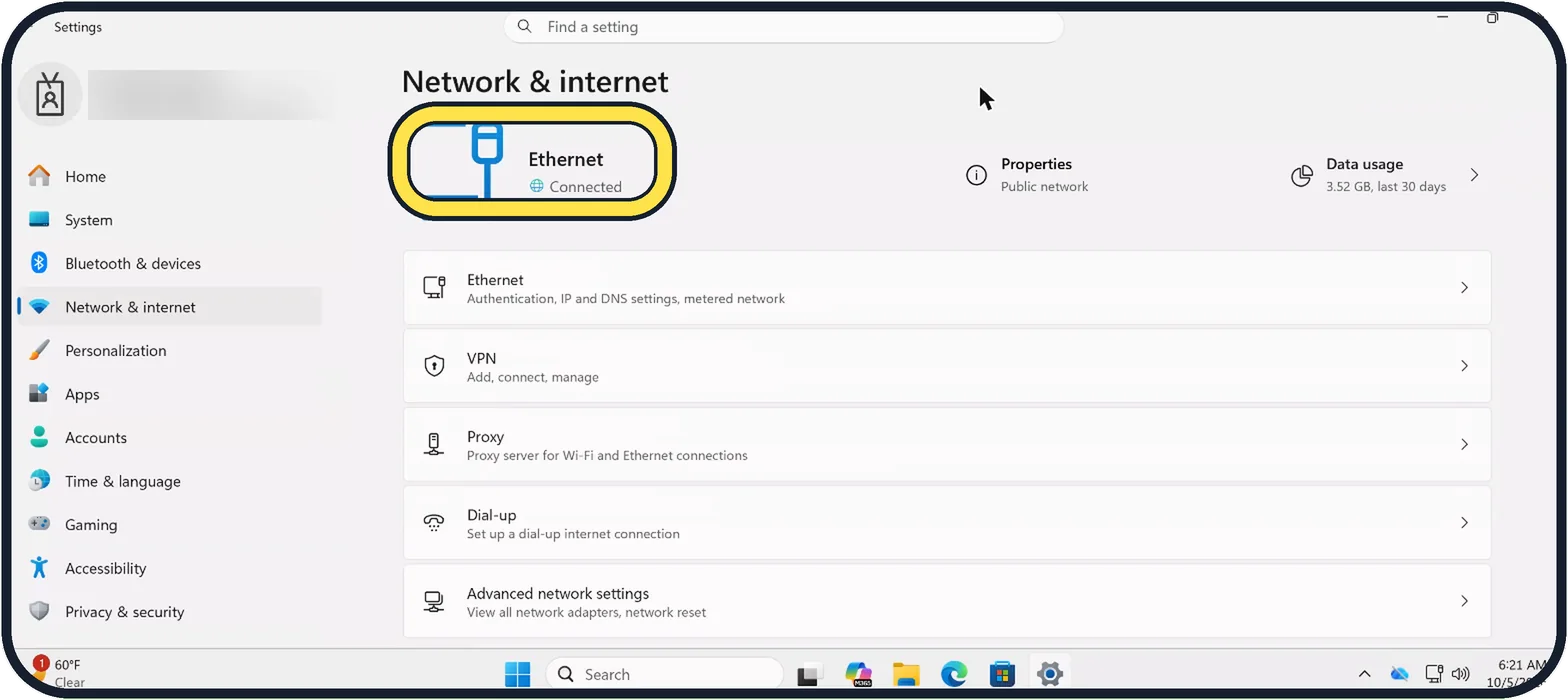
Zoomed in on the setting. Tap to see the whole screenTap the picture to see it full size Check the internet connection
Open Settings, Network & internet and make sure it says Connected.
A download that keeps stopping usually points to a weak connection. On our Cloud PC the top of the page shows Ethernet, Connected.
Tap the picture to see it full size Unplug external hardware
Remove USB drives, docking stations and other devices you do not need for the update. Keep only the mouse, keyboard and screen.
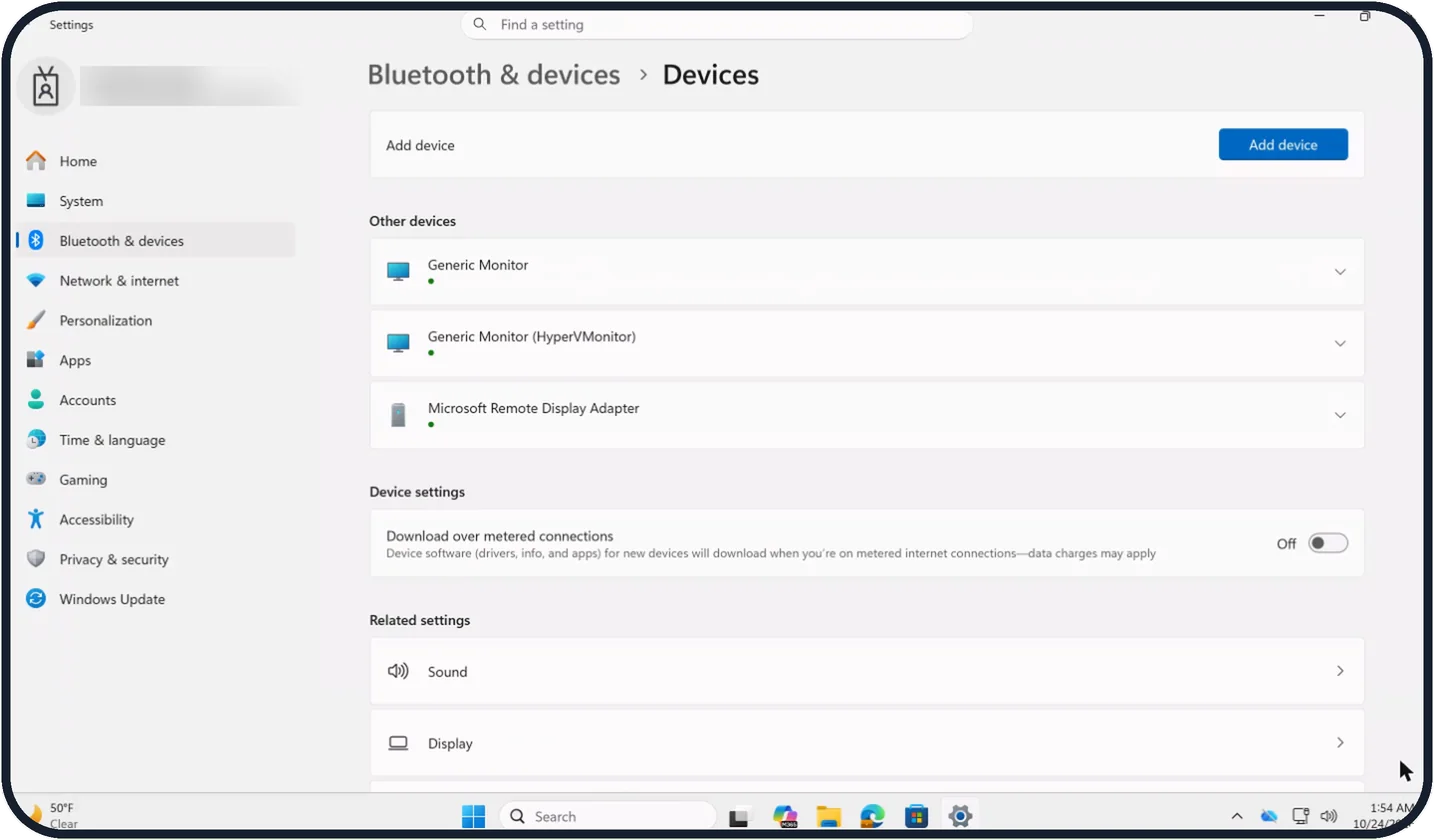
To see what is connected, open Settings, Bluetooth & devices, Devices.
On our Cloud PC, Other devices lists only Generic Monitor, Generic Monitor (HyperVMonitor) and Microsoft Remote Display Adapter.
Tap the picture to see it full size Free up disk space
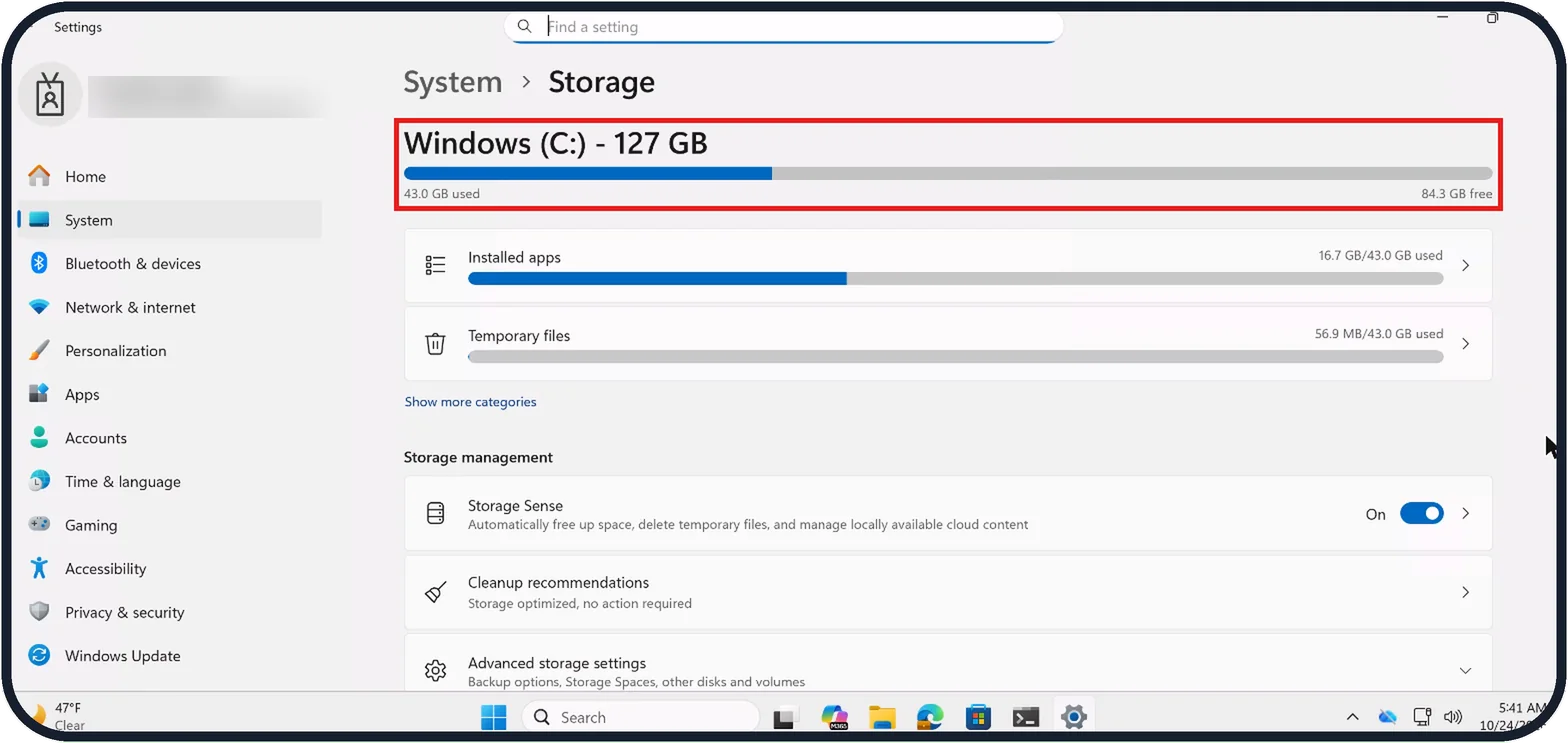
Microsoft says a PC needs at least 20 GB of free space for a 64-bit upgrade. Open Settings, System, Storage to see how much is free.
On our Cloud PC the top bar shows Windows (C:) - 127 GB, with 43.0 GB used and 84.3 GB free.
How to clear space: how to free up disk space on Windows 11.
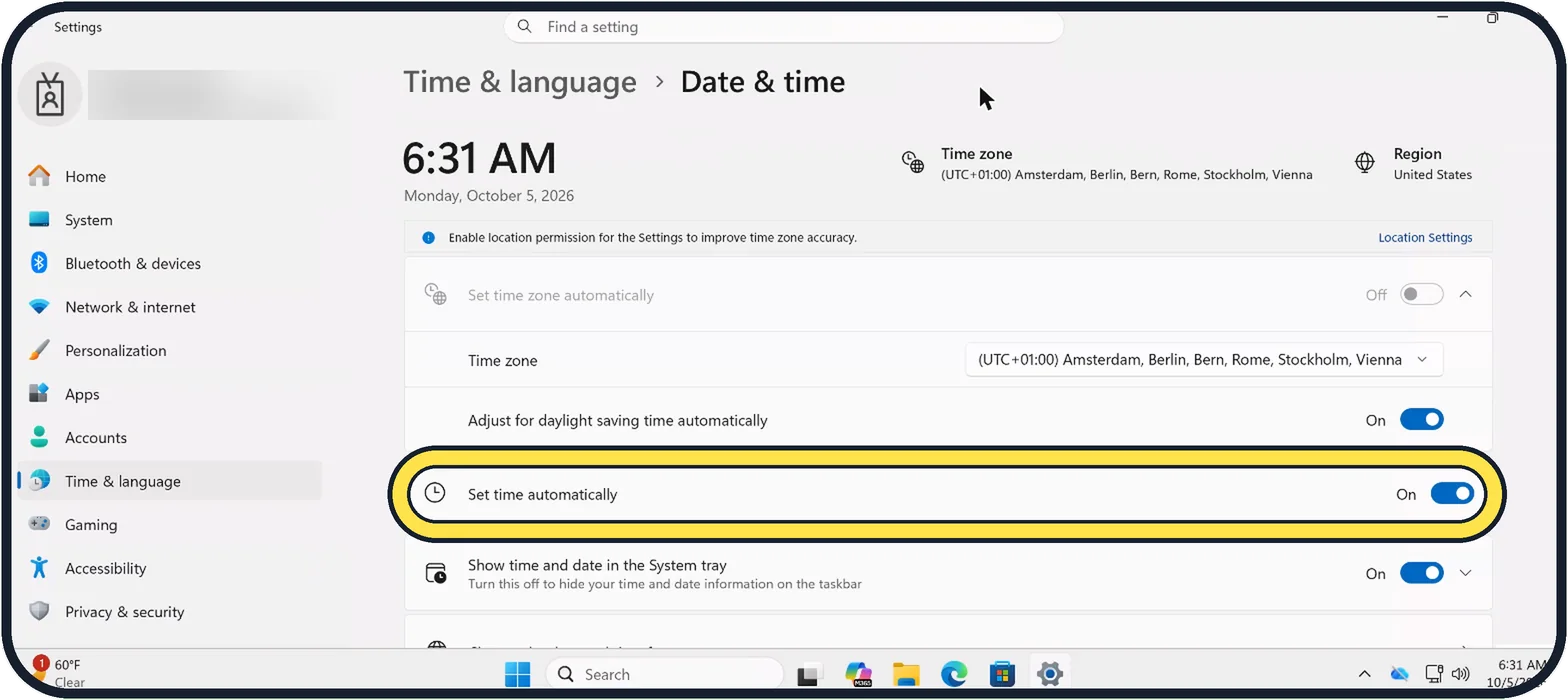
Tap the picture to see it full size Set the time automatically
Open Settings, Time & language, Date & time. Switch Set time automatically to On.
A wrong clock can stop the PC connecting to the update servers.
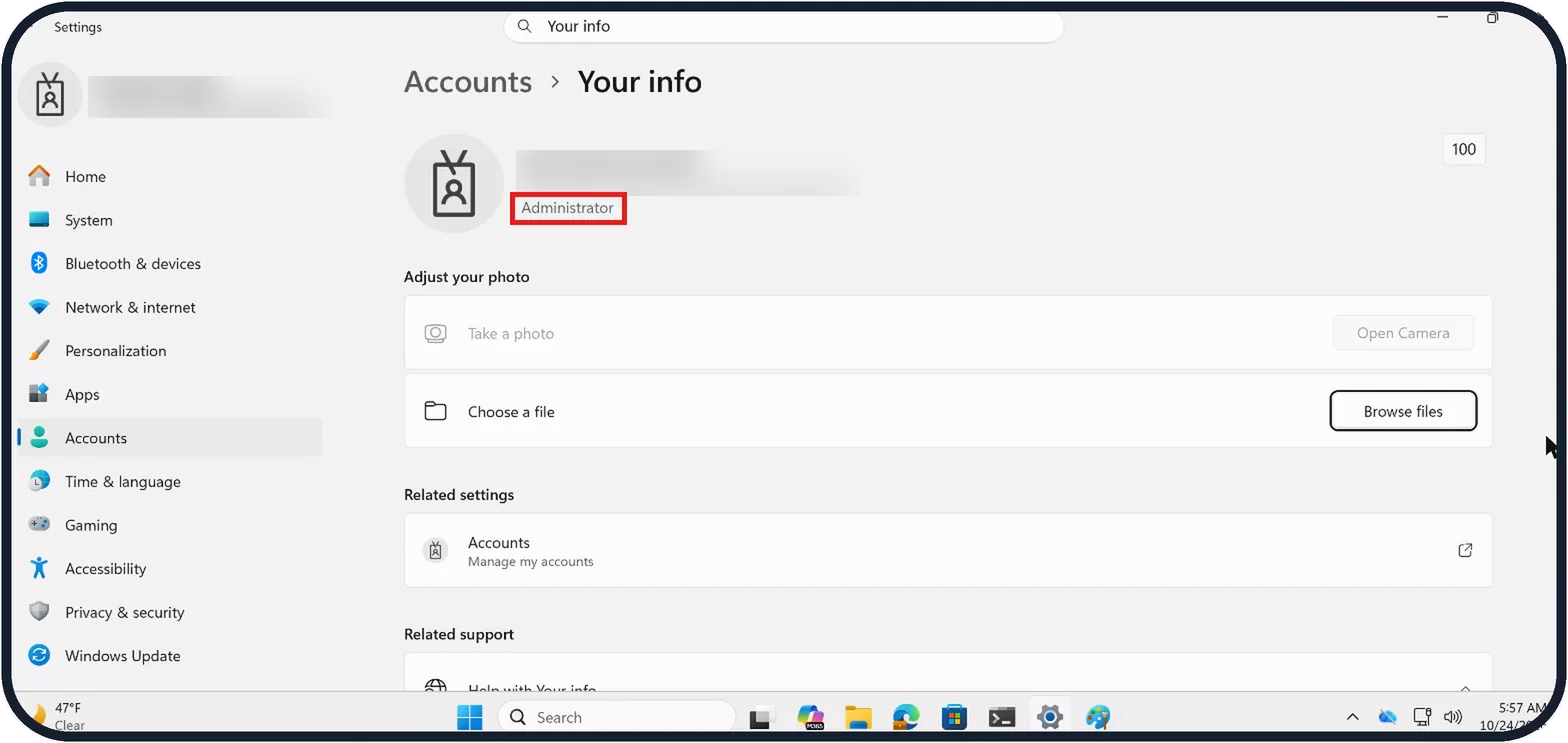
Tap the picture to see it full size Use an administrator account
Updates need administrator rights. Open Settings, Accounts, Your info to check your account type.
On our Cloud PC it says Administrator under the account name. If yours does not, sign in with the administrator account of the PC.
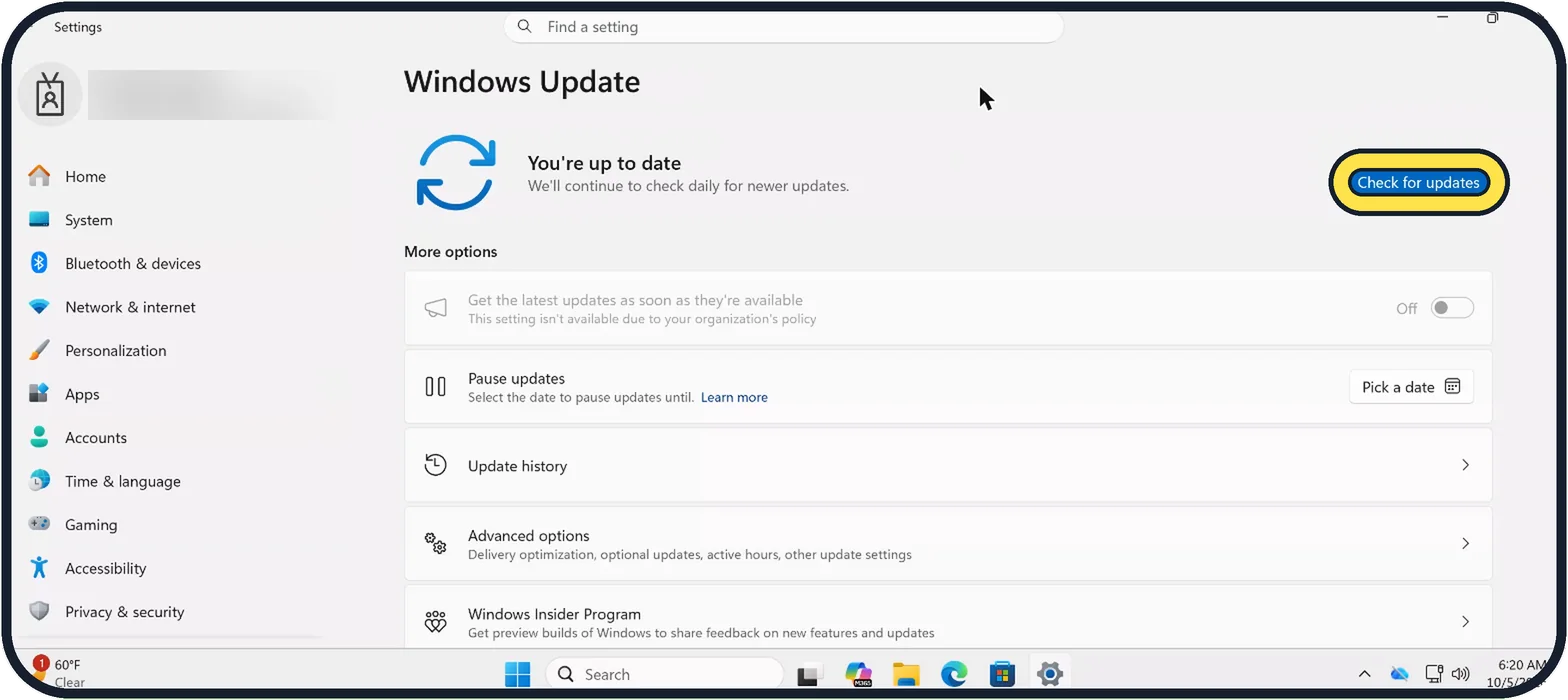
Zoomed in on the setting. Tap to see the whole screenTap the picture to see it full size Restart and check again
Click Start, Power, Restart. Then open Settings, Windows Update and click Check for updates.
Several updates build on each other, so repeat this until it says You're up to date.
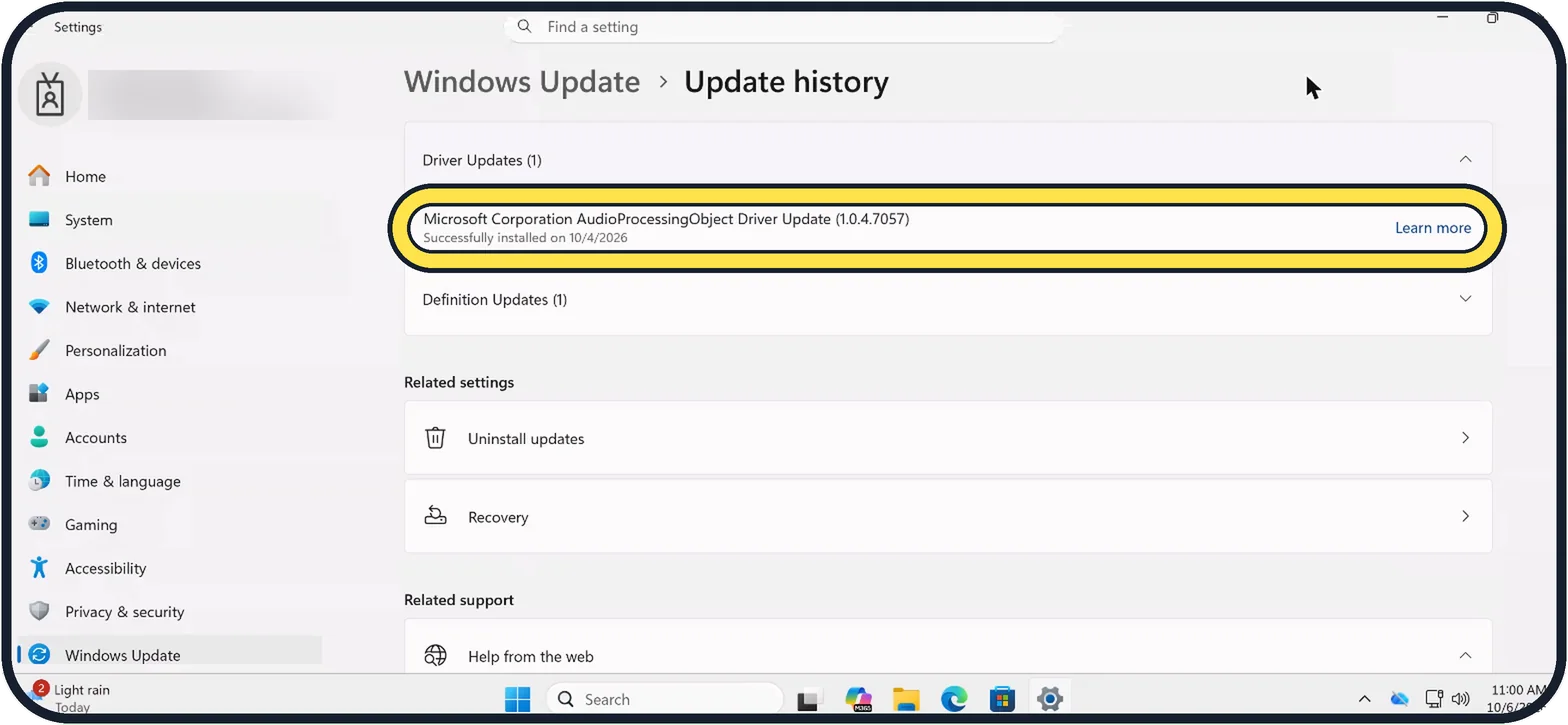
Tap the picture to see it full size Find the error code
Open Settings, Windows Update, Update history. A failed update shows Failed to install with a code such as 0x800f0922.
On our Cloud PC the list only shows successful updates, such as one driver update marked Successfully installed on 10/4/2026.
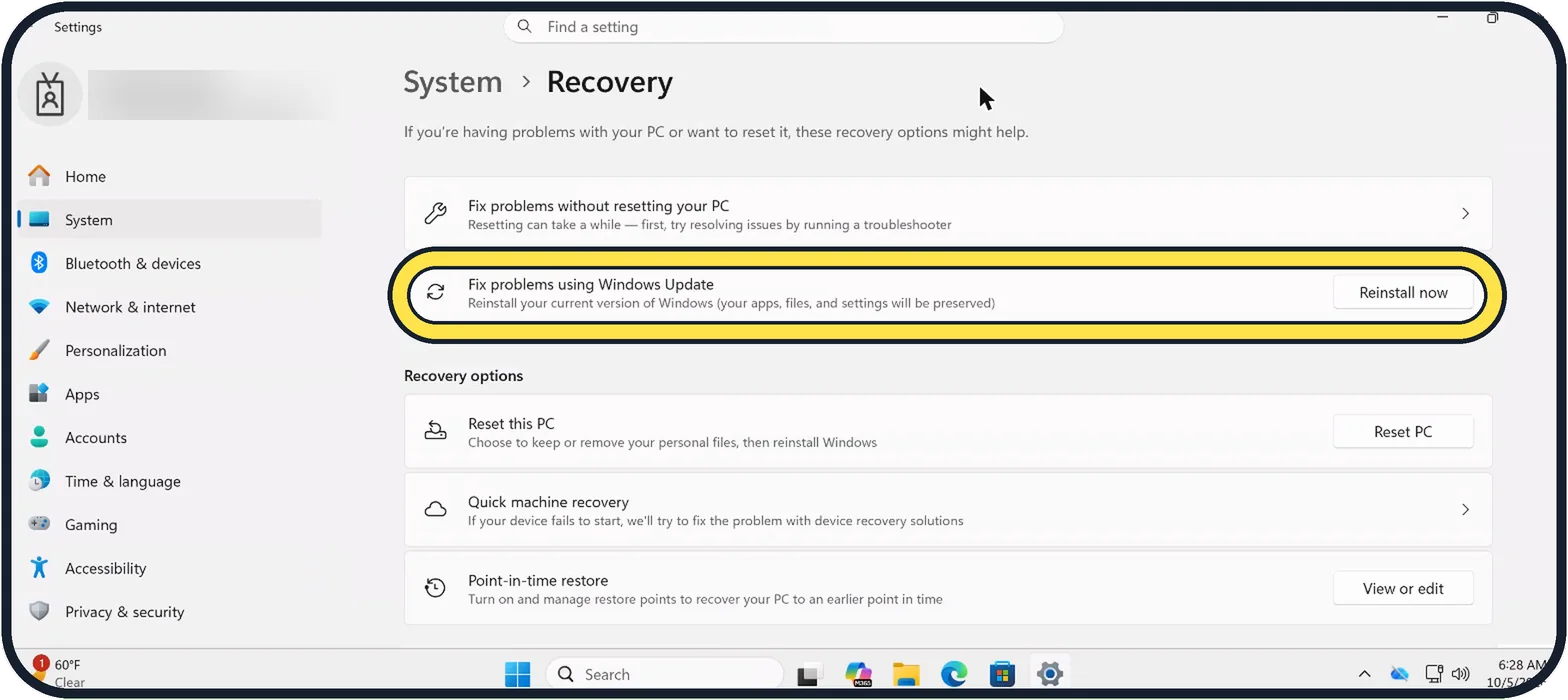
Tap the picture to see it full size Reinstall Windows with Windows Update
Open Settings, System, Recovery. Next to Fix problems using Windows Update, click Reinstall now.
The page says your apps, files, and settings will be preserved. It takes a while and needs a restart, so plug a laptop in.
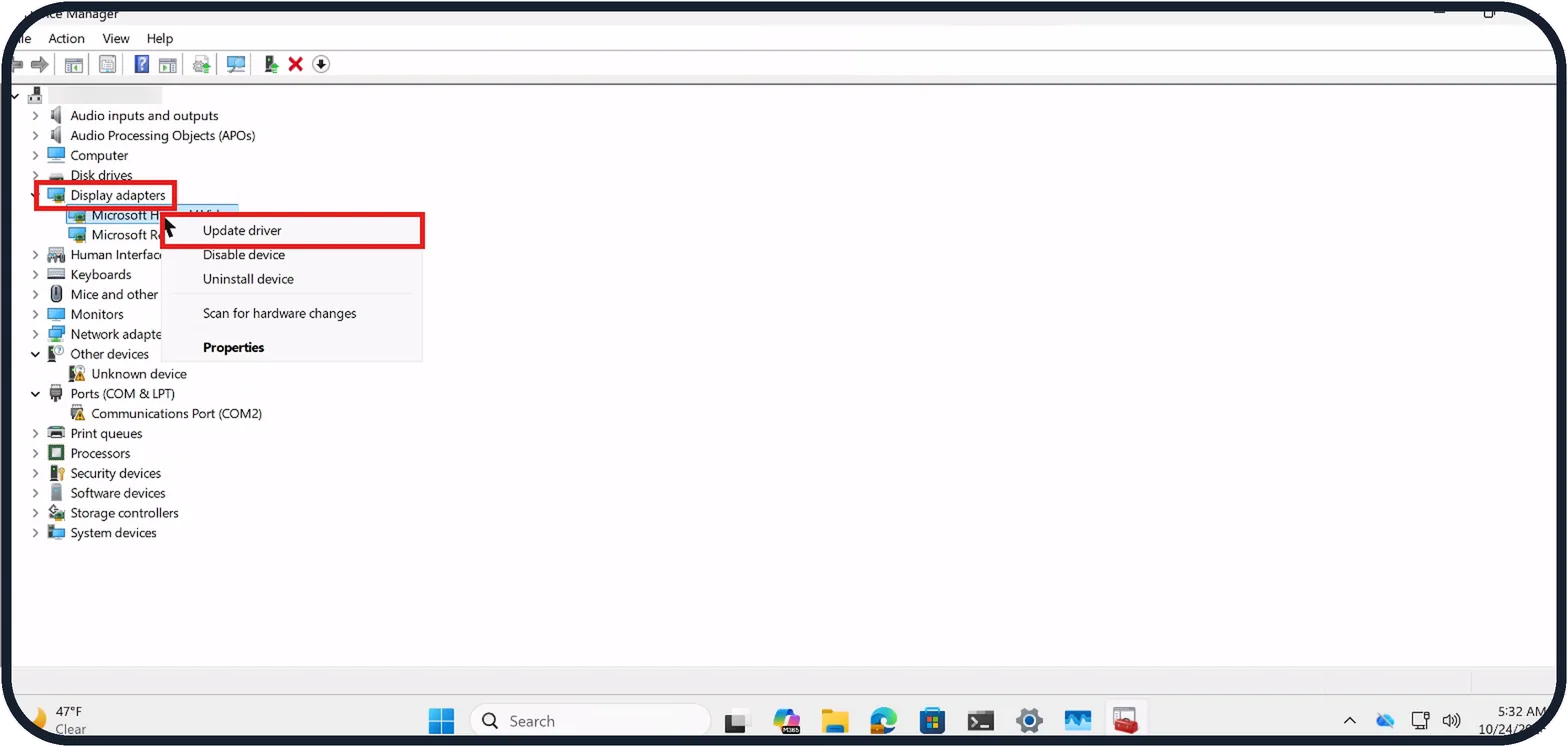
Tap the picture to see it full size Update drivers
Open Device Manager, expand Display adapters, right-click the adapter and click Update driver.
On our Cloud PC Display adapters lists two Microsoft adapters; the menu in the picture covers the rest of their names.
If the update still fails, look on the website of the maker of your PC for newer drivers, above all for graphics, storage and network.
If you do not see this option
- No Reinstall now button Microsoft says reinstalling Windows with Windows Update needs Windows 11, version 22H2 or later. Reset this PC, on the same Recovery page, works on all versions but removes your apps. Sources: Troubleshoot problems updating Windows, Recovery options in Windows
- No Other troubleshooters entry Microsoft says Windows 11 also has the Windows Update troubleshooter in the Get Help app, which runs the checks and tries to fix most problems by itself. Sources: Troubleshoot problems updating Windows, Recovery options in Windows
- No graphics card under Display adapters A virtual PC may have none. On our Cloud PC, Display adapters lists only two Microsoft adapters (step 10 picture). Sources: Troubleshoot problems updating Windows, Recovery options in Windows
- A work or school PC If your PC is managed by your work or school and nothing helps, Microsoft says to contact your IT department, which may be able to help remotely. On our work Cloud PC, Get the latest updates as soon as they're available is greyed out with the note This setting isn't available due to your organization's policy (step 7 picture). Sources: Troubleshoot problems updating Windows, Recovery options in Windows
If this does not work
- It fails with an error code Microsoft lists causes for common codes: 0x800f0922 means too little space or a .NET Framework problem, and 0xC1900101 points to an incompatible driver. For that one, update or uninstall the network or graphics driver in Device Manager. Sources: Troubleshoot problems updating Windows, Recovery options in Windows
- Corrupt files in the update cache Microsoft says to open services.msc, stop the Windows Update service, delete everything inside C:\Windows\SoftwareDistribution, then start the service again. Sources: Troubleshoot problems updating Windows, Recovery options in Windows
- Third-party antivirus gets in the way Microsoft says it can cause update errors. Uninstall it for a while, update, then reinstall it. Sources: Troubleshoot problems updating Windows, Recovery options in Windows
About this guide
Most failed Windows updates have an ordinary cause: too little free space, a dropped connection or a device that gets in the way. Microsoft's own list starts with the automatic troubleshooter. If nothing else works, the Reinstall now button under Recovery, step 9, reinstalls Windows and keeps your apps and files.
The screenshots are our own, taken on Windows 11 Enterprise 25H2 running as a Microsoft Cloud PC, a Windows PC that runs in the cloud.
Good to know
Do not switch the PC off while it says that updates are being worked on. Give a large update an hour or more before you decide it is stuck.
The normal way to update is in how to check for updates on Windows 11.
In short: Troubleshooter, internet, unplug devices, 20 GB free, automatic time, administrator, restart and check again, error code, Reinstall now, drivers.
- Microsoft Support: Troubleshoot problems updating Windows
- Microsoft Support: Recovery options in Windows
Links checked in October 2026. Menus and features can change after software updates. These steps match the version named at the top.
📷 Camera Lab: the same 6 scenes photographed with 11 phones, side by side.
Did this guide work for you?
Sorry about that. What happened?