
howtosimply.com/guides/how-to-check-for-updates-on-windows-11/ · Checked October 2026 · Windows 11 Enterprise 25H2 (build 26200.9457), Microsoft Cloud PC
In this guide
Open Settings, choose Windows Update at the bottom of the list on the left, and click Check for updates. Install what is offered and restart when asked.
3 of 5 steps with real screenshots · 1 official source below
- Device
- Windows
- Shown on
- Windows 11 Enterprise 25H2 (build 26200.9457), Microsoft Cloud PC
- App
- Settings
- Path
- Settings › Windows Update
- Real screenshots
- 3 of 5 steps
- Checked
- October 2026
- Sources
- 1 official, linked below
Step by step
Open Settings
Press Windows + I, or right-click the Start button and choose Settings.
Watch these steps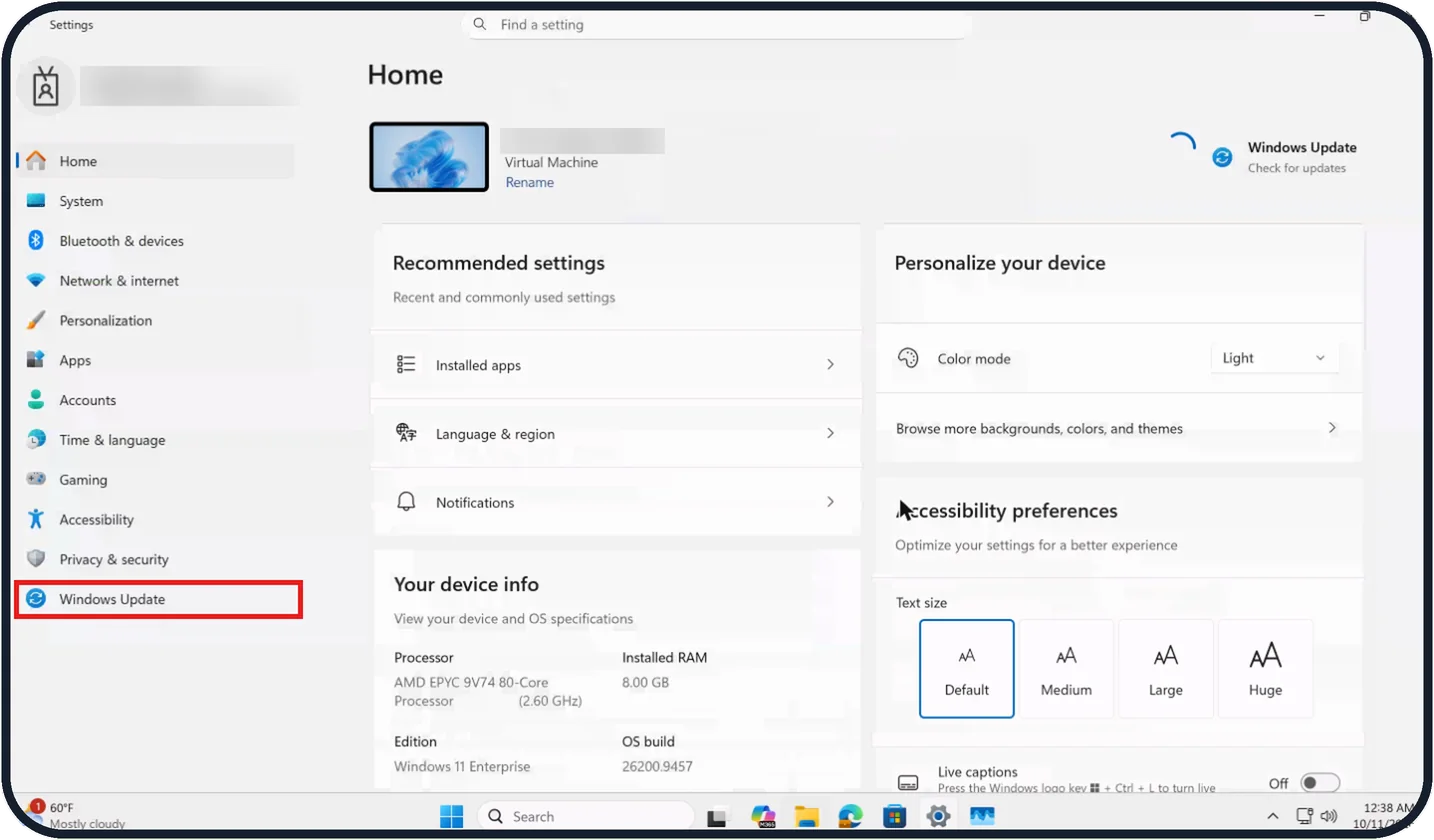
Tap the picture to see it full size Choose Windows Update
It is the last entry in the list on the left; scroll down the list if you cannot see it.
On our Cloud PC it sat just below Privacy & security.
Zoomed in on the setting. Tap to see the whole screenTap the picture to see it full size Click Check for updates
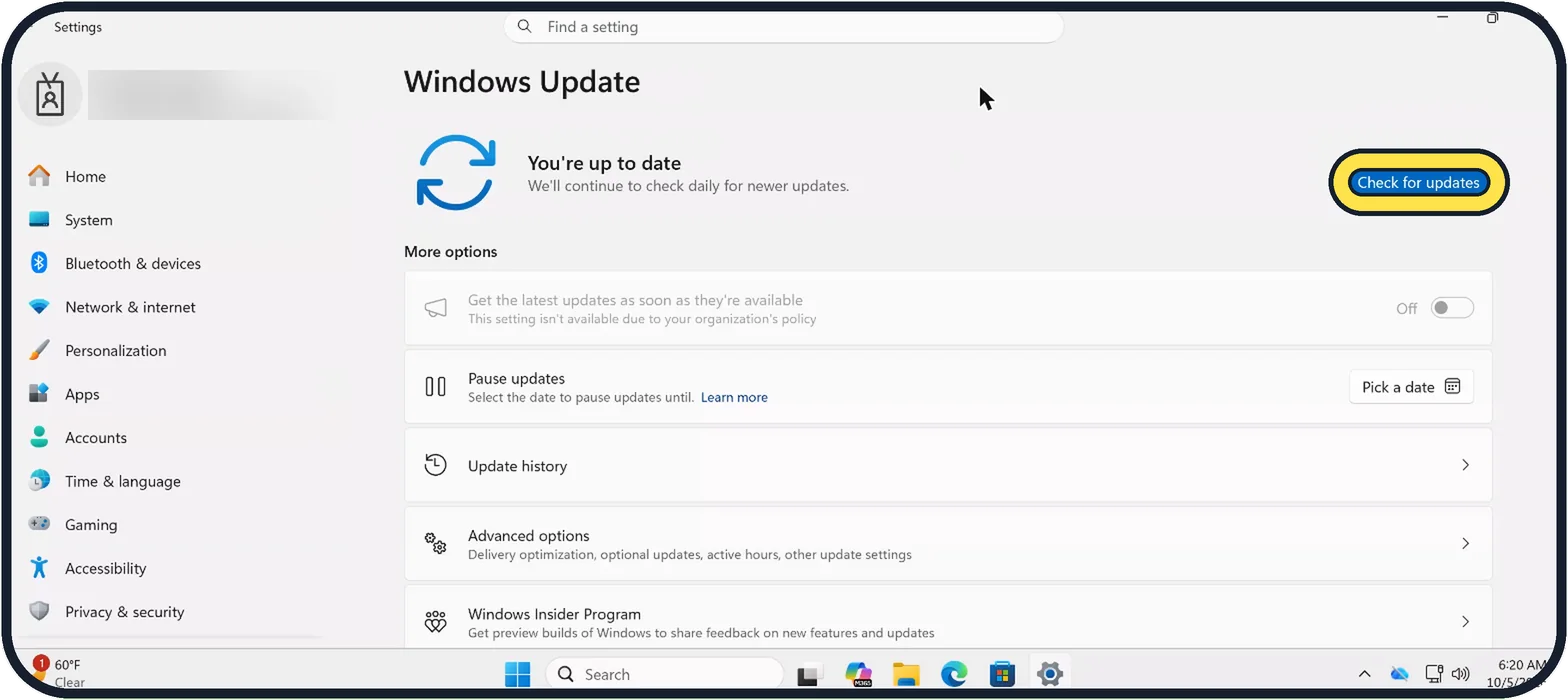
The button is at the top right. Windows looks for new updates and starts downloading them. Stay connected to power on a laptop.
On our Cloud PC the page said You're up to date.
Restart when asked
Microsoft says some updates finish only after a restart. Save your work and click Restart now, or pick a time under Schedule the restart.
Zoomed in on the setting. Tap to see the whole screenTap the picture to see it full size Look at optional updates
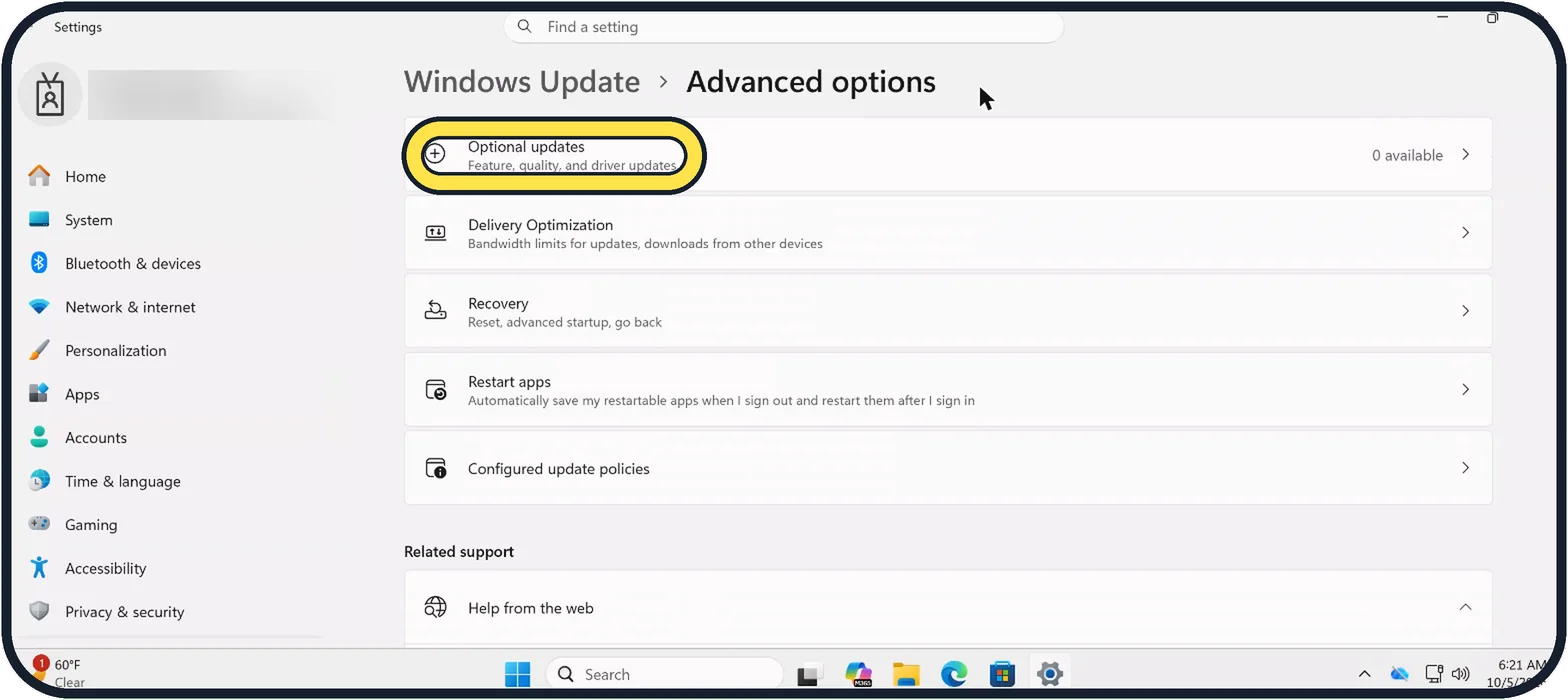
Click Advanced options, then Optional updates at the top of the page (Feature, quality, and driver updates). Install these if you have a problem with a device such as Wi-Fi, sound or the touchpad.
On our Cloud PC it showed 0 available.
Watch these steps
What we saw on our device
- Choose Windows Update: On our Cloud PC it sat just below Privacy & security.
- Click Check for updates: On our Cloud PC the page said You're up to date.
- Look at optional updates: On our Cloud PC it showed 0 available.
If you do not see this option
- Windows Update is not in the list Scroll down the list on the left. On our Cloud PC it was the last entry, below Privacy & security. The Settings Home page also had a Windows Update tile with Check for updates at the top right.
- An option is greyed out On a work or school PC, options such as Get the latest updates as soon as they're available can be locked. On our Cloud PC it was set to Off with "This setting isn't available due to your organization's policy".
- There are no optional updates If Optional updates shows 0 available, as on our Cloud PC, there is nothing extra to install.
If this does not work
- You are not asked to restart No restart is needed when nothing is waiting. On our Cloud PC no restart was pending after checking.
- An update keeps failing Free some disk space and try Check for updates again.
- A device still does not work Look under Advanced options, then Optional updates, for driver updates from your PC maker.
About this guide
Updates fix security holes and bugs. Windows installs most of them by itself, but checking by hand is useful after a long break, before travelling, or when something is not working.
Good to know
On our Cloud PC there was no Active hours row under Advanced options. Where it is shown, use it so Windows does not restart while you are working.
On a work or school PC some update options are greyed out with "This setting isn't available due to your organization's policy", as on our Cloud PC. Only the IT department can change those.
You can pause updates from the same page with Pause updates and Pick a date, for example before an exam or a trip. Do not leave them paused for long.
If an update fails again and again, free some disk space first: how to free up disk space on Windows 11.
In short: Settings, Windows Update, Check for updates, then restart.
Links checked in October 2026. Menus and features can change after software updates. These steps match the version named at the top.
Did this guide work for you?
Sorry about that. What happened?