
howtosimply.com/guides/how-to-find-your-ip-address-on-windows-11/ · Checked October 2026 · Windows 11 Enterprise 25H2 (build 26200.9457), Microsoft Cloud PC
In this guide
Open Settings, click Network & internet and click Properties next to the name of your connection at the top. The address of the PC in your home network is shown next to IPv4 address, for example 192.168.1.23. Or type ipconfig in Terminal and read IPv4 Address.
4 of 6 steps with real screenshots · 1 official source below
- Device
- Windows
- Shown on
- Windows 11 Enterprise 25H2 (build 26200.9457), Microsoft Cloud PC
- App
- Settings
- Path
- Settings › Network & internet › Properties › IPv4 address
- Real screenshots
- 4 of 6 steps
- Checked
- October 2026
- Sources
- 1 official, linked below
Step by step
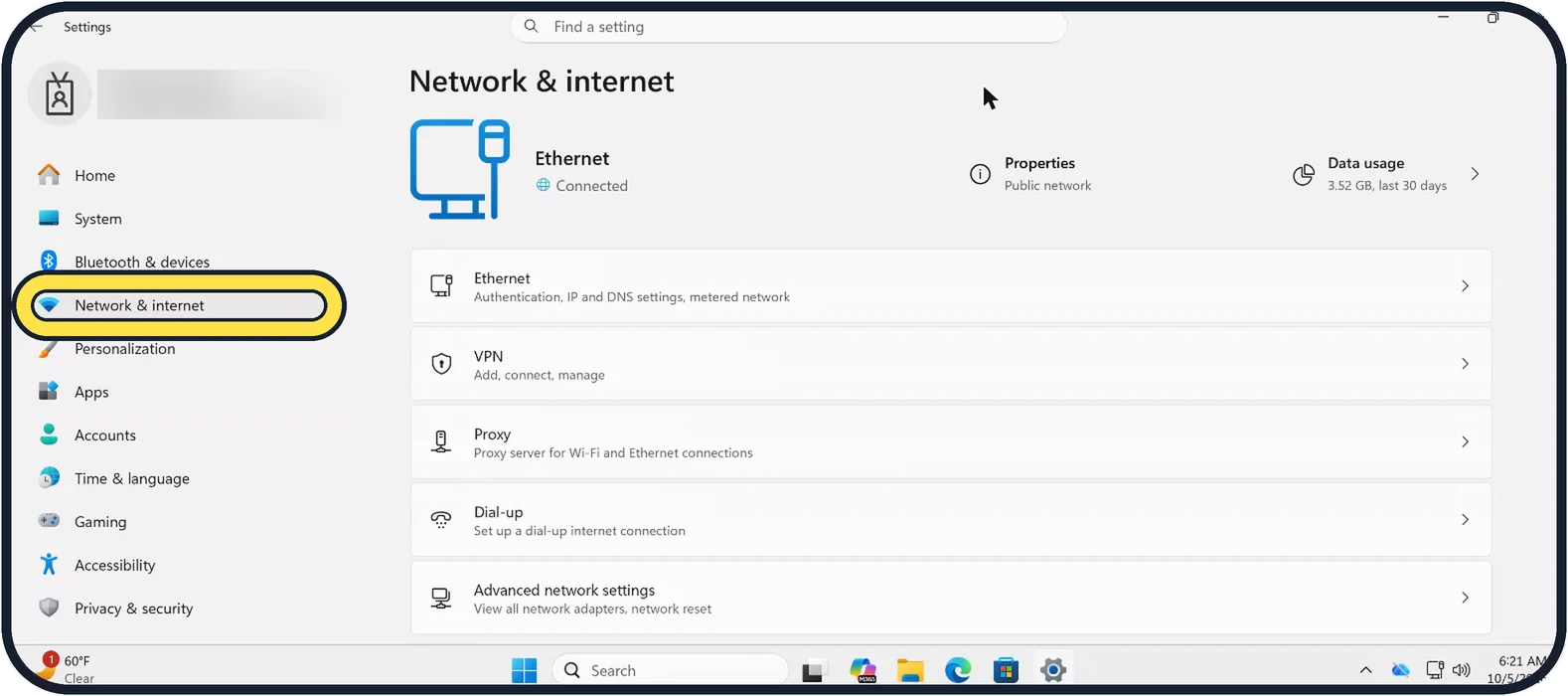
Zoomed in on the setting. Tap to see the whole screenTap the picture to see it full size Open Settings, Network & internet
Open Start, Settings and click Network & internet. You can also right-click the network icon on the taskbar and choose Network and internet settings.
Watch these steps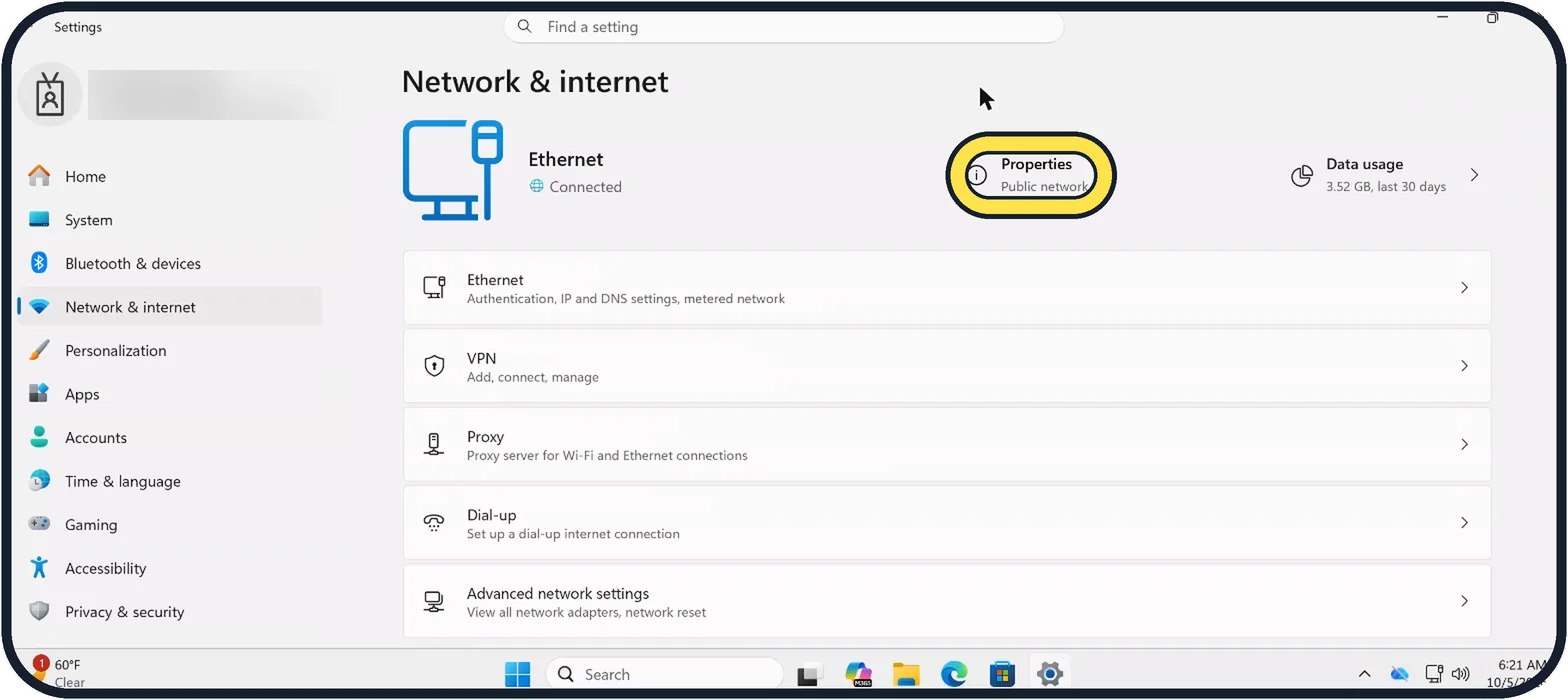
Zoomed in on the setting. Tap to see the whole screenTap the picture to see it full size Click Properties
It is at the top, next to the name of the connection you are using, here Ethernet.
Read the IPv4 address
Scroll down to the list of details. The line IPv4 address shows the address of this PC. The line IPv4 default gateway, when shown, is the address of your router.
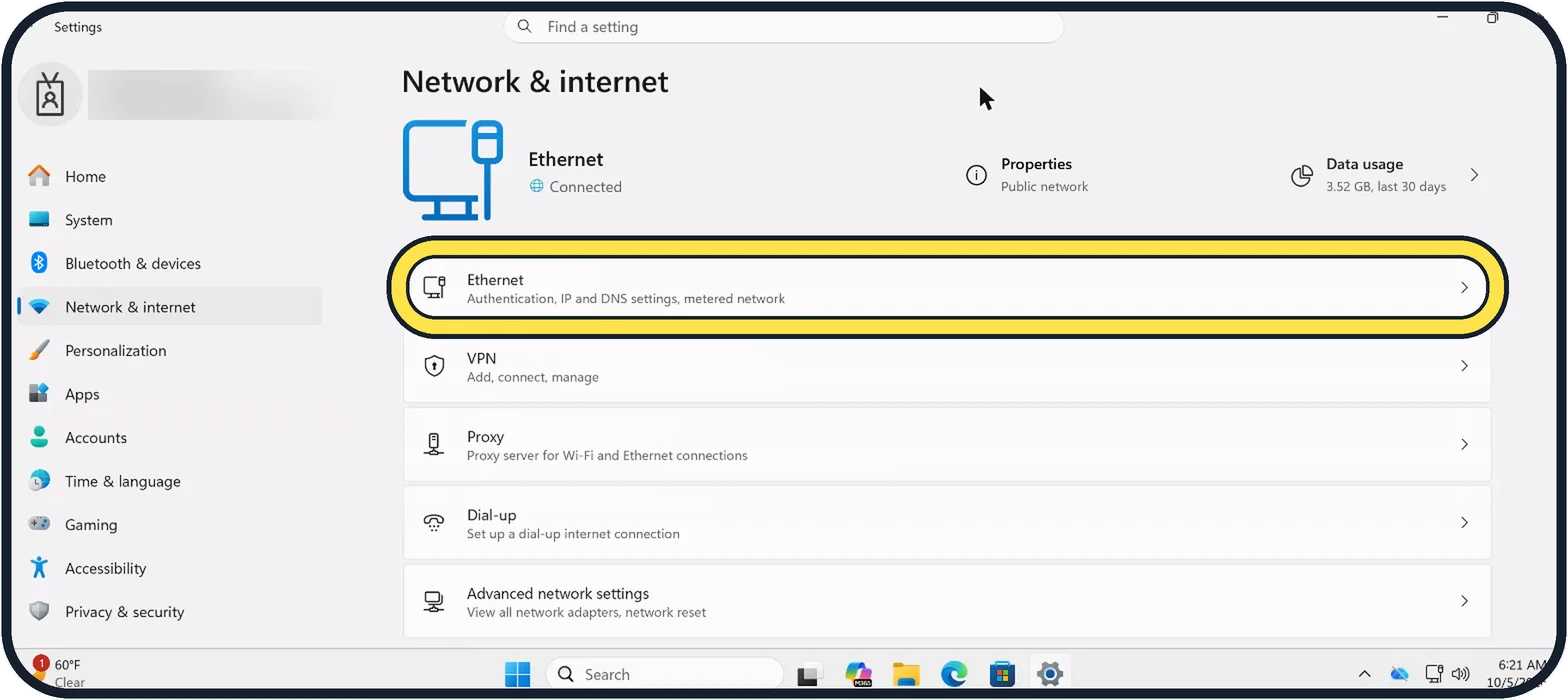
Tap the picture to see it full size The longer way
Click Ethernet for a cable connection, or Wi-Fi and then the name of your network on a PC with Wi-Fi, and scroll to IPv4 address. Our Cloud PC has no Wi-Fi, so only Ethernet is listed.
Open Terminal
Right-click the Start button and choose Terminal. A normal window is enough; you do not need the Admin one.
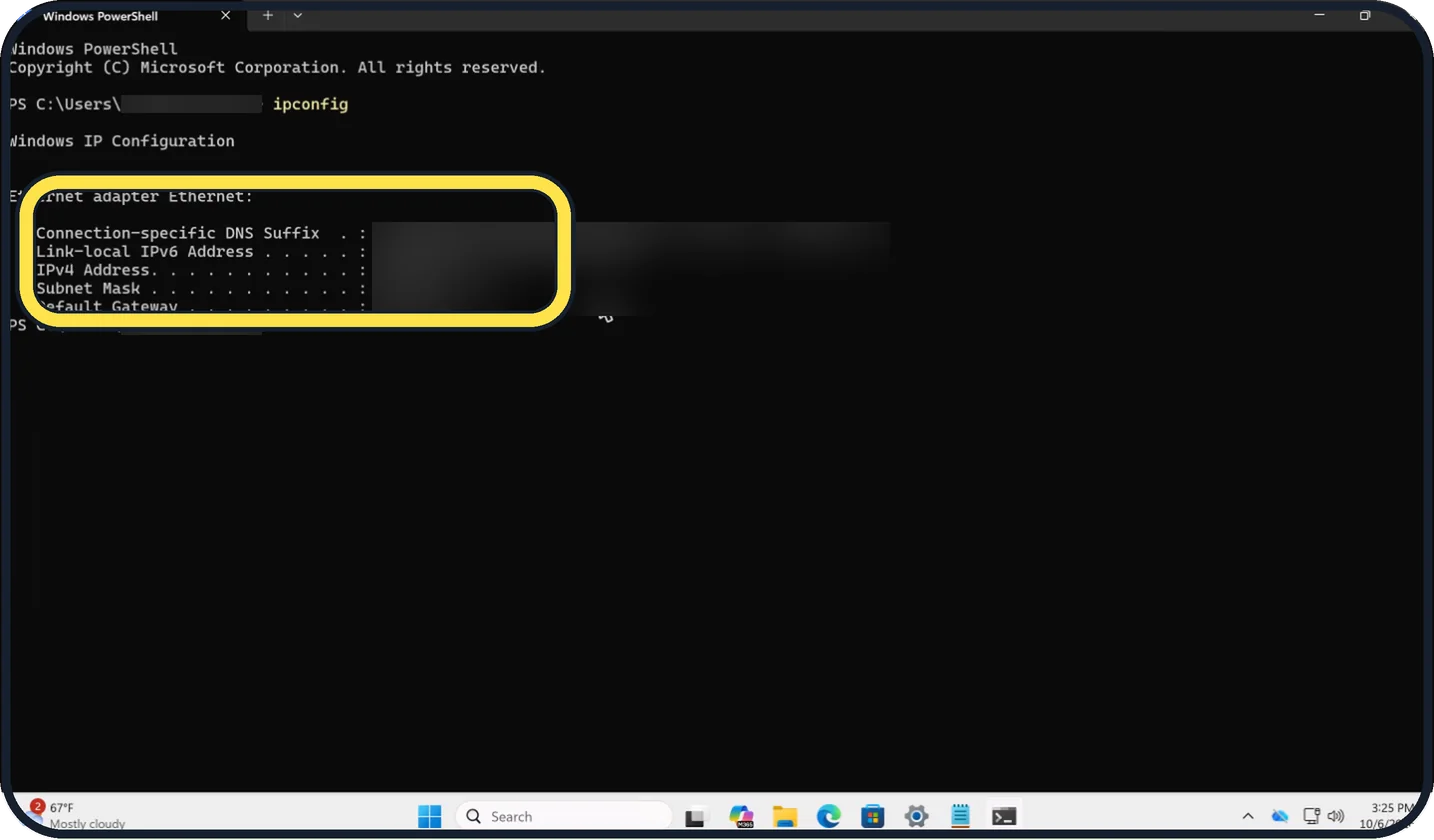
Zoomed in on the setting. Tap to see the whole screenTap the picture to see it full size Type ipconfig and press Enter
Look for IPv4 Address under the adapter that is connected, here Ethernet adapter Ethernet. Default Gateway is your router. We blurred the values on our Cloud PC.
Watch these steps
About this guide
Every device in your home network has its own address, given out by the router. You need it to set up a printer, share a folder, forward a port or work out which device is which in the router's list.
Good to know
This is your private address, valid only inside your own network. It usually begins with 192.168, 10 or 172. It can change when the router hands out addresses again.
The public address, under which websites see your whole household, is something else. Search the web for what is my IP to see it.
An address that starts with 169.254 means the PC got no answer from the router. See Windows 11 Wi-Fi not working: 8 fixes to try or Ethernet not working on Windows 11: 6 fixes to try.
On a Mac: how to find your IP address on a Mac.
In short: Settings, Network & internet, Properties, IPv4 address. Or Terminal and ipconfig.
Links checked in October 2026. Menus and features can change after software updates. These steps match the version named at the top.
Did this guide work for you?
Sorry about that. What happened?