
howtosimply.com/guides/microsoft-store-apps-not-working-on-windows-11-7-fixes-to-try/ · Checked October 2026 · Windows 11 Enterprise 25H2 (build 26200.9457), Microsoft Cloud PC
In this guide
Restart the app and install Windows updates. In the Microsoft Store, open Downloads and click Check for updates. If one app still fails, go to Settings, Apps, Installed apps, click its three dots, choose Advanced options, then click Repair and, if needed, Reset.
8 of 8 steps with real screenshots · 1 official source below
- Device
- Windows
- Shown on
- Windows 11 Enterprise 25H2 (build 26200.9457), Microsoft Cloud PC
- App
- Settings
- Real screenshots
- 8 of 8 steps
- Checked
- October 2026
- Sources
- 1 official, 1 other, linked below
Step by step
Tap the picture to see it full size Close and reopen the app
Click the X at the top right and start the app again.
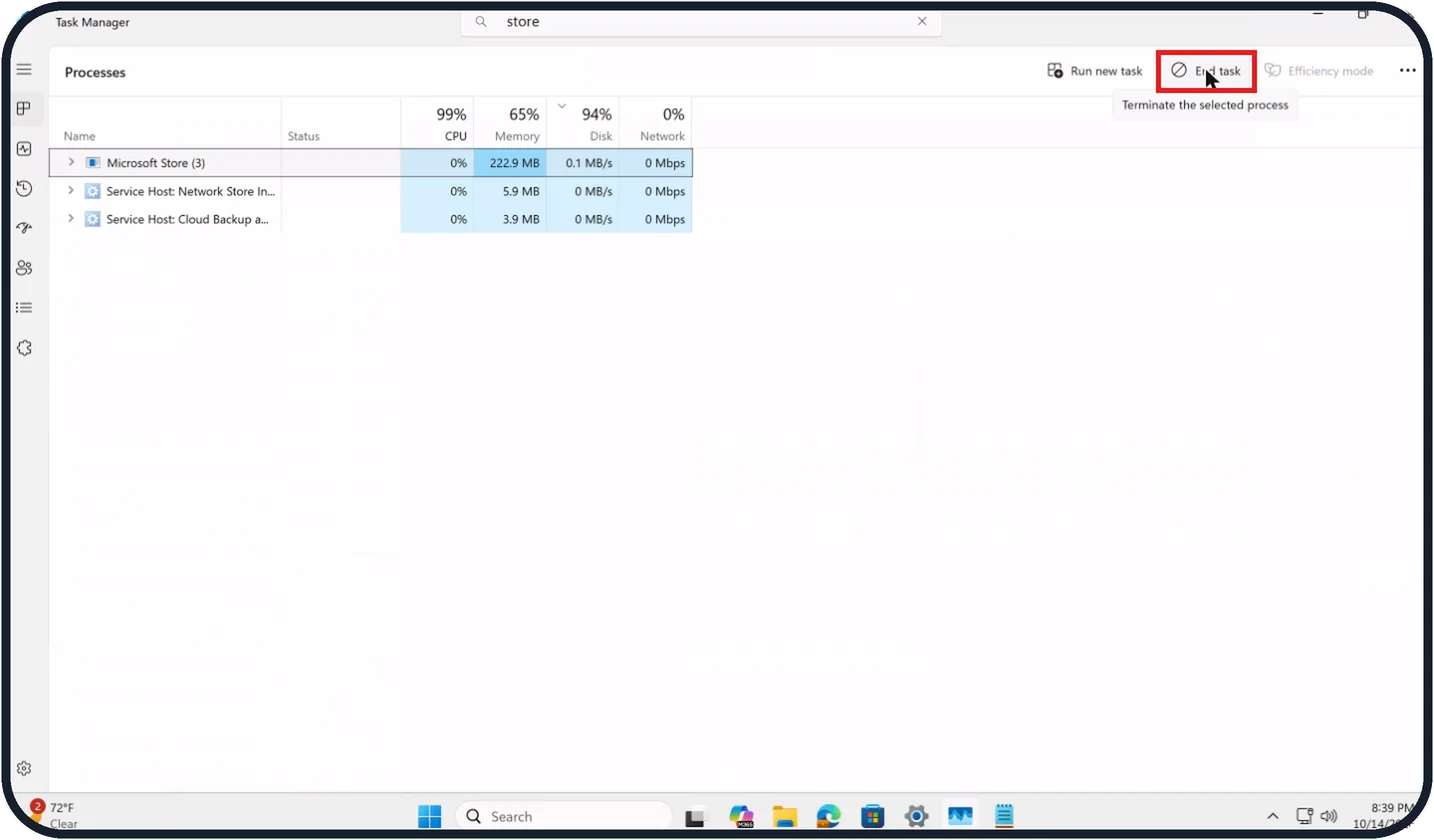
If it hangs, press Ctrl + Shift + Esc to open Task Manager, select the app under Processes and click End task.
On our Cloud PC, typing store in the search box narrowed the list to Microsoft Store (3).
Zoomed in on the setting. Tap to see the whole screenTap the picture to see it full size Update Windows
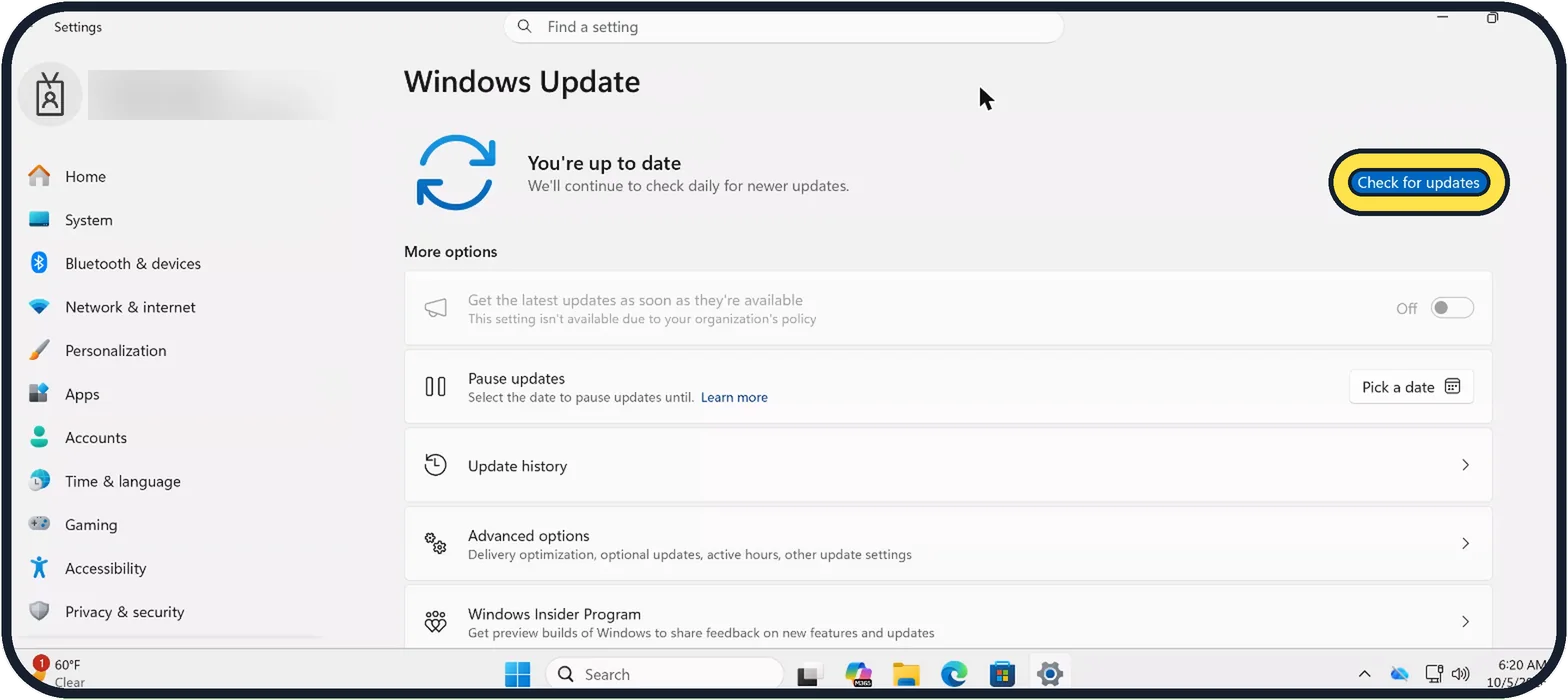
Open Start, Settings, Windows Update and click Check for updates. Install what is offered and restart.
On our Cloud PC, Get the latest updates as soon as they're available is greyed out by our organisation's policy.
The steps are in how to check for updates on Windows 11.
Zoomed in on the setting. Tap to see the whole screenTap the picture to see it full size Update the Store and your apps
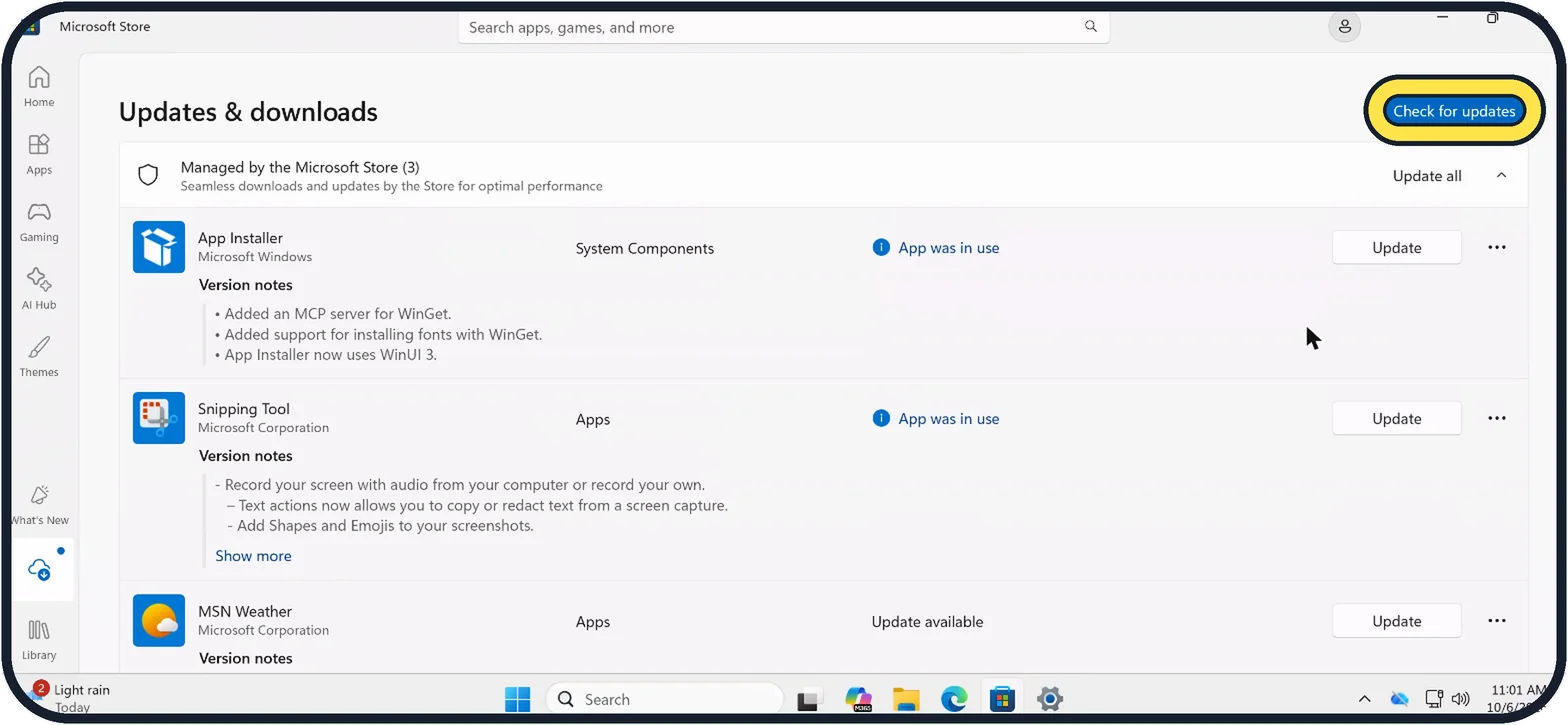
Open the Microsoft Store and click Downloads at the bottom left. The page is called Updates & downloads.
Click Check for updates, then Update all.
An app that is open cannot update: the Store then says App was in use, so close it and try again.
Tap the picture to see it full size Open the app's Advanced options
Open Settings, Apps, Installed apps, and type the app's name in the search box if the list is long.
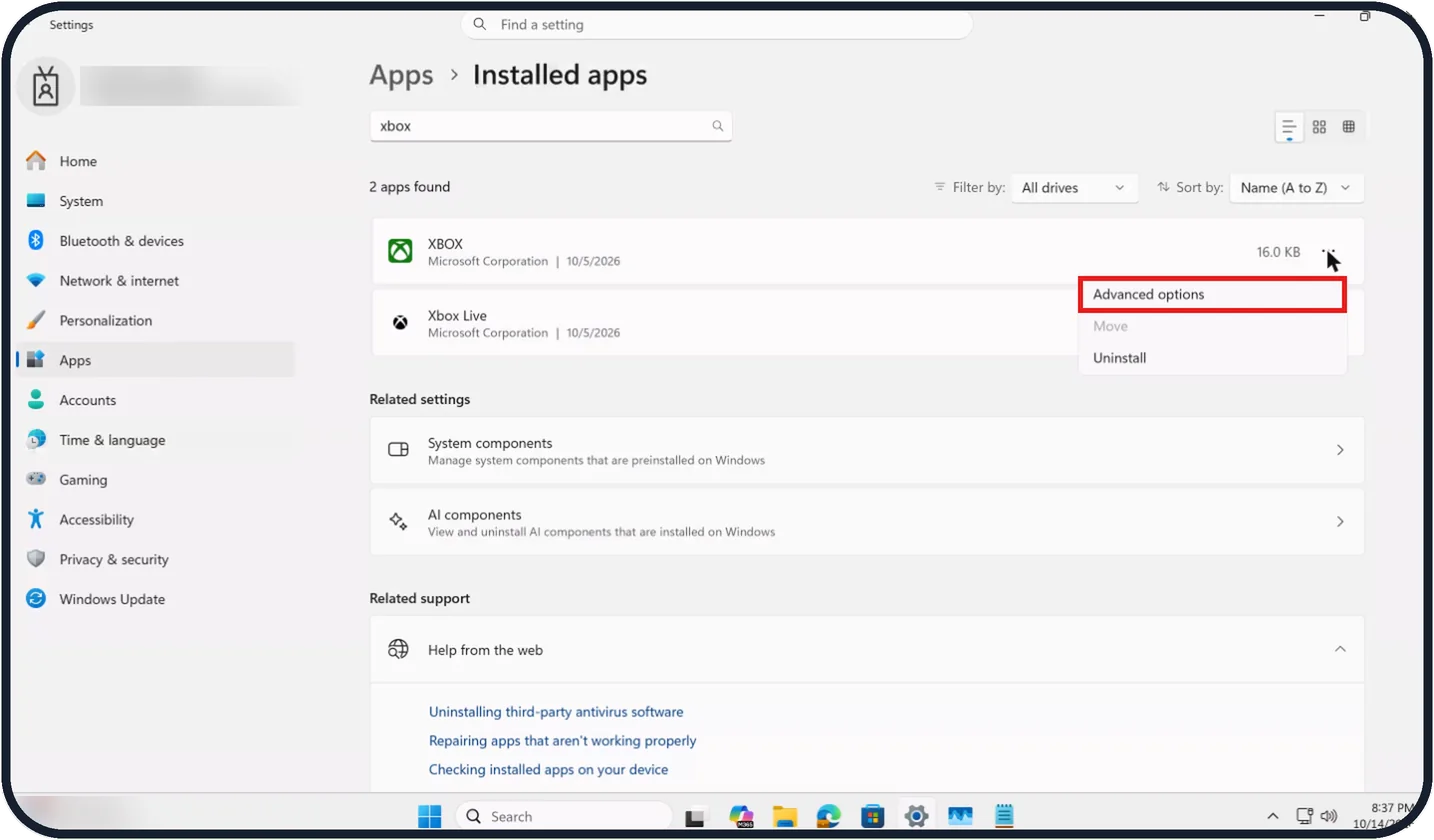
Click the three dots next to the app and choose Advanced options.
On our Cloud PC, searching xbox shows 2 apps found, and Advanced options is the top row of the menu, above Move and Uninstall.
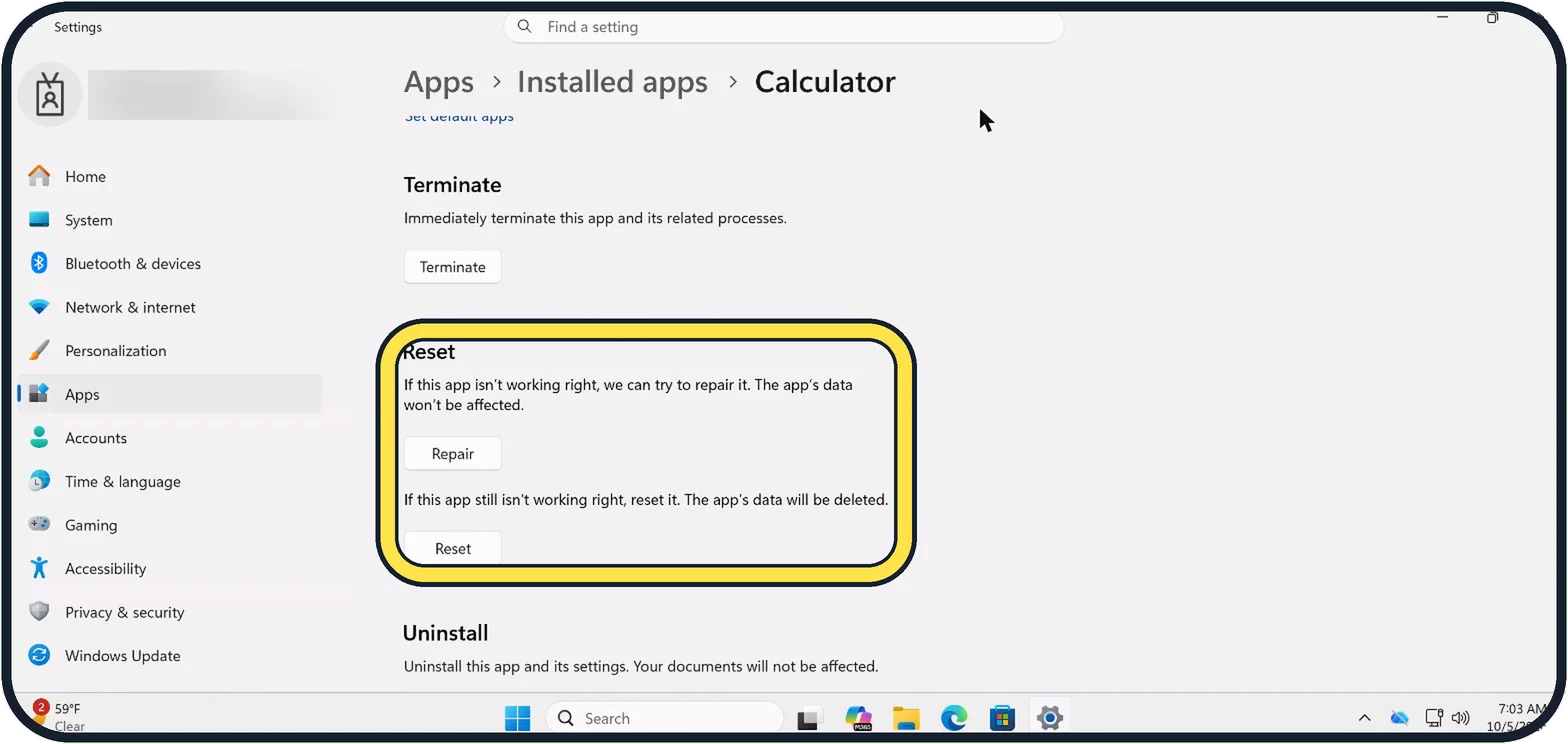
Zoomed in on the setting. Tap to see the whole screenTap the picture to see it full size Repair, then Reset
Scroll to Reset and click Repair first: the app's data won't be affected.
If that does not help, click Reset. Windows says the app's data will be deleted.
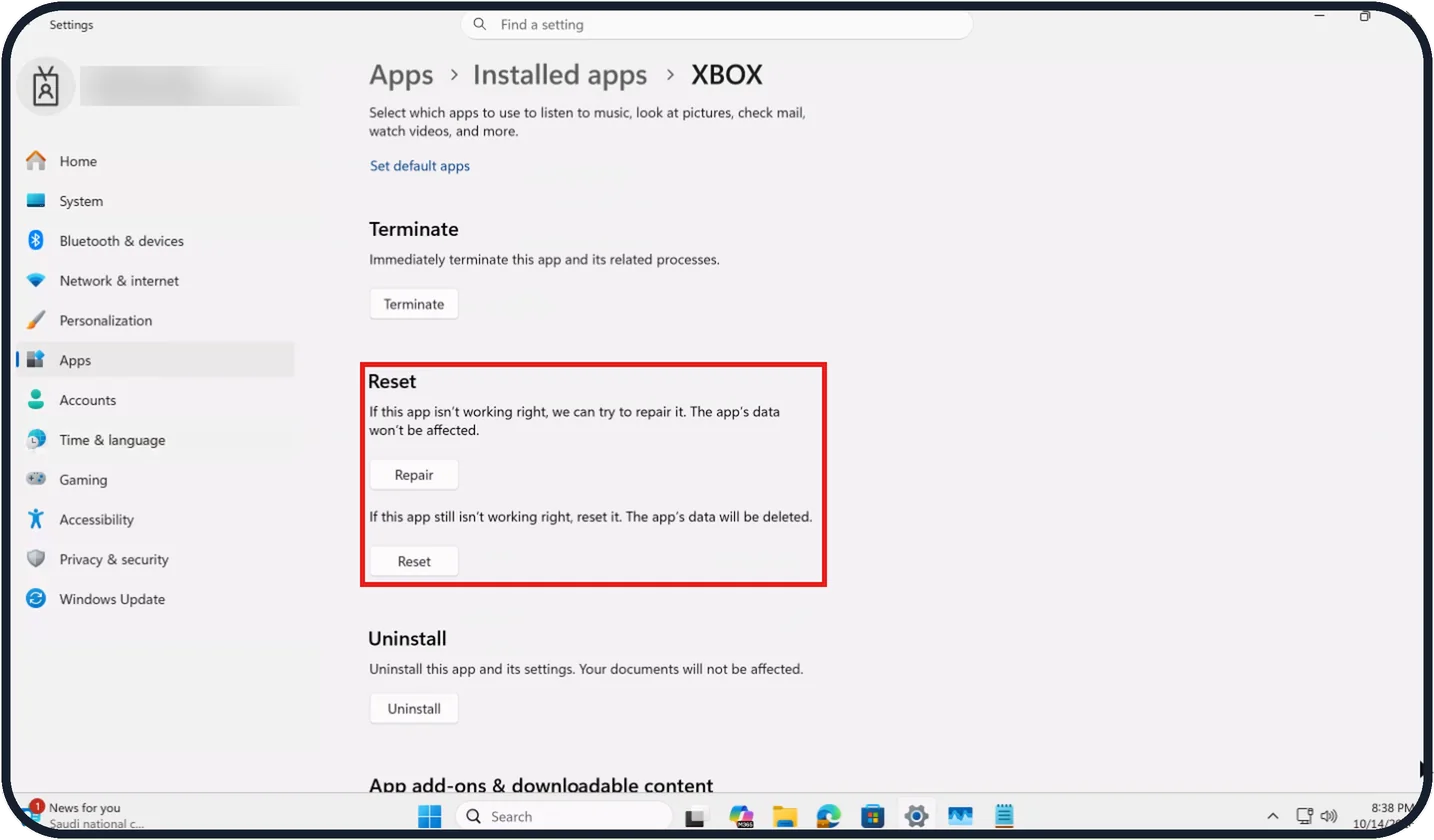
Tap the picture to see it full size Games: repair the Xbox app and Gaming Services
If games from the Store will not install or start, click Repair, then Reset, for the Xbox app. On our Cloud PC it is listed as XBOX.
Microsoft's Q&A advice is to do the same for Gaming Services and, if that does not help, uninstall both and install them again from the Microsoft Store.
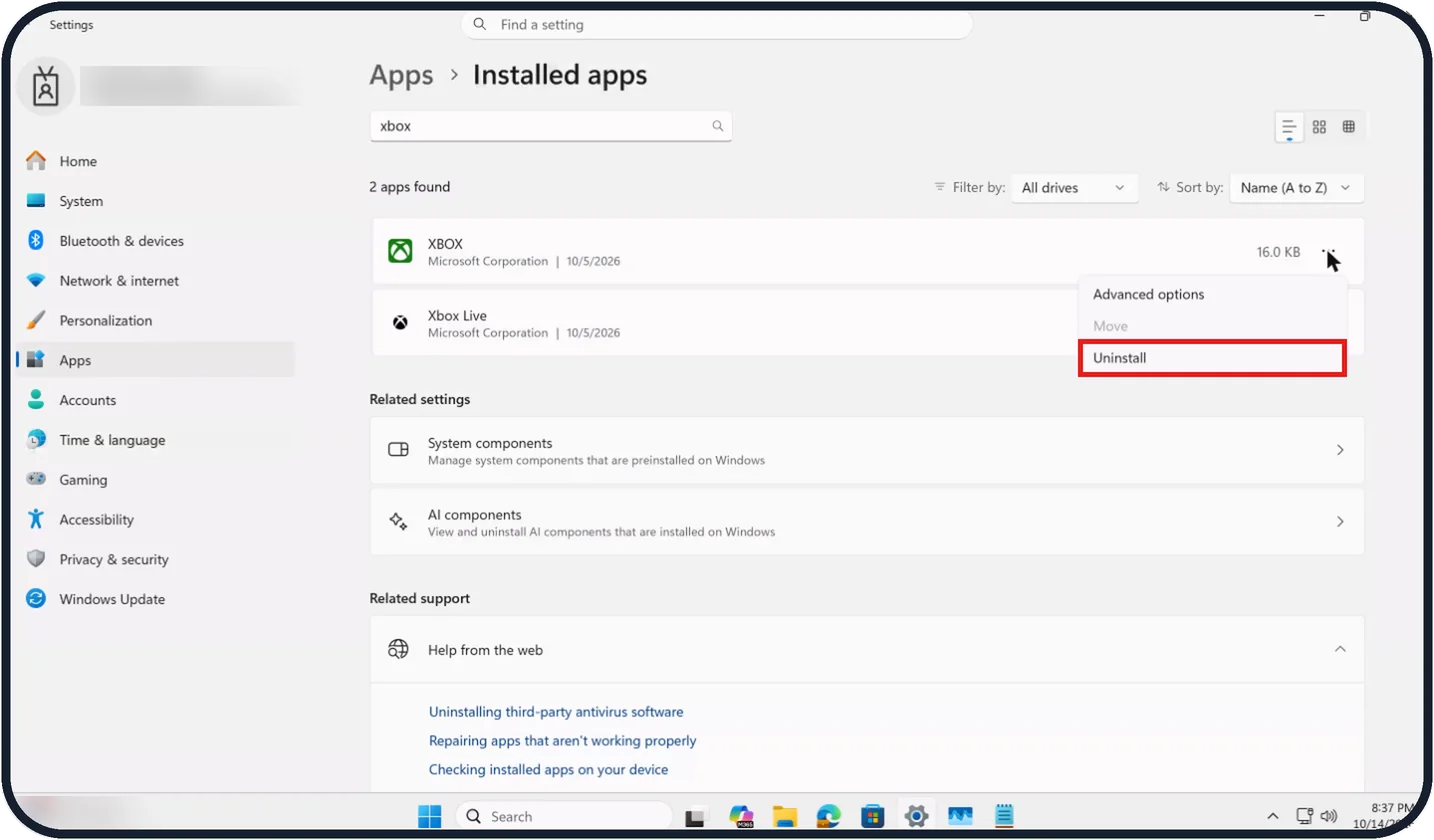
Tap the picture to see it full size Uninstall the app
In Installed apps, click the three dots next to the app and choose Uninstall.
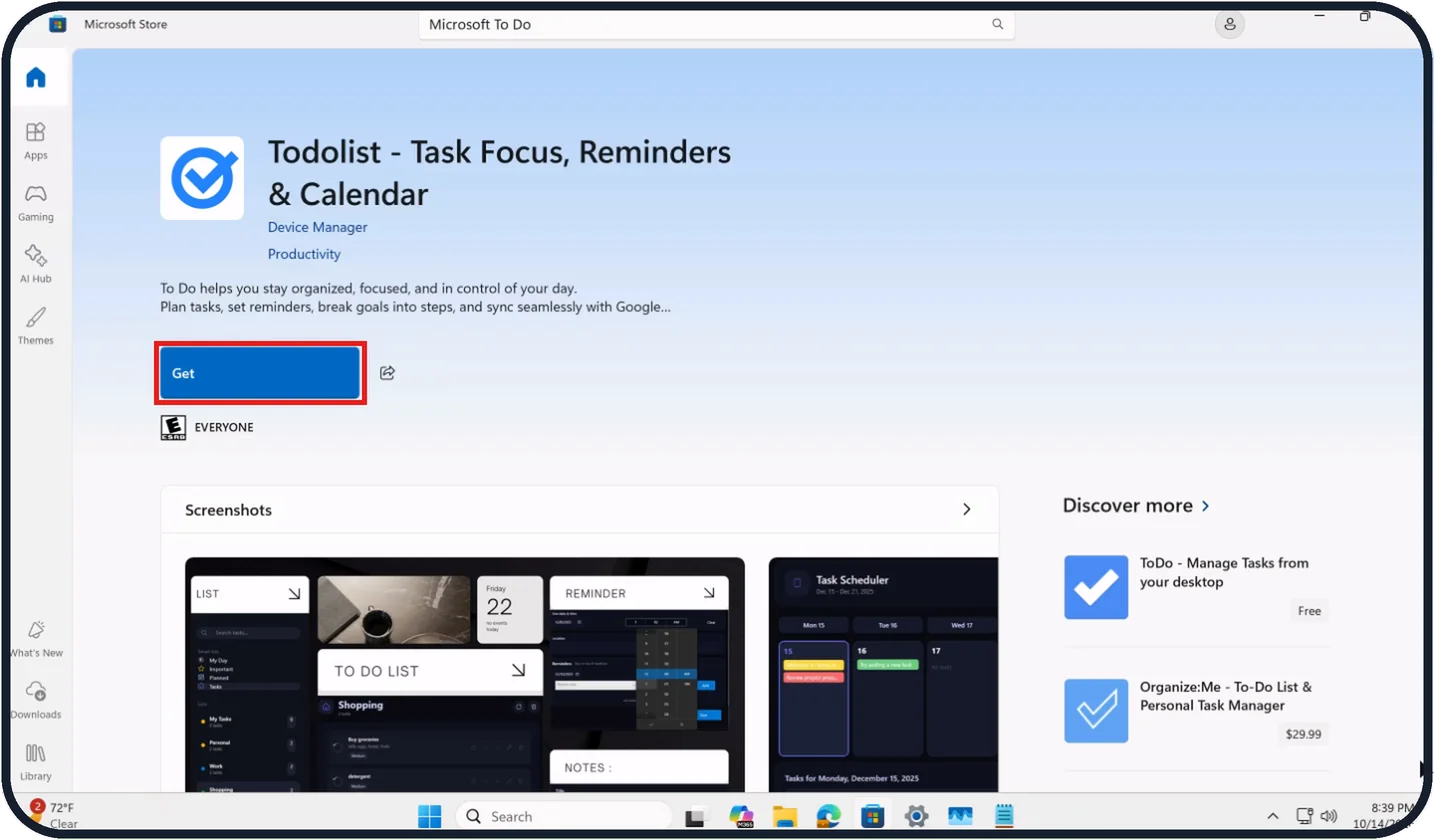
Tap the picture to see it full size Install it again from the Store
Open the Microsoft Store, find the app and click Install.
For an app you have never owned, the button reads Get instead.
If you do not see this option
- The app is hard to find in Installed apps Type its name in the search box at the top of the list. On our Cloud PC, searching xbox shows 2 apps found: XBOX and Xbox Live.
- Move is greyed out in the menu That is how it appears on our Cloud PC. You only need Advanced options and Uninstall.
- The Store shows Get, not Install Get appears for apps you have never owned; Install only shows for apps already owned.
- Get the latest updates as soon as they're available is greyed out On our Cloud PC the page says This setting isn't available due to your organization's policy. Check for updates still works.
If this does not work
- The Store says App was in use Close the app, then click Update again on the Updates & downloads page.
- The app hangs and will not close Press Ctrl + Shift + Esc, select the app under Processes and click End task.
- Repair did not help Click Reset in the same section. Windows warns that the app's data will be deleted.
- Games still will not install Microsoft's Q&A advice is to uninstall the Xbox app and Gaming Services and install them again from the Microsoft Store. Source: Fix problems with apps from Microsoft Store · Source: Gaming services will not install/run
About this guide
Apps from the Microsoft Store that will not open, close at once or refuse to install usually need an update of the app, of the Store or of Windows itself. If that is not it, Windows can repair a single app without touching the rest.
Good to know
If the Store itself will not open, repair or reset it in the same way: it is listed as Microsoft Store under Installed apps.
A wrong date or time stops the Store from connecting. Check Settings, Time & language, Date & time, Set time automatically.
Programs that did not come from the Store are removed differently: how to uninstall programs on Windows 11.
In short: Reopen, update Windows, Store Downloads and Check for updates, Repair, Reset, uninstall and install again.
- Microsoft Support: Fix problems with apps from Microsoft Store
- Microsoft Q&A: Gaming services will not install/run
Links checked in October 2026. Menus and features can change after software updates. These steps match the version named at the top.
Did this guide work for you?
Sorry about that. What happened?