
howtosimply.com/guides/how-to-combine-the-samsung-notification-and-quick-panels/ · Checked October 2026 · Samsung Galaxy A57 5G (SM-A576B), One UI 8.5, Android 16
In this guide
Swipe down from the top right of the screen, tap the pencil, then Panel settings, and choose Together if your phone lets you. Notifications and quick settings then open in one panel again, as they did before One UI 7. On our Galaxy A57, Together was greyed out and could not be chosen.
5 of 5 steps with real screenshots · 1 official source below
- Device
- Android
- Shown on
- Samsung Galaxy A57 5G (SM-A576B), One UI 8.5, Android 16
- Starts in
- Quick Settings
- Real screenshots
- 5 of 5 steps
- What we did
- Observed: looked at each screen, changed nothing
- Our phone
- Shown on Galaxy A57, One UI 8.5
- Checked
- October 2026
- Sources
- 1 official, linked below
Step by step
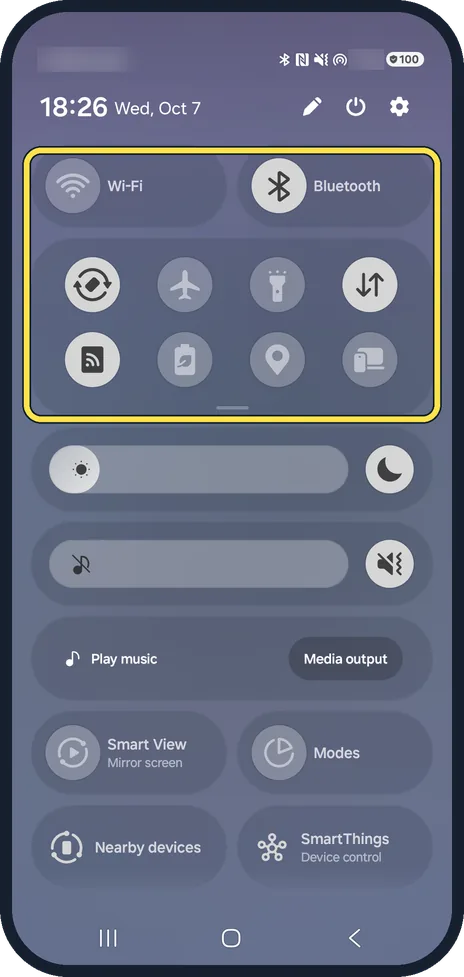
Open the quick panel
Swipe down from the top right corner of the screen. With the Separate layout, that corner opens the quick settings buttons.
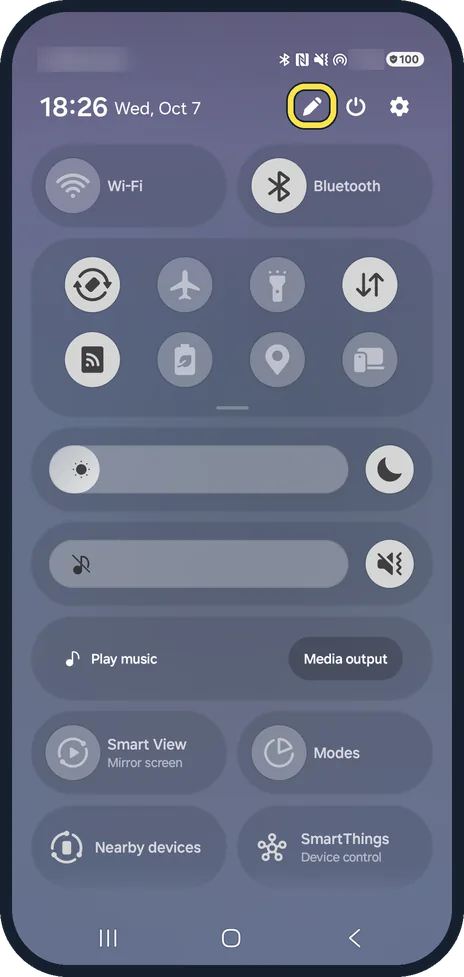
Tap the pencil
The pencil is next to the power and settings buttons, under the status bar.
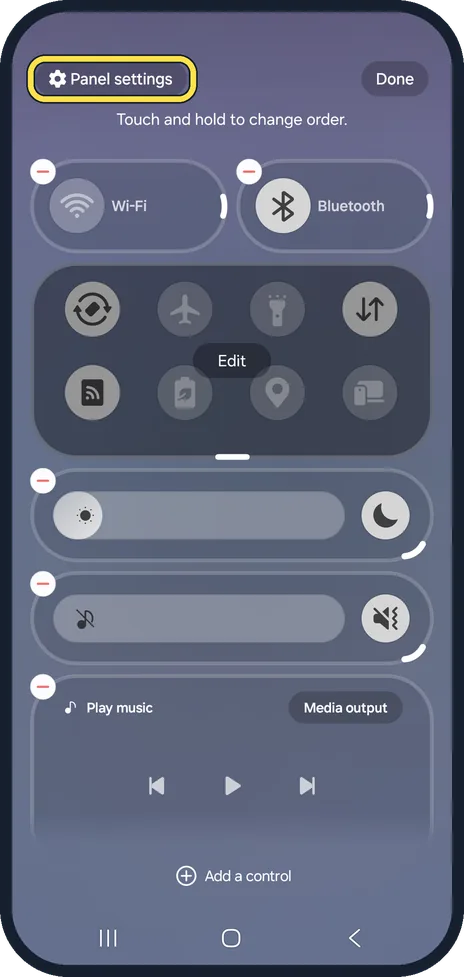
Tap Panel settings
It is at the top left of the edit view.
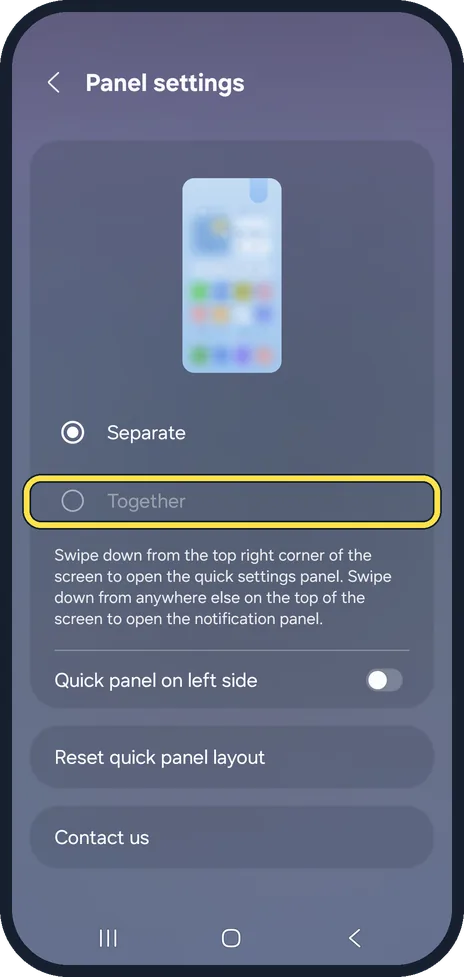
Choose Together, if offered
Separate is the One UI 7 and 8 default. Together puts notifications and quick settings in one panel, whichever part of the top edge you swipe from. Samsung calls this option Notification and quick settings view. On our Galaxy A57, Together was greyed out on this page, so we could not choose it there. The page gives no reason, and we have not found one; if it is greyed out on your phone too, the panels cannot be combined from this page.
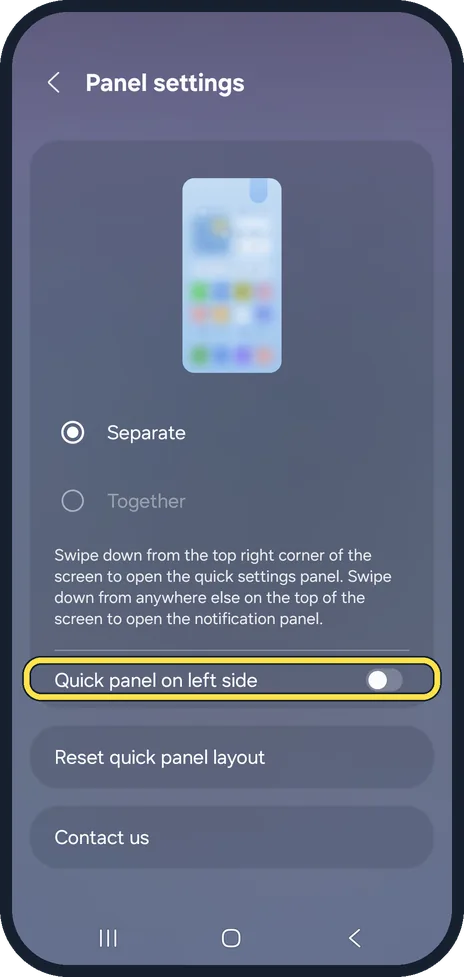
Leave the quick panel on the right, or move it
With Separate, the Quick panel on left side switch below swaps which top corner opens the quick settings. It was off on our phone.
If you do not see this option
- There is no Notification and quick settings view screen Samsung says that on some Galaxy phones this screen does not appear, and you go straight to the Together and Separate choice. Source: Customize the Quick settings panel on your Samsung Galaxy
- Your phone is on One UI 6.1.1 or older Samsung says notifications and quick settings already open with the same swipe there: swipe down once for notifications, and again for all of quick settings. There is nothing to combine. Source: Customize the Quick settings panel on your Samsung Galaxy
If this does not work
- Your notifications and quick settings still open separately Samsung says to swipe down from the top left for notifications and from the top right for the quick panel on One UI 7 and later. Source: Customize the Quick settings panel on your Samsung Galaxy
- A button in the panel is grey Samsung says some options are greyed out while their feature is off, such as Wi-Fi settings when Wi-Fi is off. Source: Customize the Quick settings panel on your Samsung Galaxy
About this guide
Since One UI 7, a Galaxy phone has two panels: swiping down from the top right opens the quick settings, swiping down anywhere else opens the notifications. If you prefer the old single panel, one setting brings it back.
Ours stayed on Separate.
Good to know
To add, remove or move the buttons themselves: how to edit the quick panel buttons on a Samsung Galaxy.
On One UI 6.1.1 and earlier there is only one panel, and its layout is under the three dots in the quick panel instead.
In short: Swipe down from the top right, pencil, Panel settings, Together (if it is not greyed out).
Links checked in October 2026. Menus and features can change after software updates. These steps match the version named at the top.
📷 See real photos from the Galaxy A57 in our Camera Lab, next to 10 other phones.
Did this guide work for you?
Sorry about that. What happened?