ONEPLUS
How to change the screen timeout on a OnePlus (OxygenOS 16)

In short
Go to Settings, Display & brightness and tap Auto screen off. Pick 15 seconds, 30 seconds, 1, 2, 5, 10 or 30 minutes. On our Nord 5, 30 minutes was the longest choice, and there was no Never.
4 of 4 steps show a real screenshot from our Nord 5. Each step was checked against the maker's own instructions, linked at the end.
Steps
- 1
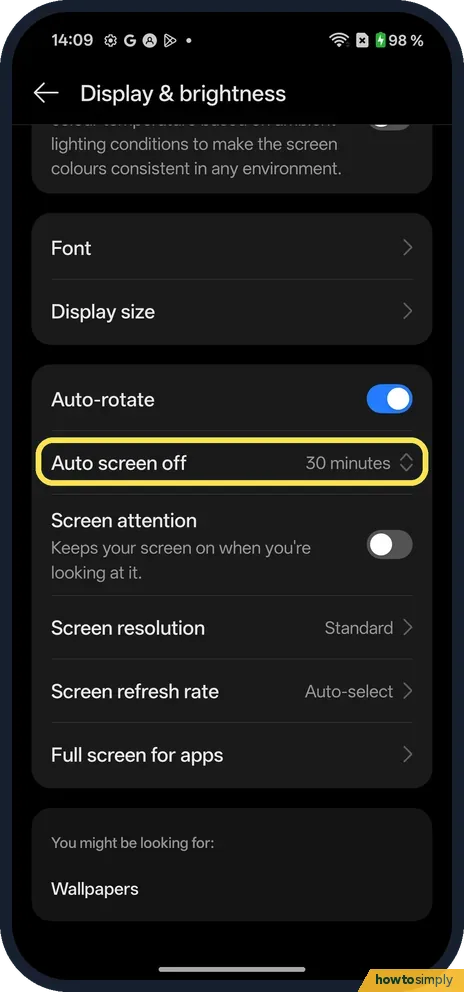
Tap Auto screen off
Open Settings and tap Display & brightness. Scroll down to Auto screen off, below Auto-rotate. Ours said 30 minutes. Tap it.
- 2
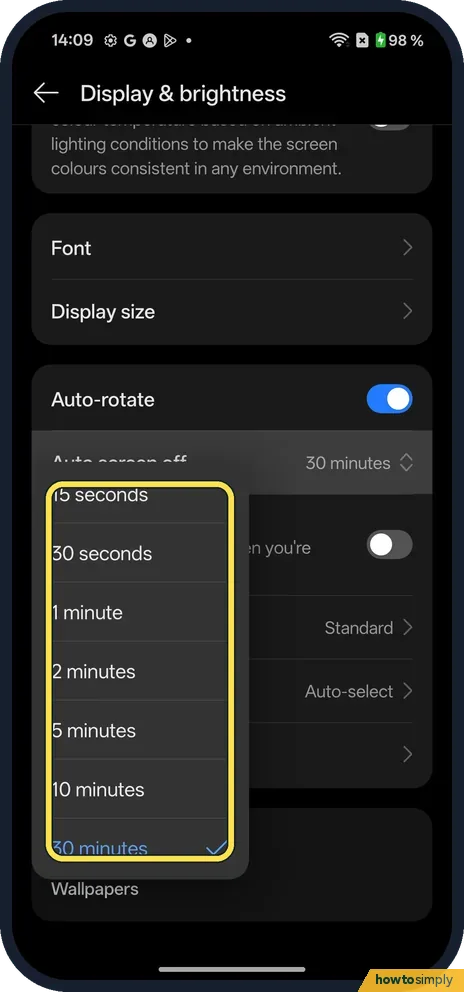
Pick a time
A list opens: 15 seconds, 30 seconds, 1 minute, 2 minutes, 5 minutes, 10 minutes and 30 minutes. Tap the one you want.
- 3
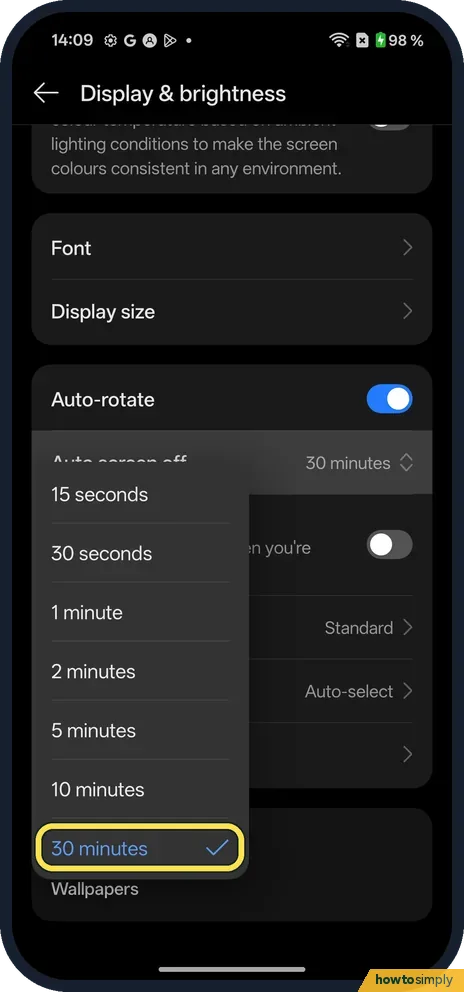
Check the tick
The current time is blue with a tick. Ours was 30 minutes, the longest choice.
- 4
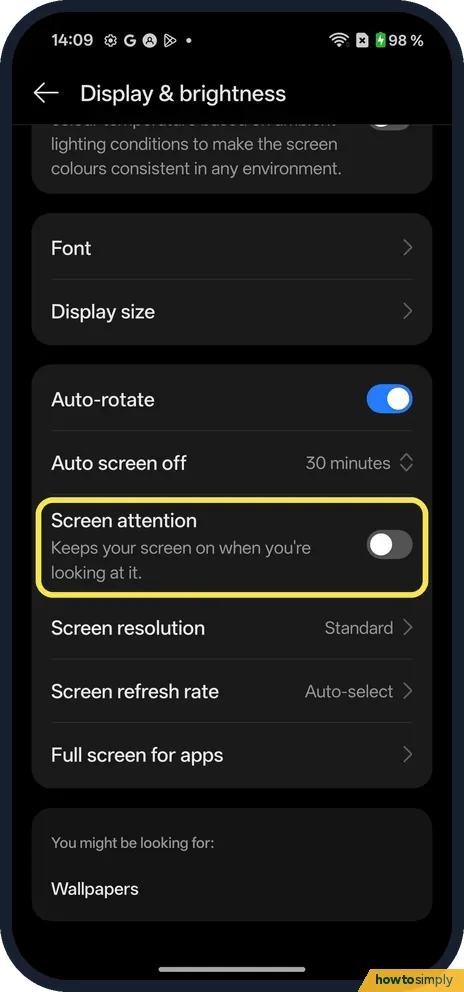
Keep it on while you look
Screen attention, just below Auto screen off, keeps your screen on when you're looking at it. It was off on ours, and we did not try it.
If you do not see this option
- Want Never? Our list had no Never; 30 minutes was the longest.
- Older OxygenOS? OnePlus's OxygenOS 14 manual gives the same path: Settings, Display & brightness, Auto screen off. Source: OxygenOS 14.0 User Manual
If this does not work
- Screen turns off too soon? Pick a longer time, up to 30 minutes, or try Screen attention.
- Battery runs down faster? A long time keeps the screen on longer. OnePlus's manual says the screen turns off to save power, so pick a shorter time.
- Screen too bright or the wrong colour? See screen colour and refresh rate.
- Screen stays on longer than you set? Video players, navigation and some reading apps keep the screen on while they are open, whatever this setting says. Also check Stay awake in Developer options, which Google describes as keeping the screen on while the phone is plugged in.
- Screen dims before it turns off? That is normal. The screen usually dims a few seconds before it switches off, giving you a moment to tap and keep it on.
Good to know
Screen refresh rate is on the same page: change screen colour and refresh rate.
On other phones: screen timeout on a Google Pixel or on a Xiaomi phone.
The new time applies straight away and stays until you change it. A shorter time saves power: Google lists activities that keep the screen on among the main things that drain the battery. To undo, pick your old time from the same list; ours started at 30 minutes. If you want the screen to wake easily rather than stay on, double-tap and raise gestures can switch it back on without the power button: use screen-off gestures and Raise to wake on a OnePlus.
About this guide
- Device
- Android
- Shown on
- OnePlus Nord 5 (CPH2709), OxygenOS 16.0.5.1201, Android 16
- App
- Settings
- Path
- Settings › Display & brightness › Auto screen off
- Real screenshots
- 4 of 4 steps
- Checked
- October 2026
- Sources
- 1 official, linked below
Sources
Links checked October 2026. Menus and features can change with updates.Spotted a mistake? Menus change with updates, and we want every step to match your screen. Email us about this page or use the contact form. We read every report, and fixes are listed on What changed.
Liked this guide?
Follow us for new guides and short how-to videos.
Did this guide work for you?
Sorry about that. What happened?