GOOGLE PIXEL
Should you turn on Theft protection on a Google Pixel? What each lock does (Android 17)

In short
Yes, once the phone has a PIN, pattern or password; without one none of it works. Open Settings, Security and privacy, Lost device protection, Theft protection. Keep Theft Detection Lock and Failed authentication lock on, turn on Remote Lock, and add Offline Device Lock if you accept more locking.
8 of 8 steps show a real screenshot from our Pixel 10a. Each step was checked against the maker's own instructions, linked at the end.
Steps
- 1
Open Lost device protection
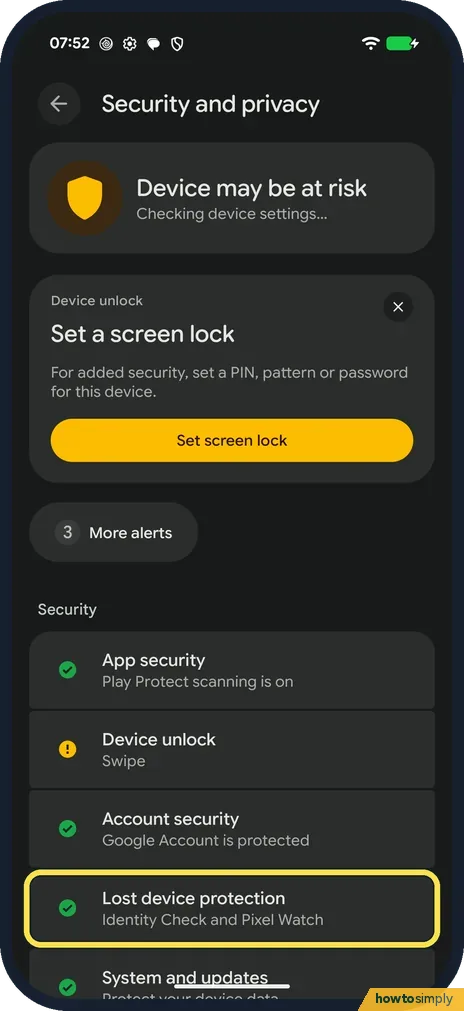
Open Settings, tap Security and privacy, and tap Lost device protection.
- 2
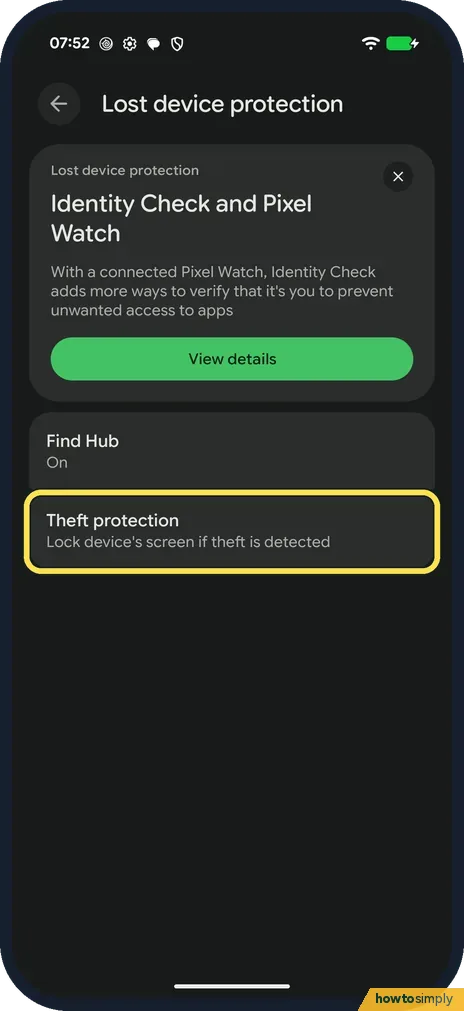
Tap Theft protection
It is below Find Hub. Its line says Lock device's screen if theft is detected.
- 3
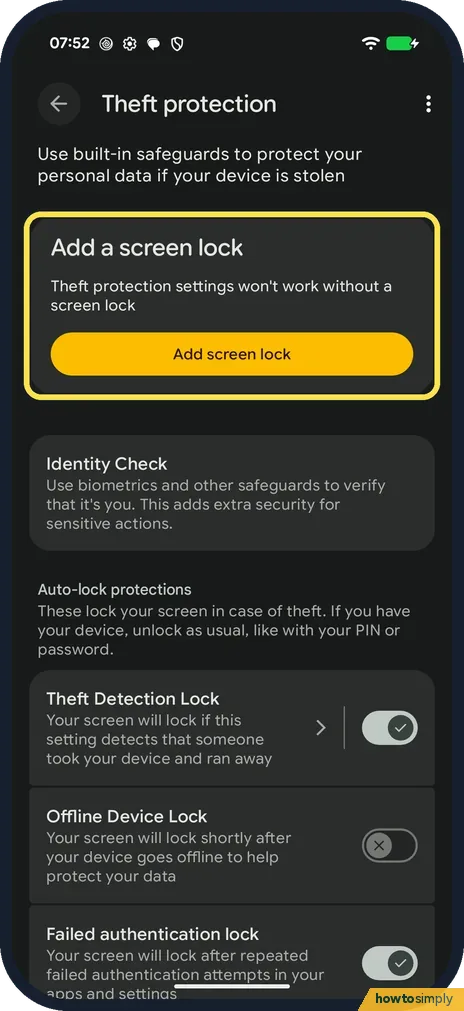
Set a screen lock first
The page says Theft protection settings won't work without a screen lock. Ours had none, so it showed Add screen lock. Tap it and choose a PIN, pattern or password.
- 4
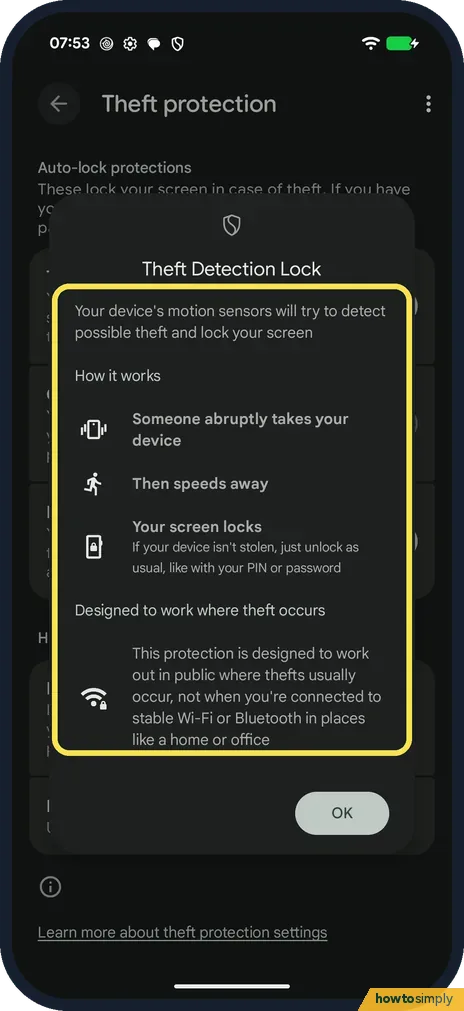
Theft Detection Lock: leave it on
Tap the arrow next to its switch to see how it works. It uses the motion sensors to spot someone abruptly taking the phone and speeding away, then locks the screen. The page says it is designed for public places, not when you are on stable Wi-Fi or Bluetooth at home or in the office. It was on on ours.
- 5
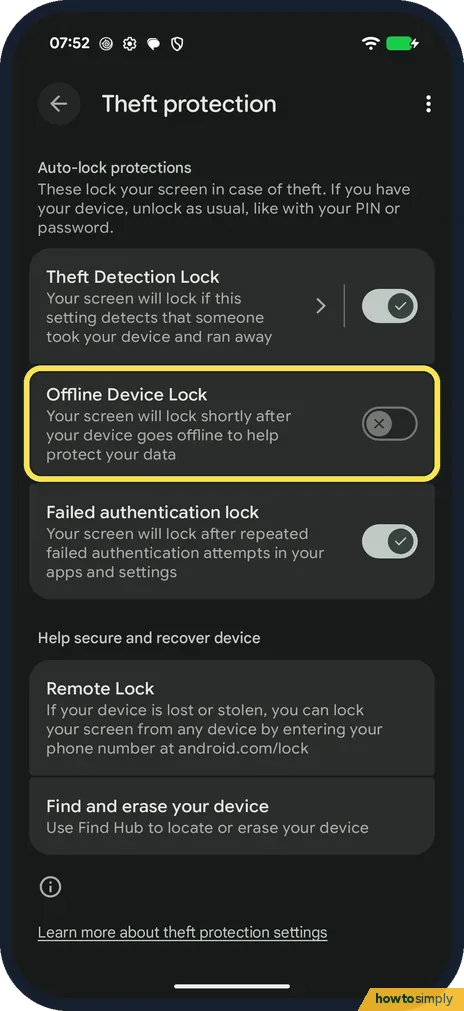
Offline Device Lock: your call
Your screen will lock shortly after your device goes offline. That stops a thief who switches off mobile data, but it also locks the phone when you lose signal yourself; you then unlock as usual. It was off on ours.
- 6
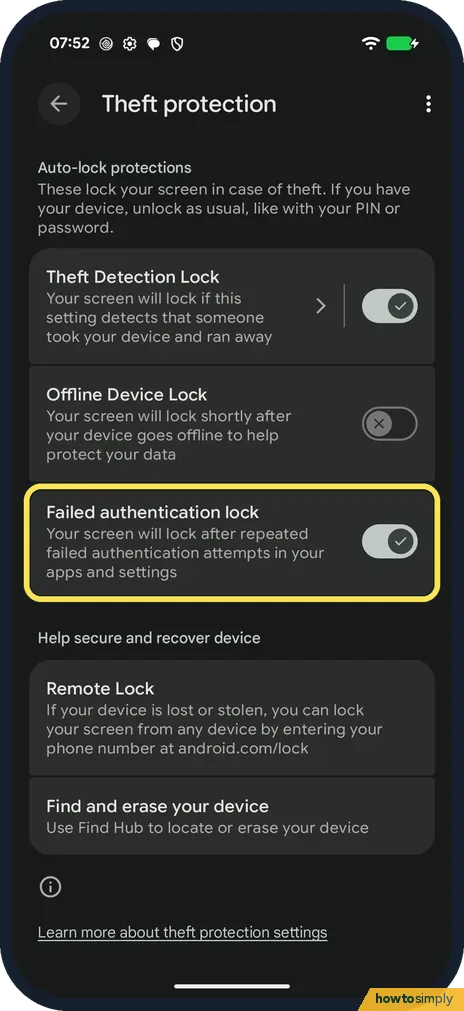
Failed authentication lock: leave it on
The screen locks after repeated failed authentication attempts in your apps and settings. It was on on ours.
- 7
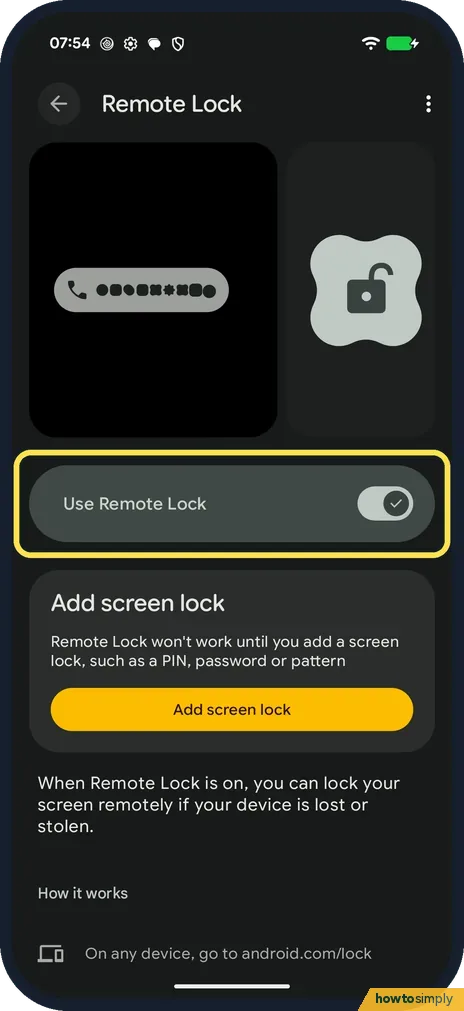
Remote Lock: turn it on
Tap Remote Lock and turn on Use Remote Lock. If the phone is lost, go to android.com/lock on any device and enter its phone number; no sign-in or Google Account is needed. Ours was on but warned that it won't work until you add a screen lock.
- 8
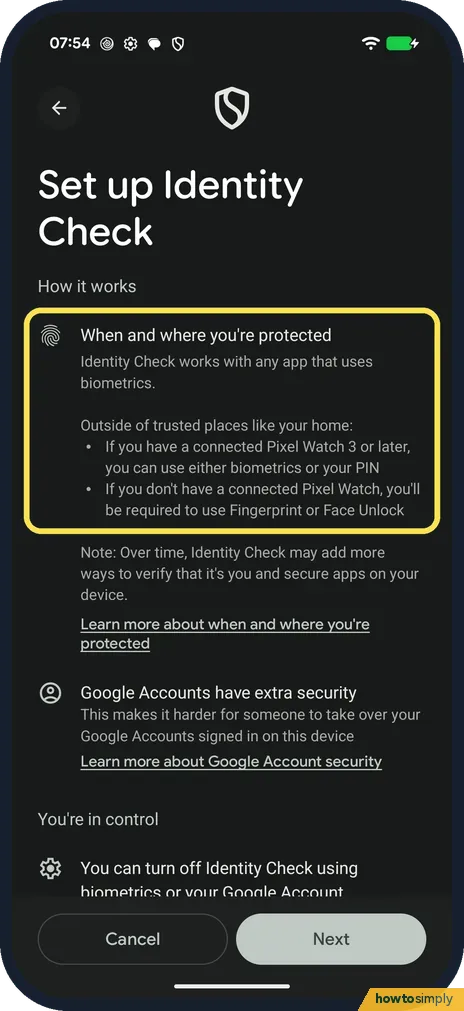
Identity Check: optional
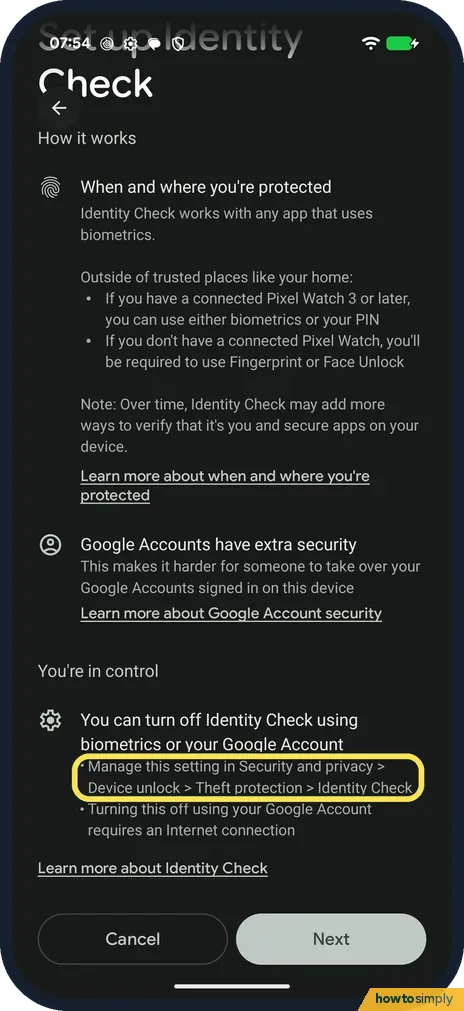
On the Theft protection page, tap Identity Check. It asks for your fingerprint or face, not only the PIN, for sensitive changes when you are away from trusted places like home. Ours was not set up; we went back without tapping Next.
If you do not see this option
- Not under Device unlock? On our Pixel 10a (build CP3A.261005.005) Theft protection was under Lost device protection, although the Identity Check screen still says Security and privacy, Device unlock, Theft protection, Identity Check.
- Not a Pixel? Google gives the path Settings, Google, All services, Theft protection. Google says some steps only work on Android 10 and up, and the features are not on Android Go devices, tablets or wearables. Source: Protect your personal data against theft
If this does not work
- Remote Lock does not lock the phone? Google lists what it needs: a screen lock, an active SIM card, a verified phone number, Find Hub turned on and an internet connection. If the phone is offline, it locks once it is back online.
- Locked by mistake? Unlock it the way you usually would, with your PIN, pattern, password, fingerprint or face.
Good to know
Find Hub is the other half: how to check Find Hub is on on a Google Pixel. Theft protection locks the phone; Find Hub finds or erases it.
About this guide
- Device
- Android
- Shown on
- Google Pixel 10a, Android 17 (build CP3A.261005.005)
- App
- Settings
- Path
- Settings › Security and privacy › Lost device protection › Theft protection
- Real screenshots
- 8 of 8 steps
- What we did
- Observed: looked at each screen, changed nothing
- Checked
- October 2026
- Sources
- 1 official, linked below
Sources
Links checked October 2026. Menus and features can change with updates.Spotted a mistake? Menus change with updates, and we want every step to match your screen. Email us about this page or use the contact form. We read every report, and fixes are listed on What changed.
Liked this guide?
Follow us for new guides and short how-to videos.
Did this guide work for you?
Sorry about that. What happened?