GOOGLE PIXEL
How to turn on the Wi-Fi hotspot on a Google Pixel (Android 17)
Open Settings, Network and Internet, Hotspot and tethering, Wi-Fi hotspot. Set the Hotspot name and Hotspot password, then turn on Use Wi-Fi hotspot. USB, Bluetooth and Ethernet tethering are on the page before.

7 of 7 steps show a real screenshot from our Pixel 10a. Each step was checked against the maker's own instructions, linked at the end.
Steps
- 1
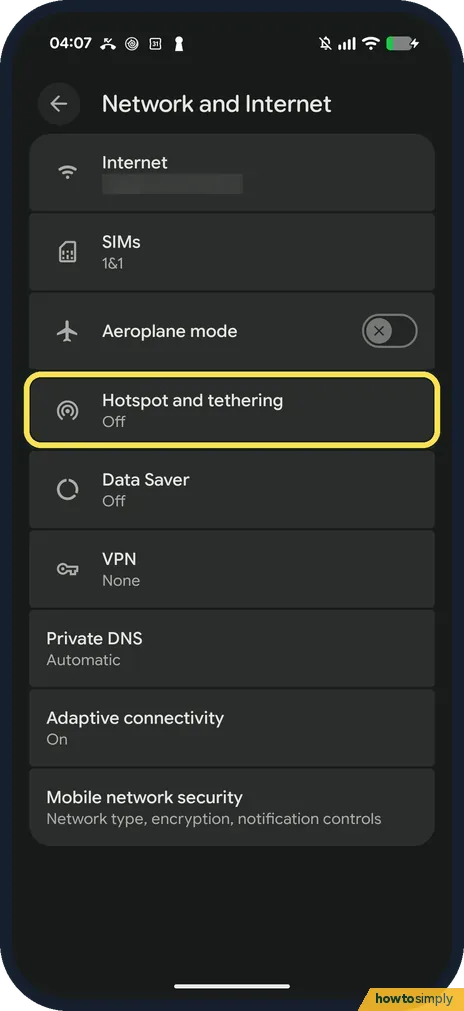
Open Hotspot and tethering
Go to Settings, Network and Internet, and tap Hotspot and tethering. Ours said Off.
- 2
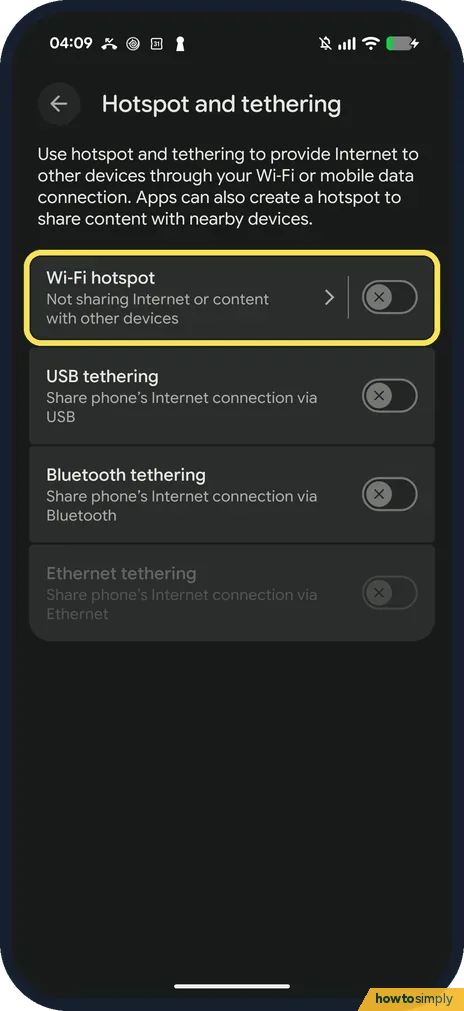
Tap Wi-Fi hotspot
The page says hotspot and tethering provide Internet to other devices through your Wi-Fi or mobile data connection. Under Wi-Fi hotspot ours said Not sharing Internet or content with other devices. Tap the words Wi-Fi hotspot, not the switch, to open its settings.
- 3
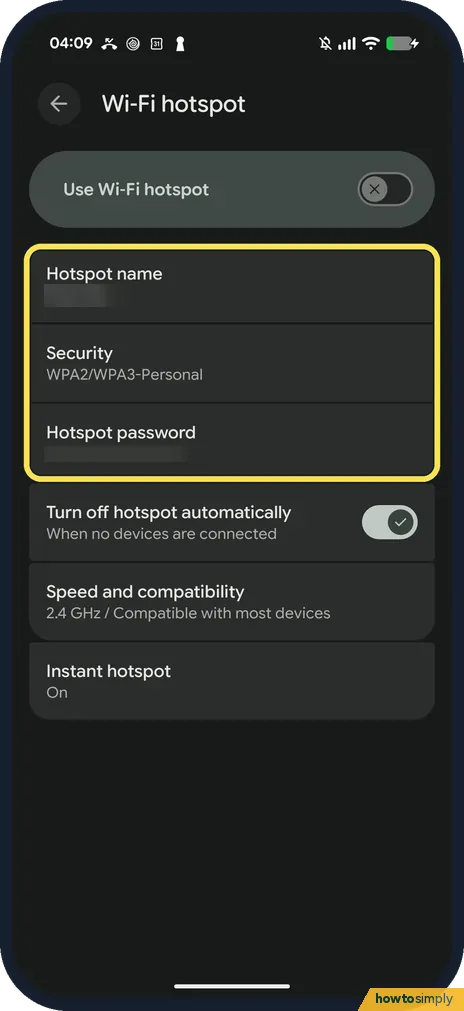
Set the name and password
The Wi-Fi hotspot page lists Hotspot name, Security and Hotspot password. Tap Hotspot name or Hotspot password to change them.
- 4
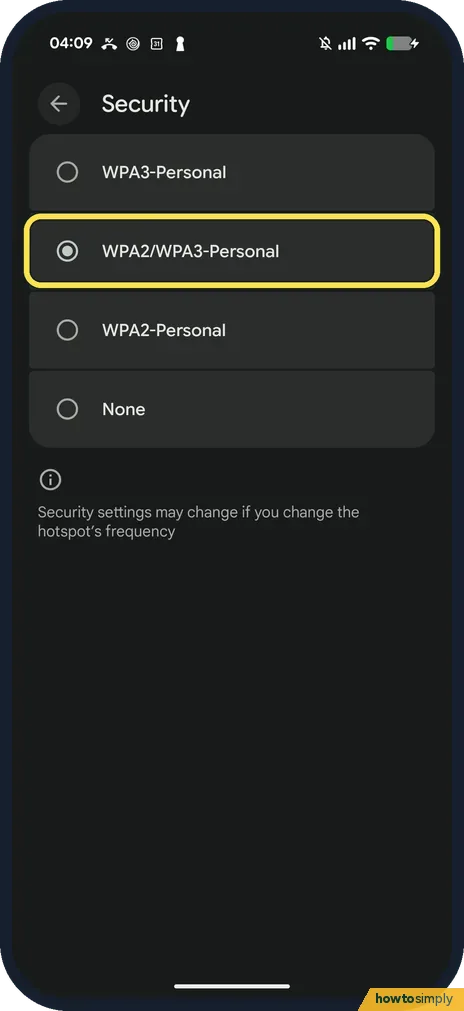
Choose the security
Tap Security. The choices are WPA3-Personal, WPA2/WPA3-Personal, WPA2-Personal and None. Ours was WPA2/WPA3-Personal. The note says security settings may change if you change the frequency.
- 5
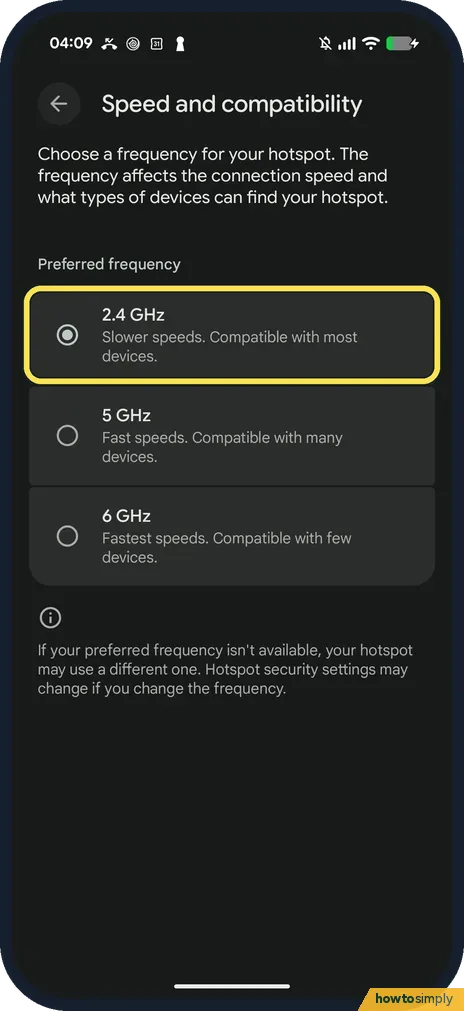
Pick a frequency
Back on Wi-Fi hotspot, tap Speed and compatibility. Under Preferred frequency: 2.4 GHz says Slower speeds, compatible with most devices; 5 GHz says Fast speeds, compatible with many devices; 6 GHz says Fastest speeds, compatible with few devices. Ours was 2.4 GHz.
- 6
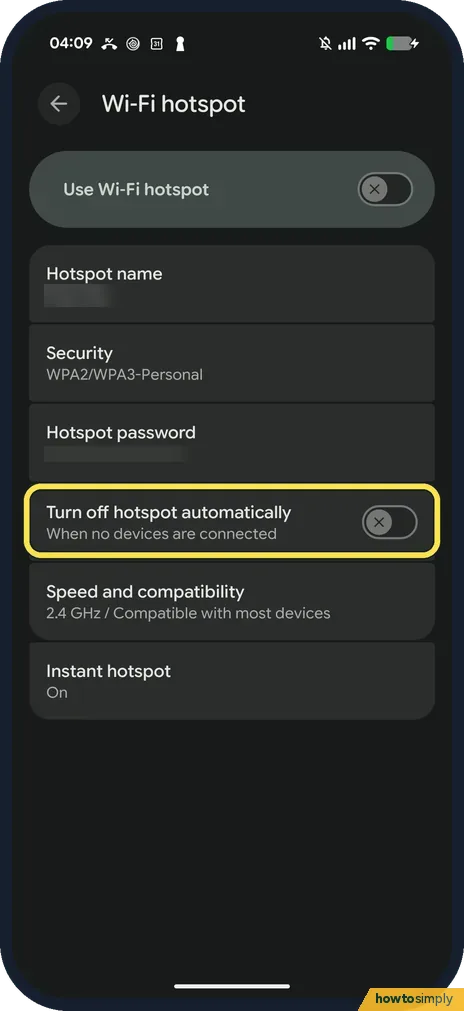
Decide on Turn off hotspot automatically
This picture shows Turn off hotspot automatically (When no devices are connected) switched off. It was on on ours, and we switched it back on afterwards. Switch it off if the hotspot keeps stopping while you wait for a device to join.
- 7
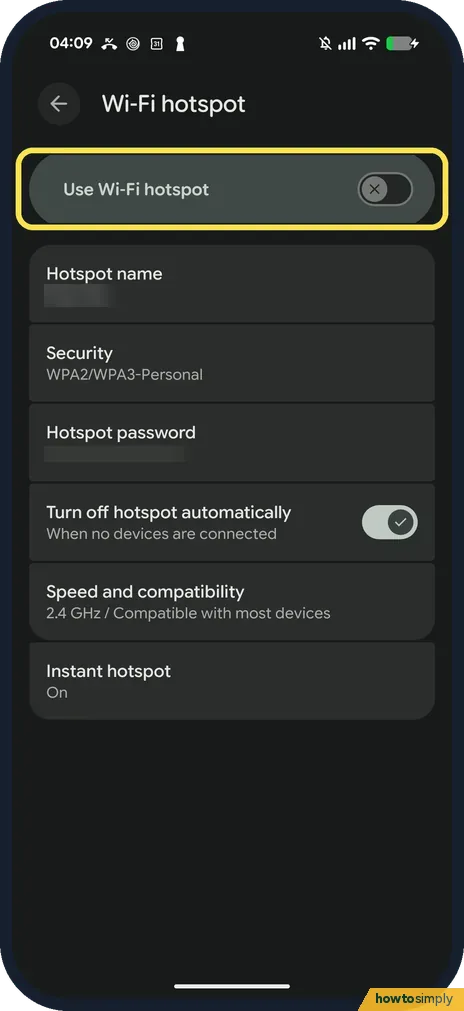
Turn on Use Wi-Fi hotspot
Use Wi-Fi hotspot at the top is still off. Turn it on, then join the network from your other device with the hotspot password.
If you do not see this option
- Hotspot missing or greyed out? Google says some carriers limit or charge extra for hotspots. Mobile data must also be on. Source: Share a mobile connection by hotspot or tethering on Android
- Want a cable instead? Hotspot and tethering also has USB tethering and Bluetooth tethering. Ethernet tethering was greyed out on ours. Source: Share a mobile connection by hotspot or tethering on Android
- Instant hotspot? It is a separate row at the bottom of Wi-Fi hotspot. Ours said On.
- No setting for the number of devices or a data limit? Our Wi-Fi hotspot page had no such row: only the name, Security, password, Turn off hotspot automatically, Speed and compatibility and Instant hotspot.
- Want a faster way to switch it on? Google's help describes a Hotspot tile in Quick Settings: swipe down from the top and tap it. Touch and hold the tile to reach the hotspot settings. If the tile is not there, add it: how to edit Quick Settings tiles. Source: Share a mobile connection by hotspot or tethering on Android
If this does not work
- Hotspot turns off by itself? Turn off hotspot automatically was on on ours: it turns the hotspot off when no devices are connected. Switch it off (step 6).
- Old device can't see it? Choose 2.4 GHz in Speed and compatibility: the page says it is compatible with most devices. 6 GHz is compatible with few.
- Other device connects but has no internet? The hotspot shares mobile data, so it only works when the Pixel itself is online. Turn off the Pixel's Wi-Fi and open a web page on it. If that fails, the mobile connection is the problem.
- Too many devices joined? Google says you can share mobile data with up to 10 other devices over a Wi-Fi hotspot. Disconnect devices you are not using, and each one left gets more of the speed.
- USB tethering does nothing on a Mac? Google says Mac computers can't tether with Android over USB. Use the Wi-Fi hotspot or Bluetooth tethering for a Mac instead.
Good to know
Watch your data use while sharing: how to set a data warning and limit.
Data used by connected devices counts against your own mobile plan. To stop sharing, turn off Use Wi-Fi hotspot or tap the Hotspot tile again; your name and password stay saved for next time.
About this guide
- Device
- Android
- Shown on
- Google Pixel 10a, Android 17 (build CP3A.261005.005)
- App
- Settings
- Path
- Settings › Network and Internet › Hotspot and tethering › Wi-Fi hotspot: name
- Real screenshots
- 7 of 7 steps
- Checked
- October 2026
- Sources
- 2 official, linked below
Sources
Links checked October 2026. Menus and features can change with updates.Spotted a mistake? Menus change with updates, and we want every step to match your screen. Email us about this page or use the contact form. We read every report, and fixes are listed on What changed.
Liked this guide?
Follow us for new guides and short how-to videos.
Did this guide work for you?
Sorry about that. What happened?