GOOGLE PIXEL
How to turn on USB file transfer on a Google Pixel (Android 17)

In short
Unlock the Pixel, connect it to the computer and open Settings, Connected devices, USB. Under Use USB for, tap File transfer/Android Auto. Ours stayed on No data transfer, which only charges. Google's steps use a USB notification instead.
5 of 5 steps show a real screenshot from our Pixel 10a. Each step was checked against the maker's own instructions, linked at the end.
Steps
- 1
Open USB
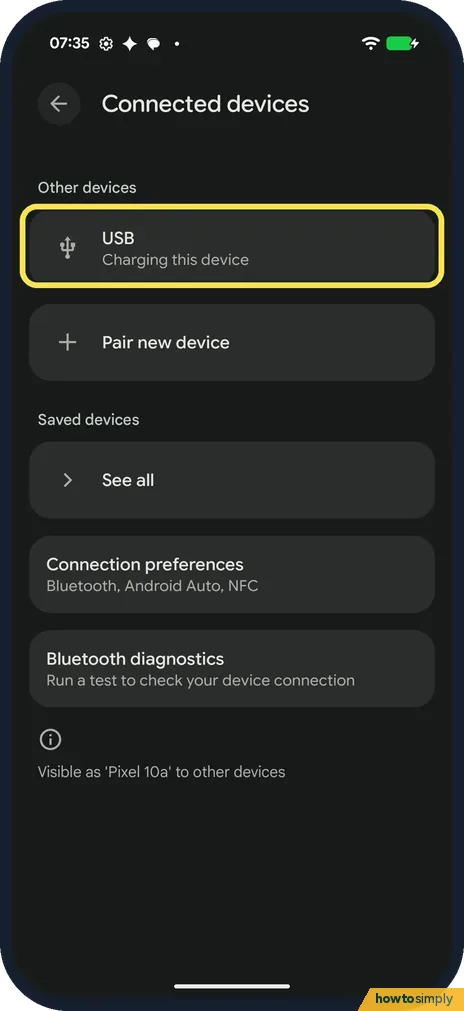
Plug in the cable, then open Settings and tap Connected devices. Under Other devices, USB said Charging this device. Tap it.
- 2
Check USB controlled by
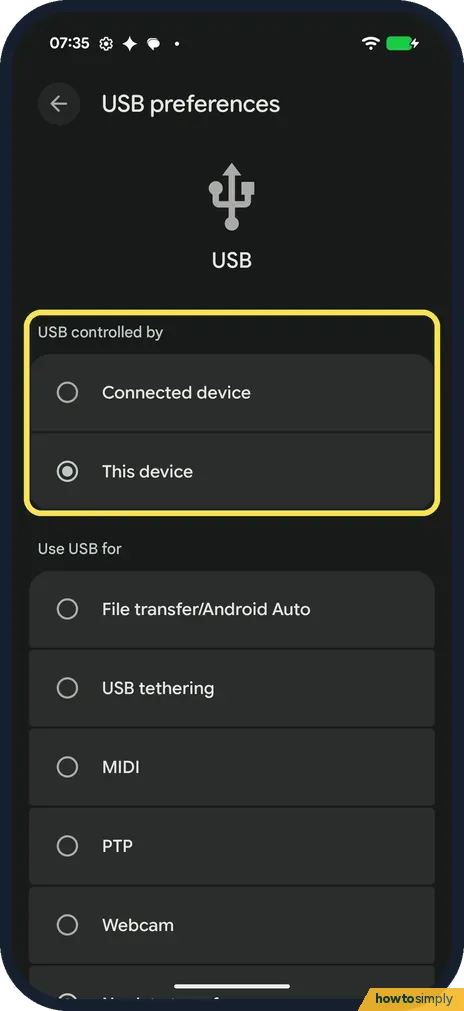
USB preferences opens. USB controlled by had Connected device and This device. Ours was This device.
- 3
Look at Use USB for
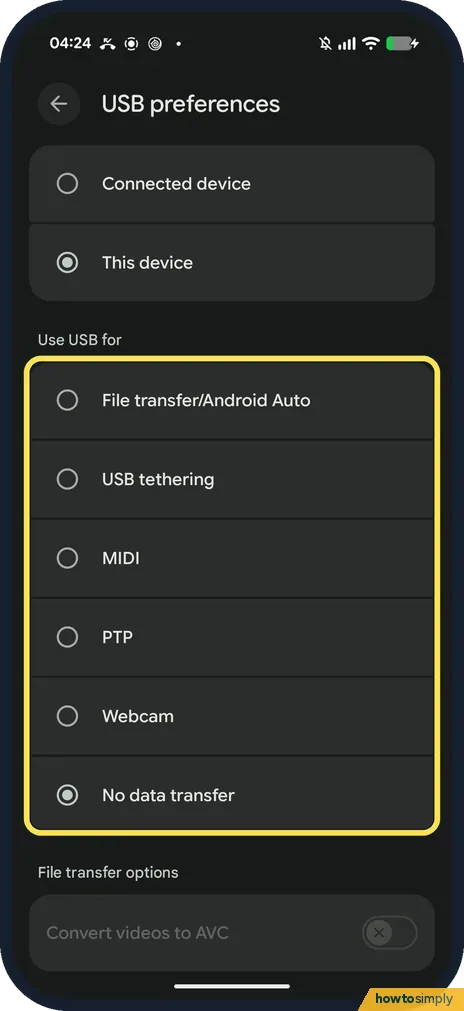
The choices are File transfer/Android Auto, USB tethering, MIDI, PTP, Webcam and No data transfer. No data transfer was selected on ours, so the phone only charged. On 1 November, after the phone had been unplugged and connected again, it was back on No data transfer.
- 4
Tap File transfer/Android Auto
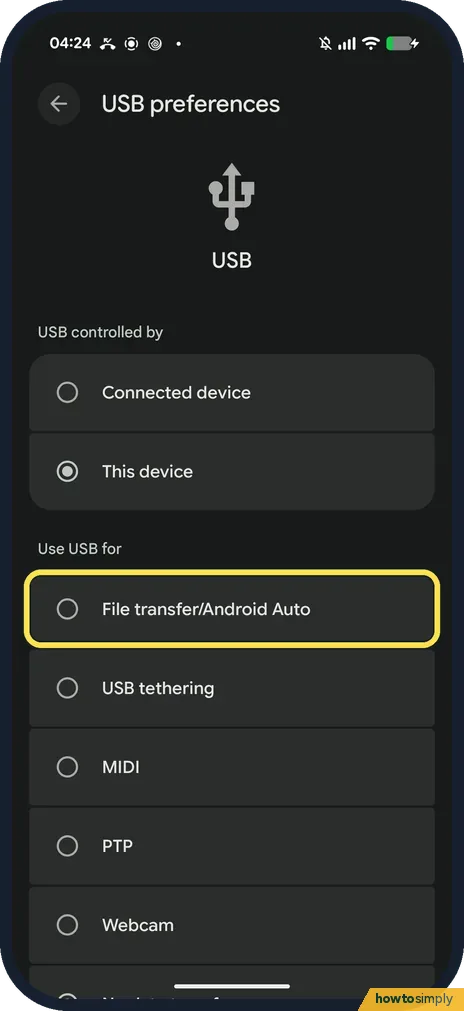
To copy files, tap File transfer/Android Auto, the first choice under Use USB for. Google says a file transfer window then opens on a Windows computer, where you drag the files. We didn't do this.
- 5
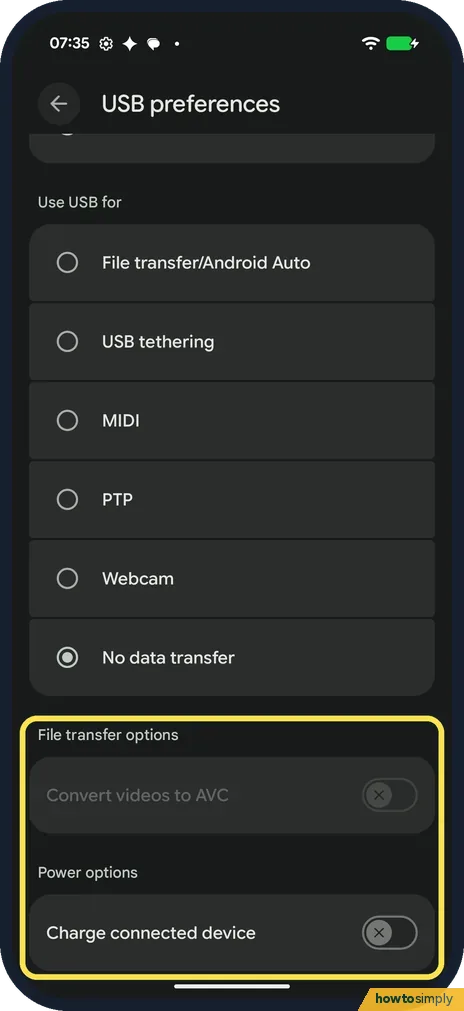
Options below
Under File transfer options, Convert videos to AVC was greyed out and off on ours. Under Power options, Charge connected device was off.
If you do not see this option
- No "Charging this device via USB" notification? Google's steps start by tapping that notification. When we looked in the notification shade, ours had none to tap, so we went through Settings, Connected devices, USB. Source: Transfer files between your computer and Android device
- Steps don't match? Google says some of these steps only work on Android 14 and up, so older Android versions may look different. Source: Transfer files between your computer and Android device
- Copying to a Mac? Google's page has steps for Windows and Chromebook only, not for a Mac. We didn't test a Mac. Source: Transfer files between your computer and Android device
If this does not work
- The computer doesn't see the phone? Google says to unlock the phone first. Then check that Use USB for is on File transfer/Android Auto, not No data transfer.
- Back on No data transfer next time? Ours was: when we connected it again on 1 November, Use USB for showed No data transfer (step 3). Check the setting each time you plug in to copy files.
- Still nothing? Google says to try a different USB cable, as not all cables can transfer files. Connect to a different computer to test the phone's port, and restart the phone and the computer.
- Windows doesn't react? Google says to check that Windows automatically detects new hardware.
- Phone still not seen after all that? Google also suggests updating Android and restarting the phone. See how to update a Pixel.
Good to know
Done copying? Google says to eject the phone from Windows before you unplug the cable.
USB tethering on the same list shares the phone's internet. Without a cable: how to turn on the Wi-Fi hotspot on a Google Pixel.
Want a copy of everything, not just a few files? See how to back up a Google Pixel.
Choosing File transfer lets the computer read and change files on the phone while the cable is in, so only do it on a computer you trust. Once you unplug, the computer loses access. Files you drag are copied unless you choose to move or delete them on the computer. Google also lists cable-free routes on the same page, such as uploading to Google Drive or Google Photos.
About this guide
- Device
- Android
- Shown on
- Google Pixel 10a, Android 17 (build CP3A.261005.005)
- App
- Settings
- Real screenshots
- 5 of 5 steps
- Checked
- October 2026
- Sources
- 1 official, linked below
Sources
Links checked October 2026. Menus and features can change with updates.Spotted a mistake? Menus change with updates, and we want every step to match your screen. Email us about this page or use the contact form. We read every report, and fixes are listed on What changed.
Liked this guide?
Follow us for new guides and short how-to videos.
Did this guide work for you?
Sorry about that. What happened?