
howtosimply.com/guides/how-to-turn-on-simple-view-on-a-google-pixel/ · Checked October 2026 · build CP3A.260905.009 · Google Pixel 10a, Android 17
In this guide
Go to Settings, Accessibility, and under Quick access tap Simple View, then turn on Use Simple View. Text and icons get bigger straight away. Turn the same switch off and tap Proceed to go back to your old settings.
5 of 5 steps with real screenshots · 1 official source below
- Device
- Android
- Shown on
- Google Pixel 10a, Android 17 (build CP3A.260905.009)
- App
- Settings
- Path
- Settings › Accessibility › Quick access › Simple View
- Real screenshots
- 5 of 5 steps
- Checked
- October 2026
- Sources
- 1 official, linked below
Step by step
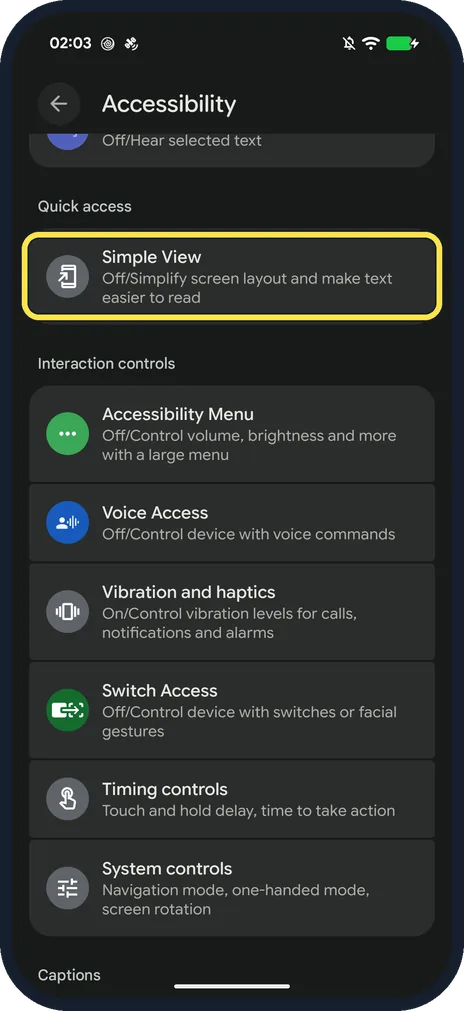
Open Simple View
Open Settings and tap Accessibility. Under Quick access, tap Simple View. Ours said Off/Simplify screen layout and make text easier to read.
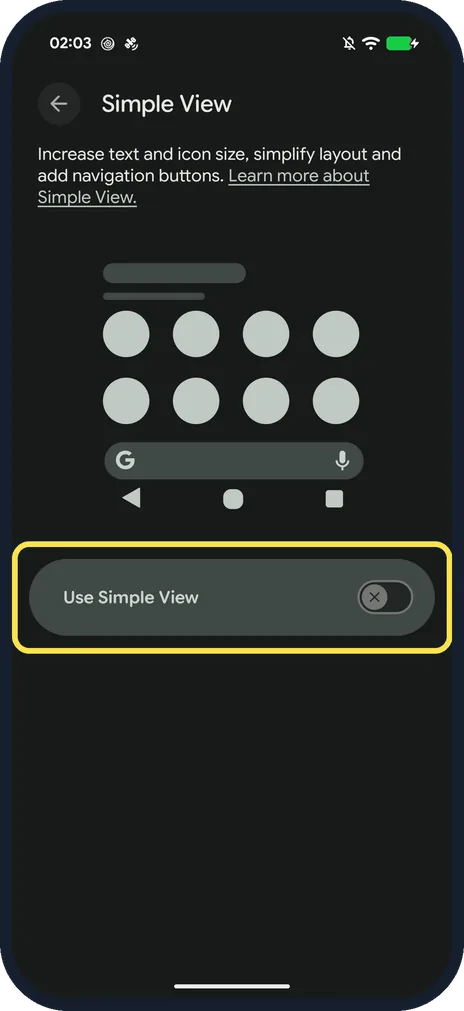
Turn on Use Simple View
The page shows a preview of the bigger layout. Tap the Use Simple View switch.
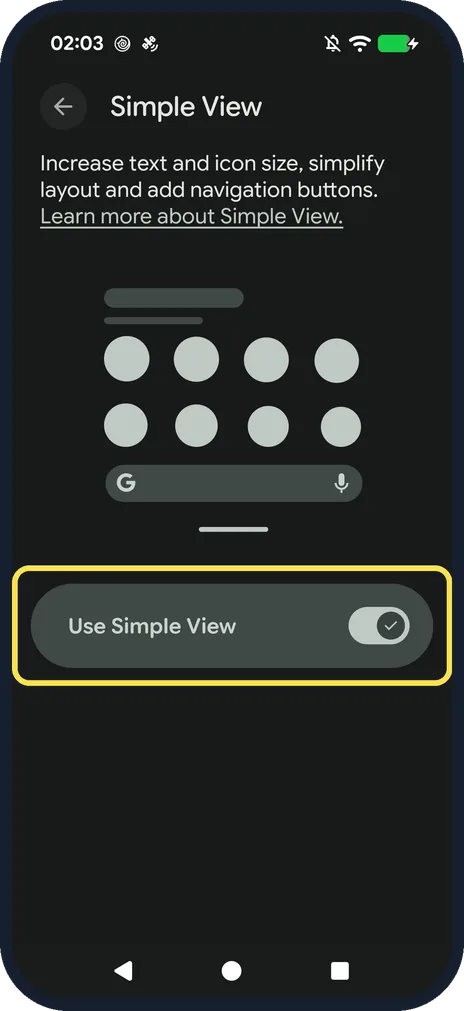
Check it is on
The Use Simple View switch turns on and the page text gets bigger at once.
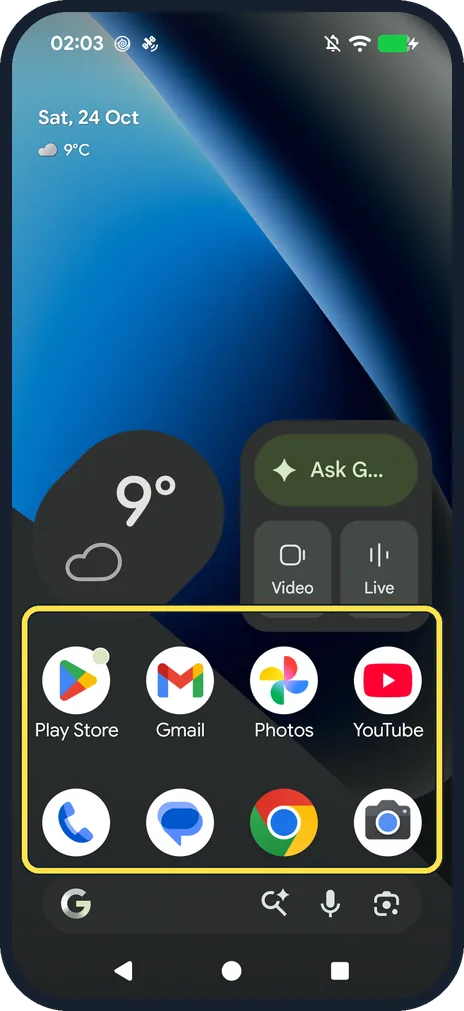
See the new Home screen
Go Home: our icons and their labels were larger, and the navigation bar showed the three buttons.
Turn it off again
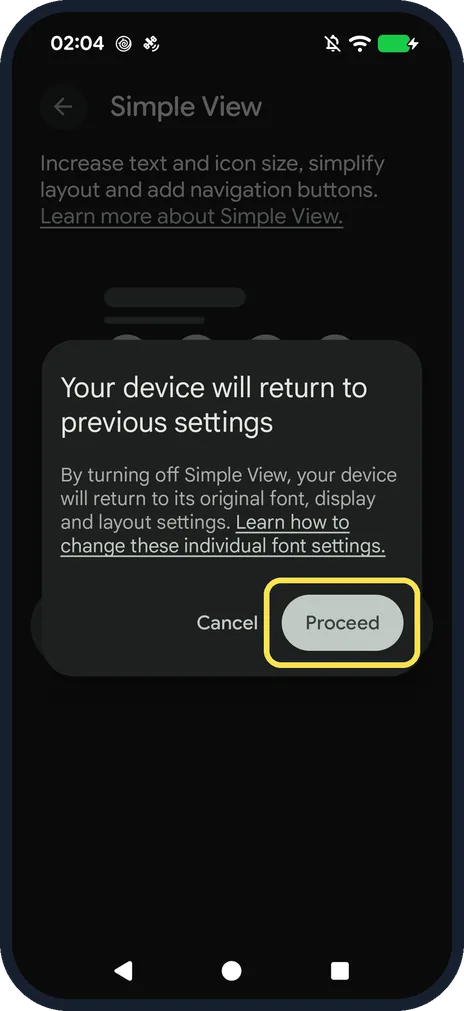
Turn off Use Simple View. Ours said Your device will return to previous settings: original font, display and layout settings. Tap Proceed.
If you do not see this option
- No Contacts, Clock and Weather shortcuts or high-contrast wallpaper? Google says those, plus a 4x4 app grid and locked suggested apps, only come when you turn Simple View on during setup. Turned on from Settings, as here, you get larger text and icons, a simpler Home screen, 3-button navigation and higher touch sensitivity. Source: Use Simple View on your Pixel phone
- Setting up a new Pixel? Google says you can also turn it on during setup: on the Welcome to your Pixel screen, tap Accessibility, then Set up with Simple View. Source: Use Simple View on your Pixel phone
If this does not work
- Text or layout not how you had it after turning it off? Google says turning Simple View off returns the phone to its original font, display and layout settings. To change them by hand, use the Display and Font settings. Source: Use Simple View on your Pixel phone
- Only want bigger text? See how to change text and display size on a Google Pixel.
- Want a quick way to turn on accessibility features? See how to use the accessibility button and volume keys shortcut.
About this guide
Simple View makes a Pixel easier to see and use in one switch, which helps if you are setting up a phone for a parent or anyone who finds small text hard. Google says it gives larger text and icons, a simpler Home screen, 3-button navigation and higher touch sensitivity.
The screenshots are from our Google Pixel 10a with Android 17, in Dark mode, taken on 24 October 2026. We turned Simple View on for the pictures and off again.
Good to know
Change the number of apps per row: how to change the home screen grid on a Google Pixel.
In short: Settings, Accessibility, Quick access, Simple View, Use Simple View on. Off again: same switch, Proceed.
Links checked in October 2026. Menus and features can change after software updates. These steps match the version named at the top.
Did this guide work for you?
Sorry about that. What happened?