GOOGLE PIXEL
How to zoom in with Magnification on a Google Pixel (Android 17)

In short
Open Settings, Accessibility, Magnification and turn on Magnification shortcut. Tap the row to choose the shortcut: the floating Accessibility button, a 2-finger swipe up, holding both volume keys, or triple-tap, under Advanced. Then use the shortcut and tap the screen to zoom.
9 of 9 steps show a real screenshot from our Pixel 10a. Each step was checked against the maker's own instructions, linked at the end.
Steps
- 1
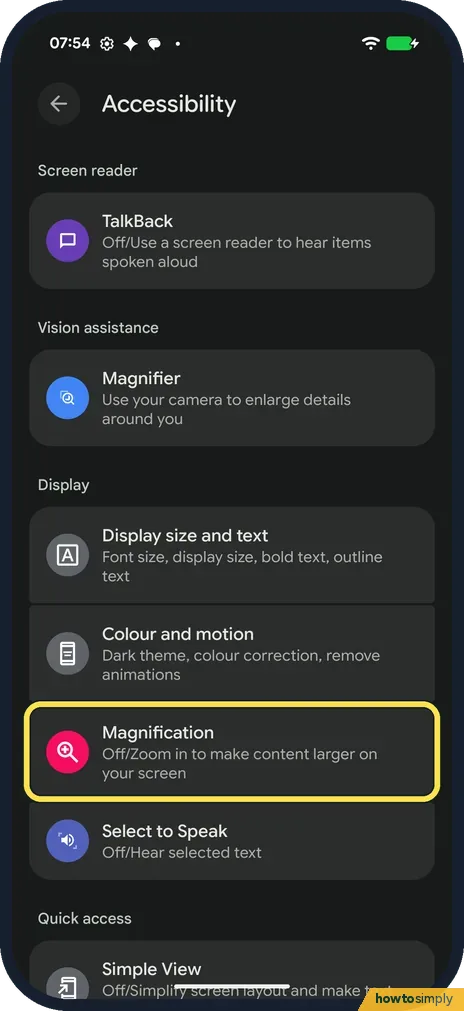
Open Magnification
Open Settings and tap Accessibility. Magnification is under Display. Ours said Off/Zoom in to make content larger on your screen.
- 2
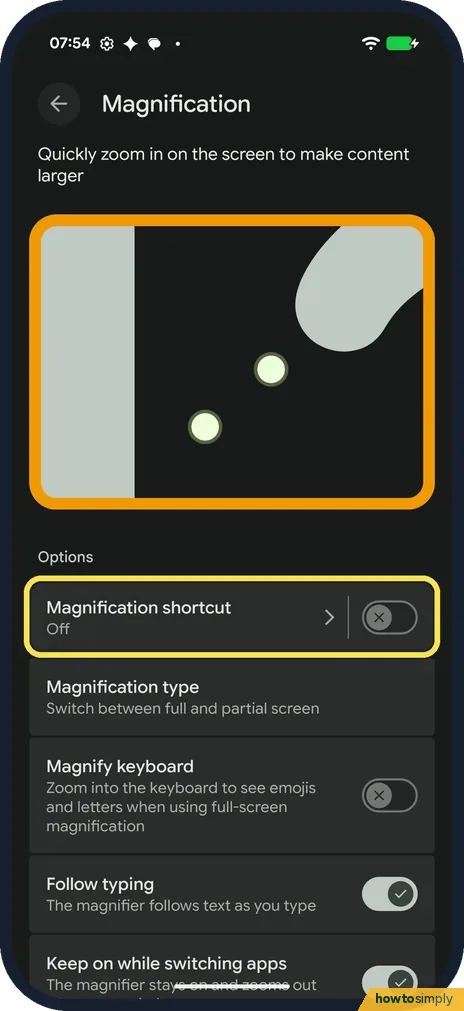
Turn on Magnification shortcut
Under Options, the switch on Magnification shortcut turns it on. Ours was Off. Tap the words, not the switch, to choose the shortcut.
- 3
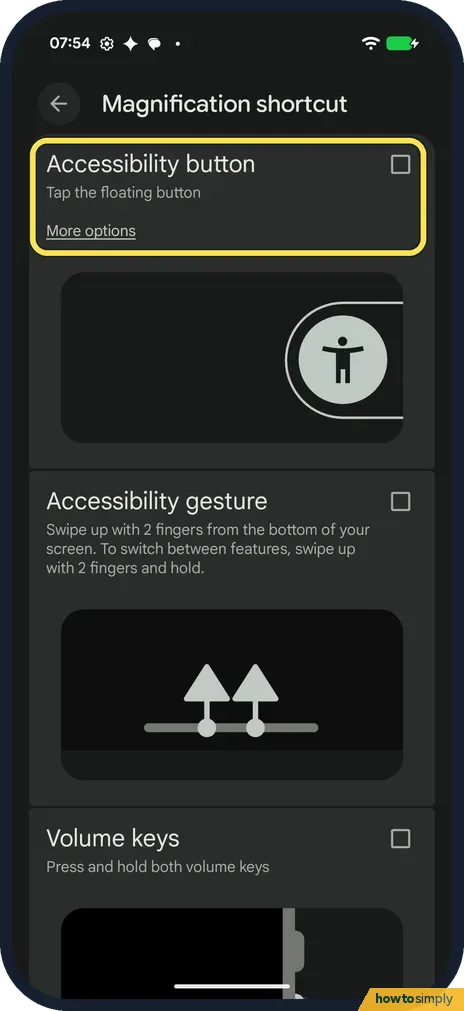
Shortcut 1: the Accessibility button
Tick Accessibility button to tap a floating button on the screen. More options, under it, sets the button up. Nothing was ticked on ours.
- 4
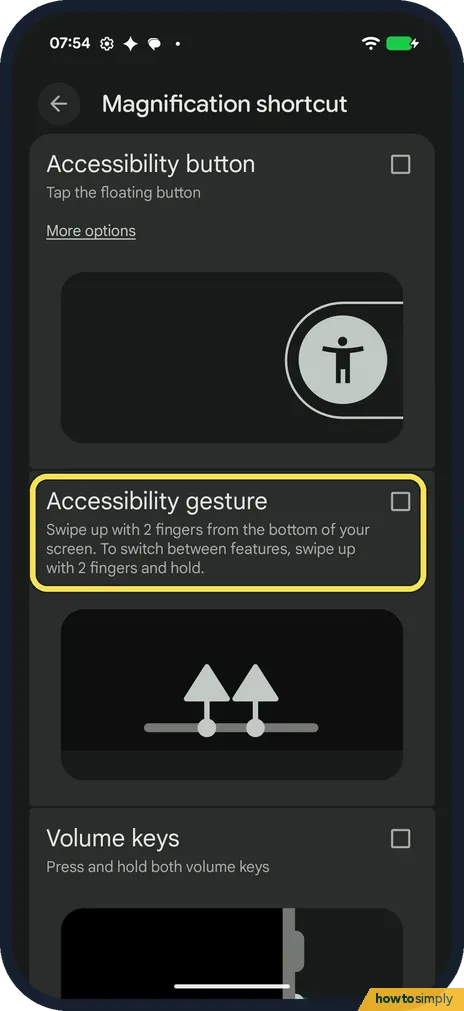
Shortcut 2: the 2-finger gesture
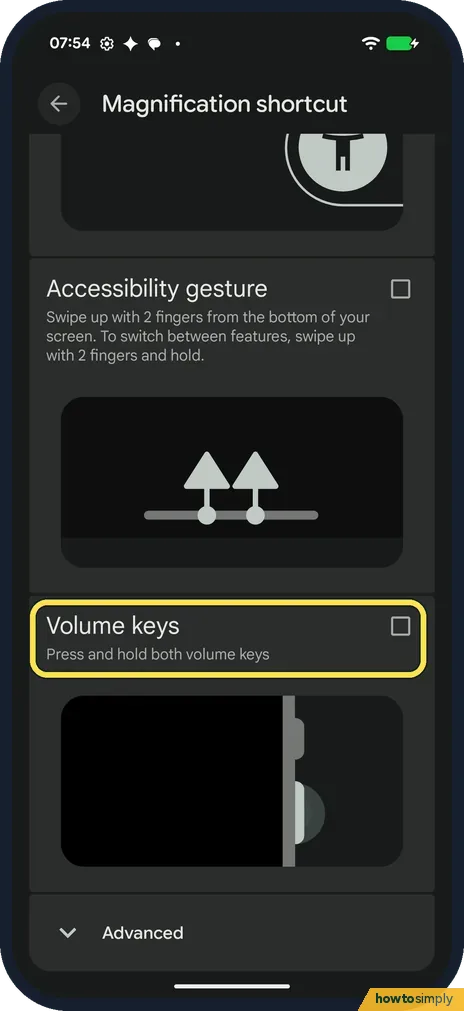
Accessibility gesture: swipe up with 2 fingers from the bottom of your screen. To switch between features, swipe up with 2 fingers and hold.
- 5
Shortcut 3: the volume keys
Volume keys: press and hold both volume keys.
- 6
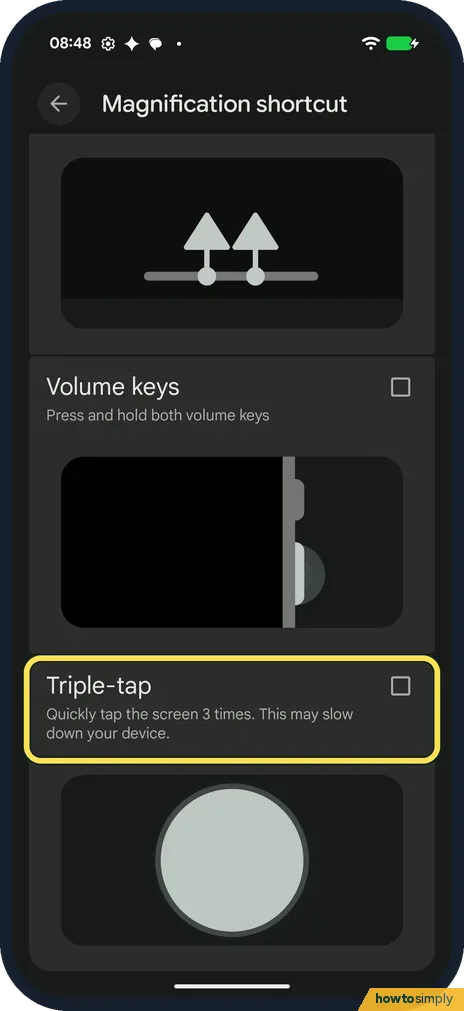
Shortcut 4: triple-tap
Advanced is at the bottom and was folded on ours. Tap it, and a Triple-tap row appears: Quickly tap the screen 3 times. This may slow down your device. Tick its box to use it; ours was not ticked.
- 7
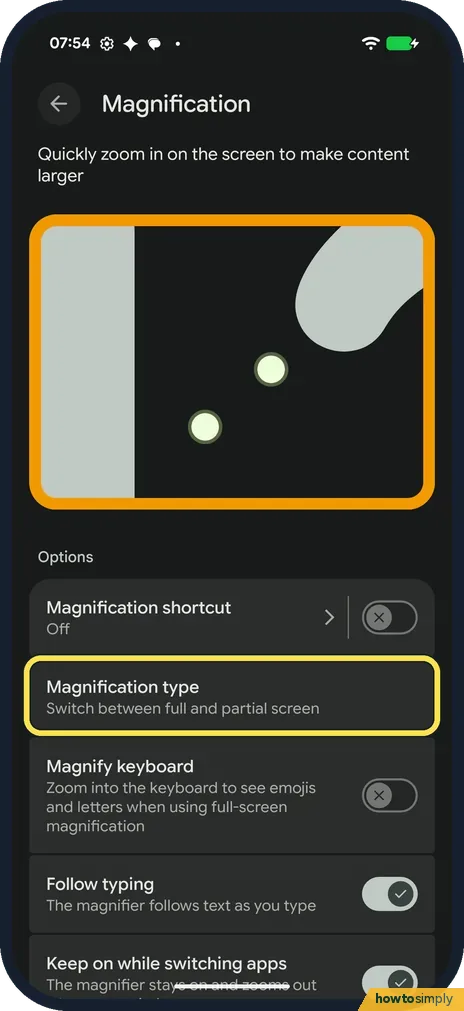
Full or partial screen
Back on Magnification, Magnification type switches between full and partial screen. Google says partial screen shows a window you move with 2 fingers.
- 8
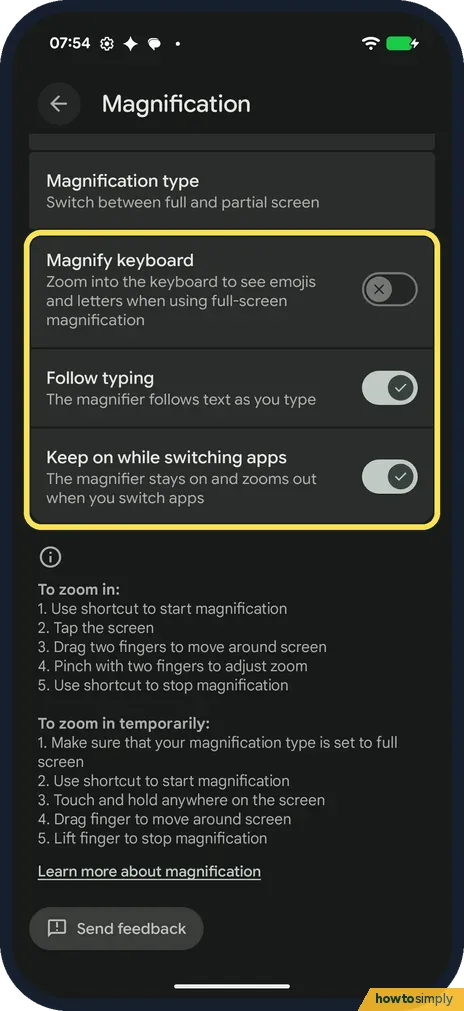
Keyboard, typing and app switching
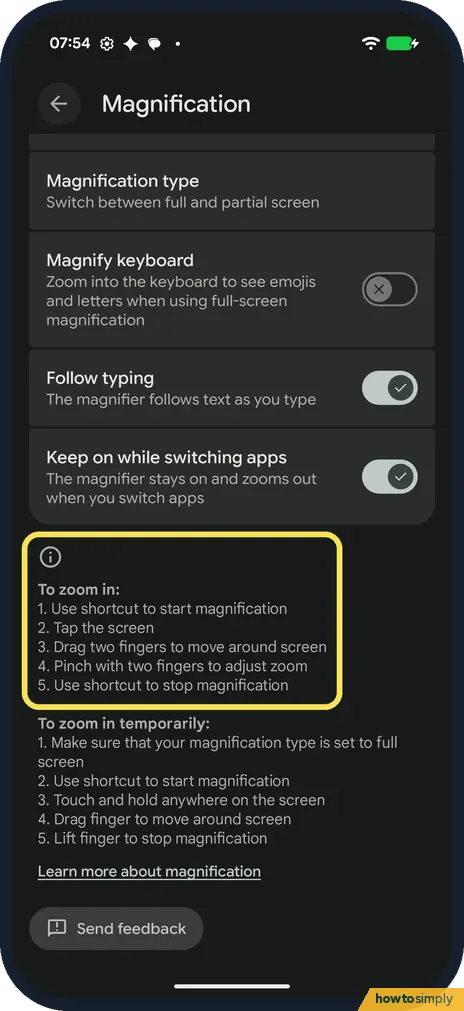
Magnify keyboard zooms into the keyboard when using full-screen magnification; it was off on ours. Follow typing and Keep on while switching apps were on.
- 9
Zoom in
The page lists the moves: use the shortcut, tap the screen, drag two fingers to move around, pinch with two fingers to adjust zoom, and use the shortcut again to stop.
If you do not see this option
- No Magnify keyboard row? Google says Magnify keyboard is only on devices with Android 16 and above. Our Android 17 Pixel had it, switched off. Source: Use magnification on your screen
- Fewer shortcut choices? Google's page lists the Accessibility button, holding the volume keys and triple-tap, and says some steps work only on Android 13 and up. Our Pixel also offered the 2-finger Accessibility gesture. Source: Use magnification on your screen
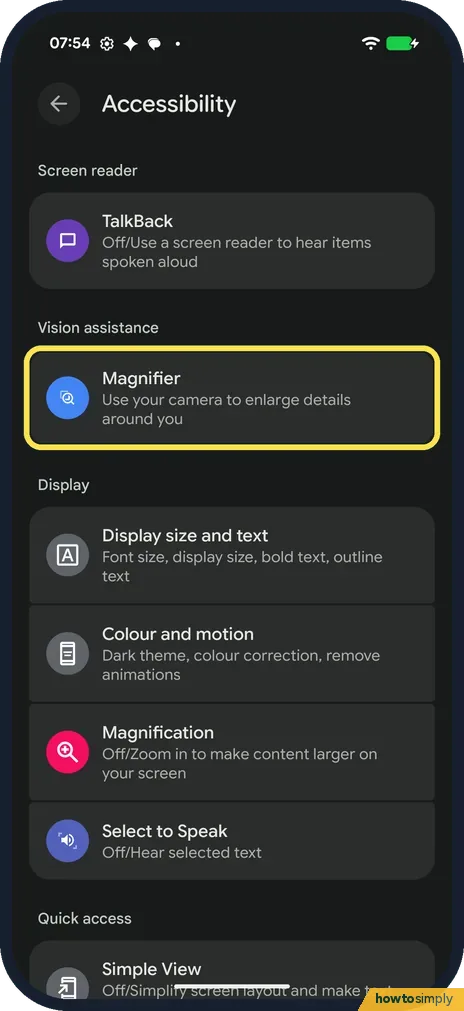
- Opened Magnifier instead? Magnifier, under Vision assistance on ours, is a different tool: it uses your camera to enlarge things around you. Magnification is further down, under Display.
- Only want a quick look? Google describes temporary magnification: tap the Accessibility button, then touch and hold anywhere except the keyboard or navigation bar. Drag one finger to move around, and lift it to stop. With triple-tap, quickly tap the screen 3 times and hold. Source: Use magnification on your screen
If this does not work
- Taps feel slow? Google says the triple-tap shortcut makes single taps take slightly longer. Use the button, gesture or volume keys instead.
- Zoom drops when you change apps? Google says magnification may zoom out when you open or close an app, depending on your settings. Keep on while switching apps keeps it on; it was on on ours.
- Keyboard doesn't zoom? Google says tapping to zoom doesn't work on the keyboard or navigation bar. Turn on Magnify keyboard, which works with full-screen magnification.
- Hard to find your place in the window? Google says turning off Allow diagonal scrolling makes it easier to locate the magnified section in partial-screen mode.
- Window too small or too big? Google says that on Android 14 and up, the Magnifier Settings panel has a Magnifier size option that sets how much of the screen is magnified.
Good to know
To make all text bigger without zooming, see how to change text and display size on a Google Pixel.
Google says magnification can go up to 8x.
Older guides may call Follow typing by its former name: Google says it was previously called Magnify typing. With a mouse, Google says the Edge option lets the cursor move normally until it reaches the screen's edge, then the view follows.
About this guide
- Device
- Android
- Shown on
- Google Pixel 10a, Android 17 (build CP3A.261005.005)
- App
- Settings
- Path
- Settings › Accessibility
- Real screenshots
- 9 of 9 steps
- Checked
- October 2026
- Sources
- 1 official, linked below
Sources
Links checked October 2026. Menus and features can change with updates.Spotted a mistake? Menus change with updates, and we want every step to match your screen. Email us about this page or use the contact form. We read every report, and fixes are listed on What changed.
Liked this guide?
Follow us for new guides and short how-to videos.
Did this guide work for you?
Sorry about that. What happened?