
howtosimply.com/guides/how-to-zoom-in-on-a-samsung-galaxy-screen-with-magnification/ · Checked October 2026 · Samsung Galaxy A57 5G (One UI 8.5, Android 16) and Samsung Galaxy A57 (One UI 9, Android 17 (build A576BXXU6BZIE))
In this guide
Open Settings, Accessibility, Vision enhancements, Magnification and switch on Magnification shortcut. Then use the shortcut, tap inside the outline to zoom, pinch to change the zoom and swipe with two fingers to move around.
8 of 8 steps with real screenshots · 1 official source below
- Device
- Android
- Shown on
- Samsung Galaxy A57 5G (SM-A576B), One UI 8.5, Android 16, Samsung Galaxy A57 (SM-A576B), One UI 9, Android 17 (build A576BXXU6BZIE)
- App
- Settings
- Path
- Settings › Accessibility › Vision enhancements › Magnification
- Real screenshots
- 8 of 8 steps
- Our phone
- Shown on Galaxy A57, One UI 8.5
- Checked
- October 2026
- Sources
- 1 official, linked below
Step by step
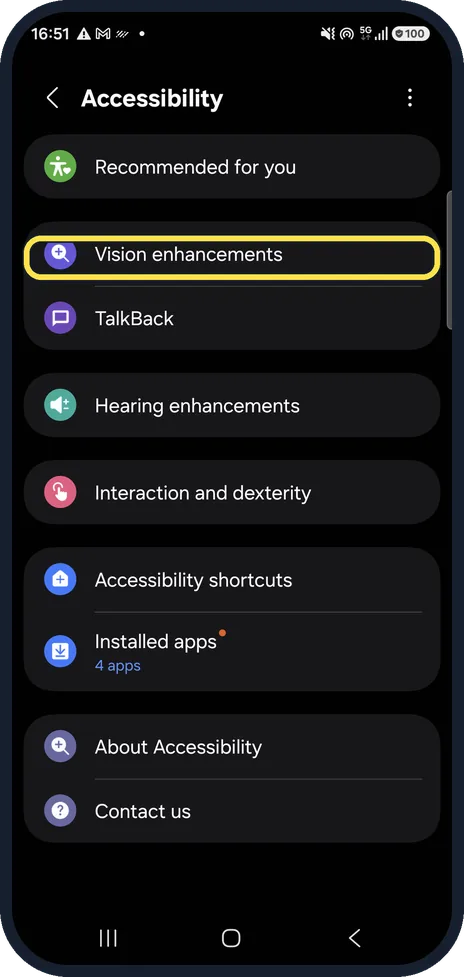
Open Vision enhancements
Open Settings, Accessibility and tap Vision enhancements.
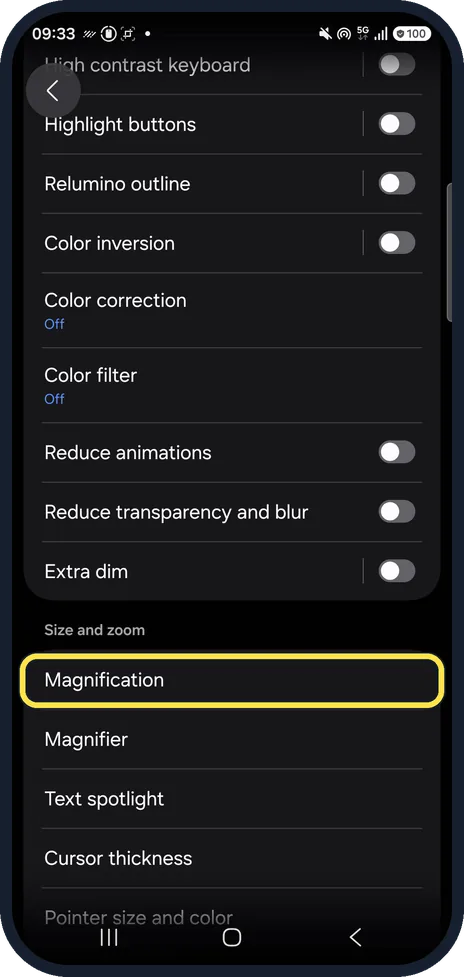
Open Magnification
Scroll down the Vision enhancements page and tap Magnification, under Size and zoom.
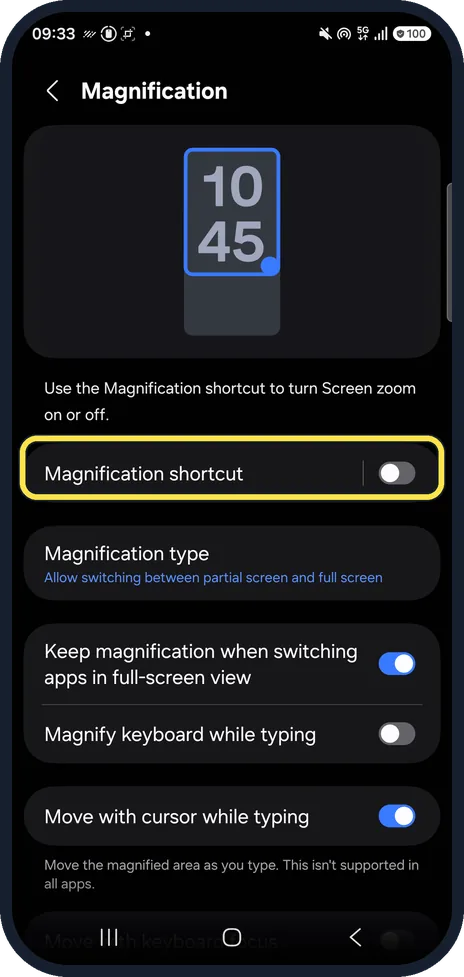
Tap Magnification shortcut
The Magnification page has a preview at the top. Magnification shortcut was off on ours; tap the row.
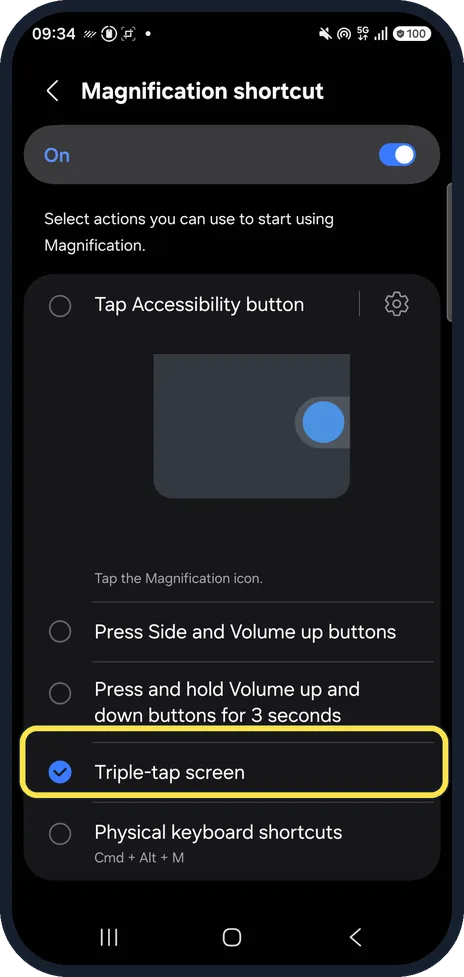
Switch it on and pick how to start it
Switch on the shortcut at the top, then tick how you want to start it: Tap Accessibility button, Press Side and Volume up buttons, Press and hold Volume up and down buttons for 3 seconds, Triple-tap screen or Physical keyboard shortcuts. In our picture Triple-tap screen is ticked.
Start magnification
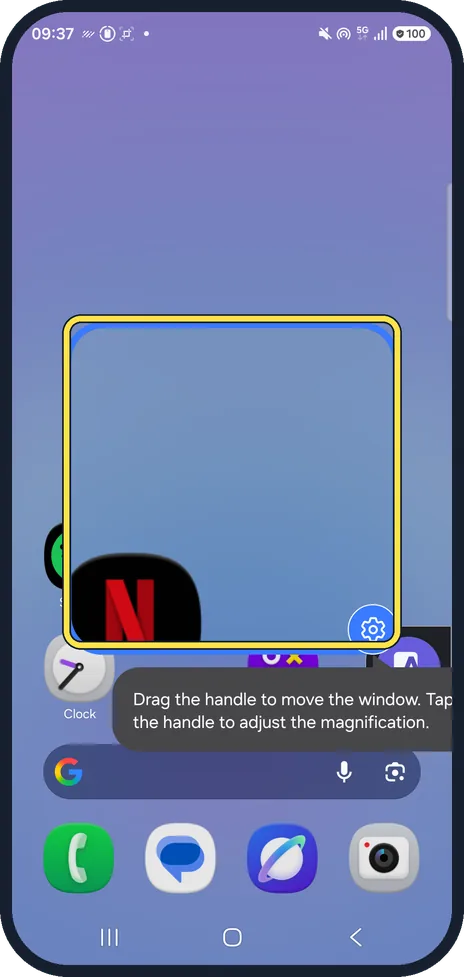
Use your shortcut. On ours a blue outline window appeared over the Home screen with a handle, and a tip: Drag the handle to move the window. Tap the handle to adjust the magnification.
Zoom in and move around
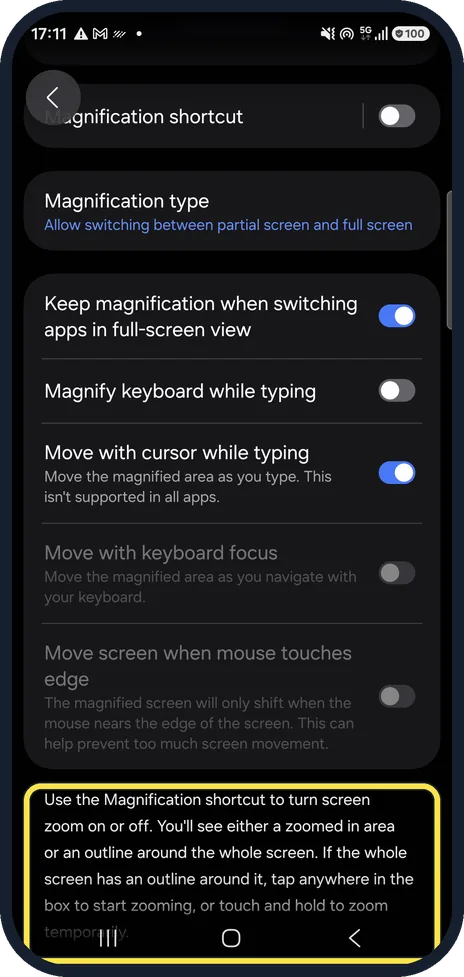
The page explains it: use the shortcut, then tap anywhere inside the outline to zoom, or touch and hold to zoom only while you hold. Pinch to change the zoom, swipe with two fingers to scroll.
Choose partial or full screen
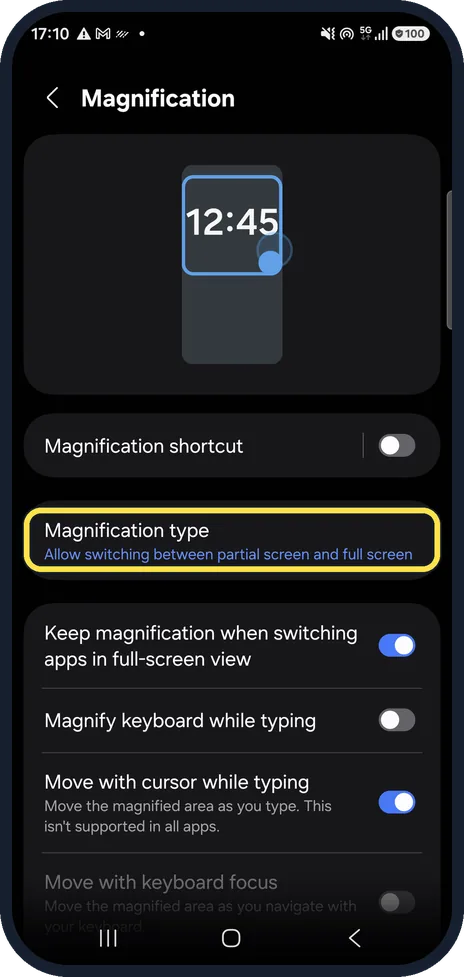
Magnification type decides whether a window magnifies part of the screen or the whole screen is enlarged, and lets you switch between them.
Magnify the keyboard too
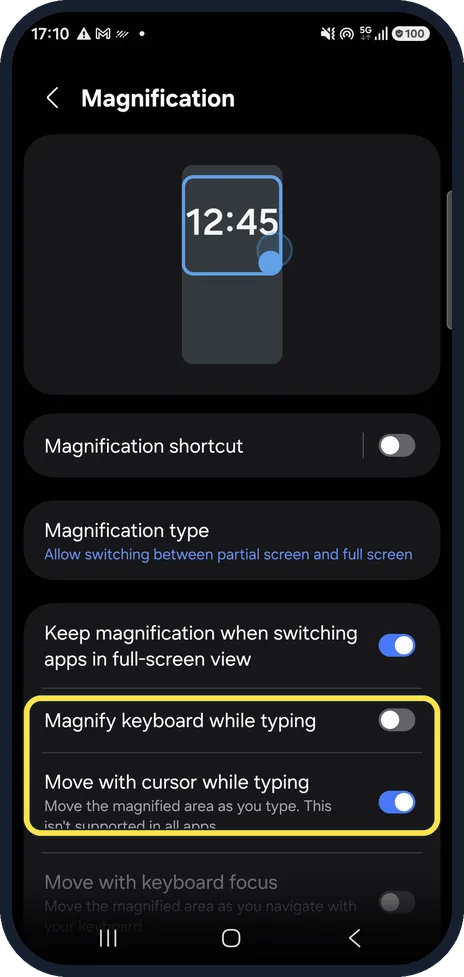
Magnify keyboard while typing is off on ours, so the keyboard stays normal size. Move with cursor while typing makes the zoomed area follow what you type.
If you do not see this option
- There is no Vision enhancements page Google's route on other Android phones is Settings, Accessibility, Magnification. Source: Use magnification on your screen
- You only want to zoom for a moment Google says to use the shortcut, then touch and hold the screen; drag to move and lift your finger to stop. Source: Use magnification on your screen
If this does not work
- Tapping does not zoom Google says to tap anywhere except the keyboard or the navigation bar. Source: Use magnification on your screen
- It zooms into a window, not the whole screen Google says to switch under Magnification, Magnification type, between full screen and partial screen. Source: Use magnification on your screen
About this guide
Magnification enlarges any part of the screen, even in apps that do not let you zoom. It is different from making text bigger, which changes the whole phone. We switched the shortcut on for the pictures and back off afterwards.
Steps 2 to 5 are from the same phone after its One UI 9 update (Android 17).
Good to know
If everything is just a little too small, larger text may be enough: how to make text bigger on a Samsung Galaxy phone.
In short: Settings, Accessibility, Vision enhancements, Magnification, Magnification shortcut on. Shortcut, tap to zoom, pinch to adjust, two fingers to move.
Links checked in October 2026. Menus and features can change after software updates. These steps match the version named at the top.
📷 See real photos from the Galaxy A57 in our Camera Lab, next to 10 other phones.
Did this guide work for you?
Sorry about that. What happened?