GOOGLE PIXEL
How to use Night Light on a Google Pixel (Android 17)

In short
Open Settings, Display and touch, Night Light, and turn on Use Night Light. It tints the screen amber. Tap Schedule to pick None, Turns on at custom time or Turns on from sunset to sunrise. The Intensity slider sets how strong the tint is.
3 of 3 steps show a real screenshot from our Pixel 10a. Each step was checked against the maker's own instructions, linked at the end.
Steps
- 1
Open Night Light
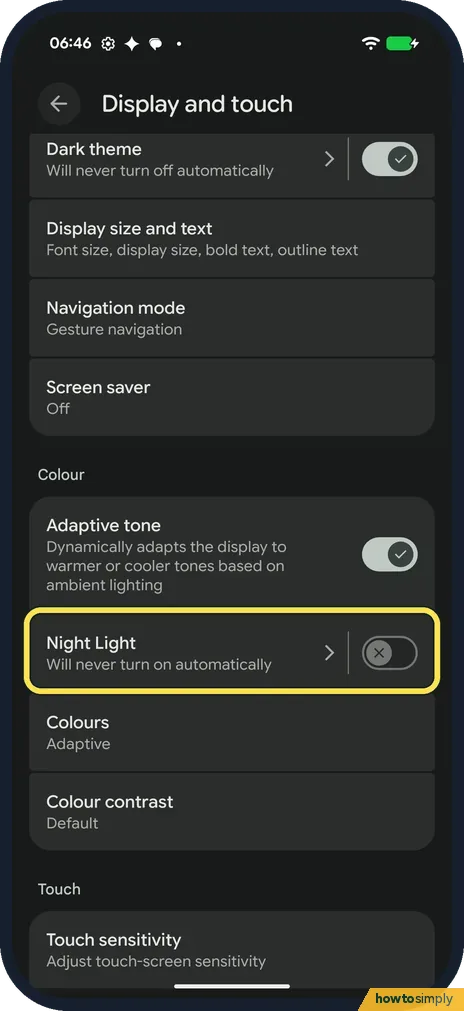
Open Settings and tap Display and touch. Night Light is under Colour, with a switch on the row. Ours said Will never turn on automatically.
- 2
Turn on Use Night Light
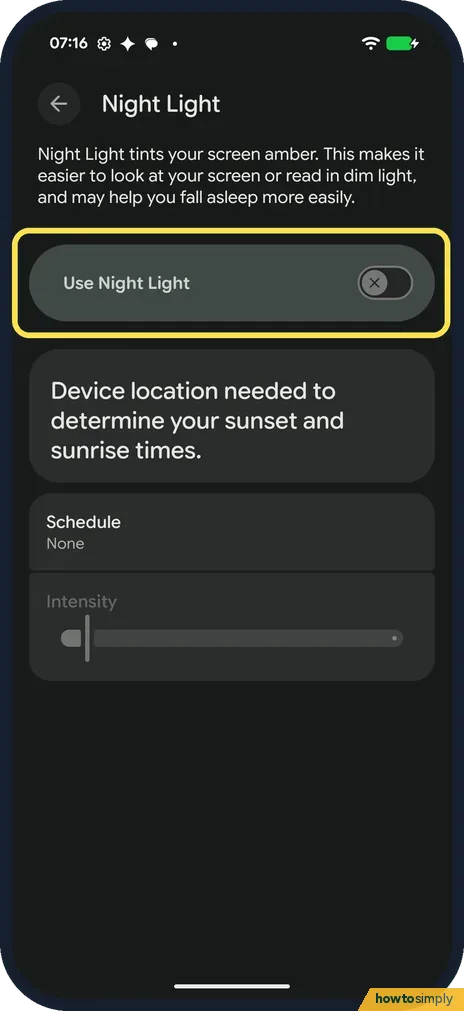
The page says Night Light tints your screen amber, which makes it easier to look at or read in dim light and may help you fall asleep more easily. Turn on Use Night Light. Ours was off. Intensity, further down the same page, sets how strong the tint is; it was greyed out on ours while Night Light was off.
- 3
Pick a schedule
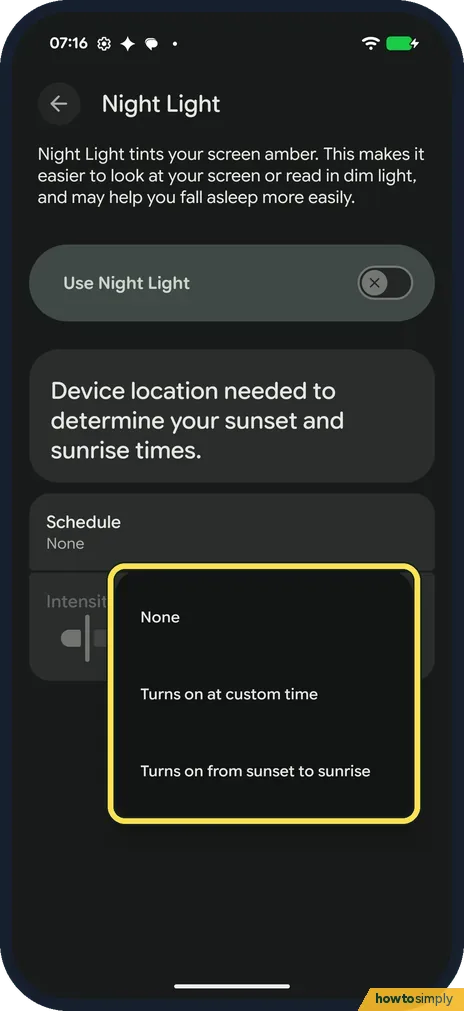
Tap Schedule. The choices are None, Turns on at custom time and Turns on from sunset to sunrise. Ours was None.
If you do not see this option
- Looking for Comfort filters? Google says Pixel 10 phones other than the 10a keep Night Light under Display and touch, Comfort filters. On the Pixel 10a and Pixel 9 and earlier it is its own row, as on ours. Source: Manage screen & display settings on a Pixel phone
- Want a Quick Settings tile? Google says you can swipe down and tap the Night Light tile. We didn't check our tiles for it. Source: Manage screen & display settings on a Pixel phone
If this does not work
- Doesn't come on at sunset? Check that Schedule says Turns on from sunset to sunrise and that location is on: the Night Light page on ours said Device location needed to determine your sunset and sunrise times.
- Screen still too bright at night? Dark theme is on the same Display and touch page: how to use dark theme on a Google Pixel.
- Tint too weak or too strong? Turn Night Light on first: the Intensity slider is greyed out while it is off. Then drag the slider until the screen looks comfortable to you.
- Colours look wrong when editing photos? Night Light changes how every colour looks on the screen. Turn it off while you edit photos or pick colours, then turn it on again afterwards.
Good to know
Adaptive tone, just above Night Light, adapts the display to warmer or cooler tones based on ambient lighting. It was on on ours.
Night Light only changes how the screen looks on this phone. The amber tint applies to every app while it is on, and it switches off again by itself at the end of your schedule. To undo everything, turn off Use Night Light and set Schedule back to None.
Bedtime mode can also quiet the phone at night: how to set up Bedtime mode on a Google Pixel.
About this guide
- Device
- Android
- Shown on
- Google Pixel 10a, Android 17 (build CP3A.261005.005)
- App
- Settings
- Path
- Settings › Display and touch › Night Light: Use Night Light › Schedule › Intensity
- Real screenshots
- 3 of 3 steps
- Checked
- October 2026
- Sources
- 1 official, linked below
Sources
Links checked October 2026. Menus and features can change with updates.Spotted a mistake? Menus change with updates, and we want every step to match your screen. Email us about this page or use the contact form. We read every report, and fixes are listed on What changed.
Liked this guide?
Follow us for new guides and short how-to videos.
Did this guide work for you?
Sorry about that. What happened?