GOOGLE PIXEL
How to change the screen timeout on a Google Pixel (Android 17)

In short
Open Settings, tap Display and touch, then Screen timeout. Pick 15 seconds, 30 seconds, or 1, 2, 5, 10 or 30 minutes. Screen attention on the same page keeps the screen on while you look at it. A longer timeout uses more battery.
4 of 4 steps show a real screenshot from our Pixel 10a. Each step was checked against the maker's own instructions, linked at the end.
Steps
- 1
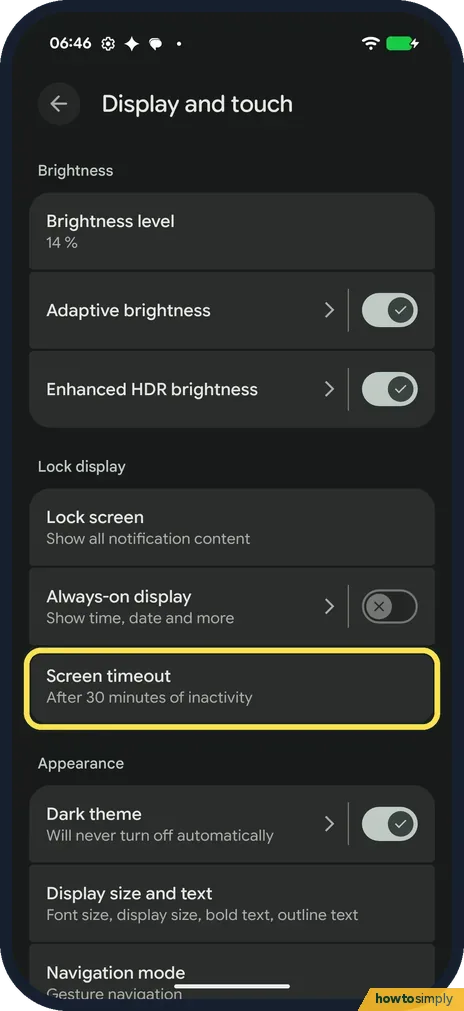
Open Screen timeout
Open Settings and tap Display and touch. Screen timeout is under Lock display. Ours said After 30 minutes of inactivity.
- 2
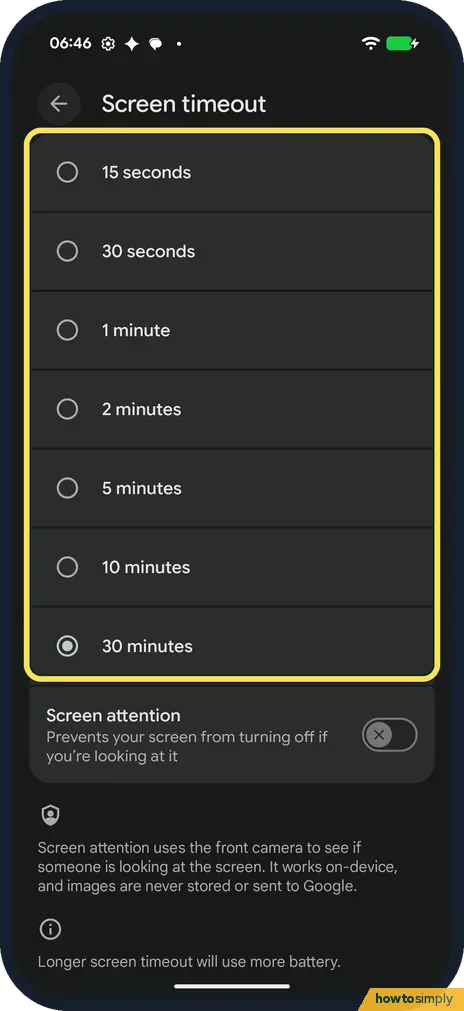
Pick a time
The choices are 15 seconds, 30 seconds, 1 minute, 2, 5, 10 and 30 minutes. Tap one; there is no Save button. Ours had 30 minutes ticked.
- 3
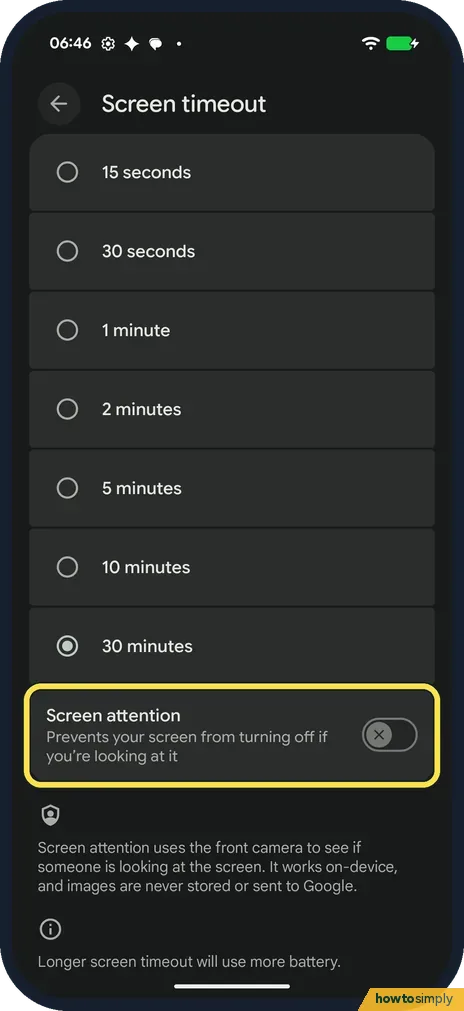
Screen attention
Below the list is Screen attention: it prevents the screen from turning off if you're looking at it. It uses the front camera, and the page says images are never stored or sent to Google. Ours was off.
- 4
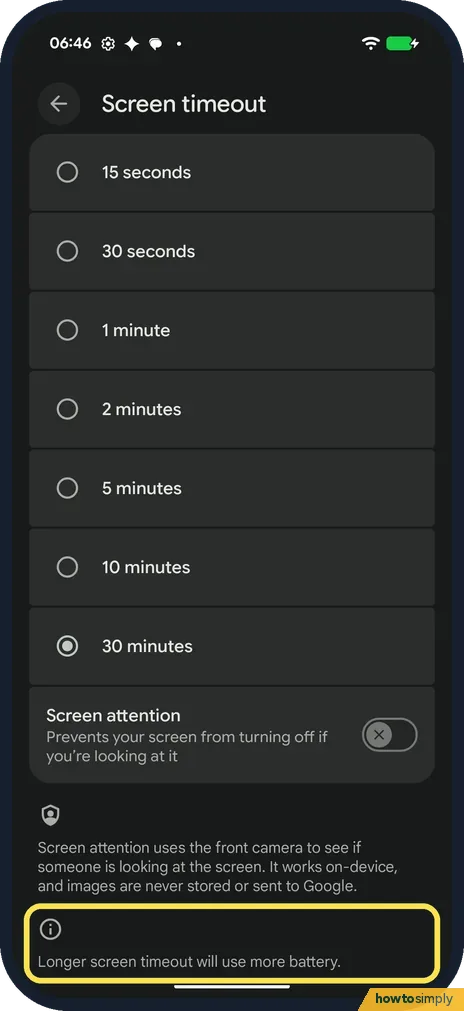
Mind the battery
The page notes that a longer screen timeout will use more battery.
If you do not see this option
- Looking for Adaptive timeout? Google's help page lists Adaptive timeout under Screen timeout, which turns the screen off early when you're not using it. Our Pixel 10a showed only the times and Screen attention, with no Adaptive timeout. Source: Manage screen & display settings on a Pixel phone
- No time longer than 30 minutes? On ours, 30 minutes was the longest choice. There was no Never.
If this does not work
- Screen attention doesn't keep it on? Google says it works best when the screen is well lit but not in direct sunlight.
- Want the time showing while the screen is off? That is a different setting: see how to turn on Always-on display on a Google Pixel.
- Timeout dropped to 30 seconds by itself? Google says Extreme Battery Saver sets the screen timeout to 30 seconds while it is on. Turn it off, or wait until it ends, and your own time comes back.
- Setting changed back or greyed out? On a work or school phone, the organisation may manage some settings, so check with whoever manages it. On a phone you own, restart it and set the time again.
- Screen goes off while watching a video? Video players usually keep the screen on while they play, whatever the timeout. If it turns off in one app only, the app is not asking to stay on; pause and resume, or use a longer timeout while you watch.
Good to know
A long timeout drains the battery faster. If the battery runs down quickly, see Pixel battery draining fast.
The new time applies straight away to every app and to the lock screen. A short timeout saves battery because the screen is one of the parts that uses the most power. Google's help adds that Adaptive timeout, where offered, turns the screen off early when you're not using it, which saves battery life and helps prevent accidental calls. To undo a change, open Screen timeout again and tap the time you had before; ours was 30 minutes.
If you prefer the screen to fade to a clock or photos while it charges, rather than going black, see how to set up the screen saver on a Google Pixel.
About this guide
- Device
- Android
- Shown on
- Google Pixel 10a, Android 17 (build CP3A.261005.005)
- App
- Settings
- Path
- Settings › Display and touch › Screen timeout: pick a time
- Real screenshots
- 4 of 4 steps
- Checked
- October 2026
- Sources
- 1 official, linked below
Sources
Links checked October 2026. Menus and features can change with updates.Spotted a mistake? Menus change with updates, and we want every step to match your screen. Email us about this page or use the contact form. We read every report, and fixes are listed on What changed.
Liked this guide?
Follow us for new guides and short how-to videos.
Did this guide work for you?
Sorry about that. What happened?