
howtosimply.com/guides/how-to-use-zen-space-on-a-oneplus/ · Checked October 2026 · OnePlus Nord 5 (CPH2709), OxygenOS 16.0.5.1201, Android 16
In this guide
Open Settings, Accessibility & convenience, Zen Space (under Modes), then tap Start next to Deep Zen or a Light Zen space. Deep Zen cannot be stopped once it starts: only the camera, answering calls and emergency calls work until the timer runs out.
9 of 9 steps with real screenshots · 1 official source below
- Device
- Android
- Shown on
- OnePlus Nord 5 (CPH2709), OxygenOS 16.0.5.1201, Android 16
- App
- Settings
- Path
- Settings › Accessibility & convenience › Zen Space › Get started
- Real screenshots
- 9 of 9 steps
- Checked
- October 2026
- Sources
- 1 official, linked below
Step by step
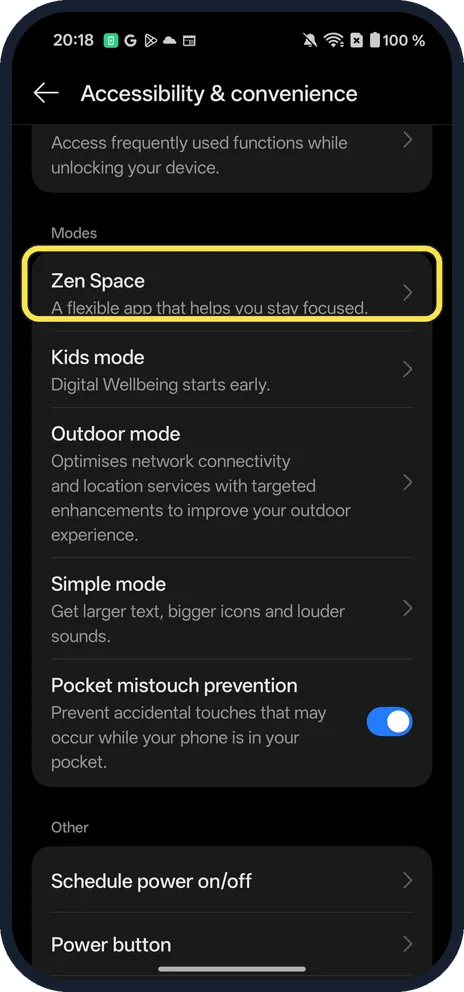
Open Zen Space
Open Settings, tap Accessibility & convenience and scroll to Modes. Tap Zen Space. You can also search Settings for zen space.
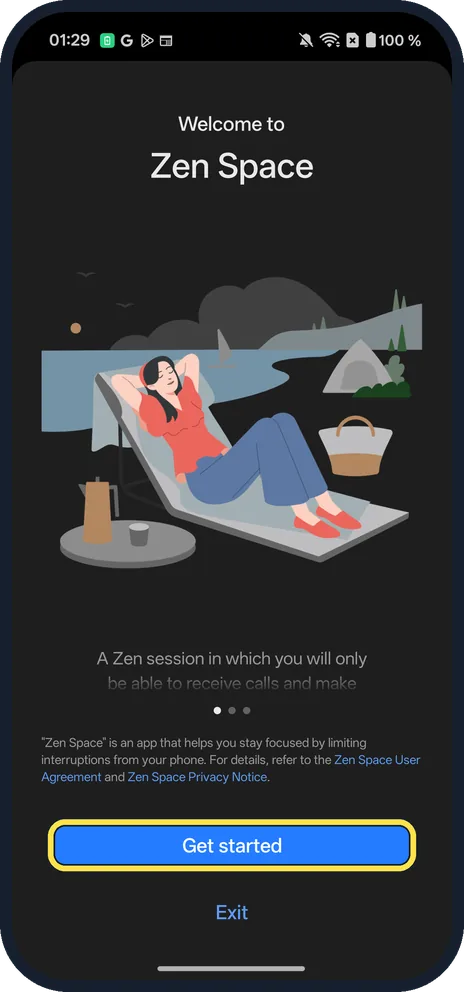
Tap Get started
The first time, Welcome to Zen Space explains what a session does. Tap Get started.
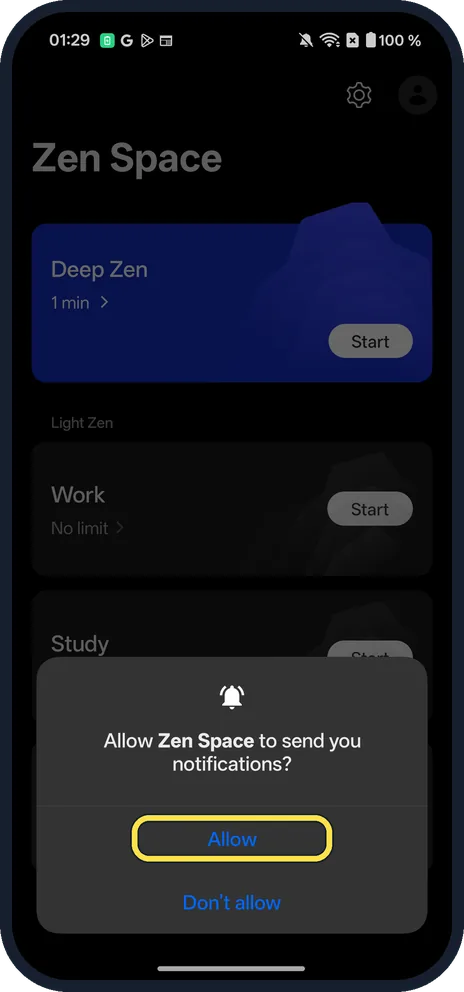
Allow notifications
Ours asked Allow Zen Space to send you notifications? We tapped Allow.
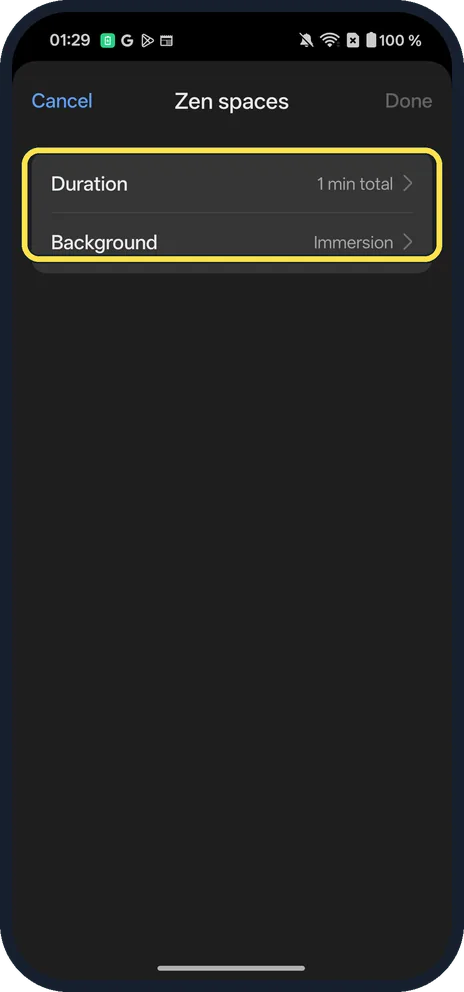
Check the length first
Tap the time under a space's name (1 min > under Deep Zen) to see its Duration and Background. Done only lights up after you change one of them.
Tap Start
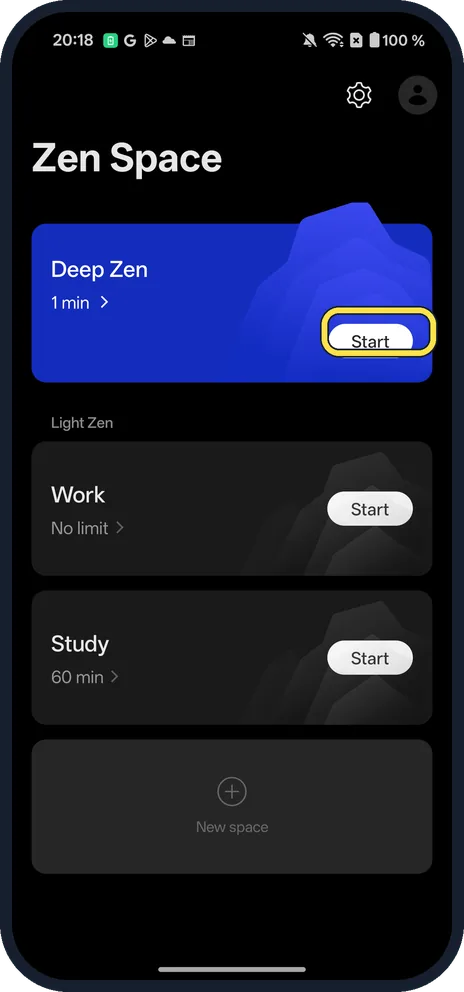
Deep Zen sits at the top (1 min on ours). Under Light Zen, ours had Work (No limit) and Study (60 min), and New space adds your own. Tap Start on the one you want. Ours asked for calendar access first; we tapped Don't allow and the session still started.
Read the rules and tap OK
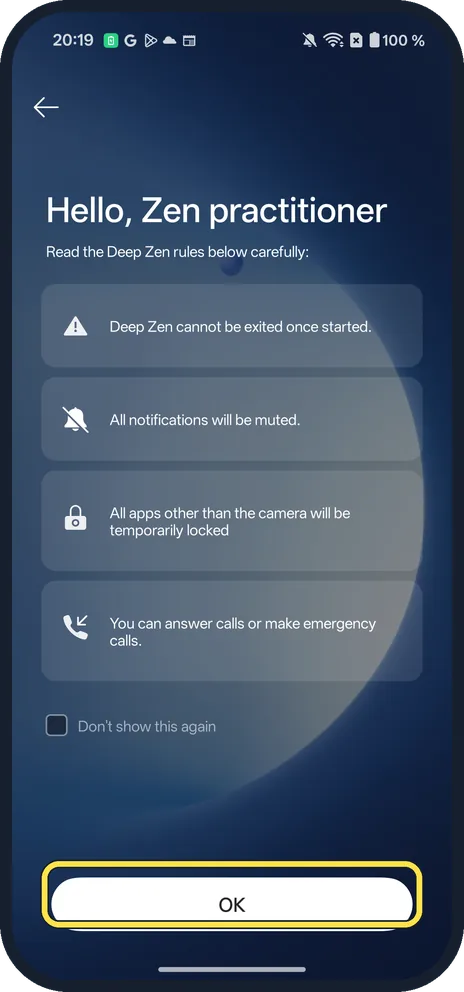
Hello, Zen practitioner lists the rules: Deep Zen cannot be exited once started, all notifications are muted, all apps other than the camera are locked, and you can answer calls or make emergency calls. Tap OK.
Tap Start to confirm
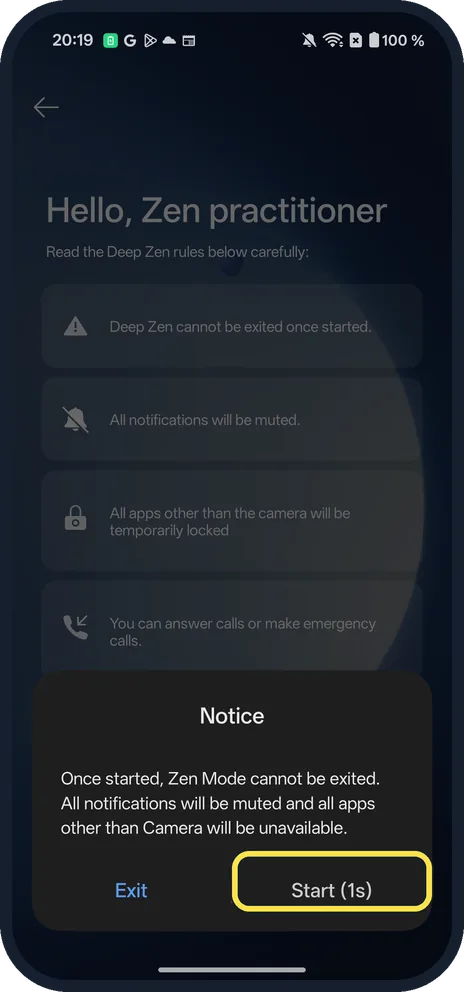
A Notice repeats that Zen Mode cannot be exited once started. Start counts down for a second before you can tap it. Tap Exit if you have changed your mind.
Wait for the timer
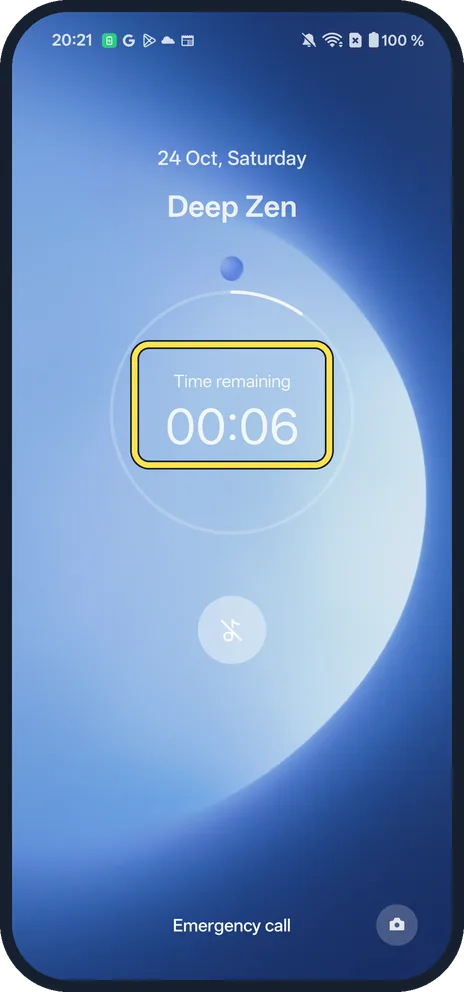
The screen shows Time remaining, with Emergency call and a camera button at the bottom. Nothing else opens.
See your result
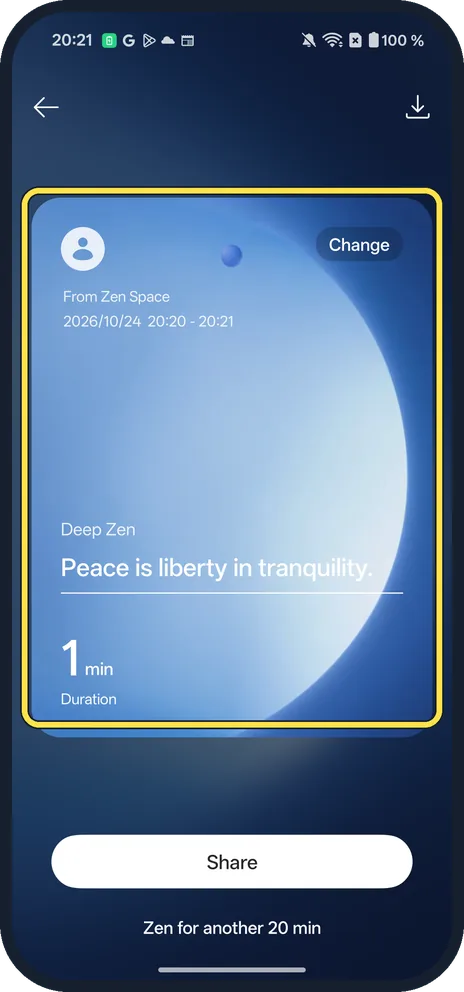
When the time is up, a card shows the session (Deep Zen, 1 min Duration on ours) with Share and Zen for another 20 min. Tap the back arrow to leave.
If you do not see this option
- Can you stop a session early? Not Deep Zen: both screens before it starts say it cannot be exited once started, so check the duration first. OnePlus's OxygenOS 14 manual says you can exit Light Zen any time. Source: OxygenOS 14.0 User Manual
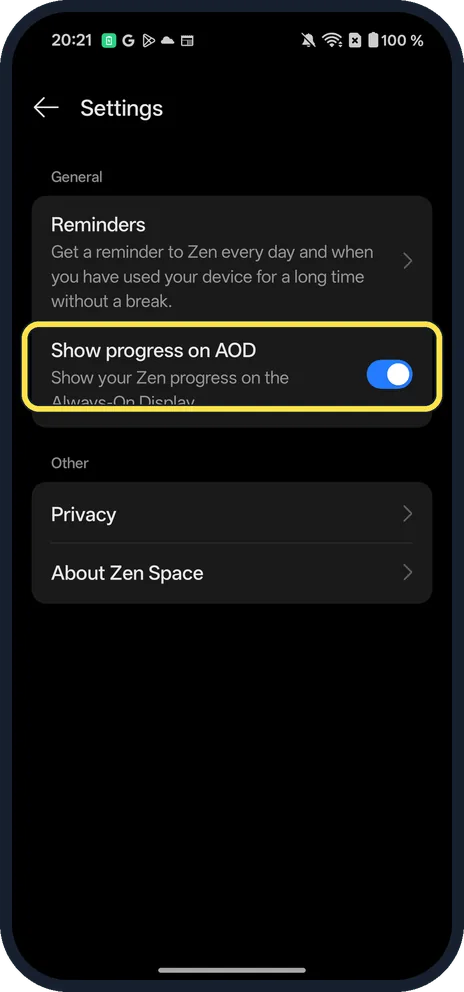
- Zen progress on the lock screen? In Zen Space, tap the gear at the top right. Show progress on AOD (shows your Zen progress on the Always-On Display) was on on ours; Reminders is there too.
If this does not work
- Phone seems stuck in Deep Zen? That is how it works: wait for Time remaining to reach zero. You can still answer calls, make emergency calls and use the camera.
- Want to silence notifications but keep your apps? Use Focus mode instead: how to use Focus mode on a OnePlus.
- Light Zen or Deep Zen? OnePlus's OxygenOS 14 manual says Light Zen lets you use selected apps and exit any time, while Deep Zen allows only photos and calls. Source: OxygenOS 14.0 User Manual
About this guide
Zen Space is OnePlus's focus timer. Deep Zen locks the phone for the time you set; Light Zen spaces such as Work and Study are gentler.
The screenshots are from our OnePlus Nord 5 with OxygenOS 16.0.5 and Android 16, in Dark mode, taken on 24 October 2026. We ran a 1-minute Deep Zen session for the pictures. It ended by itself.
Good to know
A gentler option: how to use Focus mode on a OnePlus.
In short: Settings, Accessibility & convenience, Zen Space, Get started, check the duration, Start, OK, Start. Deep Zen cannot be exited; it ends when the timer runs out.
Links checked in October 2026. Menus and features can change after software updates. These steps match the version named at the top.
📷 See real photos from the OnePlus Nord 5 in our Camera Lab, next to 10 other phones.
Did this guide work for you?
Sorry about that. What happened?