XIAOMI REDMI
How to use Select to Speak and text-to-speech on a Xiaomi phone (HyperOS 3)

In short
Go to Settings, Accessibility, Vision, Select to Speak and turn on Select to Speak shortcut. Start it with the shortcut and tap text to hear it. Text-to-speech output, on the same tab, sets the engine, language, speech rate and pitch.
7 of 7 steps show a real screenshot from our Redmi Note 15 Pro 5G. Each step was checked against the maker's own instructions, linked at the end.
Steps
- 1
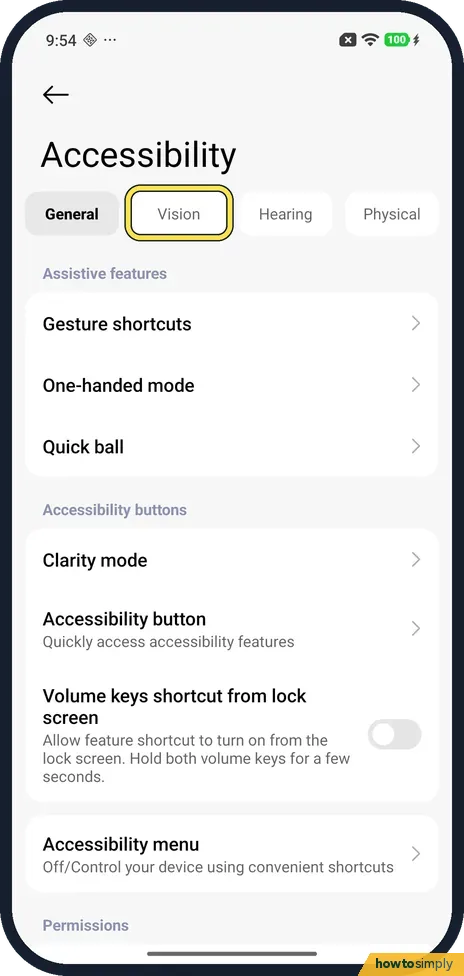
Open the Vision tab
Open Settings and tap Accessibility. Tap Vision, the second tab at the top.
- 2
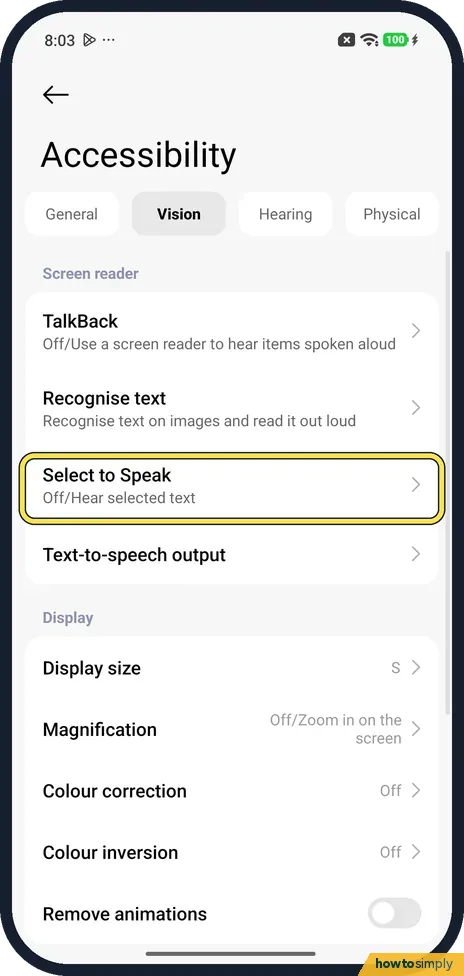
Tap Select to Speak
Under Screen reader, Select to Speak said Off/Hear selected text. Tap it.
- 3
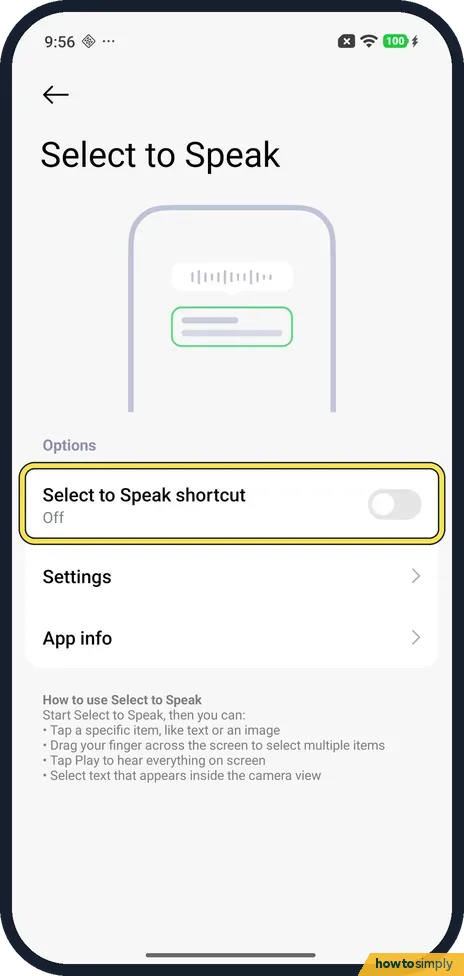
Turn on the shortcut
Under Options, Select to Speak shortcut was Off on ours. Tap the switch to turn it on. Xiaomi says to tap Allow and follow the onscreen instructions.
- 4
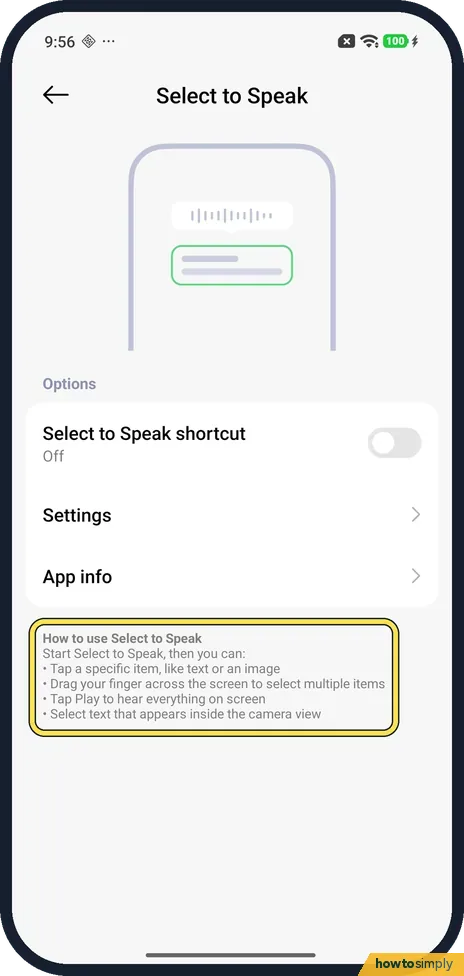
Start it and tap text
The page says: start Select to Speak, then tap an item like text or an image, drag your finger to select several, tap Play to hear everything, or select text in the camera view. Google says you start it with a 2-finger swipe up (3 with TalkBack on) or the Accessibility button.
- 5
Change its settings
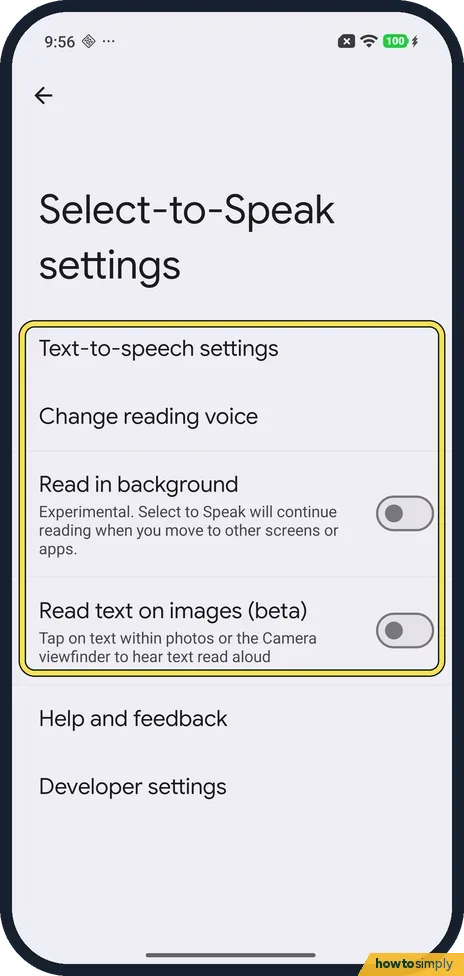
Tap Settings, below the shortcut. Select-to-Speak settings lists Text-to-speech settings, Change reading voice, Read in background and Read text on images (beta). Both switches were off on ours. Read in background keeps reading when you move to other screens or apps.
- 6
Open Text-to-speech output
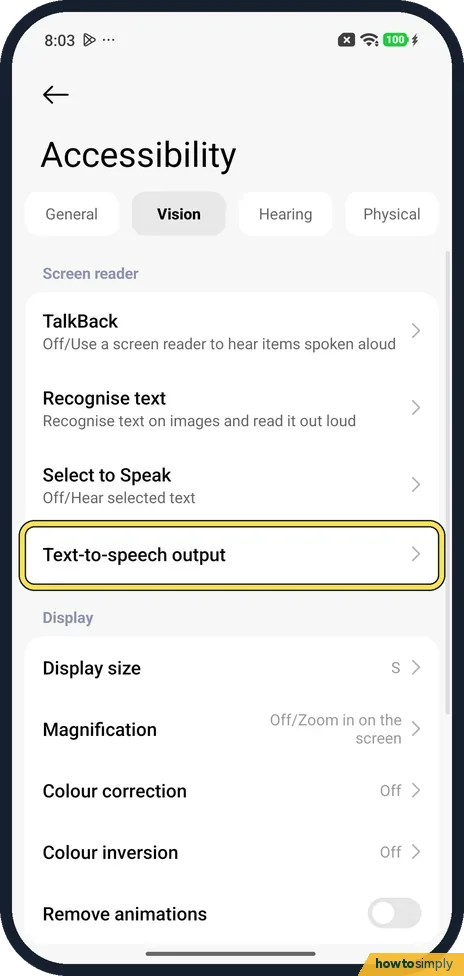
Back on the Vision tab, Text-to-speech output is the row below Select to Speak. Tap it.
- 7
Set the voice
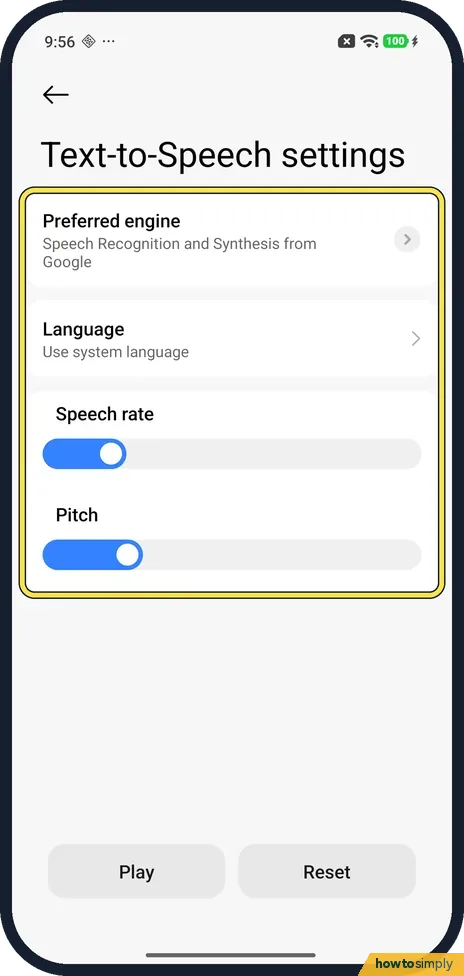
Text-to-Speech settings opens. Ours had Preferred engine: Speech Recognition and Synthesis from Google, and Language: Use system language. Drag the Speech rate and Pitch sliders. Google says Play gives a short sample; Reset is next to it.
If you do not see this option
- Accessibility under Additional settings? Xiaomi's HyperOS 3 guide gives Settings, Additional settings, Accessibility, Vision. On our Redmi Note 15 Pro 5G Accessibility was in the main Settings list. Source: Generic User Guide for HyperOS 3.0
- No Select to Speak? Google says to get the latest Android Accessibility Suite from Google Play and try again, and that some steps work only on Android 11 and up. Source: Use Select to Speak
- Another engine listed? Google says the engines vary by device: Google's, the phone maker's, or ones from Google Play. Ours had Google's. Source: Text-to-speech output
If this does not work
- Reading stops when you switch apps? Turn on Read in background in Select to Speak's Settings. Google says it then keeps reading while you scroll or switch apps. It was off on ours.
- Voice too fast or too high? Drag Speech rate or Pitch on Text-to-speech output to the left, then tap Play. Google says Play gives a short sample.
- Only want one passage read? Google says you can select text and tap More, Read aloud in the pop-up menu, without Select to Speak. It works only on text that can be read, like a web page.
Good to know
Xiaomi's guide lists TalkBack, a full screen reader, at the top of the same Vision tab.
For bigger text instead, see how to change the text size and font. To change the phone's language, which the voice follows on ours, see how to change the language.
While it reads, Google says the player has buttons to pause or play, skip forward or back, and change the speed. To undo, turn off Select to Speak shortcut; the voice settings stay as you set them.
About this guide
- Device
- Android
- Shown on
- Xiaomi Redmi Note 15 Pro 5G (25080RABDG), HyperOS 3.0.308.0, Android 16
- App
- Settings
- Path
- Settings › Accessibility › Vision: Select to Speak (shortcut › Settings) and Text-to-speech output (engine
- Real screenshots
- 7 of 7 steps
- Checked
- October 2026
- Sources
- 3 official, linked below
Sources
Links checked October 2026. Menus and features can change with updates.Spotted a mistake? Menus change with updates, and we want every step to match your screen. Email us about this page or use the contact form. We read every report, and fixes are listed on What changed.
Liked this guide?
Follow us for new guides and short how-to videos.
Did this guide work for you?
Sorry about that. What happened?