XIAOMI REDMI
How to turn on USB file transfer on a Xiaomi phone (HyperOS 3)

In short
Connect the phone to the computer with a USB cable, swipe down and tap Charging this device via USB, under Android System. Under Use USB for, tap File transfers/Android Auto. The sheet closes and the notification says USB file transfer is on. Ours started on No data transfer.
5 of 5 steps show a real screenshot from our Redmi Note 15 Pro 5G. Each step was checked against the maker's own instructions, linked at the end.
Steps
- 1
Tap the USB notification
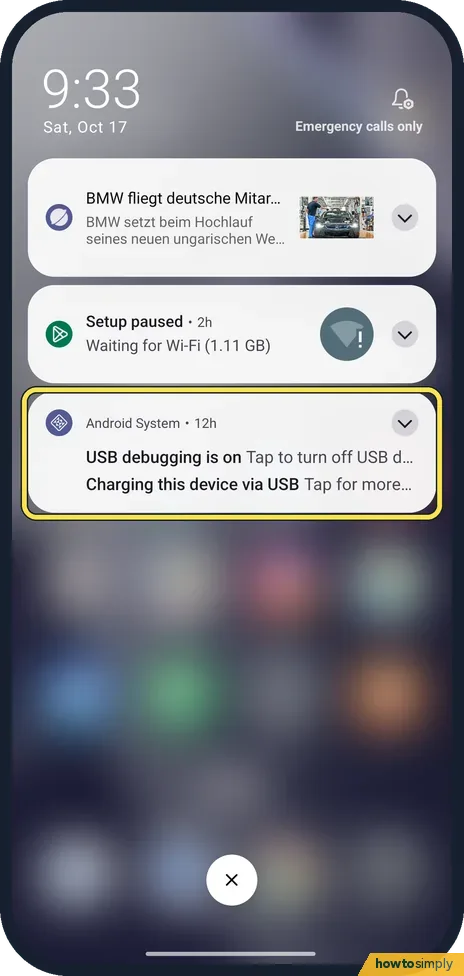
Unlock the phone and connect it to the computer with a USB cable. Swipe down from the top to open the notifications. Under Android System, tap Charging this device via USB, Tap for more options. The USB debugging line on ours is from our test setup.
- 2
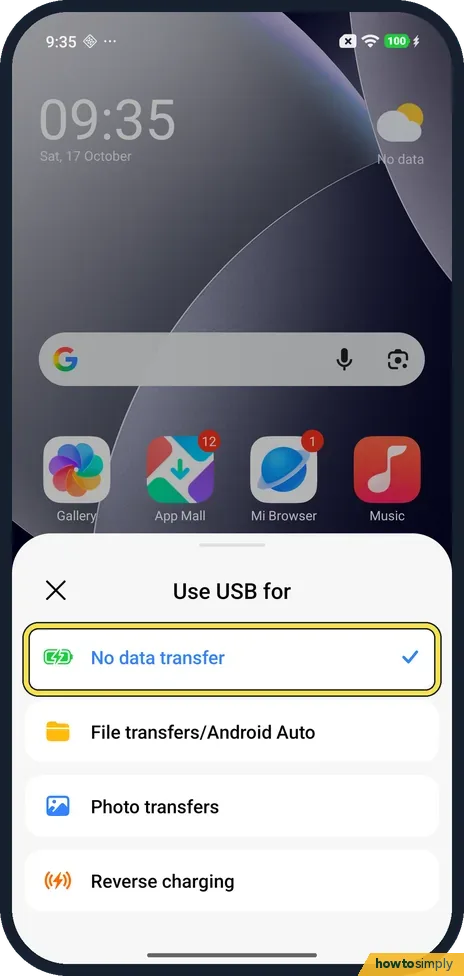
Use USB for
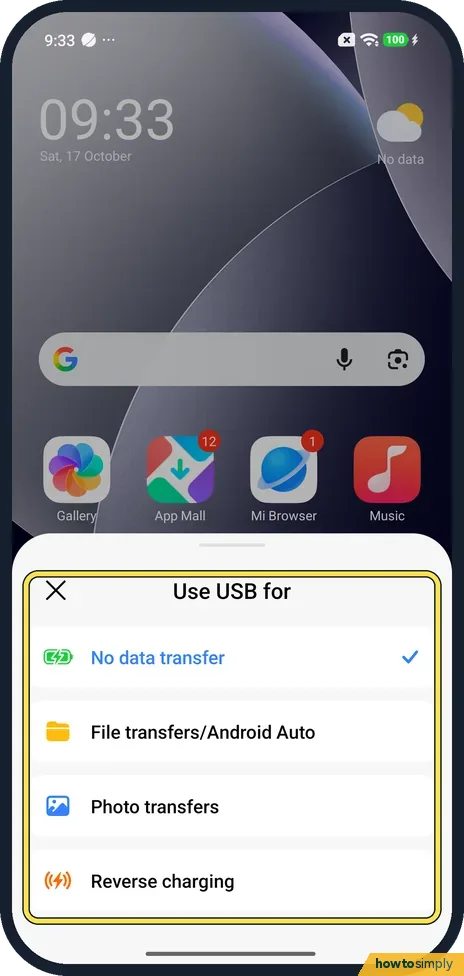
A sheet called Use USB for opens with four choices: No data transfer, File transfers/Android Auto, Photo transfers and Reverse charging. On ours No data transfer had the tick, so the phone only charged.
- 3
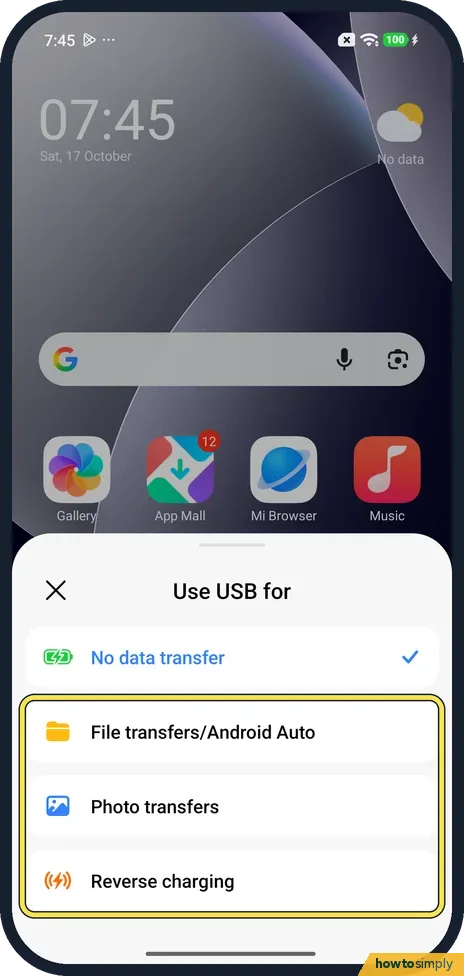
Tap File transfers/Android Auto
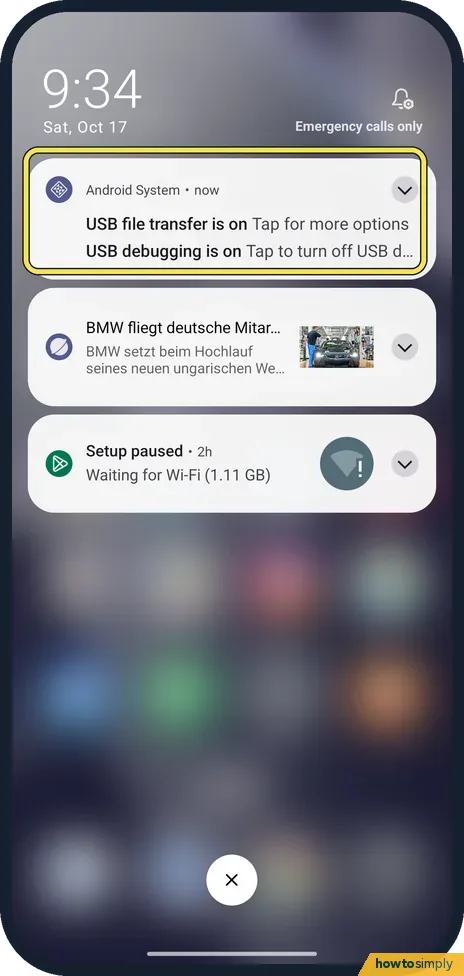
Tap File transfers/Android Auto to see the phone's files on the computer. On ours the sheet closed at once, and the notification changed to USB file transfer is on. Photo transfers is the choice for photos only; we didn't try it.
- 4
Check the tick
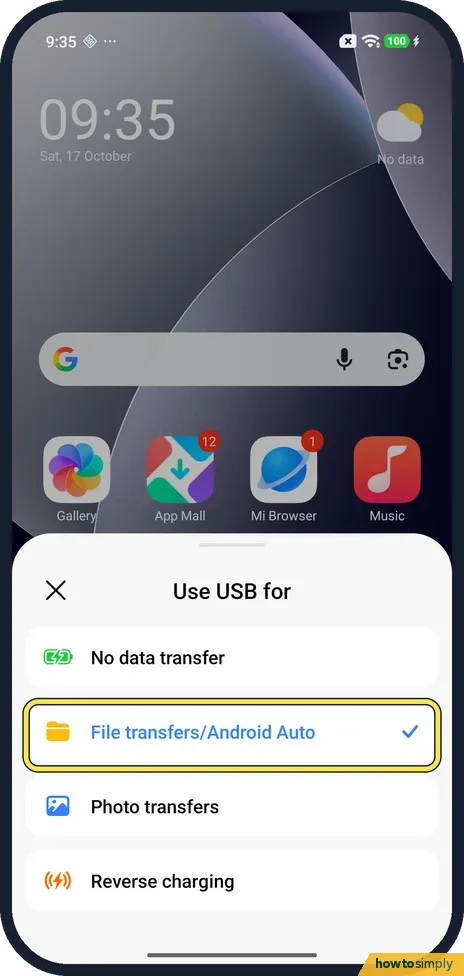
To check, tap the notification again. File transfers/Android Auto now had the tick.
- 5
Back to charging only
Google's help says to eject the phone on Windows before you unplug the cable. To go back to charging only, pick No data transfer. We set ours back, and the tick was on No data transfer again.
If you do not see this option
- Want File transfer every time? Xiaomi says that on MIUI phones you can turn on Developer options, then set Default USB configuration to File transfer. We did not check this on ours. Source: What should i do if the computer or laptop unable to read my phone when connect via USB cable?
- Named File Transfer in the guide? Xiaomi's HyperOS 3 guide says File Transfer/Android Auto. On ours the sheet said File transfers/Android Auto and also had Photo transfers and Reverse charging. Source: Generic User Guide for HyperOS 3.0
- Using a Mac? Google's steps cover Windows and Chromebooks only. Our phone was connected to a Mac, but we didn't copy files, so we can't say what the Mac shows. Source: Transfer files between your computer and Android device
If this does not work
- No USB notification? Swipe down again and look for the Android System group; on ours it was the third card. Google's help says to unlock the phone before you connect it.
- Phone only charges? It is still on No data transfer. Tap the notification again and choose File transfers/Android Auto.
- Computer still doesn't see the phone? Xiaomi suggests the original USB cable, other USB ports, cables or computers, and the latest Windows updates and USB drivers. Google adds that not all USB cables can transfer files.
Good to know
Need room for the files first? See Xiaomi storage full.
Keep a copy of everything: how to back up a Xiaomi phone.
When you plug in again, check the notification to see which option is ticked. While file transfer is on, the computer can read and change the phone's files, so only choose it on a computer you trust. Without a cable, Google suggests Google Drive, Google Photos or Quick Share for Windows instead.
About this guide
- Device
- Android
- Shown on
- Xiaomi Redmi Note 15 Pro 5G (25080RABDG), HyperOS 3.0.308.0, Android 16
- Real screenshots
- 5 of 5 steps
- Checked
- October 2026
- Sources
- 3 official, linked below
Sources
Links checked October 2026. Menus and features can change with updates.Spotted a mistake? Menus change with updates, and we want every step to match your screen. Email us about this page or use the contact form. We read every report, and fixes are listed on What changed.
Liked this guide?
Follow us for new guides and short how-to videos.
Did this guide work for you?
Sorry about that. What happened?