XIAOMI REDMI
How to use floating windows and the sidebar on a Xiaomi phone (HyperOS 3)
Go to Settings, Additional settings, Floating windows, Side toolbox, and turn on Sidebar. Swipe the small bar at the edge of the screen to open the sidebar and tap an app: it opens in a floating window. You can also press and hold an app in Recents to open it in a floating window or split screen.

7 of 7 steps show a real screenshot from our Redmi Note 15 Pro 5G. Each step was checked against the maker's own instructions, linked at the end.
Steps
- 1
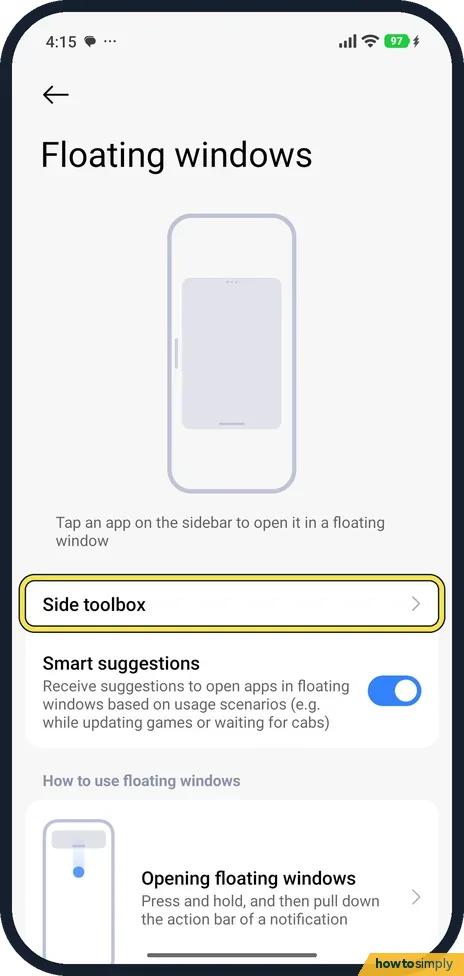
Open Side toolbox
Go to Settings, Additional settings, Floating windows, and tap Side toolbox.
- 2
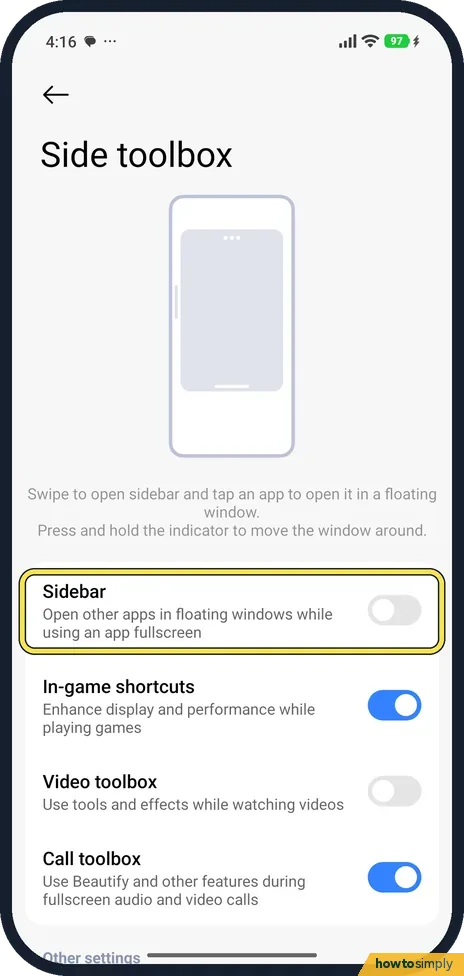
Turn on Sidebar
Turn on Sidebar: Open other apps in floating windows while using an app fullscreen.
- 3
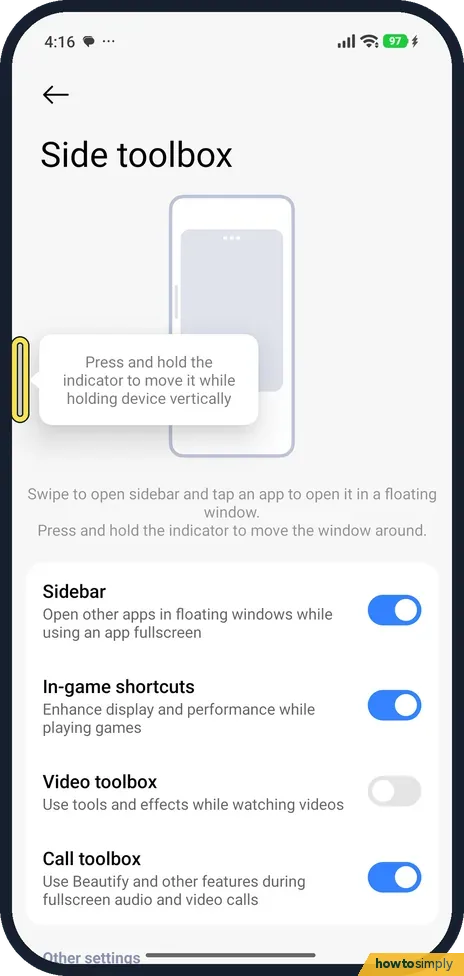
Find the indicator
A small bar appears at the left edge. Press and hold it to move it.
- 4
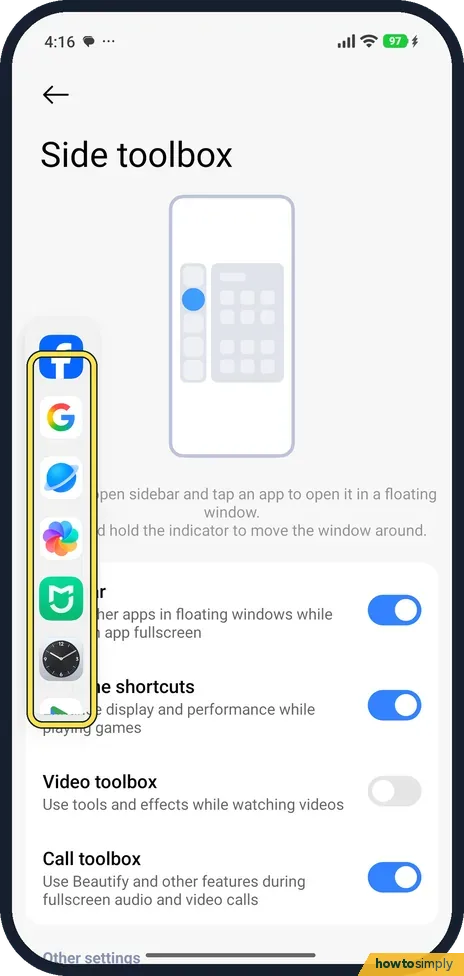
Open the sidebar and tap an app
Swipe the bar towards the middle. The sidebar opens with apps. Tap one.
- 5
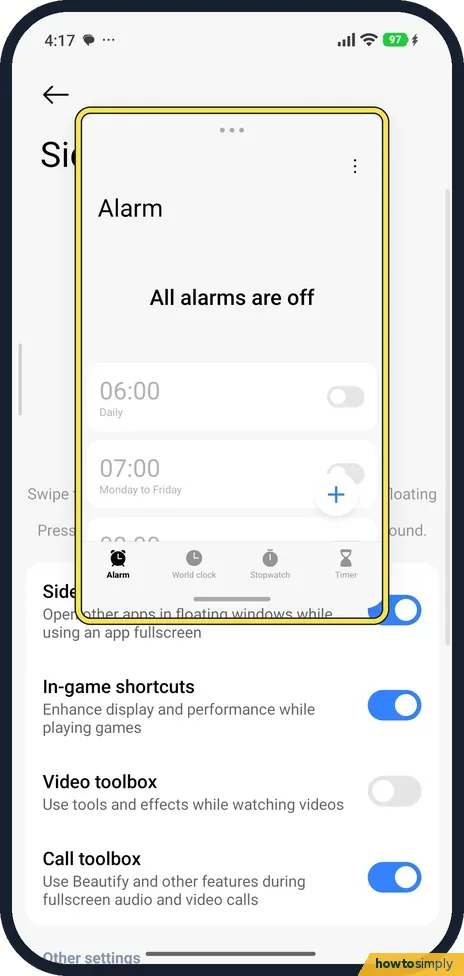
Use the floating window
The app opens in a window on top. Ours was Clock.
- 6
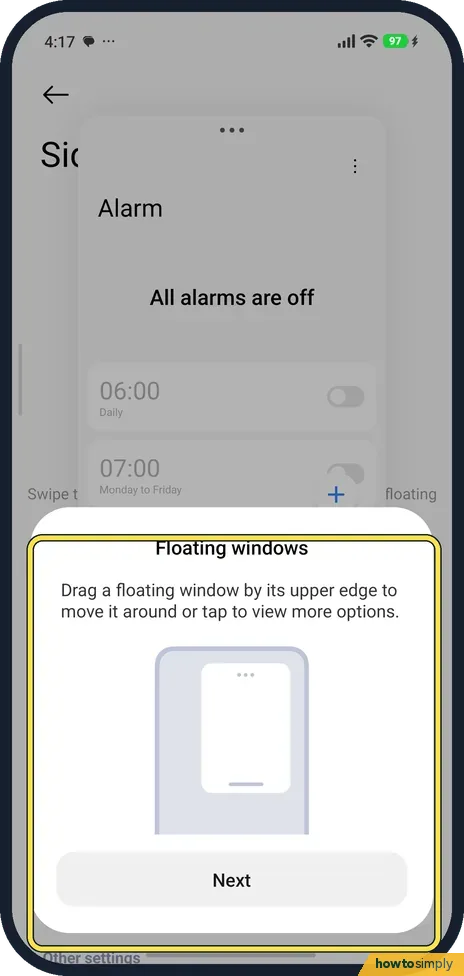
Read the tip and tap Next
The first time, a tip says: Drag a floating window by its upper edge to move it around or tap to view more options. Tap Next.
- 7
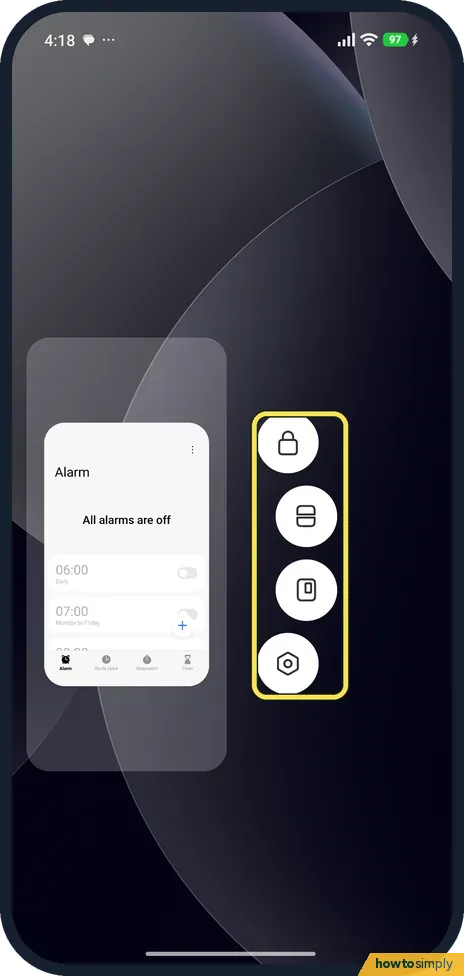
Or use Recents
Open Recents and press and hold an app. Our phone offered Lock, split screen, floating window and Info.
If you do not see this option
- App not in the sidebar? Only some apps are listed. Xiaomi says you can add apps to the Sidebar. Source: Generic User Guide for HyperOS 3.0
- No Side toolbox? Search Settings for Sidebar. Xiaomi's guide puts it under Additional settings, Floating windows, Side toolbox, as on ours. Source: Generic User Guide for HyperOS 3.0
If this does not work
- Can't move or close the window? Drag it by its upper edge to move it, or tap the edge for more options, as the tip on our phone said. Xiaomi says tapping there closes it.
- Sidebar opens by accident? Turn off Sidebar again in Side toolbox.
- Window too small to use? Xiaomi's user guide says you can drag a floating window by its corners to resize it.
- Window in the way but you still need it? Xiaomi says you can quickly drag the app to the side of the screen to hide it, then bring it back when needed. With gestures turned on, you can also press and hold the bottom of the window and drag it to the upper right corner to minimise it.
- A message should open in a window? Xiaomi's guide says you can press and hold a notification, then pull down its action bar to open it in a floating window. Useful for replying without leaving a video or map.
Good to know
Edit the Control Centre: how to edit the Control Centre on a Xiaomi phone.
With Sidebar on, the thin indicator stays at the screen edge in every app. It is easy to swipe by accident, so move it higher or lower if it sits where your thumb rests. Turning Sidebar off removes the indicator, while floating windows from Recents still work.
Floating windows suit short tasks, such as a calculator over a shopping list or a timer while cooking. For longer side-by-side work, split screen from Recents gives each app a fixed part of the screen.
About this guide
- Device
- Android
- Shown on
- Xiaomi Redmi Note 15 Pro 5G (25080RABDG), HyperOS 3.0.308.0, Android 16
- App
- Settings
- Path
- Settings › Additional settings › Floating windows › Side toolbox
- Real screenshots
- 7 of 7 steps
- Checked
- October 2026
- Sources
- 1 official, linked below
Sources
Links checked October 2026. Menus and features can change with updates.Spotted a mistake? Menus change with updates, and we want every step to match your screen. Email us about this page or use the contact form. We read every report, and fixes are listed on What changed.
Liked this guide?
Follow us for new guides and short how-to videos.
Did this guide work for you?
Sorry about that. What happened?