XIAOMI REDMI
How to use Reading mode on a Xiaomi phone (HyperOS 3)

In short
Go to Settings, Display & brightness, Reading mode and turn on the Reading mode switch. Pick Cycle (the default, which changes colours by app and time of day) or Classic (warmer colours, less blue light). Schedule turns it on and off at set times.
5 of 5 steps show a real screenshot from our Redmi Note 15 Pro 5G. Each step was checked against the maker's own instructions, linked at the end.
Steps
- 1
Open Reading mode
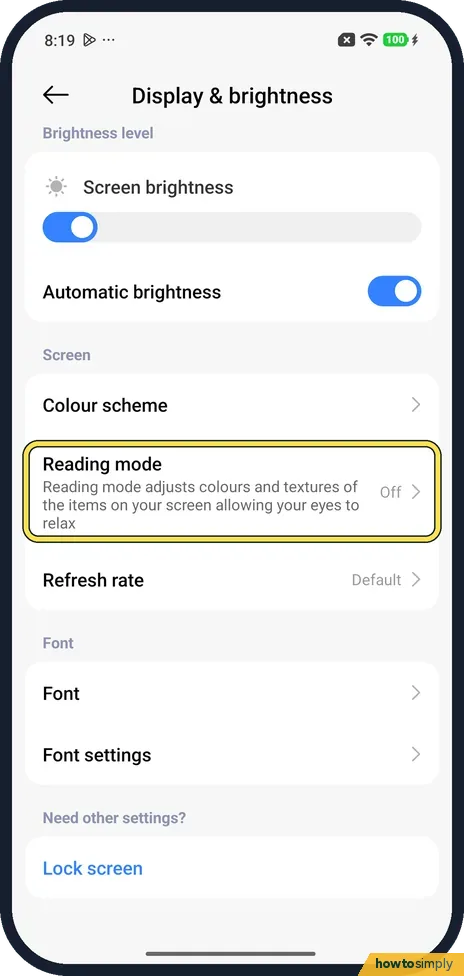
Open Settings and tap Display & brightness. Reading mode is under Screen, below Colour scheme. Ours said Off.
- 2
Turn on Reading mode
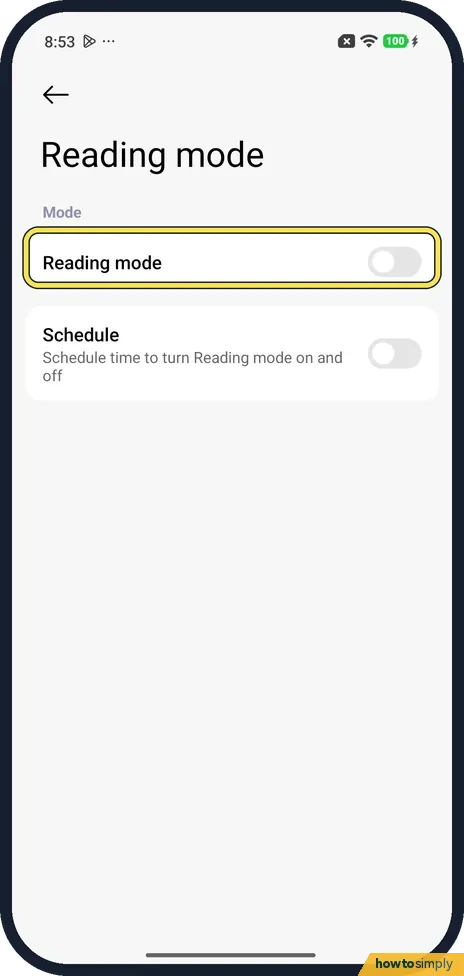
With the switch off, the page shows only Reading mode and Schedule. Tap the Reading mode switch.
- 3
Cycle mode
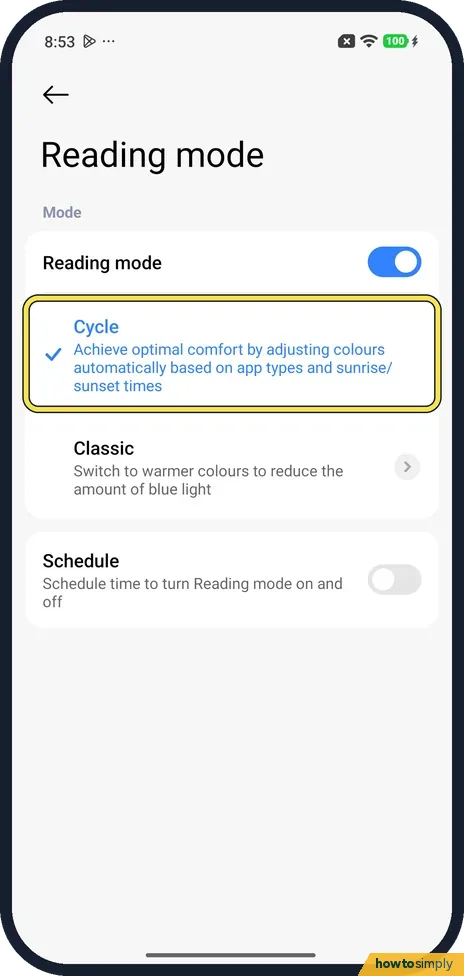
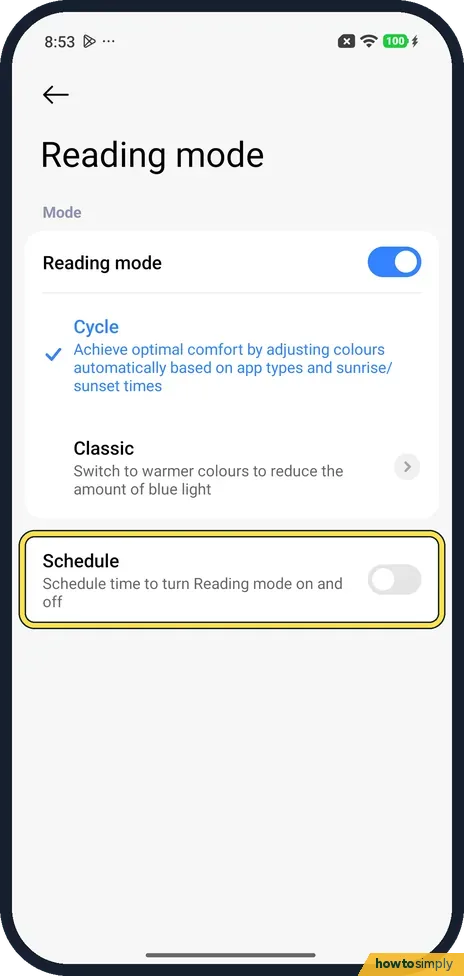
With it on, two modes appear. Cycle was ticked on ours: Achieve optimal comfort by adjusting colours automatically based on app types and sunrise/sunset times.
- 4
Or Classic mode
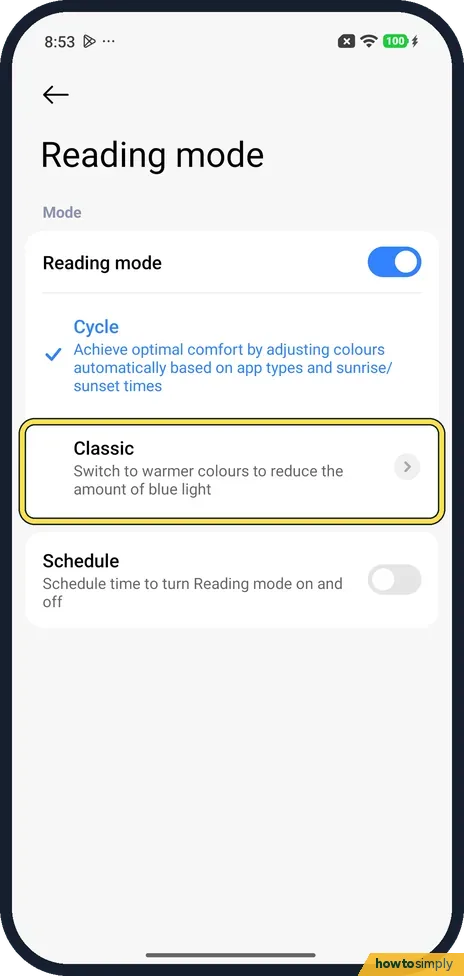
Classic says: Switch to warmer colours to reduce the amount of blue light. Tap it to use it instead. It has an arrow on the right; we didn't open it.
- 5
Set a schedule
Schedule: Schedule time to turn Reading mode on and off. It was off on ours.
If you do not see this option
- Paper mode instead of Cycle? It depends on the model. For the Redmi 13C, Xiaomi lists Classic or Paper, with Good night's read or Custom period as schedules. For the REDMI Note 14 Pro+ 5G it lists classic and cycle. Ours showed Cycle and Classic. Sources: How to enable/disable Reading mode on the Redmi 13C?, Does the REDMI Note 14 Pro+ 5G support Reading mode?
- Called Circadian reading mode? Xiaomi's introduction page names a Circadian reading mode that picks the colour by app and time zone. Ours called it Cycle. Source: Introductions about the Reading mode on Xiaomi smartphone and Xiaomi Pad
- Quicker way? Xiaomi says to swipe down from the top right to open Control centre and tap the Reading mode icon. To add the tile, see our guide on how to edit the Control centre. Sources: Does the REDMI Note 14 Pro+ 5G support Reading mode?, Generic User Guide for HyperOS 3.0
If this does not work
- Can't change the colour scheme? Xiaomi says the phone shows Couldn't adjust Color Scheme in Reading mode. Turn Reading mode off first, then see how to change the colour scheme.
- Screen stays yellow? Reading mode or its Schedule is on. Turn the switch off here, or tap the Reading mode icon in Control centre, as Xiaomi suggests.
- Screenshots look normal? That is expected. On ours the tint didn't show in screenshots, though it is on the screen.
- Tint switches off when you play a game? Game Turbo can do this. Xiaomi's guide says Game DND has an Enhanced experience option that can Turn off Reading mode while you play. Change that option in Game Turbo if you want the tint kept on.
Good to know
For a dark screen instead of a warm one, see how to turn on dark mode on a Xiaomi phone.
Brightness is on the same Display & brightness page: how to change brightness.
Reading mode only changes how your screen looks; other people see your content normally. To undo it, turn the Reading mode switch off and, if you set one, turn Schedule off too, or the tint returns at the set time.
About this guide
- Device
- Android
- Shown on
- Xiaomi Redmi Note 15 Pro 5G (25080RABDG), HyperOS 3.0.308.0, Android 16
- App
- Settings
- Path
- Settings › Display & brightness
- Real screenshots
- 5 of 5 steps
- Checked
- October 2026
- Sources
- 4 official, linked below
Sources
Links checked October 2026. Menus and features can change with updates.Spotted a mistake? Menus change with updates, and we want every step to match your screen. Email us about this page or use the contact form. We read every report, and fixes are listed on What changed.
Liked this guide?
Follow us for new guides and short how-to videos.
Did this guide work for you?
Sorry about that. What happened?