XIAOMI REDMI
Xiaomi Wi-Fi keeps disconnecting? 4 settings to check (HyperOS 3)
Check Network acceleration, where Switch between networks moves you to mobile data when Wi-Fi is weak. Then check the network's Privacy setting (randomised MAC), forget and rejoin the network, and as a last step go to Settings, More connectivity options, Reset Wi-Fi, mobile networks, and Bluetooth.

7 of 7 steps show a real screenshot from our Redmi Note 15 Pro 5G. Each step was checked against the maker's own instructions, linked at the end.
Steps
- 1
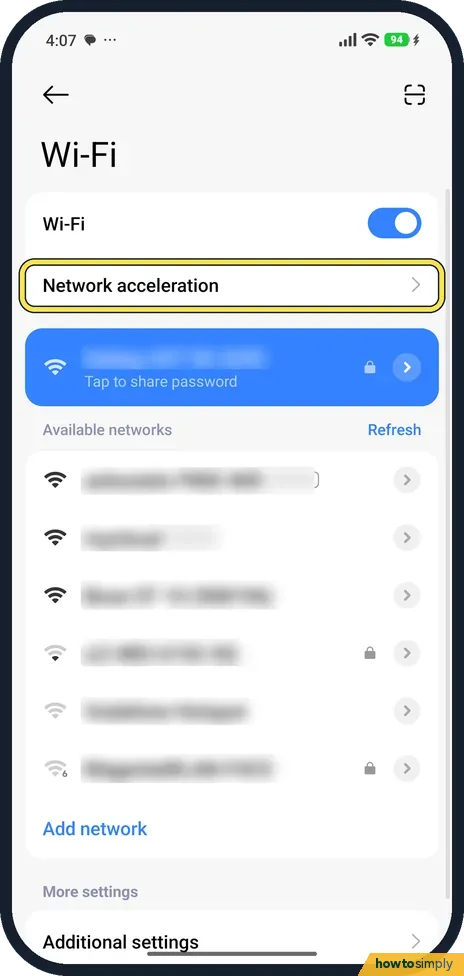
Open Network acceleration
Go to Settings, Wi-Fi, and tap Network acceleration.
- 2
Check Switch between networks
Switch between networks says Switch to mobile data when Wi-Fi signal is weak or network isn't available. It was on on ours. Turn it off if you want the phone to stay on Wi-Fi.

- 3
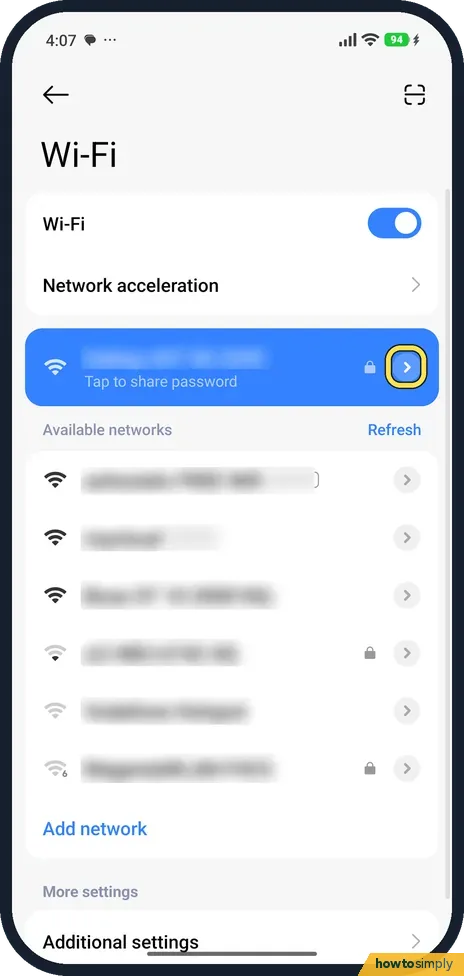
Open the network's details
Back on the Wi-Fi page, tap the arrow next to the network you are connected to.
- 4
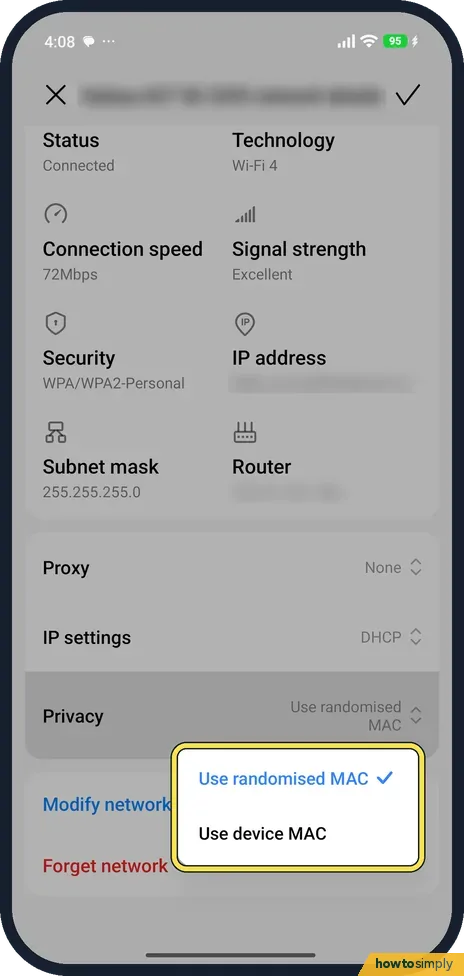
Check Privacy (MAC address)
Privacy was Use randomised MAC on ours. Tap it to choose Use device MAC instead if your router only lets in known devices.
- 5
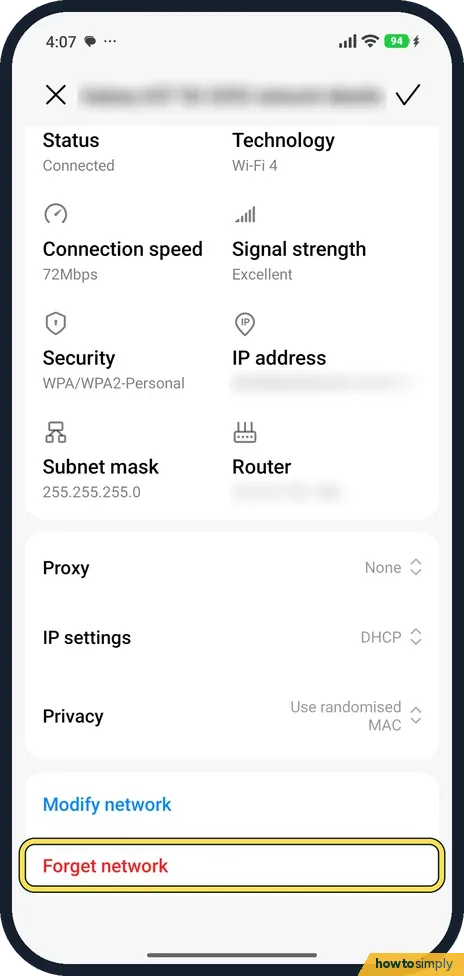
Forget the network and join again
At the bottom of the details, Forget network removes the saved password. Join the network again with the password.
- 6
Find the reset as a last step
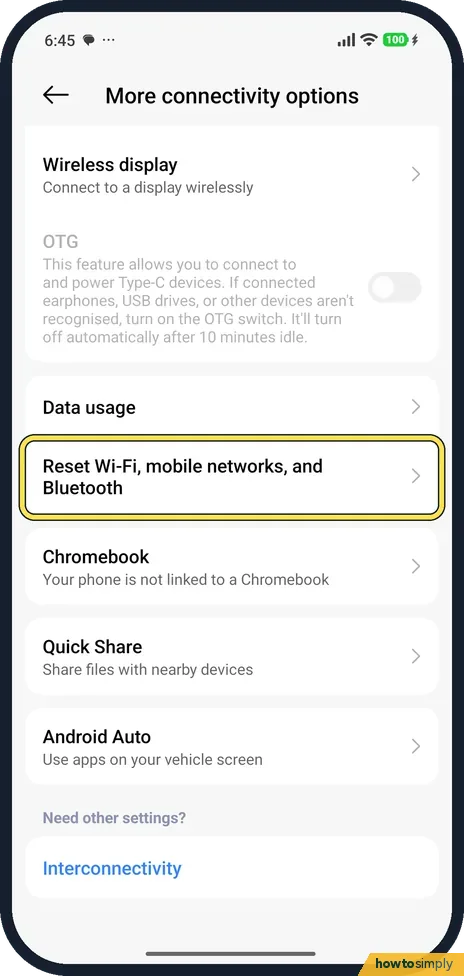
Go to Settings, More connectivity options. Reset Wi-Fi, mobile networks, and Bluetooth is listed there, below Data usage. It is not on the Wi-Fi page.
- 7
Reset network settings
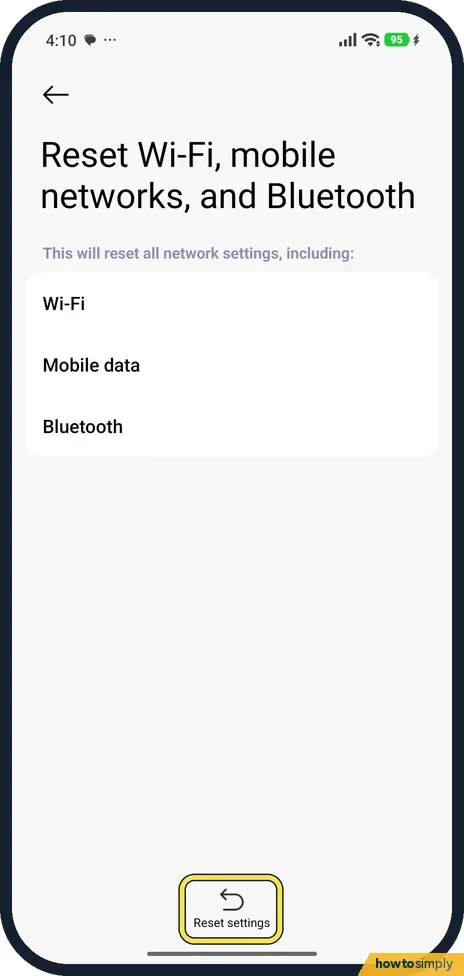
The page says it resets Wi-Fi, mobile data and Bluetooth settings. Tap Reset settings only if the other steps did not help.
If you do not see this option
- Reset not on the Wi-Fi page? On our phone it was under More connectivity options, with Wireless display, Data usage and Quick Share.
- No Network acceleration? Xiaomi says these features may not be available on some models and the paths can differ. Source: Generic User Guide for HyperOS 3.0
If this does not work
- Router blocks the phone after a change? A randomised MAC looks like a new device to the router. Use device MAC for that network.
- Drops only far from the router? With Switch between networks on, the phone moves to mobile data when the signal is weak. That is the setting doing its job.
- Every device drops, not just the phone? Then the router or the line is the likely cause. Google's help says to unplug the router, wait 30 seconds, plug it back in and wait for the lights. If that fails, contact your internet provider.
- Mobile data used while on Wi-Fi? Xiaomi's HyperOS 3 guide lists Use mobile data to boost speed on the Network acceleration page and warns it may add carrier charges. Turn it off if you only want to use Wi-Fi at home.
Good to know
Mobile data not working instead? Xiaomi mobile data not working.
Turning off Switch between networks keeps the phone on Wi-Fi even when the signal is poor, so pages may load slowly instead of moving to mobile data. Leaving it on uses some of your data allowance. Choosing Use device MAC makes the phone easier for your router to recognise, but other networks can recognise it too, so keep the randomised option for public Wi-Fi. If you share your connection with friends, see how to share a Wi-Fi password.
About this guide
- Device
- Android
- Shown on
- Xiaomi Redmi Note 15 Pro 5G (25080RABDG), HyperOS 3.0.308.0, Android 16
- App
- Settings
- Real screenshots
- 7 of 7 steps
- Checked
- October 2026
- Sources
- 2 official, linked below
Sources
Links checked October 2026. Menus and features can change with updates.Spotted a mistake? Menus change with updates, and we want every step to match your screen. Email us about this page or use the contact form. We read every report, and fixes are listed on What changed.
Liked this guide?
Follow us for new guides and short how-to videos.
Did this guide work for you?
Sorry about that. What happened?