GOOGLE PIXEL
How to set up the screen saver on a Google Pixel (Android 17)

In short
Open Settings, Display and touch, Screen saver and turn on Use screen saver. Pick Everyday clock, Google Photos, Pilot bold clock or Pixel Weather. When to show sets when it starts (While charging on ours). Low-light mode shows a dim clock in a dark room.
5 of 5 steps show a real screenshot from our Pixel 10a. Each step was checked against the maker's own instructions, linked at the end.
Steps
- 1
Open Screen saver
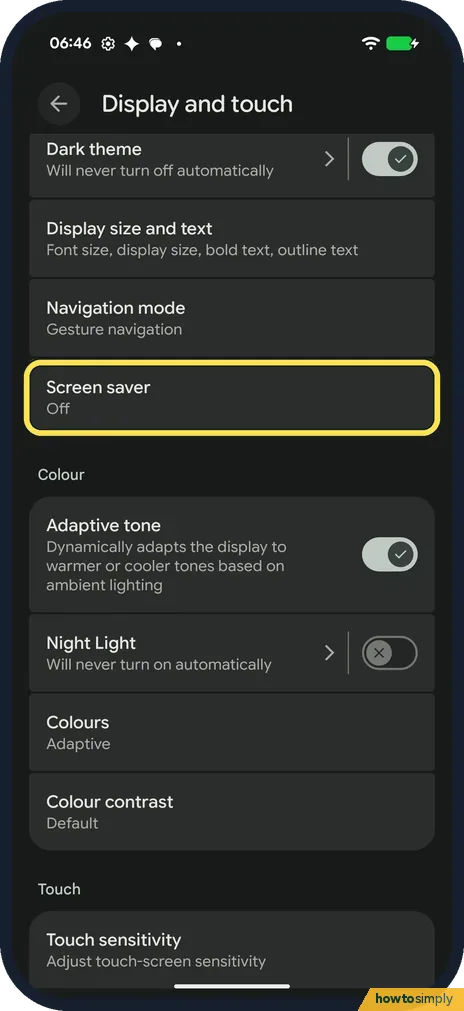
Open Settings and tap Display and touch. Screen saver is below Navigation mode. Ours said Off.
- 2
Turn on Use screen saver
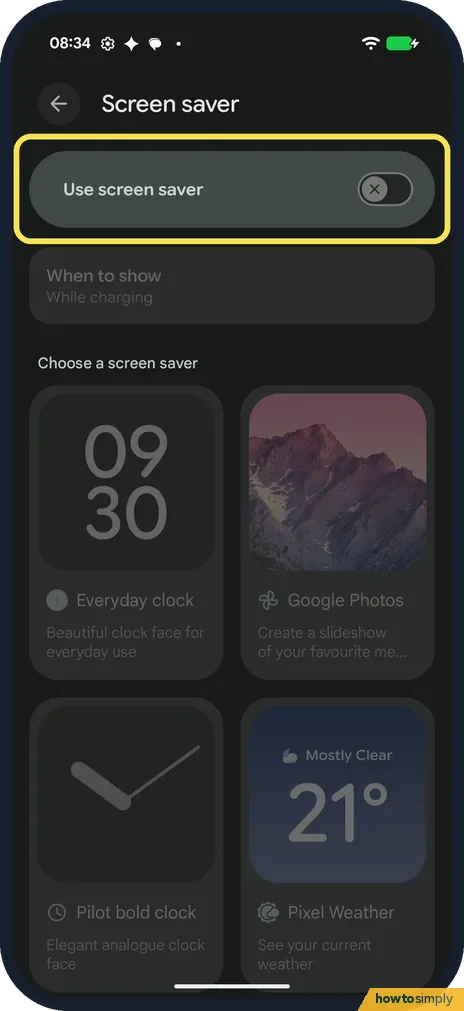
The switch at the top turns it on. Ours was off. Google says tapping Use screen saver also shows a preview.
- 3
Choose when it shows
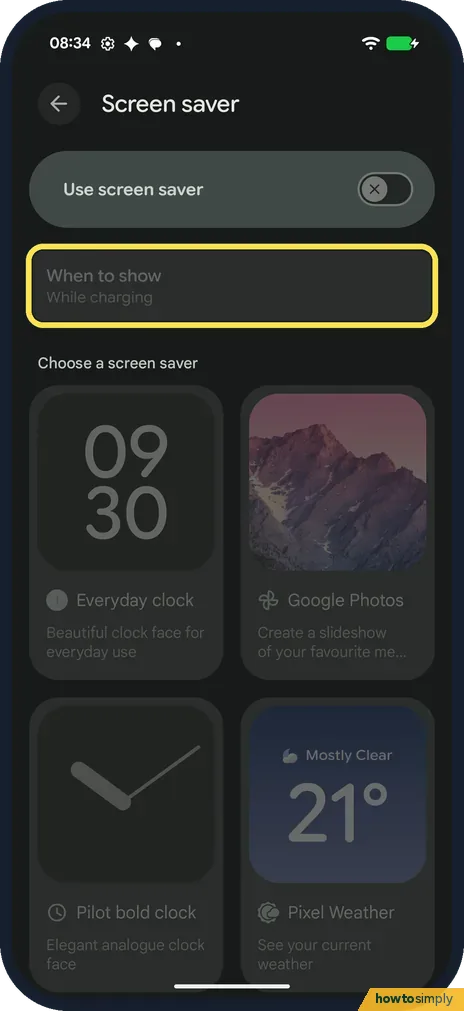
When to show said While charging on ours. It was greyed out while the screen saver was off. Google says the choices are While charging or While upright and charging.
- 4
Pick a screen saver
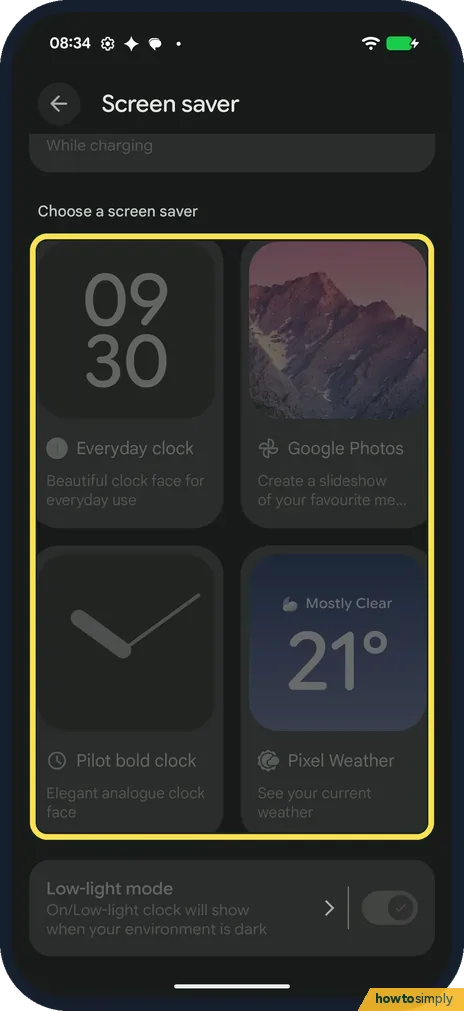
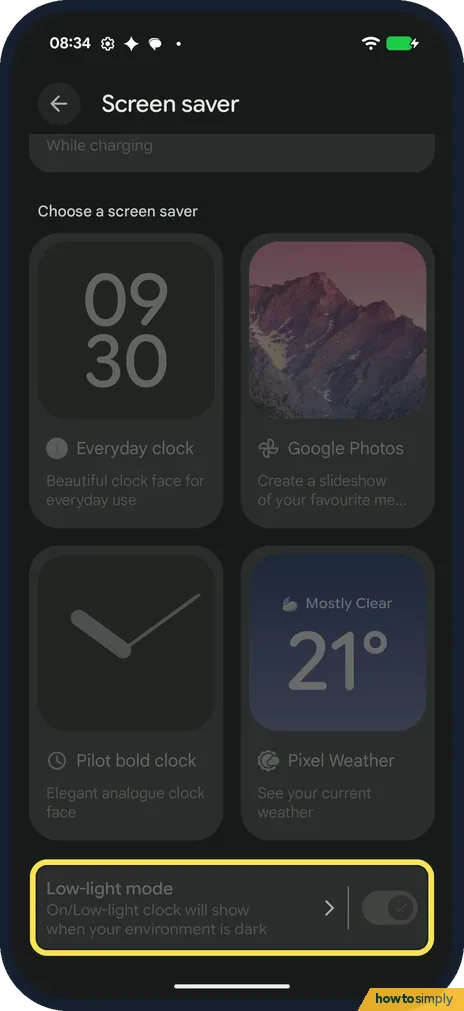
Under Choose a screen saver, ours had four: Everyday clock (Beautiful clock face for everyday use), Google Photos (a slideshow of your photos), Pilot bold clock (Elegant analogue clock face) and Pixel Weather (See your current weather). Tap one.
- 5
Low-light mode
At the bottom, Low-light mode said On/Low-light clock will show when your environment is dark. Tap the words for its options. Google says you can make it turn the screen off instead.
If you do not see this option
- Different choices on your Pixel? Google lists clock styles, weather, a photo frame, charging status and home controls. Our Pixel 10a with Android 17 showed only the four choices above, with no colours or photo frame option. Source: Set up a screen saver
- No Screen saver row? Google says some of the screen saver steps work only on Android 14 and up. Source: Set up a screen saver
- No wireless charging option? Google mentions a Restrict to wireless charging switch under When to show. We didn't open When to show, because it was greyed out on ours. Source: Set up a screen saver
If this does not work
- Screen saver doesn't start? It only shows while charging. Google also says it won't start if you turn the screen off with the Power button: leave the screen on and let it time out. See how to change the screen timeout.
- Only a dim clock shows? That is Low-light mode, which was on on ours. Google says it switches to a low light clock when the room is dim.
- Weather or photos stay blank? Google says the weather needs location set to Always allow, and the photo frame needs access to your photos and media.
Good to know
To see the time while the screen is off and not charging, see how to turn on Always-on display on a Google Pixel.
Google says you can swipe left or right from the screen edge to switch between screen savers.
The screen saver only runs while the phone is charging, so it does not drain the battery in your pocket. To check which apps can use your location or your photos, see app permissions. To stop the screen saver entirely, turn off Use screen saver.
About this guide
- Device
- Android
- Shown on
- Google Pixel 10a, Android 17 (build CP3A.261005.005)
- App
- Settings
- Path
- Settings › Display and touch
- Real screenshots
- 5 of 5 steps
- Checked
- October 2026
- Sources
- 3 official, linked below
Sources
Links checked October 2026. Menus and features can change with updates.Spotted a mistake? Menus change with updates, and we want every step to match your screen. Email us about this page or use the contact form. We read every report, and fixes are listed on What changed.
Liked this guide?
Follow us for new guides and short how-to videos.
Did this guide work for you?
Sorry about that. What happened?