
howtosimply.com/guides/how-to-use-two-facebook-or-whatsapp-accounts-on-a-samsung-galaxy-with-dual-messenger/ · Checked October 2026 · SM-A576B), One UI 9, Android 17 (build A576BXXU6BZIE · Samsung Galaxy A57
In this guide
Go to Settings, Advanced features, Dual Messenger and turn on the switch next to the app. Tap Install, Confirm, choose your contacts option, and a second copy with a badge appears at the end of your Apps screen. Sign in to your other account there.
7 of 7 steps with real screenshots · 1 official source below
- Device
- Android
- Shown on
- Samsung Galaxy A57 (SM-A576B), One UI 9, Android 17 (build A576BXXU6BZIE)
- App
- Settings
- Path
- Settings › Advanced features › Dual Messenger
- Real screenshots
- 7 of 7 steps
- Checked
- October 2026
- Sources
- 1 official, linked below
Step by step
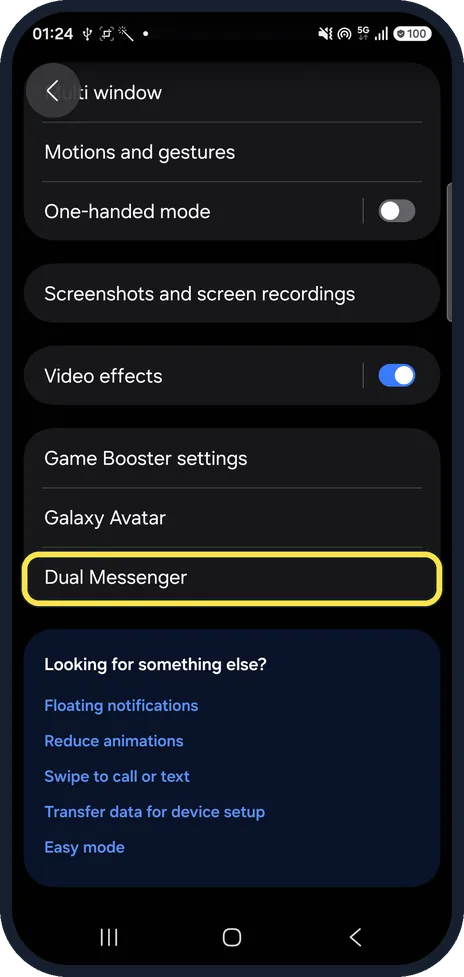
Open Dual Messenger
Open Settings, Advanced features and tap Dual Messenger.
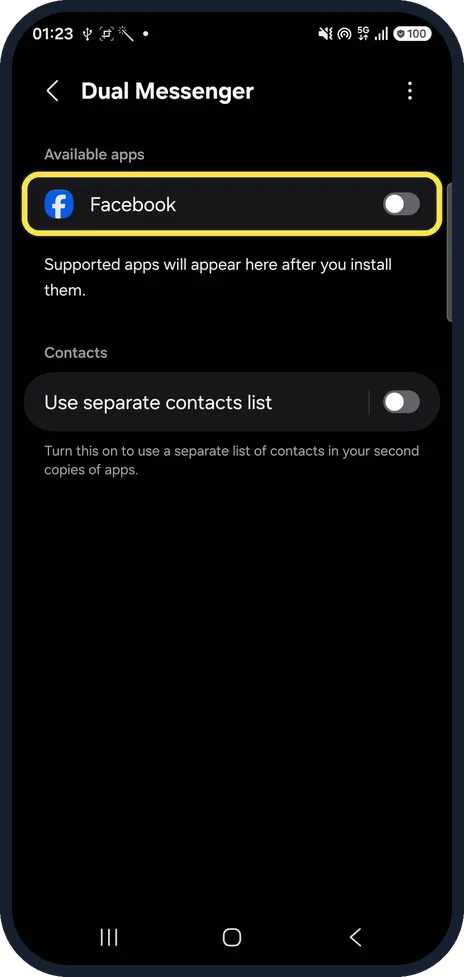
Turn on the app
Under Available apps, tap the switch next to the app. Ours listed only Facebook; supported apps appear after you install them.
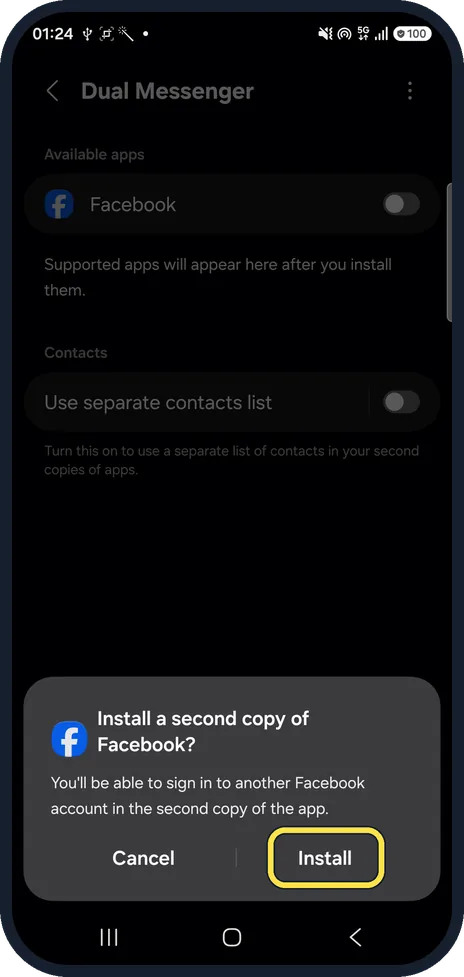
Tap Install
Ours asked Install a second copy of Facebook? You'll be able to sign in to another Facebook account in the second copy of the app. Tap Install.
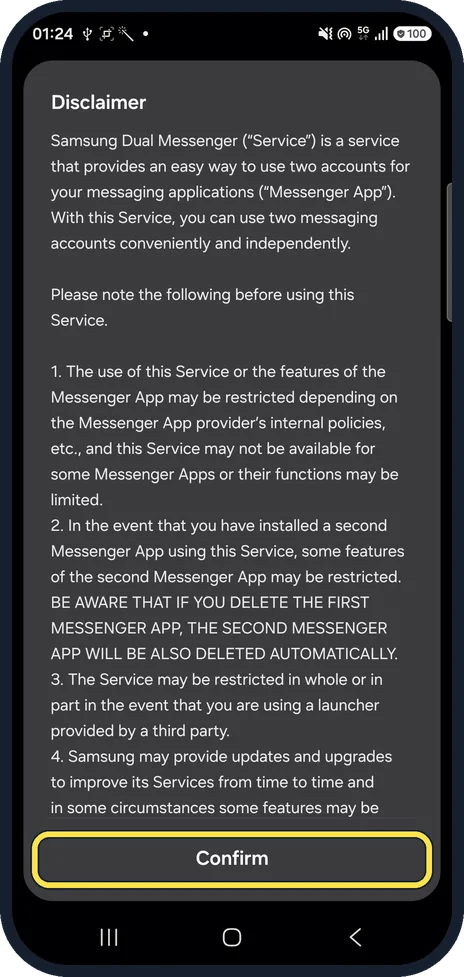
Confirm the disclaimer
Read the Disclaimer. It warns that if you delete the first app, the second one is deleted automatically. Tap Confirm.
Choose a contacts list
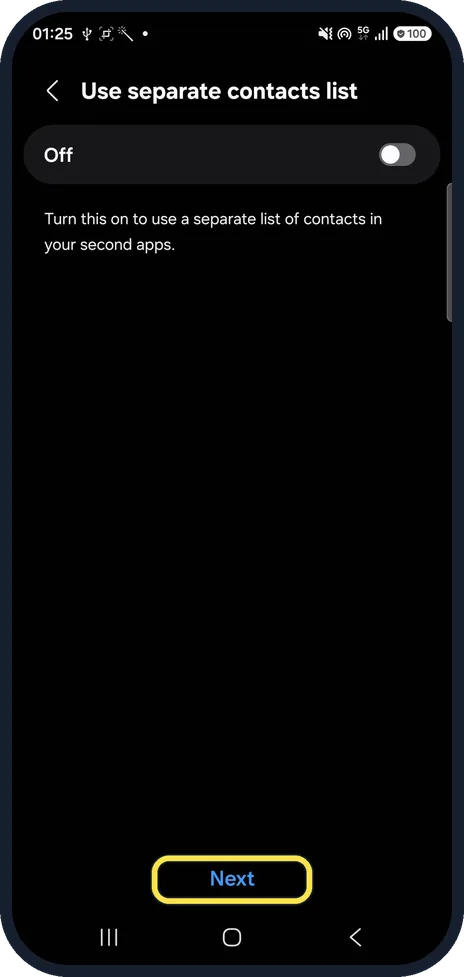
Use separate contacts list is Off unless you turn it on. We left it off and tapped Next.
Tap OK
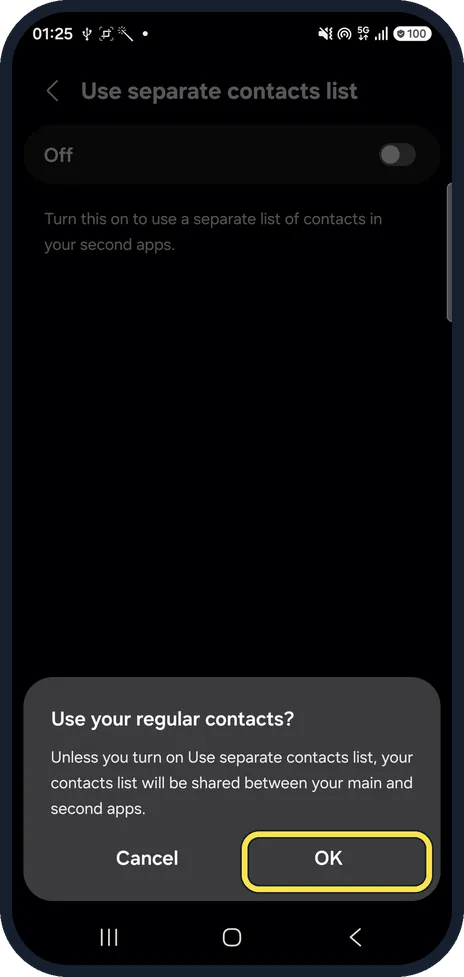
With it off, ours asked Use your regular contacts? Your contacts list will be shared between your main and second apps. Tap OK.
Find the second app
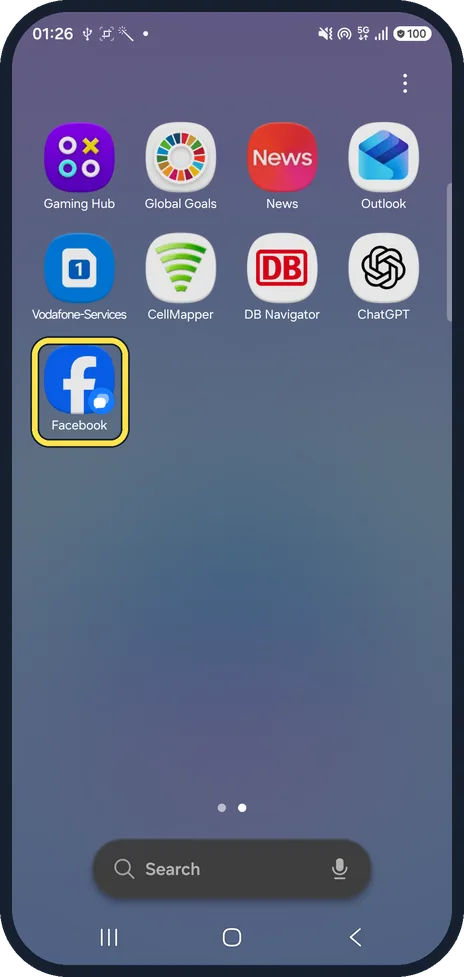
The second copy, Facebook on ours, has a small badge on its icon. On ours it went to the end of the Apps screen, not the Home screen. Open it and sign in with your other account.
If you do not see this option
- The app isn't listed Only apps that are installed and supported show up under Available apps. On our A57, WhatsApp was not listed because it was not installed; Samsung says Dual Messenger works only on specific models and with specific apps. Source: How to set up Dual Messenger on Samsung Galaxy mobile device
- Your phone uses another launcher Point 3 of the disclaimer in step 4 says the service may be restricted in whole or in part if you use a launcher provided by a third party. Switch back to One UI Home if the second copy misbehaves.
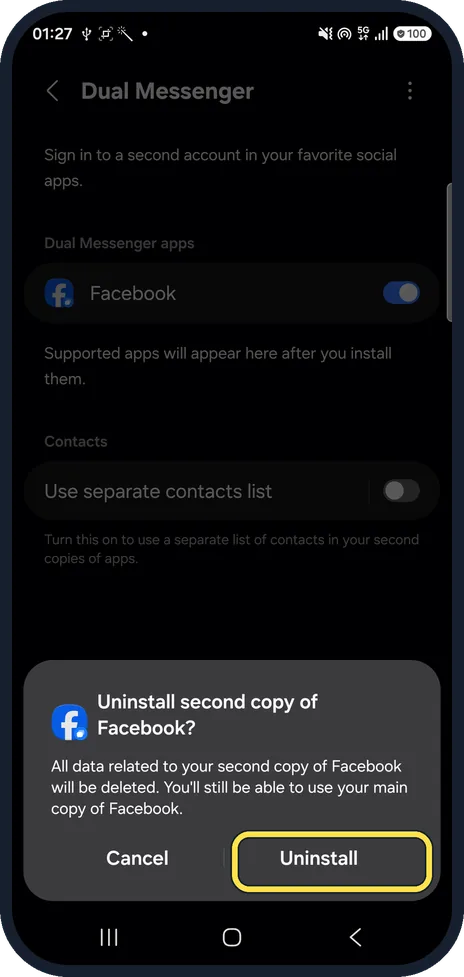
- Removing the second copy Go back to Dual Messenger and turn off the switch. Ours asked Uninstall second copy of Facebook? All data related to the second copy is deleted; the main app is not affected. Tap Uninstall. Source: How to set up Dual Messenger on Samsung Galaxy mobile device
If this does not work
- Your app isn't in the list? Samsung says only specific models and apps are supported, and an app only appears once it is installed. Source: How to set up Dual Messenger on Samsung Galaxy mobile device
- Can't find the second app? It does not go on the Home screen. On ours it was added at the end of the Apps screen, with a small badge on its icon (step 7).
- Something is missing in the second copy? Point 2 of the disclaimer says some features of the second app may be restricted, and point 1 says the app maker's own policies can limit it.
- Deleted the main app? The disclaimer says the second copy is deleted automatically with it.
About this guide
Dual Messenger installs a second copy of a messaging app so you can sign in with a second account. Only apps installed on the phone that Samsung supports show up: on ours that was Facebook, because WhatsApp was not installed.
The screenshots are from our Samsung Galaxy A57 with One UI 9 and Android 17, in Dark mode, taken on 24 October 2026. We installed a second Facebook for these pictures, did not sign in to it, and uninstalled it afterwards.
Good to know
Move contacts into your Google account first: how to move phone contacts to your Google account.
In short: Settings, Advanced features, Dual Messenger, app switch on, Install, Confirm, contacts choice, OK. Second icon at the end of Apps. Switch off to uninstall.
Links checked in October 2026. Menus and features can change after software updates. These steps match the version named at the top.
Did this guide work for you?
Sorry about that. What happened?