Troubleshooting
Xiaomi camera not working? What to check (HyperOS 3)
7 fixes, 7 with a real screenshot from our Redmi Note 15 Pro 5G on HyperOS 3.0.308.0. Try them in order.
 Illustration
Quick answer
Go to Settings, Apps, Camera. Check App permissions (Camera and Microphone must be allowed), then tap Force stop and open the camera again. If it still fails, open Camera, tap the arrow at the top, then Settings, and find Restore default settings under General, Other settings.
Step-by-step guide
Follow these steps in order. After each step, check if it works.
- 1
Find Camera in Apps
Go to Settings, Apps. Camera is further down the list; type Camera in Search apps to jump to it.

- 2
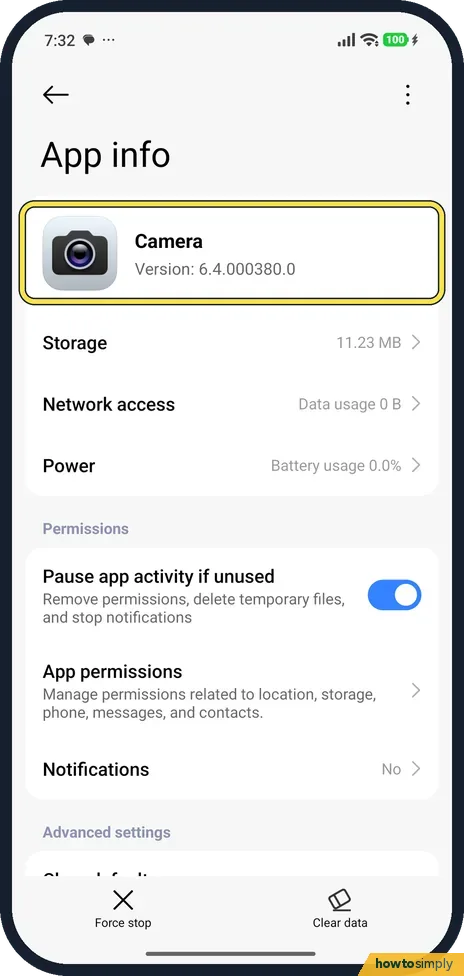
Open the Camera app info
Tap Camera. Ours was version 6.4.000380.0.
- 3
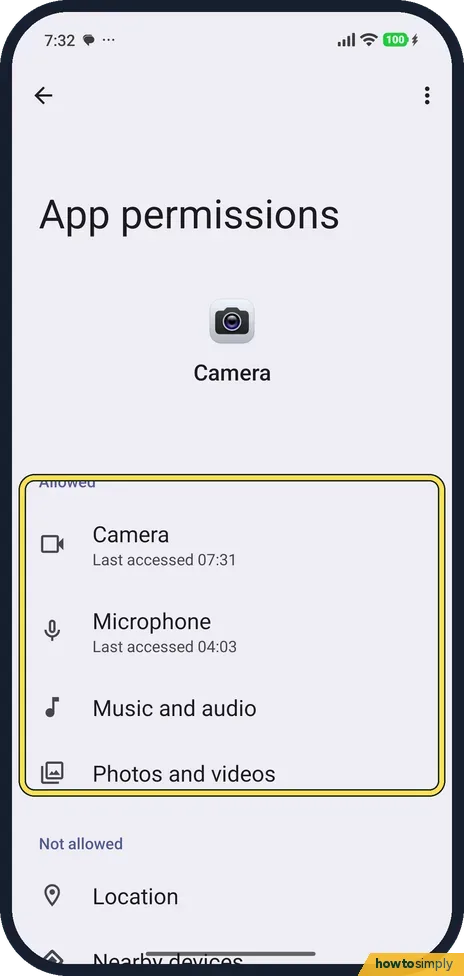
Check its permissions
Tap App permissions. Under Allowed, ours had Camera, Microphone, Music and audio, and Photos and videos. Location was under Not allowed. Allow anything the camera needs.
- 4
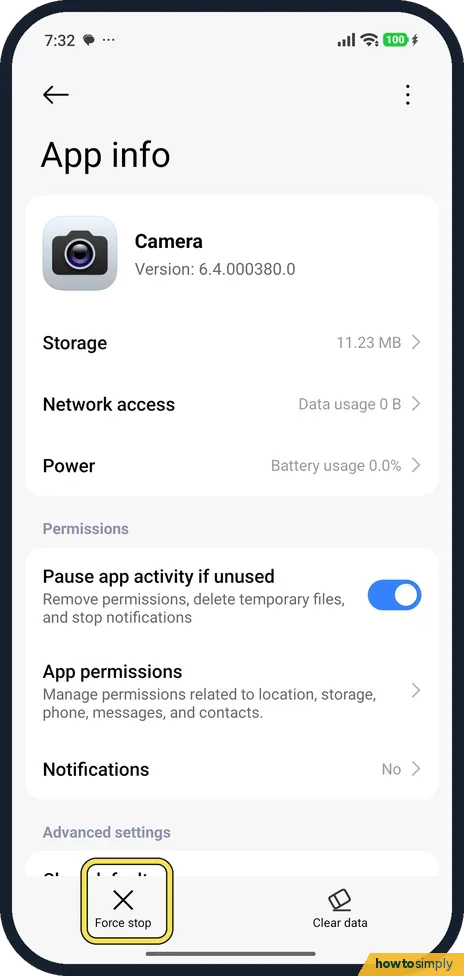
Force stop the camera
Back on App info, tap Force stop at the bottom, then open Camera again.
- 5
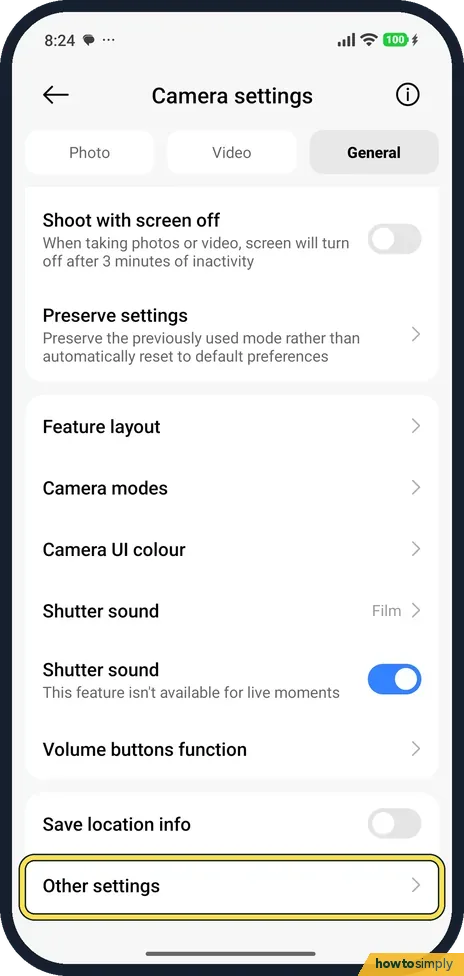
Open camera Settings
Open Camera, tap the small arrow at the top of the viewfinder, then Settings. On the General tab, scroll down and tap Other settings.
- 6
Tap Restore default settings
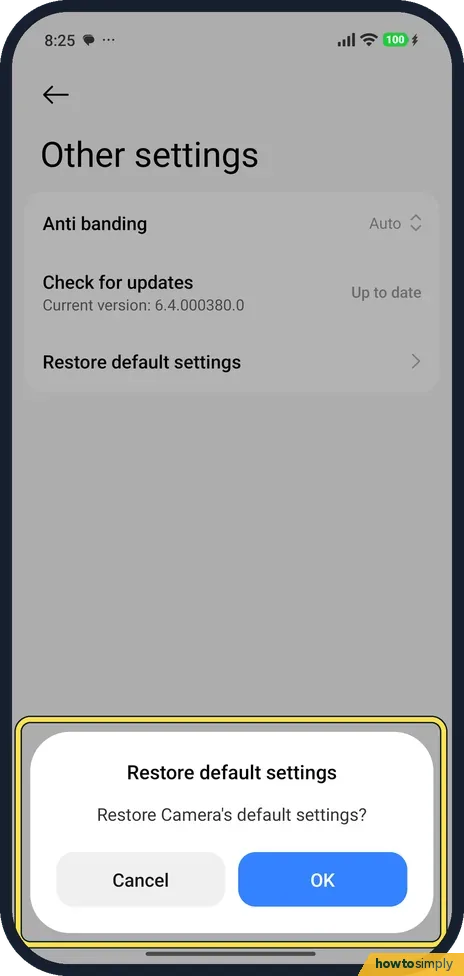
Other settings has Anti banding, Check for updates (Up to date on ours) and Restore default settings. Tap Restore default settings.

- 7
Confirm
The dialog asks Restore Camera's default settings? Tap OK. It resets the camera's own settings only. We tapped Cancel.
If you do not see this option
- No Restore default settings? On our phone it was not on the General tab itself but one level down, in Other settings, next to Anti banding and Check for updates.
- Camera not near the top of Apps? The list is sorted by app name, so Camera is further down. Search apps finds it.
If this does not work
- Photos missing from Gallery? Photos and videos must be allowed in the camera's permissions.
- No sound in videos? Microphone must be allowed. Ours showed it under Allowed.
- Still a black screen? Restart the phone: how to turn off or restart a Xiaomi phone.
- Another app can use the camera but this one can't? Check that app's own permissions the same way, in Settings, Apps.
- Camera test? CIT has camera tests: how to open the CIT hardware test.
- Camera busy or already in use? Only one app can use the camera at a time. Xiaomi's HyperOS 3 guide lists a Camera in use indicator among the status bar icons, so look for it, close video call or scanner apps, and try again.
- Camera fails in every app? Android has a Camera access control that blocks the camera for all apps at once. Google's help describes it among the privacy controls; if it is off, no app can use the camera. We did not find it on our Redmi: a Settings search for Camera access found nothing, and the Android privacy page listed only Microphone access.
- Problems started after a new app? Google suggests restarting in safe mode, where downloaded apps are paused. If the camera works there, remove recently installed apps one at a time, restarting after each.
Good to know
Camera modes: how to use Auto night mode.
Restore default settings resets the camera's own settings only, so any modes or options you changed there need setting again. Your photos and videos stay in Gallery. If a fault survives every step here and a restart, back up first and contact Xiaomi support, as it may be a hardware problem.
About this guide
- Device
- Android
- Shown on
- Xiaomi Redmi Note 15 Pro 5G (25080RABDG), HyperOS 3.0.308.0, Android 16
- App
- Settings
- Path
- Settings › Apps › Camera › App permissions
- Real screenshots
- 7 of 7 steps
- Checked
- October 2026
- Sources
- 2 official, linked below
Sources
Links checked October 2026. Menus and features can change with updates.Related guides
How to use Auto night mode on a Xiaomi camera (HyperOS 3)How to use palm shutter, voice shutter and the timer on a Xiaomi camera (HyperOS 3)How to turn off the camera watermark and shutter sound on a Xiaomi phone (HyperOS 3)How to hide apps on a Xiaomi phone and find them again (HyperOS 3)How to record 4K or 60fps video on a Xiaomi phone (HyperOS 3)How to recover deleted photos on a Xiaomi phone (HyperOS 3)Spotted a mistake? Menus change with updates, and we want every step to match your screen. Email us about this page or use the contact form. We read every report, and fixes are listed on What changed.
Liked this guide?
Follow us for new guides and short how-to videos.
Did this guide work for you?
Sorry about that. What happened?