XIAOMI REDMI
Xiaomi closing apps in the background? 3 settings to check (HyperOS 3)
Set the app's battery saver to No restrictions (Settings, Apps, the app, Power), lock its card in Recents, and check that Clear cache when device is locked is set to Never (Settings, Battery, Additional features). If the app also has to start by itself, turn on Background autostart.

8 of 8 steps show a real screenshot from our Redmi Note 15 Pro 5G. Each step was checked against the maker's own instructions, linked at the end.
Steps
- 1
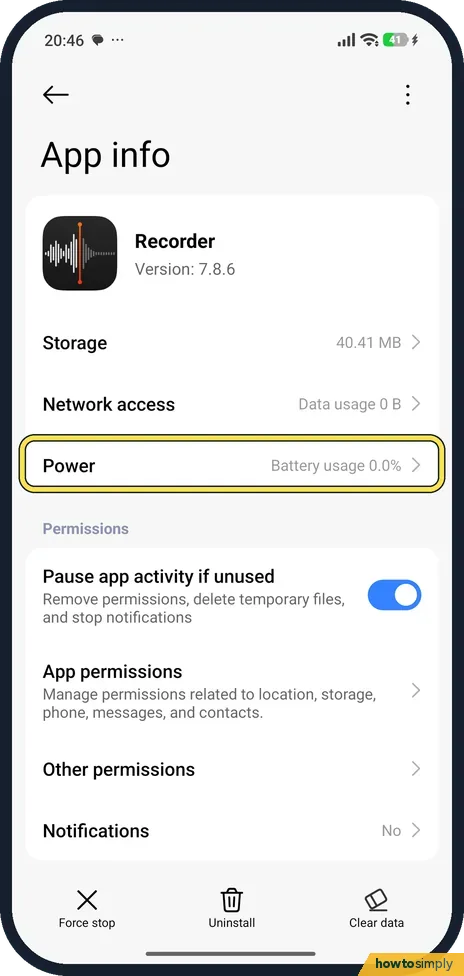
Open the app's Power page
Open Settings, tap Apps, then the app. Tap Power, under Network access.
- 2
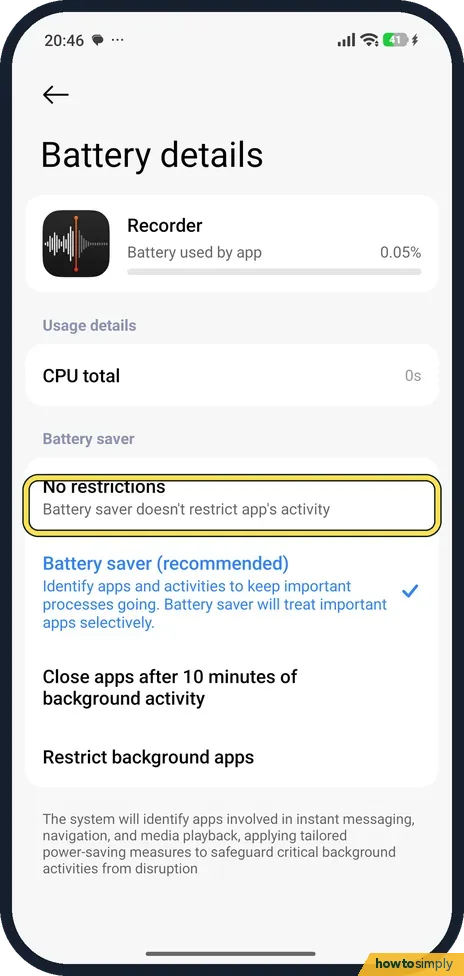
Choose No restrictions
Under Battery saver there are four choices: No restrictions, Battery saver (recommended), Close apps after 10 minutes of background activity, and Restrict background apps. Battery saver (recommended) was ticked on our phone. Tap No restrictions.
- 3
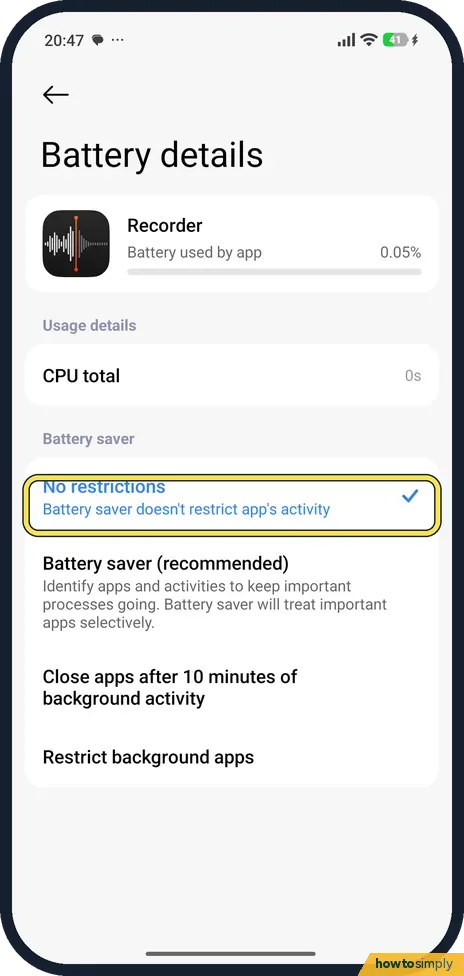
Check the tick
No restrictions is now blue with a tick: battery saver doesn't restrict the app's activity.
- 4
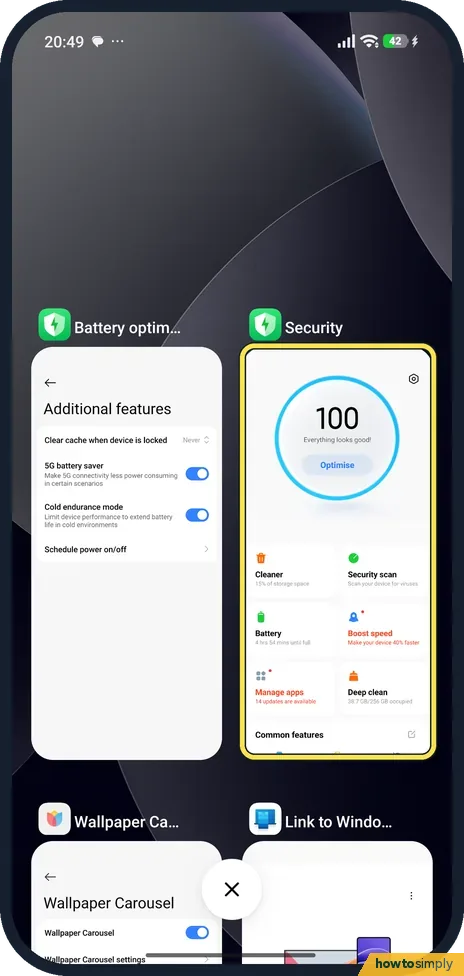
Open Recents and touch and hold the app
Swipe up from the bottom and hold to open Recents. Touch and hold the card of the app you want to keep.
- 5
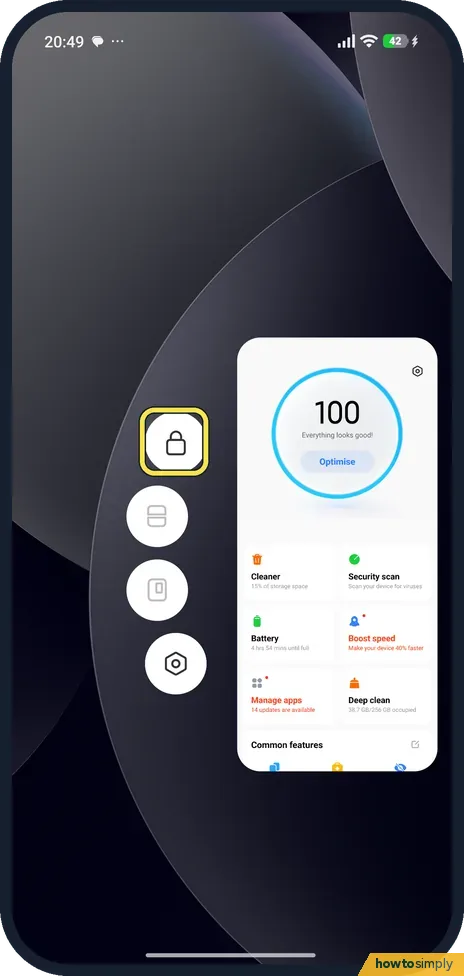
Tap the lock
A column of buttons appears next to the card. Tap the padlock at the top.
- 6
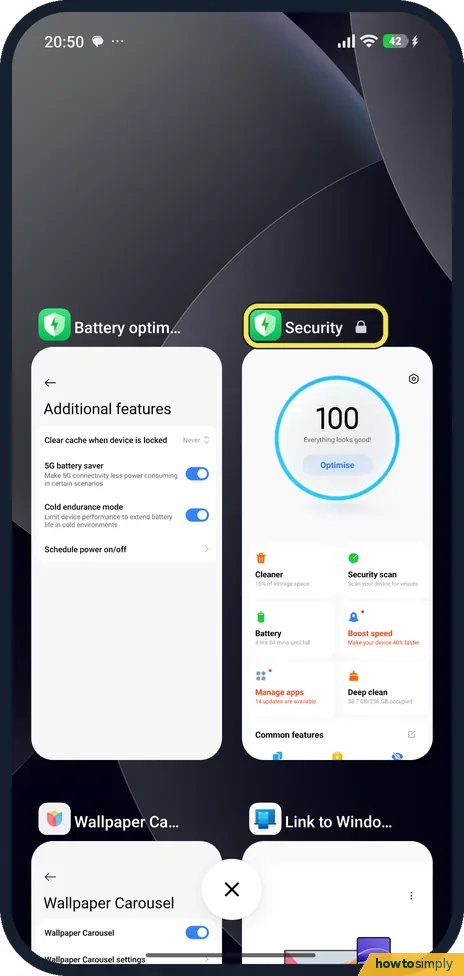
Check the padlock on the card
A small padlock now shows next to the app's name. Clearing Recents leaves a locked app open. Touch and hold it again to unlock it.
- 7
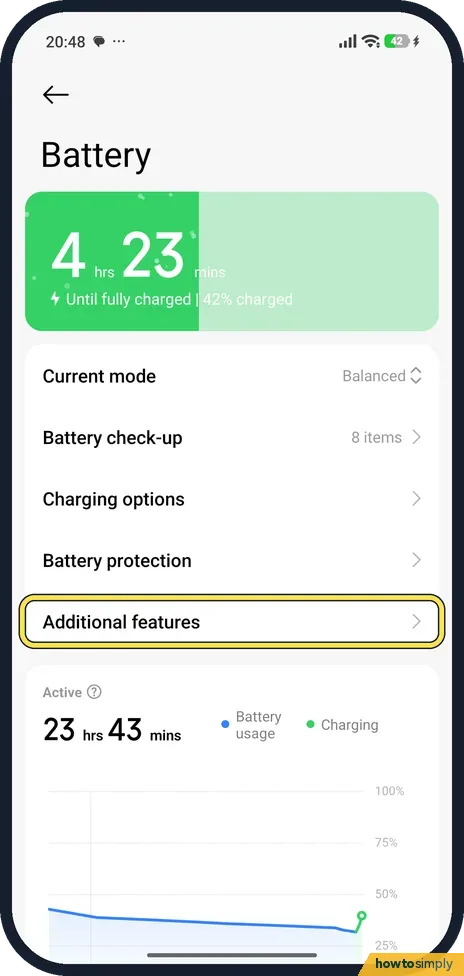
Open Battery, then Additional features
In Settings, tap Battery, then tap Additional features, below Battery protection.
- 8
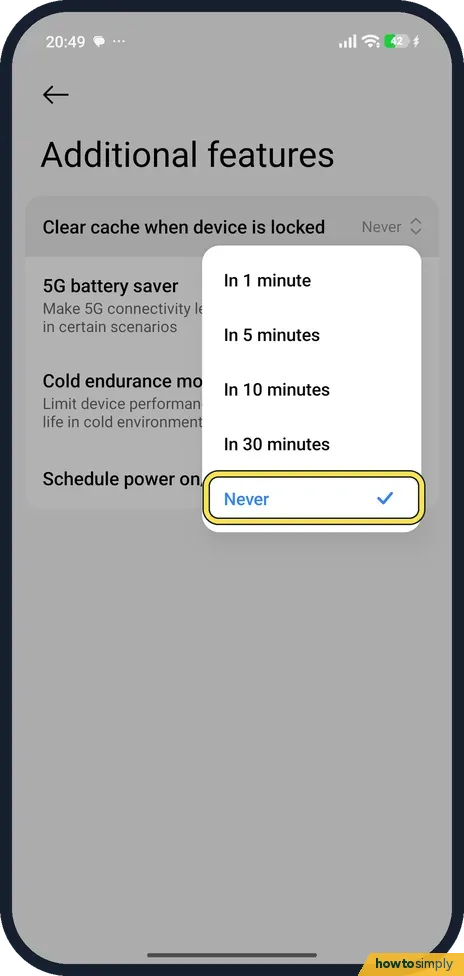
Set Clear cache when device is locked to Never
Tap Clear cache when device is locked. The choices are In 1 minute, In 5 minutes, In 10 minutes, In 30 minutes and Never. Never was already set on our phone; any other choice clears apps from memory that long after you lock the screen.
If you do not see this option
- No Battery saver on the Power page? On older MIUI phones the per-app setting is in the Security app, Battery, App battery saver. Source: Xiaomi
- Clear cache when device is locked somewhere else? Xiaomi's help page for the Xiaomi 14T Pro also reaches it from the Security app, under Battery. Source: How to clear cache when the Xiaomi 14T Pro is locked?
- No padlock when you hold the card? Don't kill my app says you can also drag the card down to lock it. Source: Xiaomi
If this does not work
- Messages still late after all three? The app may not be allowed to start by itself: how to allow Autostart for an app on a Xiaomi phone. Also check that its notifications are allowed under Settings, Apps, the app, Notifications.
- Fine at home, stops when the battery is low? The phone's battery mode applies on top of the app setting. Xiaomi's guide says Battery saver reduces background activity of apps and stops sync, and Ultra battery saver restricts most power-consuming features. Switch back to Balanced when you can.
- App runs but gets no new data? Background data may be blocked instead. See stop an app using mobile data or Wi-Fi.
Good to know
No restrictions lets the app use more battery in the background. Keep it for the apps that need it, such as messaging, music or step counting.
About this guide
- Device
- Android
- Shown on
- Xiaomi Redmi Note 15 Pro 5G (25080RABDG), HyperOS 3.0.308.0, Android 16
- App
- Settings
- Real screenshots
- 8 of 8 steps
- Checked
- October 2026
- Sources
- 2 official, 1 other, linked below
Sources
Links checked October 2026. Menus and features can change with updates.Spotted a mistake? Menus change with updates, and we want every step to match your screen. Email us about this page or use the contact form. We read every report, and fixes are listed on What changed.
Liked this guide?
Follow us for new guides and short how-to videos.
Did this guide work for you?
Sorry about that. What happened?