
howtosimply.com/guides/how-to-use-the-clipboard-on-a-samsung-galaxy-keyboard/ · Checked October 2026 · SM-A576B), One UI 9, Android 17 (build A576BXXU6BZIE · Samsung Galaxy A57
In this guide
Open the keyboard in any text box and tap the clipboard icon in the toolbar above the keys. The Clipboard panel lists what you copied, with pin and delete buttons. If the toolbar is missing, switch on Keyboard toolbar in Samsung Keyboard settings. One UI 9 has no separate clipboard setting.
- Device
- Android
- Shown on
- Samsung Galaxy A57 (SM-A576B), One UI 9, Android 17 (build A576BXXU6BZIE)
- App
- Samsung Keyboard
- Path
- Samsung Keyboard › Toolbar › Clipboard
- Real screenshots
- 5 of 5 steps
- Checked
- October 2026
- Sources
- 1 official, linked below
Step by step
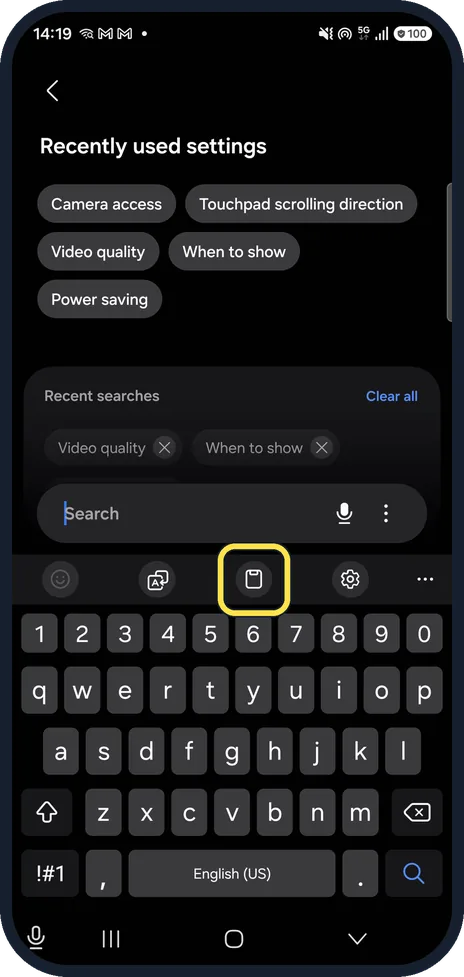
Tap the clipboard icon
Open the keyboard in any text box. In the toolbar above the keys, ours showed emoji, a text tool, the clipboard, settings and more (...). Tap the clipboard.
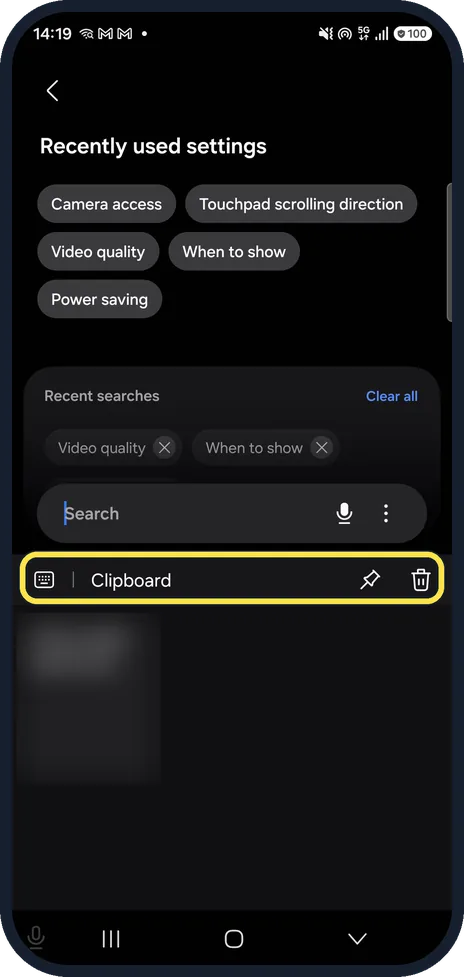
Pick an item
The Clipboard panel replaces the keys. Tap an item to paste it. The pin keeps items; the bin deletes them.
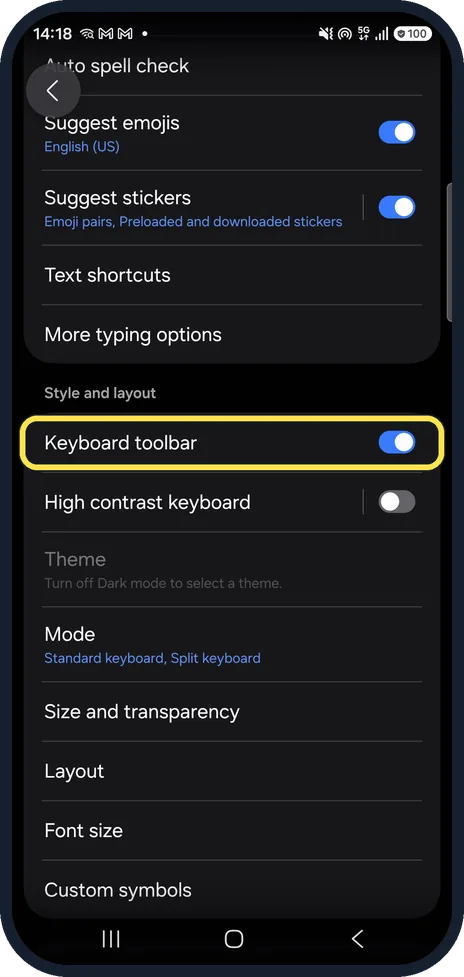
No toolbar? Switch it on
Open Settings, General management, Samsung Keyboard settings. Under Style and layout, switch on Keyboard toolbar. There is no clipboard switch of its own.
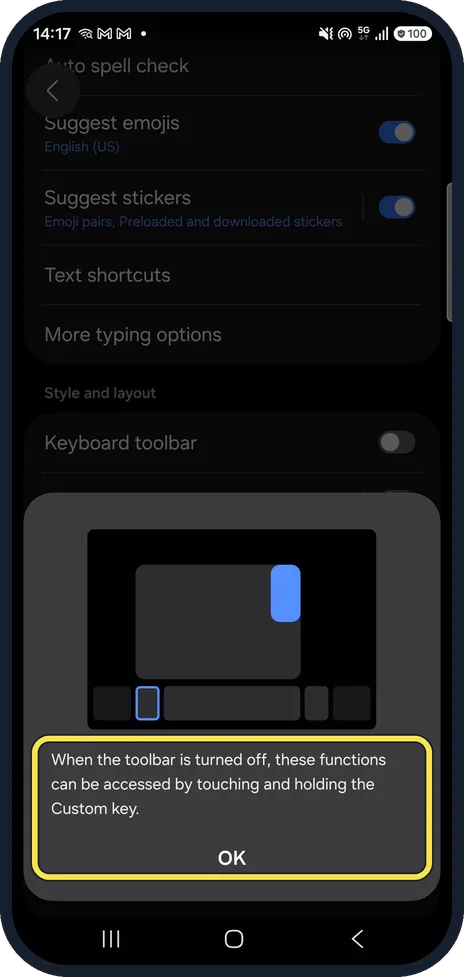
Without the toolbar
When we switched the toolbar off, the phone said these functions can be reached by touching and holding the Custom key instead. Tap OK.
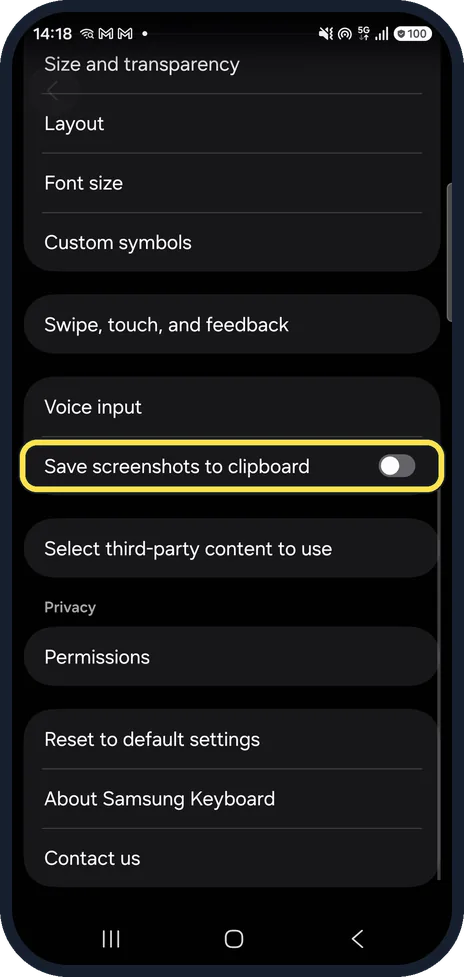
Screenshots to the clipboard
Further down, Save screenshots to clipboard puts each screenshot on the clipboard too. It was Off on ours.
If you do not see this option
- No clipboard icon in the toolbar? Tap the more button (...) in the toolbar to see the rest of the tools.
- No Keyboard toolbar setting? You may be using another keyboard. The clipboard here is Samsung Keyboard's; Gboard has its own. Source: Adjust keyboard settings on your Galaxy phone or tablet
If this does not work
- Toolbar went away by itself? Tapping the Keyboard toolbar row title switches it off. Ours did; switch it back on (step 3).
- Copied a password? Delete it from the Clipboard panel with the bin.
About this guide
Samsung Keyboard keeps a clipboard of what you copy, reached from the keyboard toolbar.
The screenshots are from our Samsung Galaxy A57 with One UI 9 and Android 17 (build A576BXXU6BZIE), in Dark mode, taken on 18 October 2026. We opened the keyboard in the Settings search box, so no message text shows. We blurred our one clipboard item.
Good to know
Voice typing has its own toolbar button: change voice input on the Samsung Keyboard. Turn off keyboard sound and vibration.
In short: Keyboard toolbar, clipboard icon, tap an item. No toolbar: Samsung Keyboard settings, Keyboard toolbar on.
Links checked in October 2026. Menus and features can change after software updates. These steps match the version named at the top.
Did this guide work for you?
Sorry about that. What happened?