
howtosimply.com/guides/how-to-use-the-glyph-volume-indicator-on-a-nothing-phone/ · Checked October 2026 · 4a) Pro (A069P, EEA), Nothing OS 4.1, Android 16 (build FroggerPro-B4.1-260424-1447-EEA · Nothing Phone
In this guide
Open Settings, Glyph Interface, tap Volume indicator and turn on the switch. The Glyph Matrix on the back then shows the volume level while you press the volume buttons.
3 of 3 steps with real screenshots · 4 official sources below
- Device
- Android
- Shown on
- Nothing Phone (4a) Pro (A069P, EEA), Nothing OS 4.1, Android 16 (build FroggerPro-B4.1-260424-1447-EEA), Nothing Phone (4a) Pro (A069P, EEA), Nothing OS 4.1, Android 16 (build FroggerPro-B4.1-260907-1153-EEA)
- App
- Settings
- Path
- Settings › Glyph Interface › Volume indicator
- Real screenshots
- 3 of 3 steps
- What we did
- Performed: we made the change on our device and show the result
- Checked
- October 2026
- Sources
- 4 official, linked below
Step by step
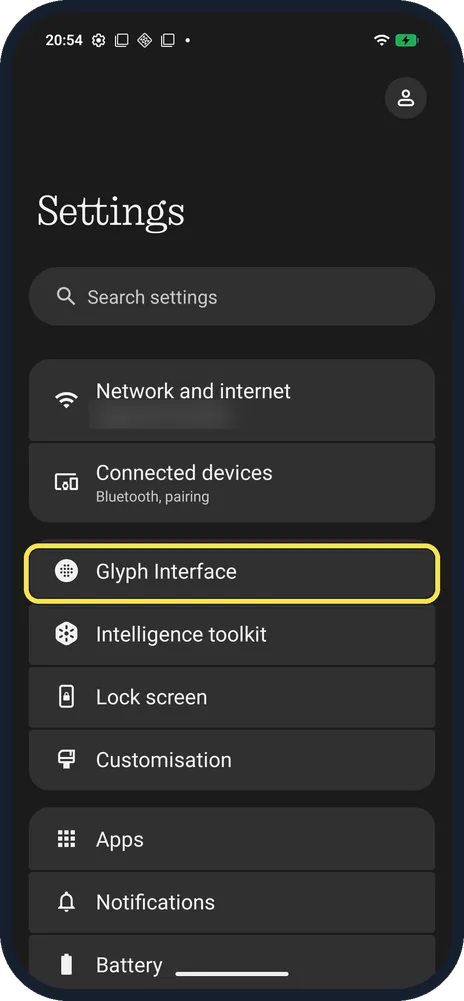
Open Glyph Interface
Open Settings; it is the third row, under Connected devices.
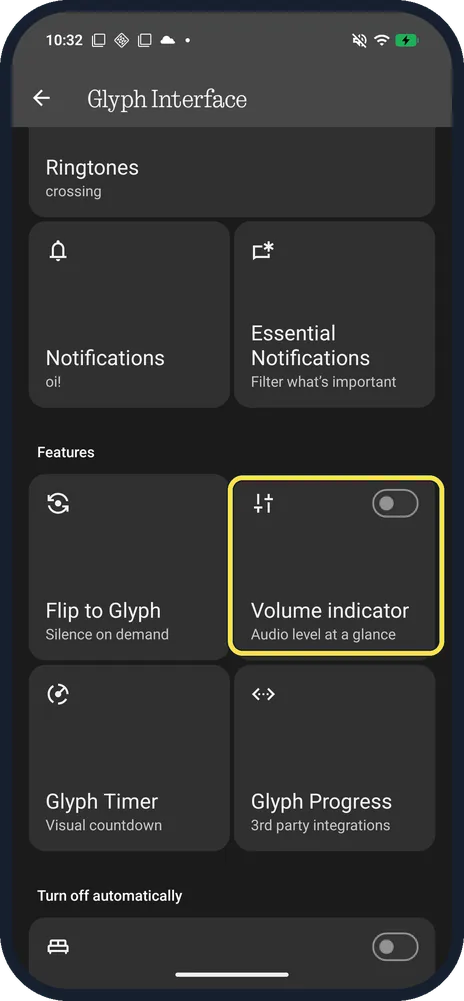
Tap Volume indicator
Under Features: Audio level at a glance.
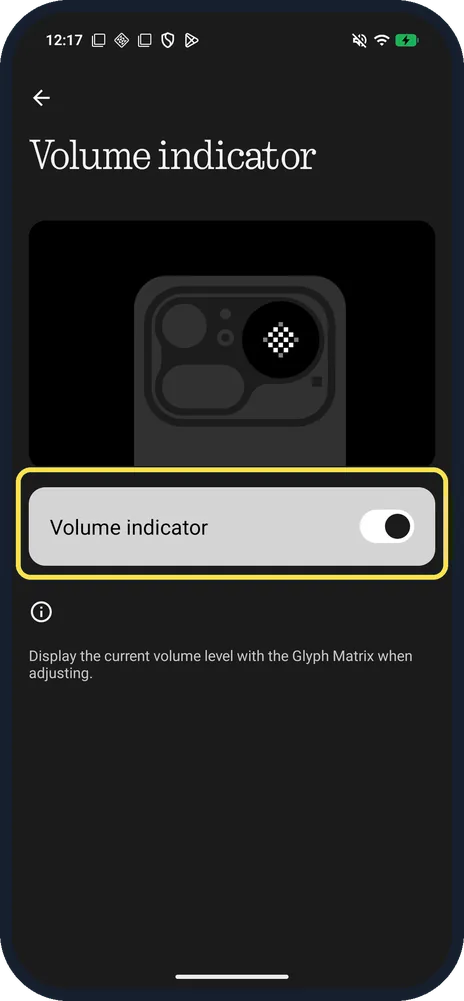
Turn on Volume indicator
The page says: Display the current volume level with the Glyph Matrix when adjusting. Ours was off; we turned it on for this shot, then off again.
If you do not see this option
- On Nothing OS 5.0? Nothing says 5.0 adds a Glyph App that lets you control all Glyph settings in one place, so Volume indicator may sit there rather than in Settings. Source: Nothing OS 5.0
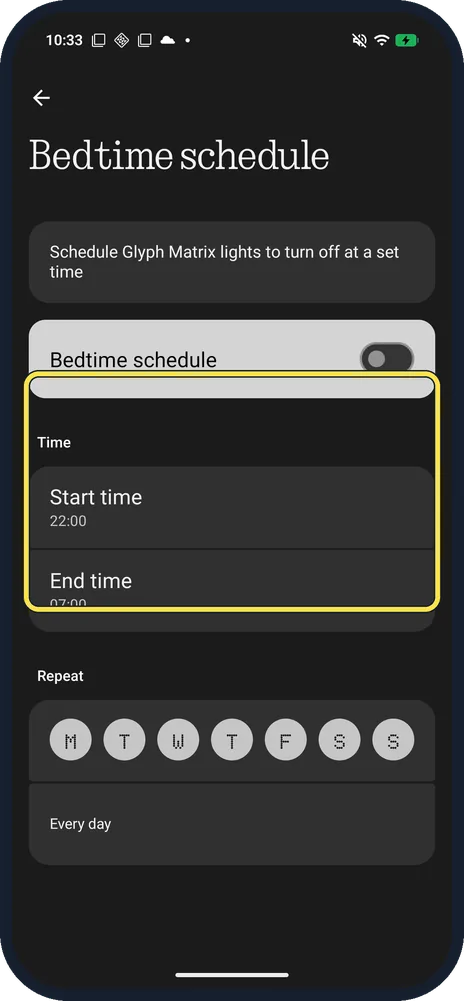
- Lights at night? Bedtime schedule at the bottom of Glyph Interface turns the lights off at set times. Ours: 22:00 to 07:00, every day, switched off.
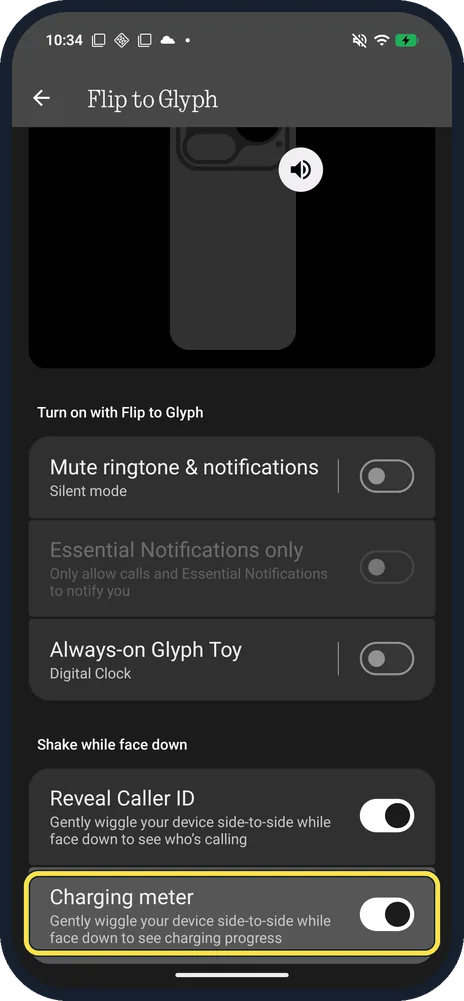
- Charging level on the back? Charging meter is in Flip to Glyph, under Shake while face down: gently wiggle the phone face down to see charging progress. Source: What is the Flip to Glyph feature?
If this does not work
- No lights at all? Turn the Glyph Interface on first; see turn on the Glyph Interface. Source: How do I turn the Glyph Interface on/off?
- Nothing lights up at night? Bedtime schedule turns the Glyph lights off at set times (ours offered 22:00 to 07:00). Check it is off, or try outside those hours.
- Too bright? Nothing says to slide the bar on the Glyph Interface page to set brightness. Source: How do I adjust the brightness of the Glyph Interface?
About this guide
The screenshots are from our Nothing Phone (4a) Pro, the European model A069P, with Nothing OS 4.1 and Android 16 (build FroggerPro-B4.1-260907-1153-EEA), in Dark theme. Volume indicator was off on ours; we turned it on to check, then off again.
The step 1 screenshot was taken earlier, on build FroggerPro-B4.1-260424-1447-EEA.
Good to know
To silence the phone face down, see Flip to Glyph.
In short: Settings, Glyph Interface, Volume indicator, switch on.
- Nothing Support: How do I turn the Glyph Interface on/off?
- Nothing Support: How do I adjust the brightness of the Glyph Interface?
- Nothing Support: What is the Flip to Glyph feature?
- Nothing: Nothing OS 5.0
Links checked in October 2026. Menus and features can change after software updates. These steps match the version named at the top.
Did this guide work for you?
Sorry about that. What happened?