XIAOMI REDMI
How to hide or show status bar icons on a Xiaomi phone (HyperOS 3)

In short
Go to Settings, Notifications & status bar and tap Customise icon display, under Status bar. Turn a switch off to hide that icon, or on to show it. There are System icons such as Bluetooth, VPN and Alarm, and Connected devices icons such as Earphones.
5 of 5 steps show a real screenshot from our Redmi Note 15 Pro 5G. Each step was checked against the maker's own instructions, linked at the end.
Steps
- 1
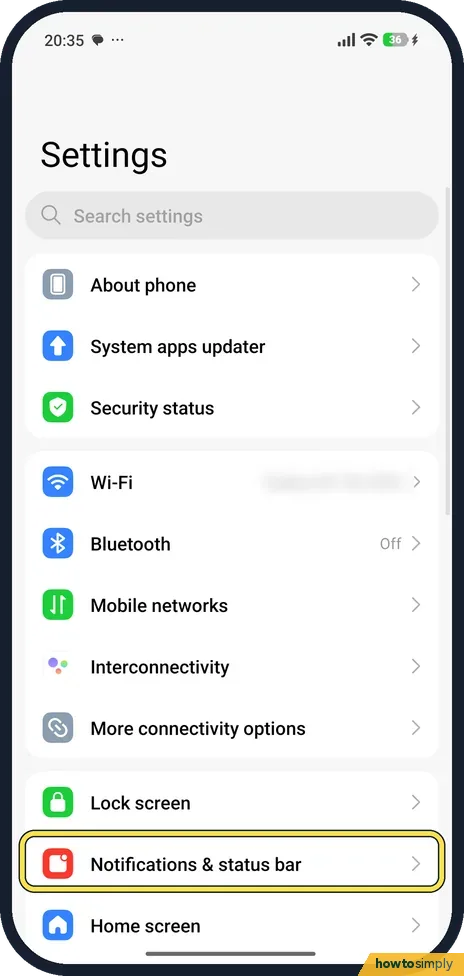
Open Notifications & status bar
Open Settings and tap Notifications & status bar, below Lock screen.
- 2
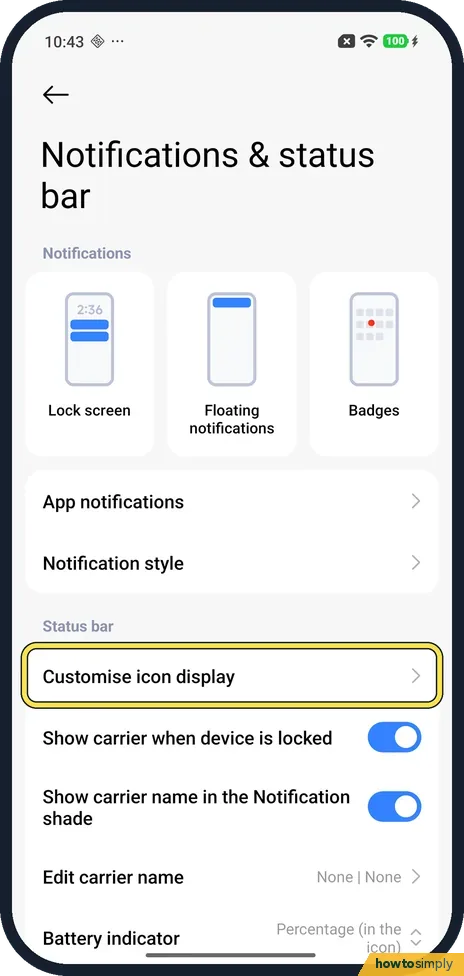
Tap Customise icon display
Scroll to Status bar. Customise icon display is its first row. Tap it.
- 3
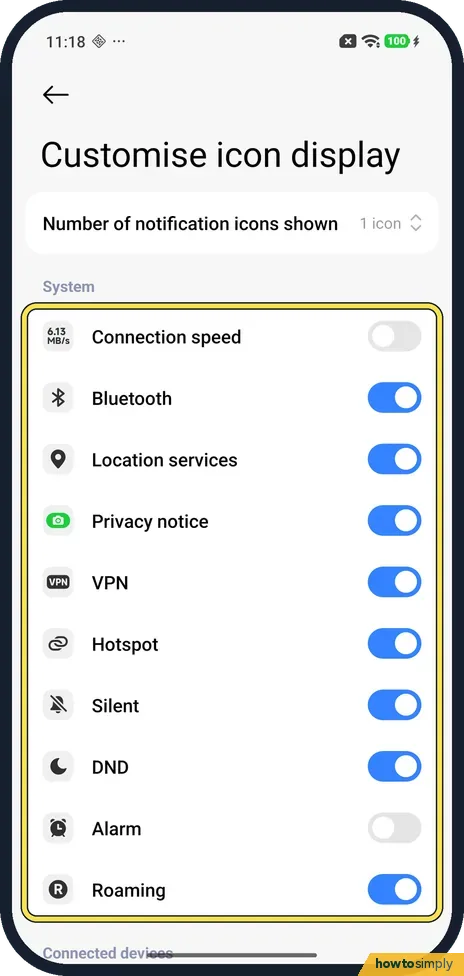
Hide or show System icons
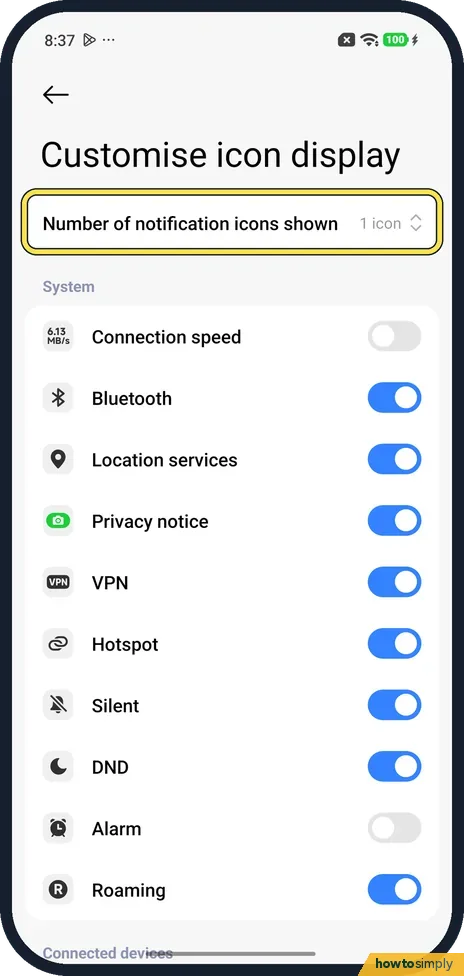
Under System, each icon has a switch: Connection speed, Bluetooth, Location services, Privacy notice, VPN, Hotspot, Silent, DND, Alarm and Roaming. On ours all were on except Connection speed and Alarm. Turn a switch off to hide that icon.
- 4
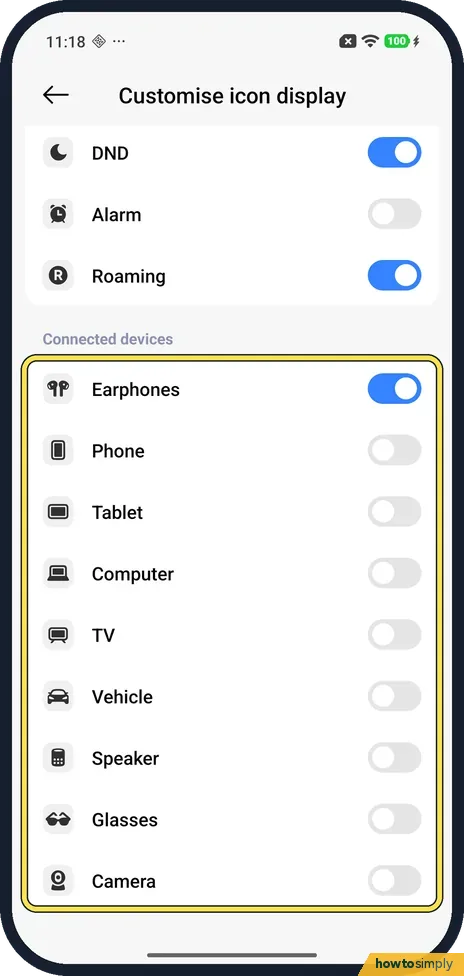
Connected devices icons
Scroll down to Connected devices: Earphones, Phone, Tablet, Computer, TV, Vehicle, Speaker, Glasses and Camera. Only Earphones was on, on ours. Turn a switch on or off to show or hide that icon.
- 5
Number of notification icons shown
At the top of the page is Number of notification icons shown. Ours said 1 icon. Tap it to change the number.
If you do not see this option
- Spelt Customize icon display? Xiaomi's HyperOS 3 guide spells it Customize and says to tap the switch beside a notification icon to display it. On ours it was Customise icon display, the first row under Status bar. Source: Generic User Guide for HyperOS 3.0
- An icon isn't in the list? Xiaomi's guide says that because functions vary among models, some notification and status icons may not be available on yours, and the network icon may vary with your region and provider. Source: Generic User Guide for HyperOS 3.0
If this does not work
- Icon still there after turning it off? Check you turned off the right one: Silent and DND are separate switches, and so are Bluetooth and the Earphones icon under Connected devices.
- Battery or carrier name? Those aren't on this page. See how to show battery percentage and how to show, hide or edit the carrier name.
- Want the network speed? Connection speed is the first System switch; it was off on ours. See how to show network speed in the status bar.
- Notification icons missing? If you see fewer app icons than expected, Number of notification icons shown at the top of the page limits how many appear. Ours was set to 1 icon, so raise the number to see more.
Good to know
Xiaomi's guide says notification icons and status icons tell you about new events and the phone's status, and that you swipe down from the upper left to open the notification panel and see the notifications.
Also on Notifications & status bar: badges and floating notifications and the notification shade style.
Hiding icons has no effect on battery or data, and every switch can be turned back on at any time. Xiaomi's HyperOS 3 guide also lists separate indicators for a microphone or camera in use, which tell you when an app is recording.
About this guide
- Device
- Android
- Shown on
- Xiaomi Redmi Note 15 Pro 5G (25080RABDG), HyperOS 3.0.308.0, Android 16
- App
- Settings
- Path
- Settings › Notifications & status bar › Customise icon display
- Real screenshots
- 5 of 5 steps
- Checked
- October 2026
- Sources
- 1 official, linked below
Sources
Links checked October 2026. Menus and features can change with updates.Spotted a mistake? Menus change with updates, and we want every step to match your screen. Email us about this page or use the contact form. We read every report, and fixes are listed on What changed.
Liked this guide?
Follow us for new guides and short how-to videos.
Did this guide work for you?
Sorry about that. What happened?